Workspaces
Screenshots use fictional demo accounts and fixed example metrics, not live systems or qualification evidence.
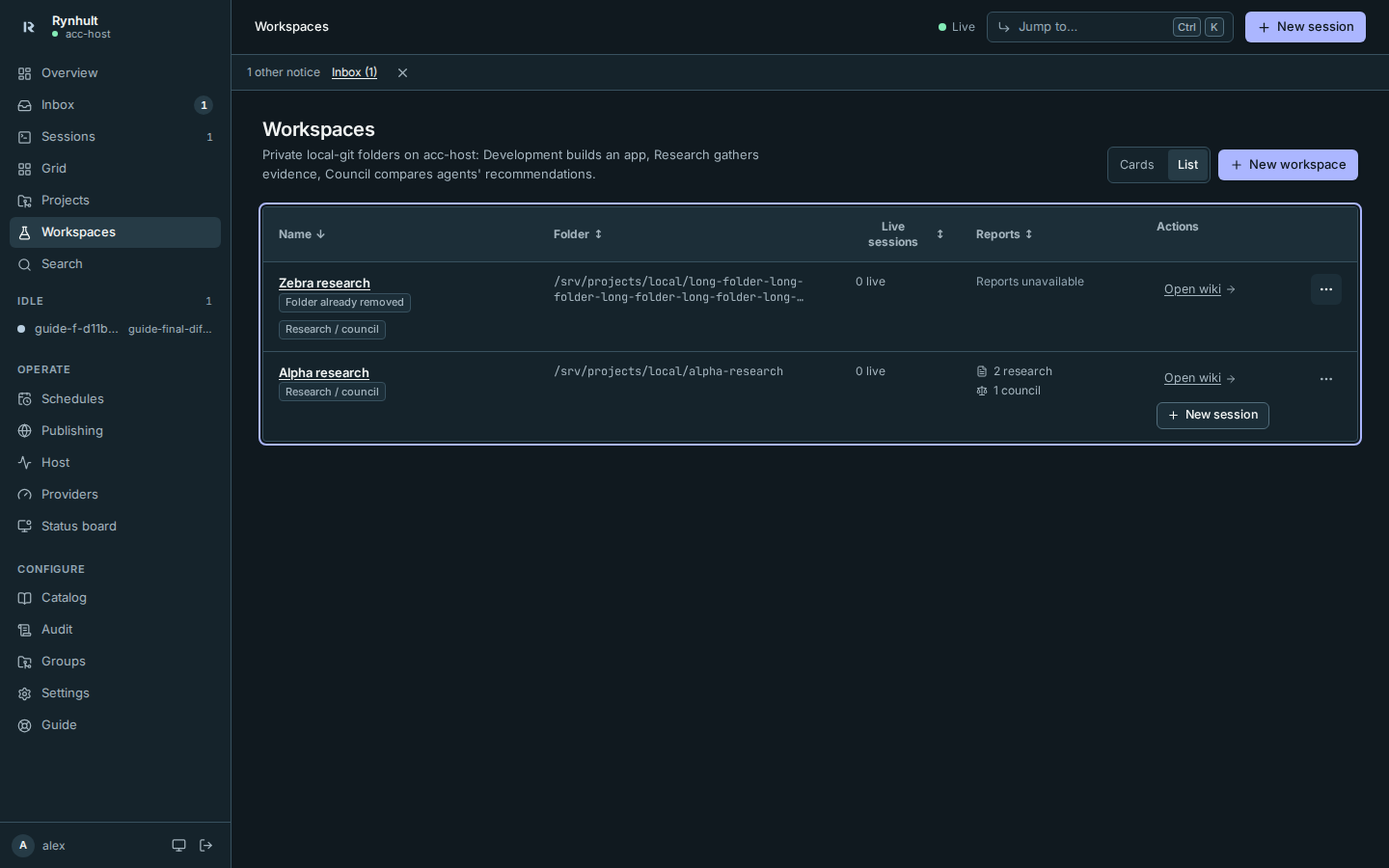
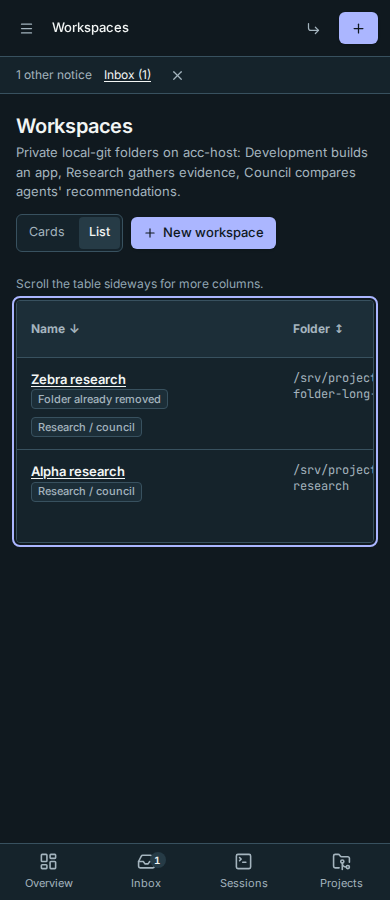
Use Cards or List at the top to change the layout. List uses the same sortable table as Projects, with columns for name, folder, live sessions, reports and actions. Select a sortable heading to reverse its order. All workspace menus remain available; removed folders keep their warning and cannot start a new session. On a phone, swipe the table sideways for more columns, or focus its region and use the arrow keys. Your choice is remembered in this browser for your signed-in viewer, separately from Projects. The control works with arrow keys, Home and End, and wraps on a phone.
A workspace is a private folder with local git history. Choose Development for a private development environment with project capabilities, or Research / Council for sessions sharing findings and reports. Rynhult adds no remote repository. Promotion to a project is a separate action. Members create workspaces in their own agent account.
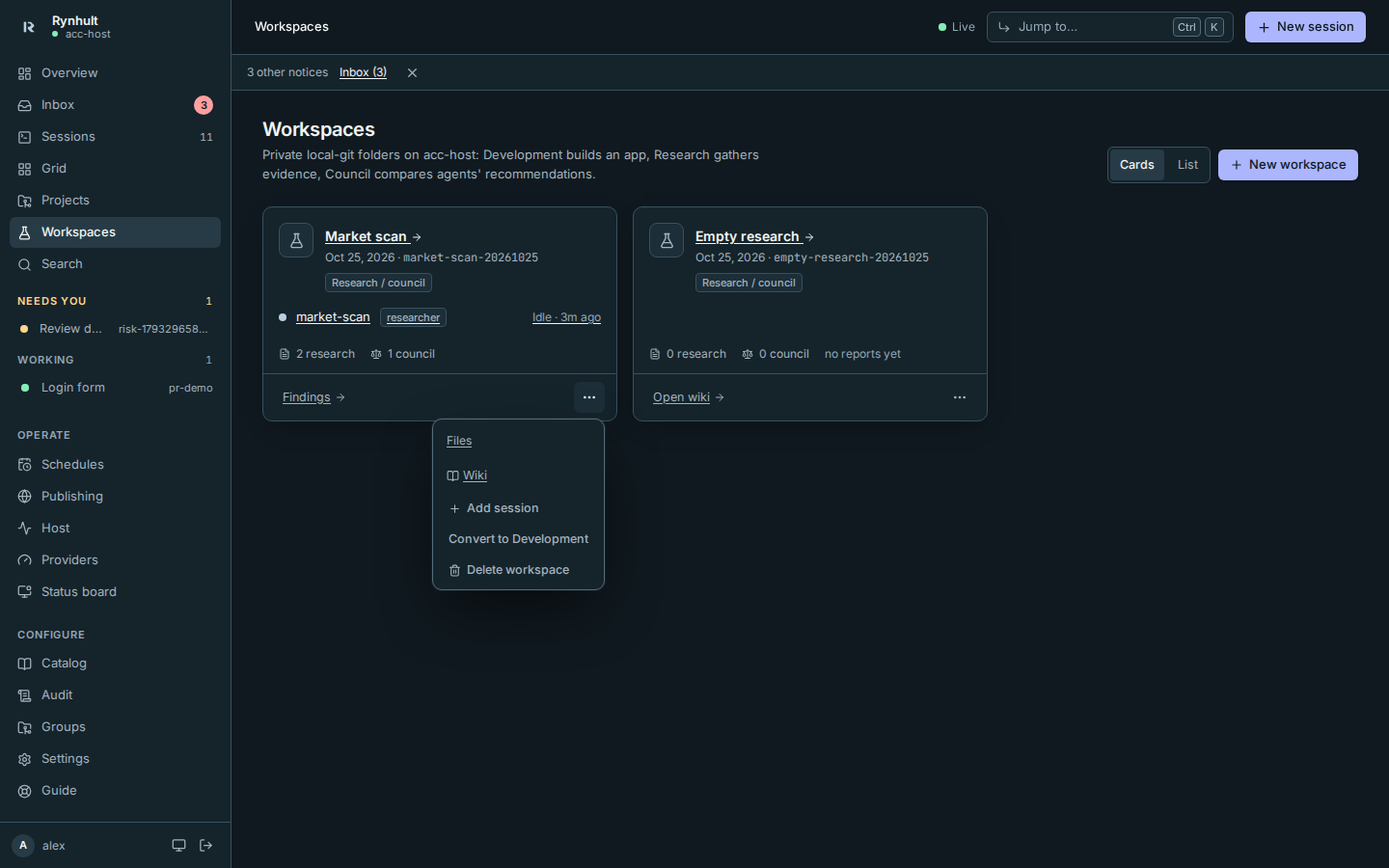
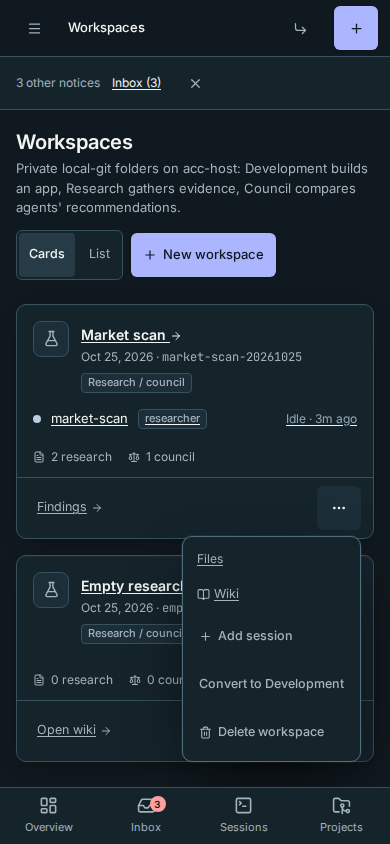
Research gathers evidence; Council examines a decision through several perspectives. With a suitable grant it uses managed helpers; otherwise its report is labelled single-session perspectives, not independent agents. A folder can hold both kinds of exported report. Cards label this kind Research / council, keeping Findings as the main action. The three-dot actions menu holds Files, Wiki, Add session, conversion and deletion.
Starting a Development workspace
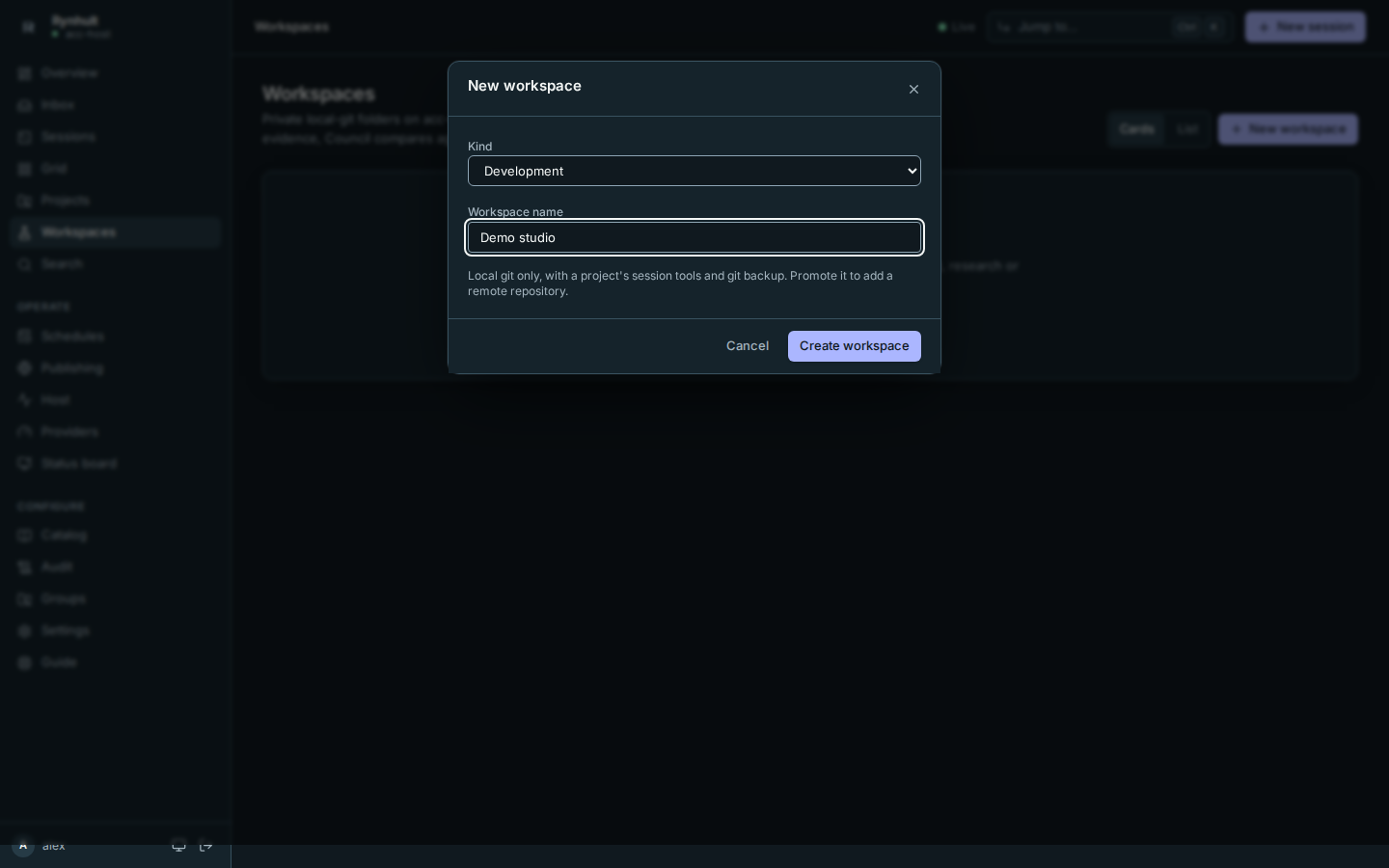
- Go to Workspaces, select New workspace, then choose Development under Kind.
- Enter a Workspace name, for example “Demo studio”. Select Create workspace.
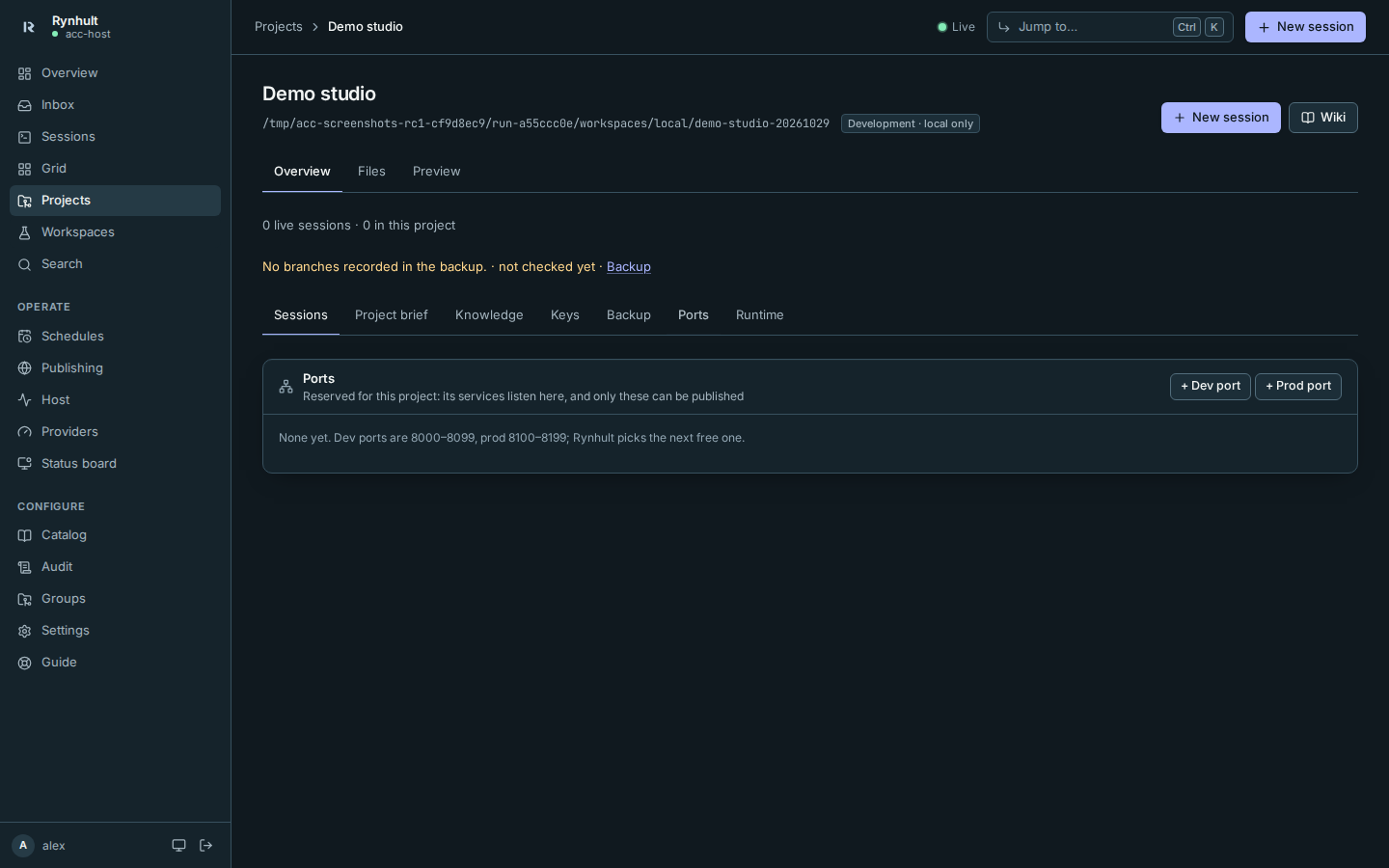
- The workspace detail page has Files, vault keys, reserved Ports, Git backup and the Docker stack. Owners review and approve compose files before Rynhult runs them, exactly as for projects. Git backup goes to the main Rynhult through its internal backup protocol; it adds no remote and is separate from publishing to a repository. Budgets apply to session launches as usual.
- Select New session, give it a Name, choose the agent and profile, and select Launch. Every Development session gets its own git worktree and branch. Its Changes and Files tabs operate on that worktree. Files includes live Markdown preview; the launch dialog also previews the command and delivered keys.
- Return to Workspaces, open the card's three-dot actions menu, and select Add session to start another isolated session. Open the workspace name for its detail page, or Files in the menu for the main local checkout. The workspace appears even before its first session.
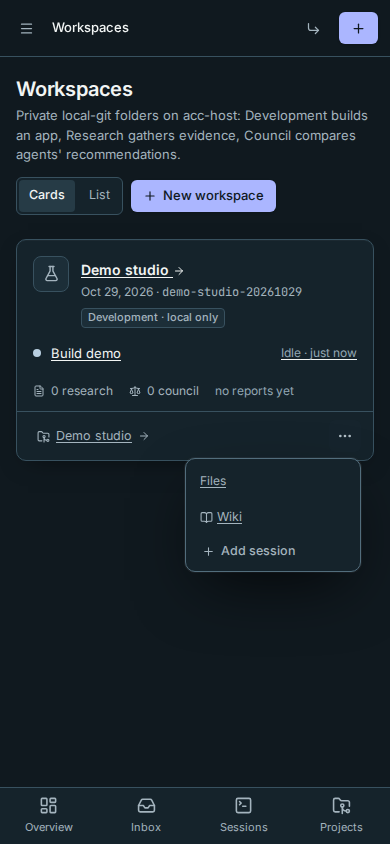
You should see a Development · local only badge. Git starts on main with an initial commit and no remotes. Commit on local branches. Guardrails refuse pushes, adding or changing remotes, and remote repository creation in these sessions, even when the optional instance rules are off. Issue and pull request views are hidden.
Starting a Research / Council workspace
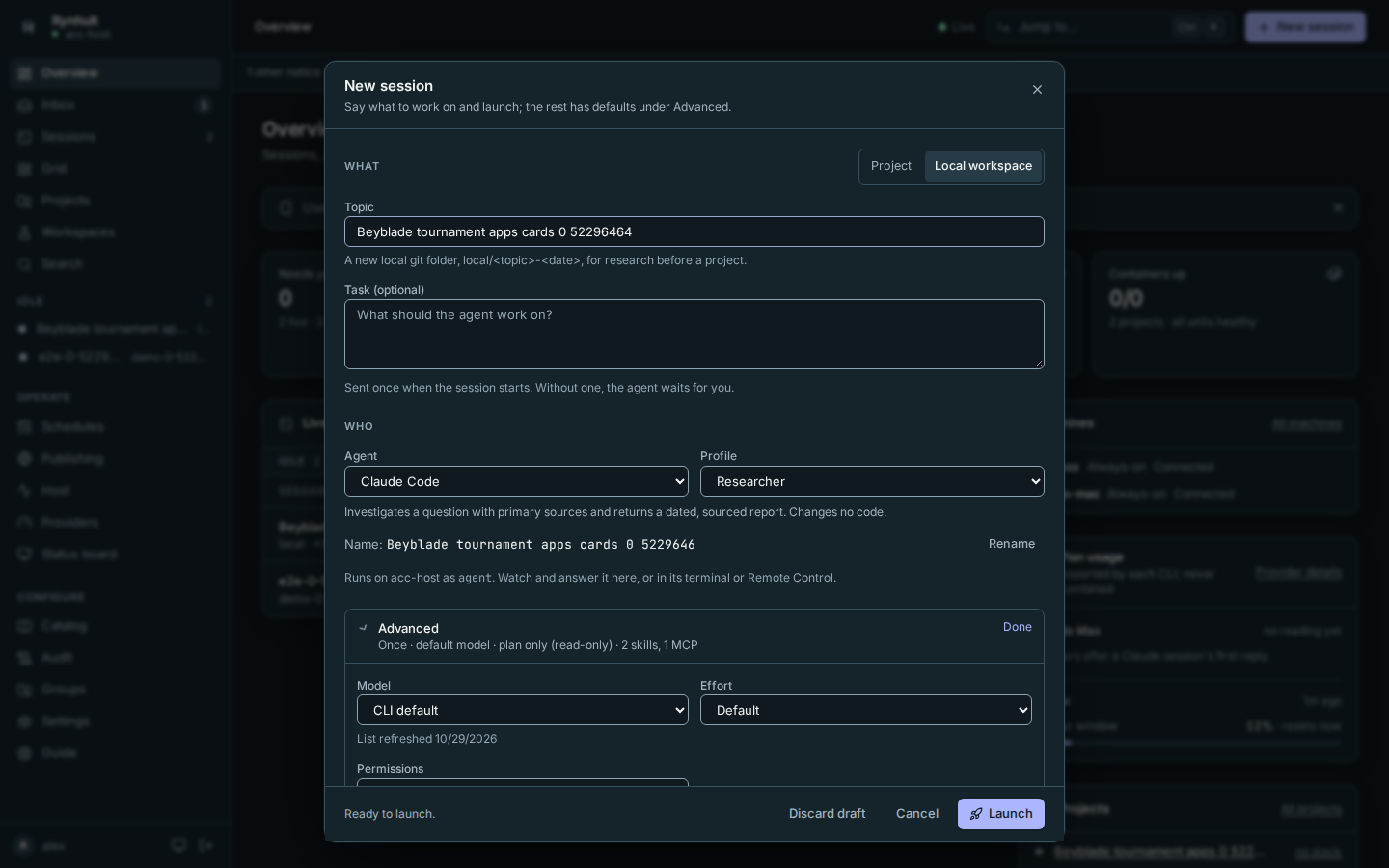
- Go to Workspaces, select New workspace, choose Research / Council, then Choose session (or go directly through New session → Local workspace).
- Enter a Topic, for example "Tournament scheduling apps". Rynhult creates the folder
local/<topic>-<date>, initialises git and trusts it. - Pick a profile that can run without a project. Researcher is the default; Council is the other built-in one.
- Select Launch.
Several sessions, one folder
Each Research / Council workspace card has Add session: it starts another session in the same folder. Development sessions use separate worktrees. A common pattern is to research first, then run a Council that weighs the research and gives a go/no-go verdict.
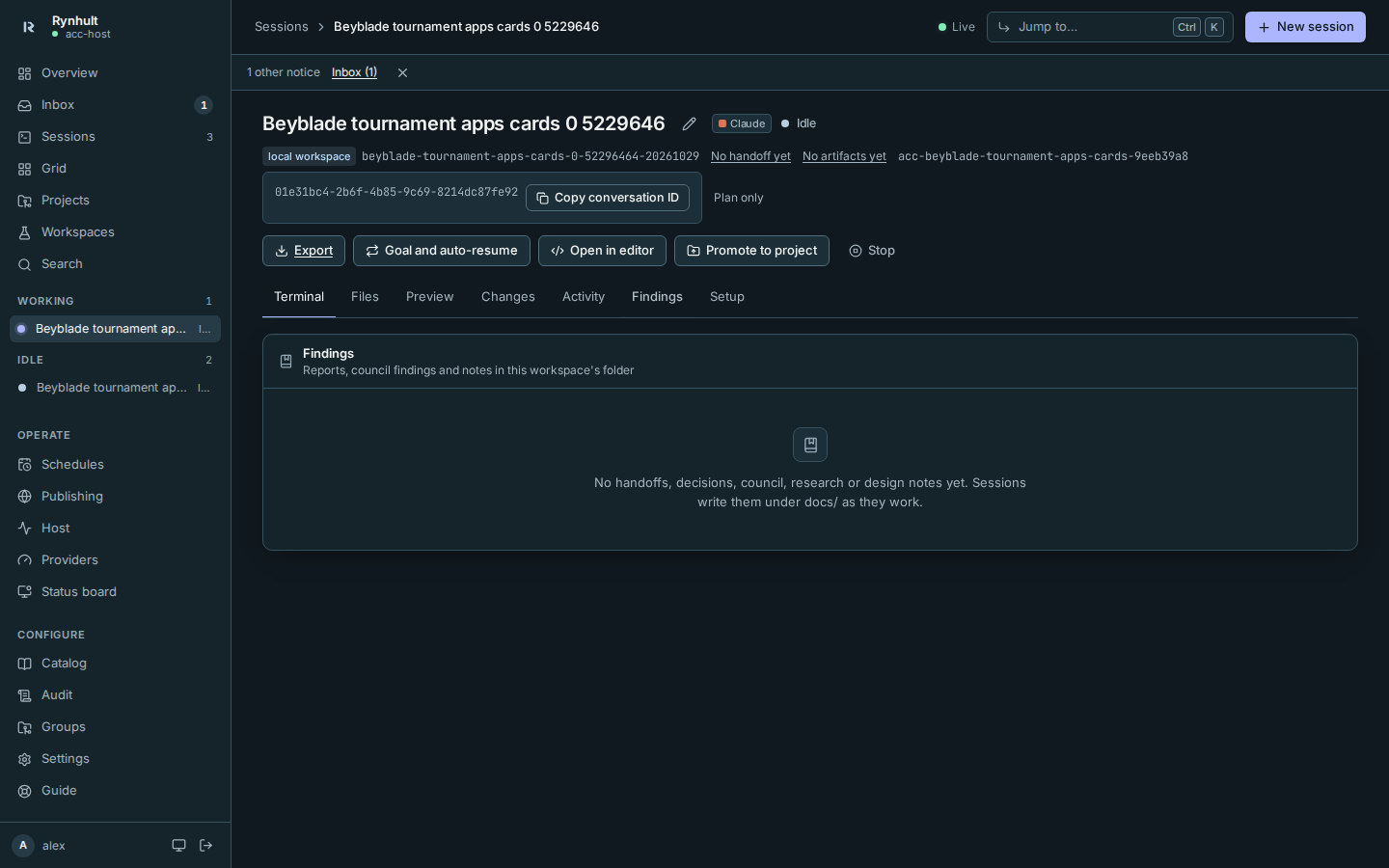
Findings
A workspace session's Findings tab lists files under docs/research/,
docs/council/ and docs/handoffs/. Read-only Researcher and Council sessions
return findings through the available report tool, or in the session when no
report tool is available; they do not need filesystem write permission to give
you their conclusions. A permitted writer can export reports into these folders.
Server-side reports are not automatically files in this tab.
Select a file to read it. If the folder can't be read, an error with Retry
shows instead of an empty list.
Converting an existing workspace to Development
An owner can convert a Research / Council workspace from its card using Convert to Development. Stop its sessions first, then confirm Convert. The files and history stay in place. Remove any existing git remotes before converting. Start new sessions afterwards: older sessions cannot resume because their original launch policy did not enforce local-only development.
Promoting a workspace to a project
When the idea is worth pursuing, open one of its sessions and select Promote to project. The suggested name keeps the numbers in your topic; only the folder’s appended creation date is removed. The card’s actions stay at the right edge when a long project name wraps.
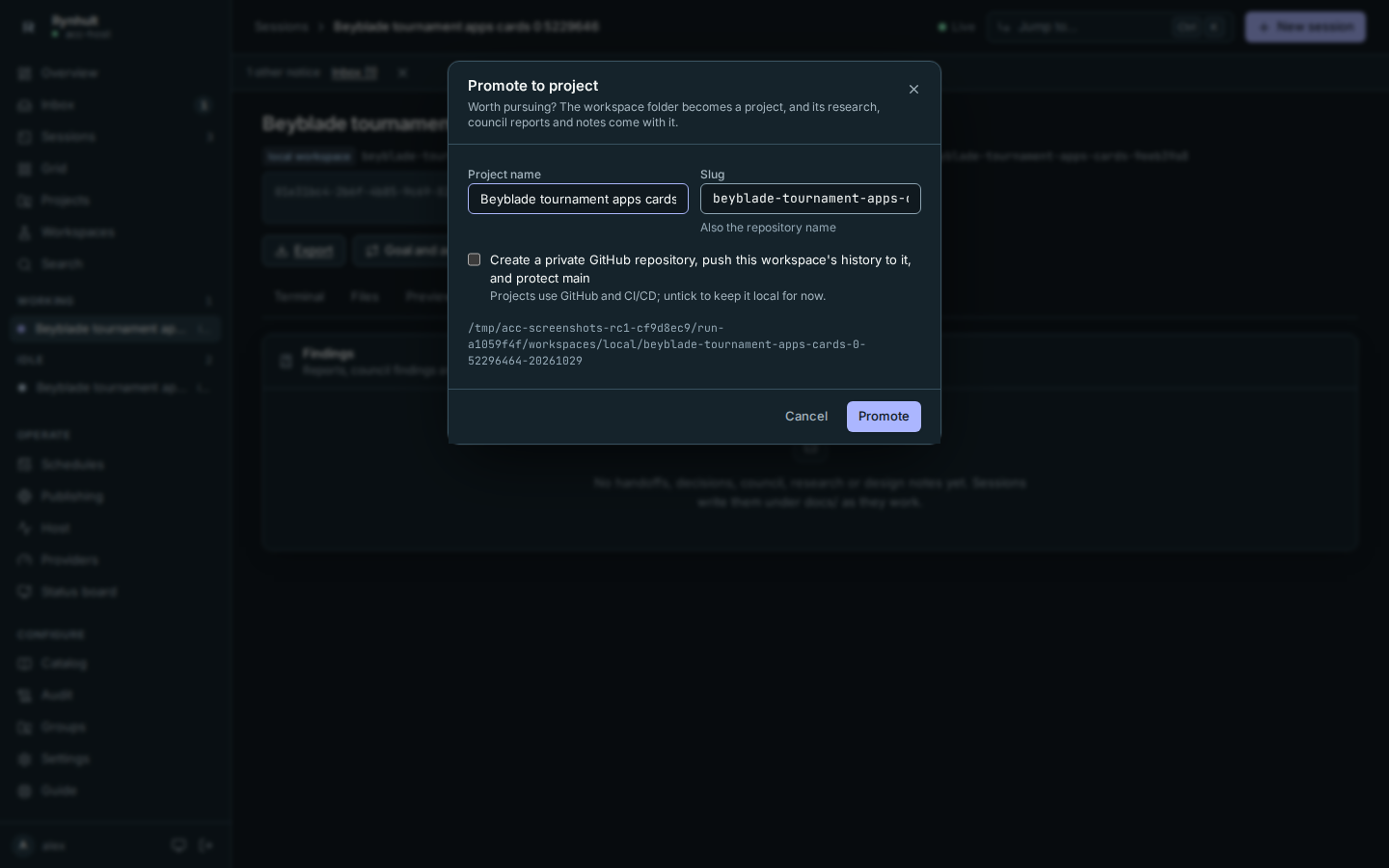
- With GitHub (default): Rynhult creates a private repository, pushes the workspace's history to it, protects
main(changes land through pull requests), and registers the project. Tick the confirmation first; creating a repository is recorded in the audit log. - Local only: untick the GitHub option to register the folder as a project now and add a repository later.
The suggested project name and slug keep numbers in the topic. For example, Market scan 12345678 keeps 12345678 when promoted; only the generated folder date and any collision counter are removed. Review or edit Project name and Slug before selecting Promote.
Development promotion reuses its record, retaining ports, vault grants, compose approval and git backup history. Existing Development sessions keep their stricter launch policy; new project sessions use normal project rules. The research, reports and notes come with it. The project's slug can't be local or start with local-: those belong to Rynhult's own Local workspaces groups.
Deleting a workspace
Deletion, conversion, promotion and starting or resuming sessions in the same workspace run one at a time. If another operation changed or removed the workspace first, reload Workspaces or Projects before retrying. When an idea is a dead end, open its card's three-dot actions menu in Workspaces, select Delete workspace, type the folder name to confirm, and select Delete workspace. Rynhult stops and archives the workspace's sessions (they stay in the session history), then deletes the folder: research, council reports, notes, wiki and its local git history. This can't be undone. Cancel changes nothing and returns focus to the actions button.
Development workspaces and workspaces promoted to projects have no folder-delete option on this page. Registering a local workspace through a symlink uses its real folder identity, so it also stays protected from workspace deletion. Registration requires the owning account’s agent service to be available and up to date.
Older workspaces may have sessions that ran as the owner's own machine account. Folder cleanup uses your agent account's existing workspace permissions. If that account cannot remove the folder, ask the owner to remove it using the original account, then retry. A still-active older session that the session service cannot stop must be stopped on its original account and archived before retrying; Rynhult does not grant broader permissions to remove it.
If a workspace's folder has already gone, its card says Folder already removed. Choose Remove from list, type the folder name and confirm. This archives its sessions and detaches their missing folder reference; session history remains. No files are deleted. Missing folders are checked on the server; a permission error or a dangling symlink is not treated as a removed folder. The removal is recorded in Audit as already removed.
Files and editor
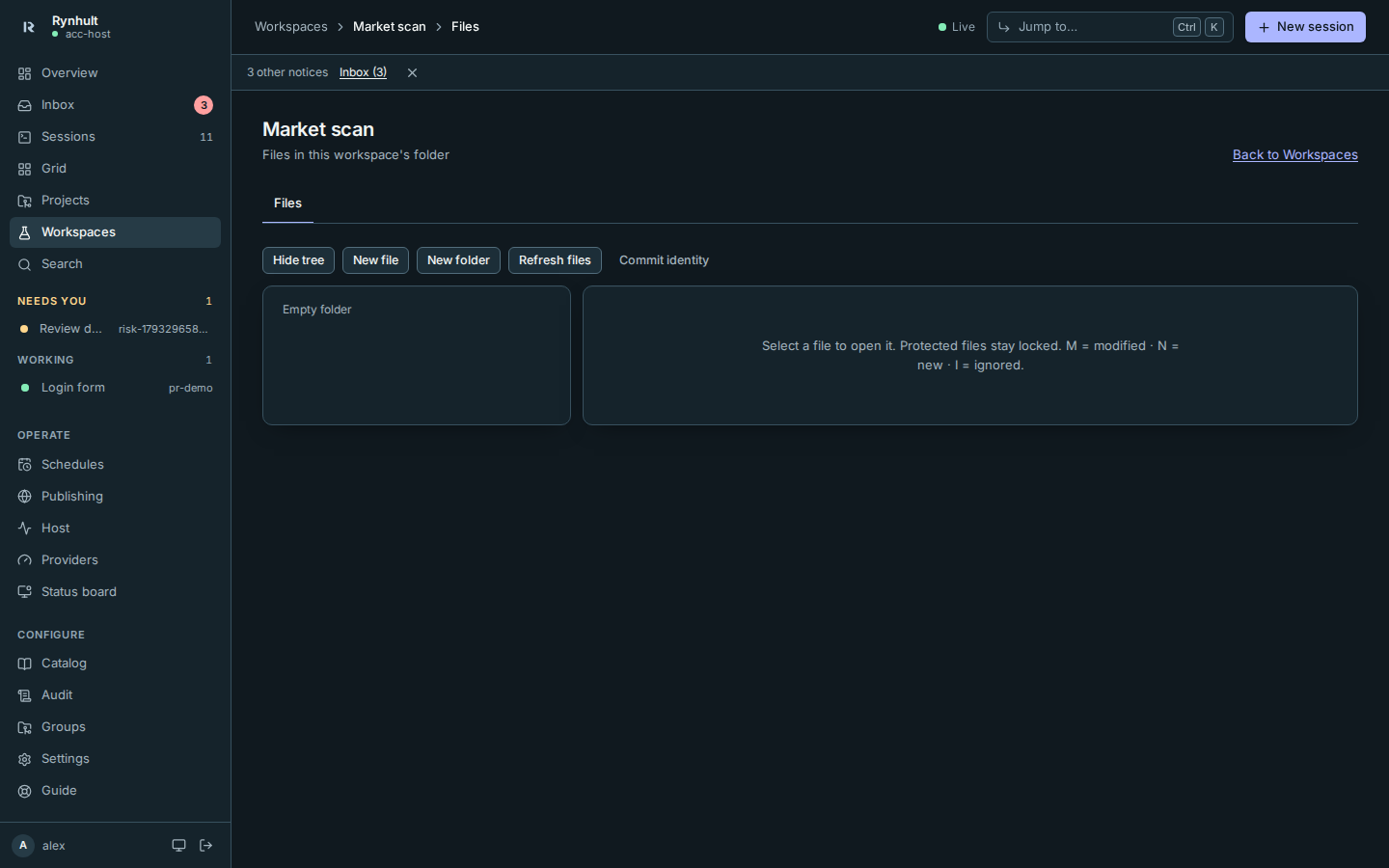
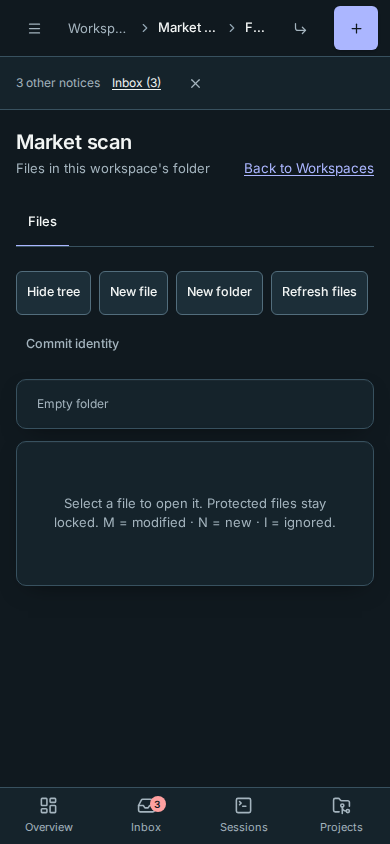
Select Files on the project page or in a workspace card's actions menu to browse folders, edit Markdown with a live preview, save files and optionally commit locally as yourself. The Files page and breadcrumb use the readable workspace name, for example Market scan, rather than its dated folder slug. A session’s Files tab opens its own worktree. See Files for conflicts, protected files and limits.
This page is generated from docs/wiki/User-Guide/Workspaces.md; the same page is under Guide inside Rynhult.