Notifications and the app
Rynhult can live on your phone's home screen like an app, and send push notifications when something needs you: a session waiting for an answer, a session that couldn't be resumed, a login about to expire, a failed CI run, an agent asking to publish a site, an Always-on machine offline past its threshold, or a problem on the host.
Install Rynhult as an app
In Settings, these steps are under Install Rynhult as an app, below Notification devices; select it to open them.
- iPhone or iPad: in Safari, tap Share, then Add to Home Screen, then Add.
- Android: in Chrome, open the menu and tap Install app (or Add to Home screen).
- Mac or PC: in Chrome or Edge, use the install icon in the address bar. In Safari on macOS, choose File → Add to Dock.
The app opens full-screen and always shows live data; nothing is cached for offline use.
This is the installed web app, not the separate standalone desktop developer slice. It still needs the main Rynhult to be reachable; installing it does not create a local main or enable native Windows execution.
The browser-installed phone/desktop web app is included in v1.0's Linux-server scope. Native Windows, macOS standalone, Linux desktop, iOS and Android apps follow v1, one platform at a time; the order is not chosen yet. Existing native source is not a v1 app release. See platform scope.
Installing the app and notifications need a certificate the device trusts. If Rynhult has no Cloudflare zone, add its root to the device first: Settings → Certificate (see Install).
Turn on notifications
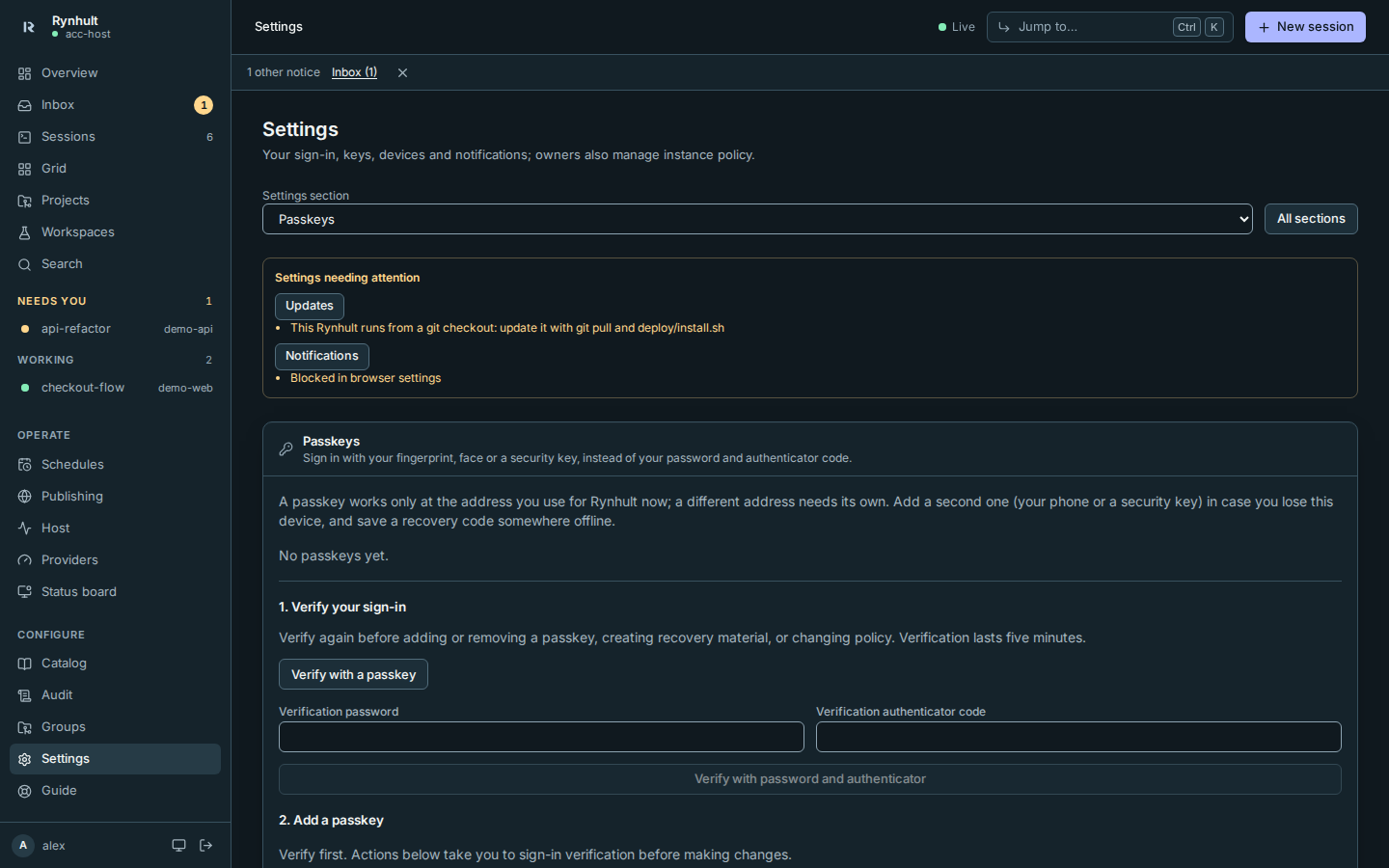
- Open Settings (in the sidebar, under Configure), then choose Notifications in Settings section.
- Select Turn on notifications, and allow them when the device asks.
- Select Send a test to check that the push service accepts a message. System notifications stay quiet while Rynhult is visible. To check background delivery, switch away from Rynhult before a new alert arrives.
On iPhone and iPad (iOS 16.4 or later) this only works from the Home Screen app: install it first, open Rynhult from the Home Screen, then turn notifications on there.
Tapping a notification opens the page it is about, such as the session waiting for you. A newer notification about the same thing replaces the older one. Rynhult does not request persistent system banners, even for critical alerts; the operating system controls their display duration. While a Rynhult window or installed app is visible, Rynhult suppresses system push banners and uses the compact Inbox status line and Inbox count instead. No alert or optional privacy invitation opens an overlay. Dismissing a system notification never resolves the underlying alert.
Notification devices
When the list is empty, Turn on notifications in that card opens the separate Notifications section.
Notification devices on the Settings page lists every device that receives notifications, with when it last received one. Removing one only stops its alerts; it does not revoke that device's access to Rynhult. To stop a device signing in, revoke it under Access devices (the card links there). Remove a device with its bin icon, or select Turn off on this device on the device itself. Devices that uninstall the app or revoke permission are removed automatically. If Rynhult can't read the list, the card says so with Retry instead of showing an empty list; a removal that fails says why on the card.
Privacy
Each notification is encrypted for one device. The push service (Apple, Google, Mozilla or Microsoft) relays it without being able to read it. Rynhult only sends to those services.
This page is generated from docs/wiki/User-Guide/Notifications-and-App.md; the same page is under Guide inside Rynhult.