Projects
Screenshots use fictional demo accounts and fixed example metrics, not live systems or qualification evidence.
Use Cards or List beside the filters to change the layout. List is a columned table with the project name, repository and folder, live sessions, compose status, autostart and actions. Select a sortable heading to reverse its order; the active heading announces ascending or descending order. The filter and Show archived still apply, and read-only projects keep their badge. On a phone, swipe the table sideways to reach the other columns; keyboard users can focus the table region and use the arrow keys. Your choice is remembered in this browser for your signed-in viewer, separately from Workspaces. Focus the control and use arrow keys, Home or End to switch.
A project is a folder on the host that your agent sessions work in, usually with a repository and sometimes a Docker (compose) stack.
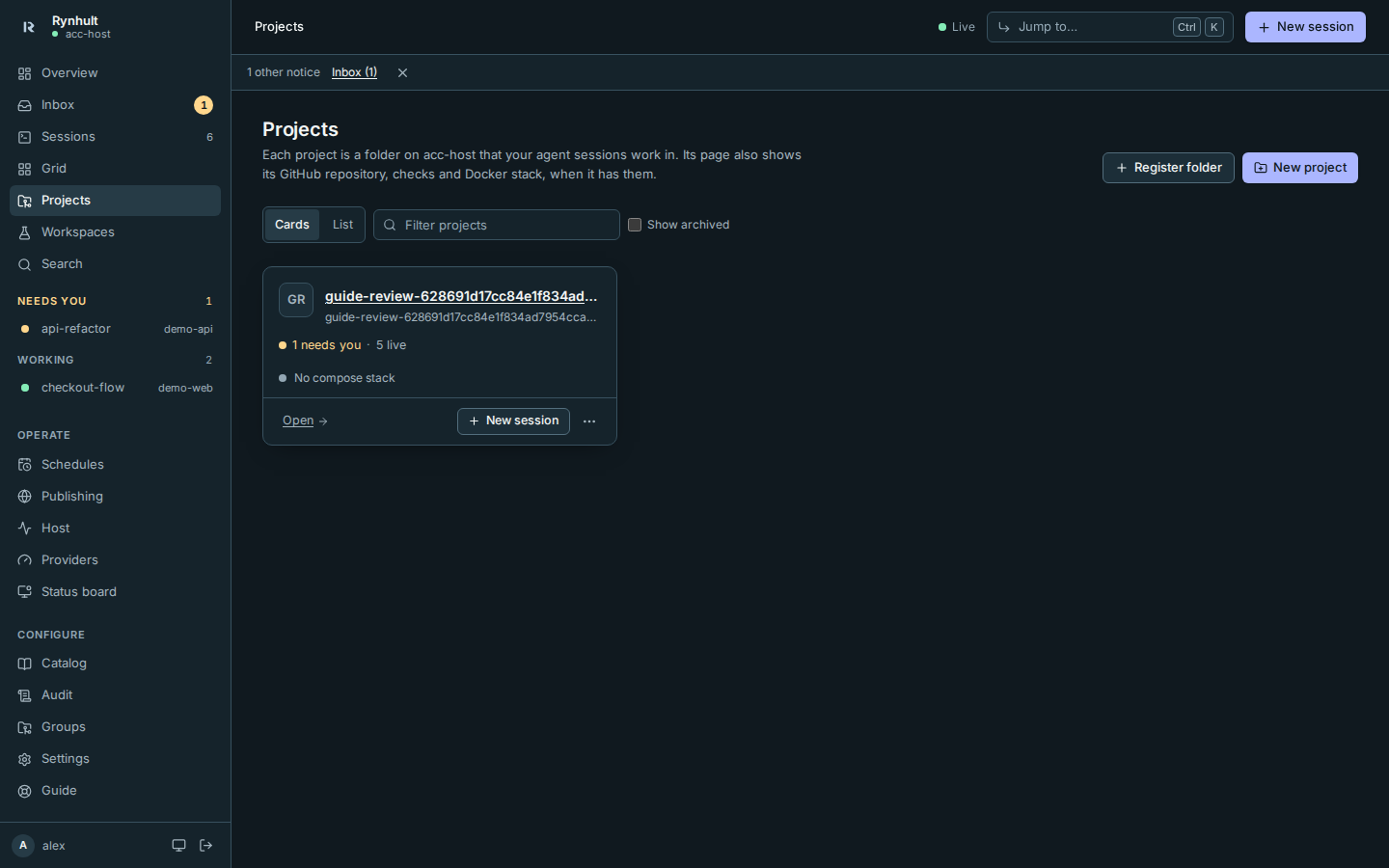
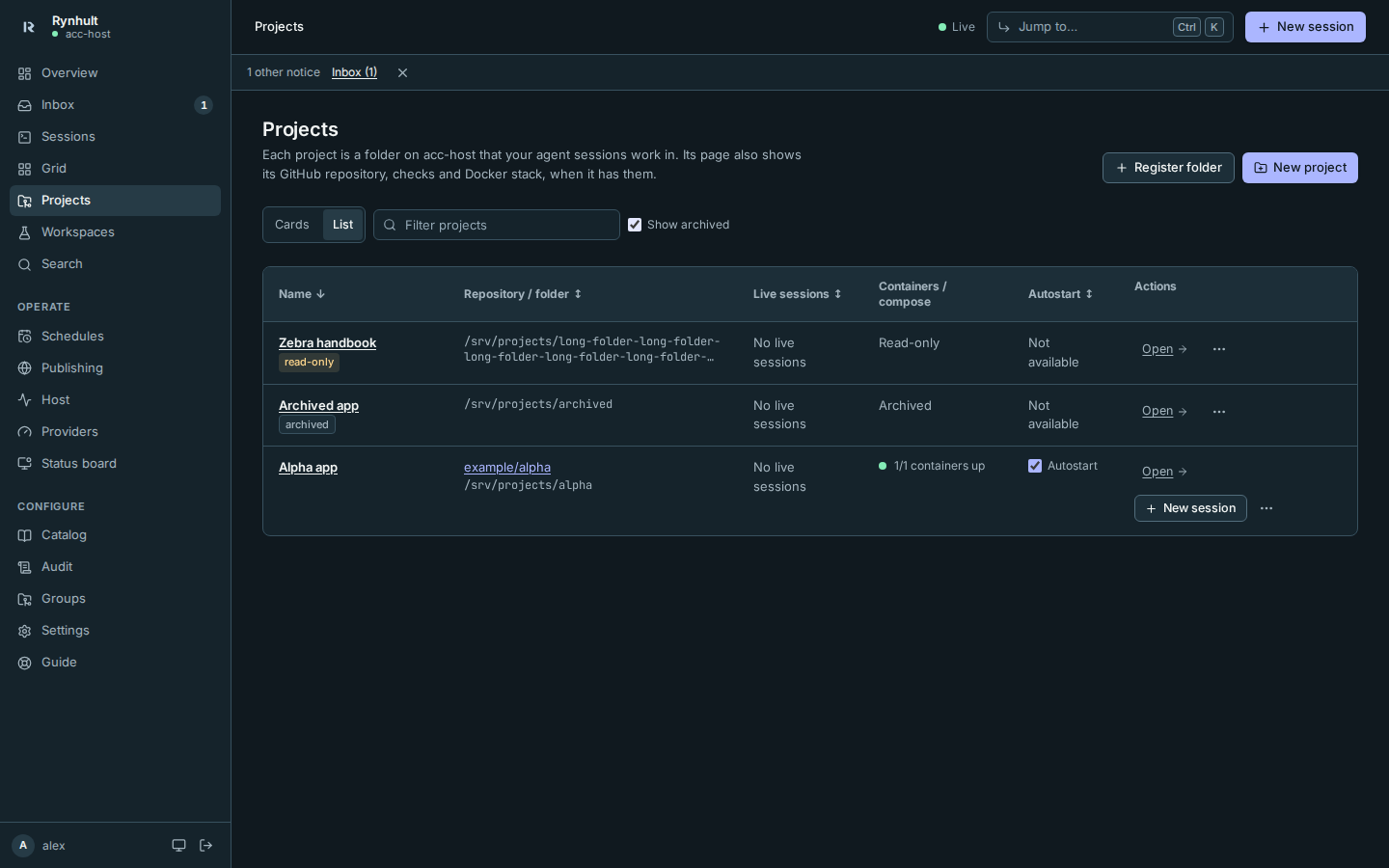
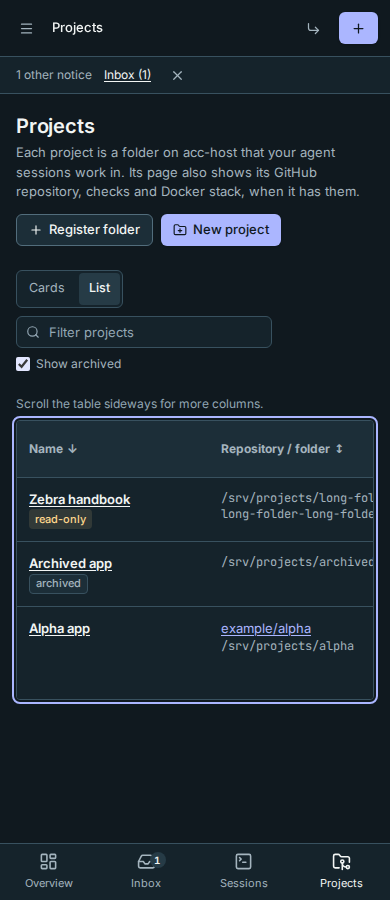
Each card leads with what is happening now: 1 needs you in amber, how many sessions are live, or No live sessions. Hover the name for the project's folder. Badges appear only for exceptions: not trusted, read-only or archived. New session on the card (and at the top of the project's own page) opens New session with the project already chosen.
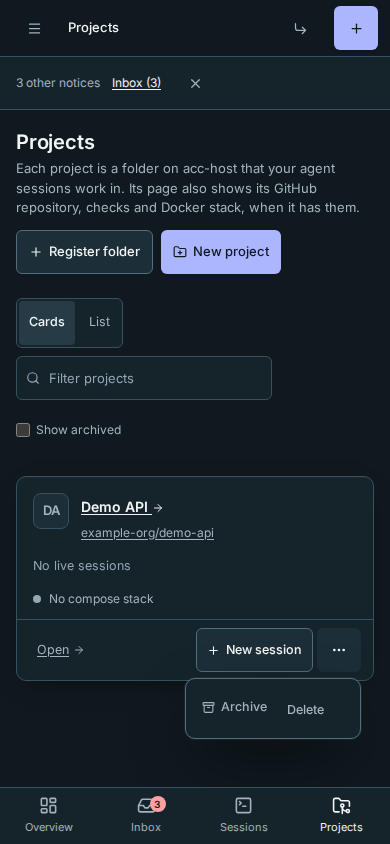
Archive is in the card's three-dot actions menu, not beside New session. It asks for confirmation and removes the project from launch lists without deleting its folder, containers or repository. Cancel leaves it unchanged and returns focus to the actions button.
Git author
In a project's Issues and pull requests section, Git author shows the name and email Git uses for commits. You can edit them there and select Save Git author. The change applies only to that repository and its session worktrees, and appears in the audit log.
When creating a new managed project or launching into one, Rynhult fills missing Git author settings from the project owner's displayed username and a generated noreply address. Existing settings, including account-wide Git settings, are preserved. Registering an existing folder records its path; missing author settings are filled through its workspace account when you launch a session. Rynhult does not change machine-wide or account-wide Git configuration.
Review Git author before publishing commits: the generated default name and noreply address include your Rynhult login name.
If automatic setup fails, the project and session can still be created. The audit log records a warning, and the session's Activity explains how to recover: open the project page, enter the Git author name and email, and select Save Git author before committing. Reconnect an offline machine first. Existing author settings are preserved. The generated first commit in an empty project keeps its existing initial author; later lead and helper commits use the project's Git author settings.
Adding a project
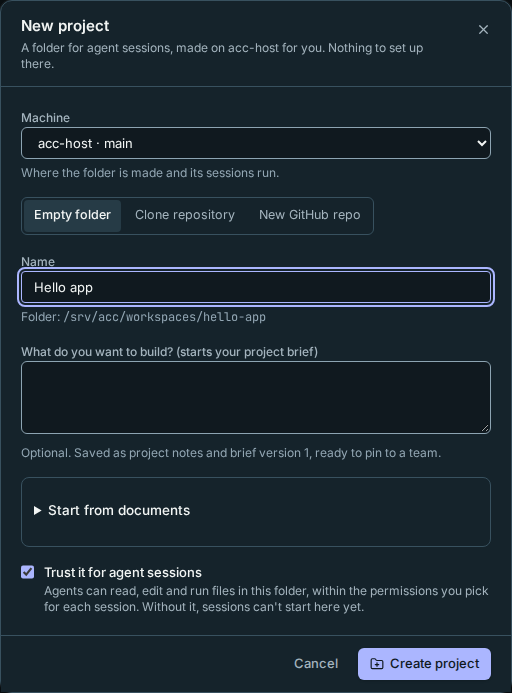
Select New project (on Projects, in the Overview's Get started list, or in New session when you have no project yet). Rynhult makes the folder for you in your workspaces folder, as <workspaces folder>/<name>, through your agent account (on this machine or, for owners, on another one). You never need a shell on the server for it, and you can't point it at another folder.
-
Machine (owners, once Rynhult has other machines): where the folder is made and its sessions run. The main machine is named explicitly, for example acc-host · main, in both New project and Register folder. On another machine, Rynhult makes the folder through that machine's connection, in the workspaces folder of its agent account there (for example
/srv/acc/workspaces/<name>on Linux,~/acc-workspaces/<name>on a Mac); the line under Name shows the exact folder before anything is made. If the machine has more than one agent account, choose one under Agent account. The machine must be connected; offline ones can't be picked. -
Choose what to start from:
- Empty folder. A new folder with git set up (no remote), a
README.mdanddocs/handoffs/. Rynhult makes the first commit of its generated files, so you can immediately start a session with Own worktree or With helpers. It uses the workspace account’s configured Git identity, falling back to Rynhult, and does not require commit signing. - Clone repository. Paste an HTTPS or SSH URL, for example
https://git.example.com/team/app.gitorgit@git.example.com:team/app.git, orowner/namefor GitHub. It's cloned as your agent account, with that account's own SSH key or GitHub sign-in (sign GitHub in on Providers). A URL with a password in it,file://and local paths are refused. - New GitHub repo (owners, when Rynhult has a GitHub token; on this machine only). A new private repository with
mainprotected, cloned and registered. Tick the box to confirm before anything is created on GitHub.
- Empty folder. A new folder with git set up (no remote), a
-
Enter a Name. The line under it shows the folder Rynhult will make. The name is also the project's slug (
Hello app→hello-app). -
To start from existing design files, expand Start from documents and choose Source documents. Files stay private and upload after creation: up to 10 files, 10 MiB each, 40 MiB total. Start a team to have its lead propose a cited brief for review; see Start from documents. You can leave the description blank.
Optionally fill in What do you want to build? (starts your project brief), up to 2000 characters. For every source, non-empty text becomes the project notes and Product or feature in saved brief version 1, attributed to you. Its initial suggested mode is Prepare. You can add detail and private references later in Project brief. A blank answer creates no brief. For New GitHub repo, the first 300 characters also become its GitHub description; the full text stays in the notes and brief.
-
Decide on Trust it for agent sessions (see Trust). It's ticked for an empty folder. For a clone it starts unticked: trust lets agents run with the repository's own config and hooks, so tick it only for code you know. You can also trust it later, when you start the first session.
-
Select Create project (or Clone and add, or Create repository).
What you should see: the project's card on Projects, and New session offers it. A project you didn't trust shows a not trusted badge until you do.
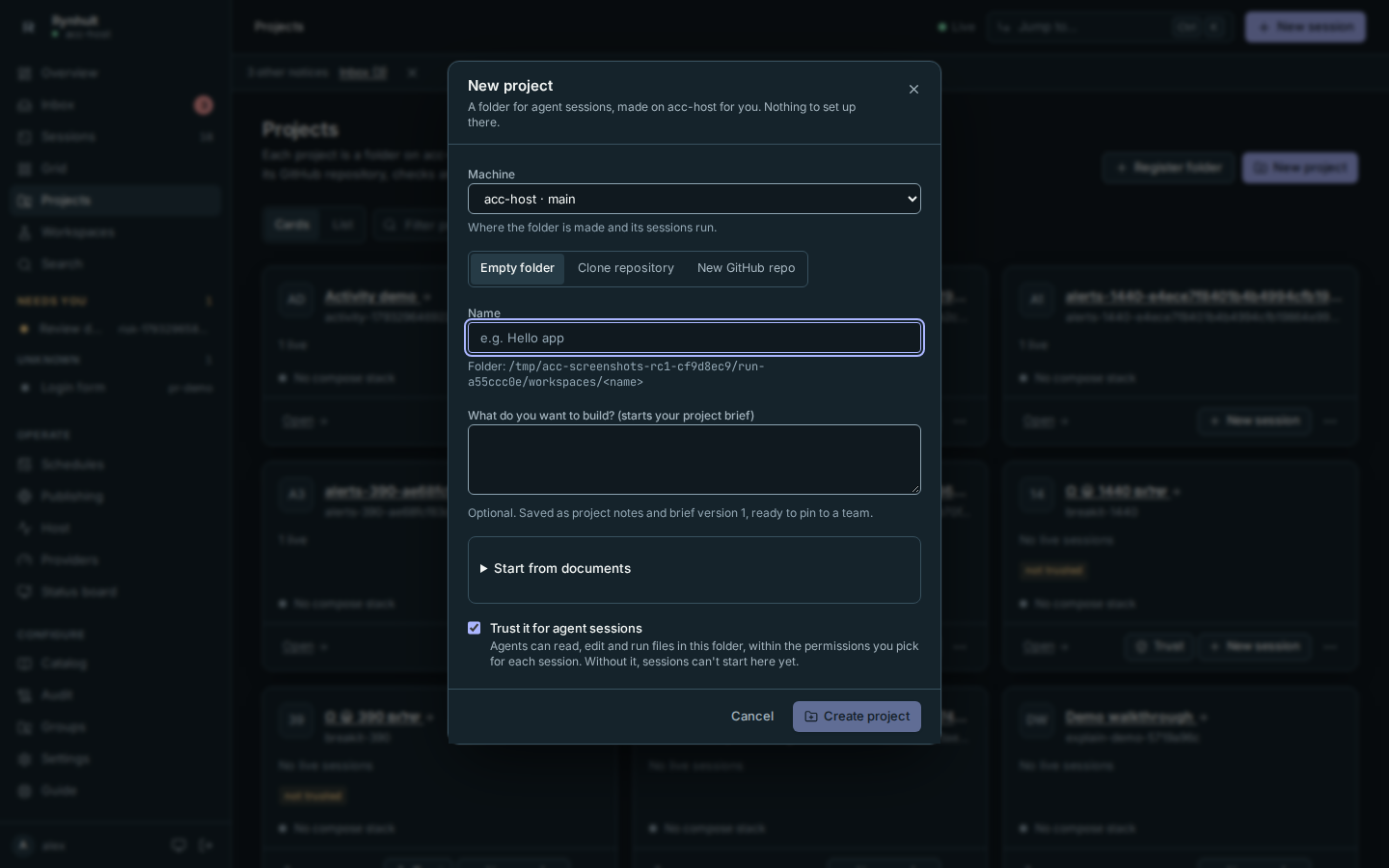
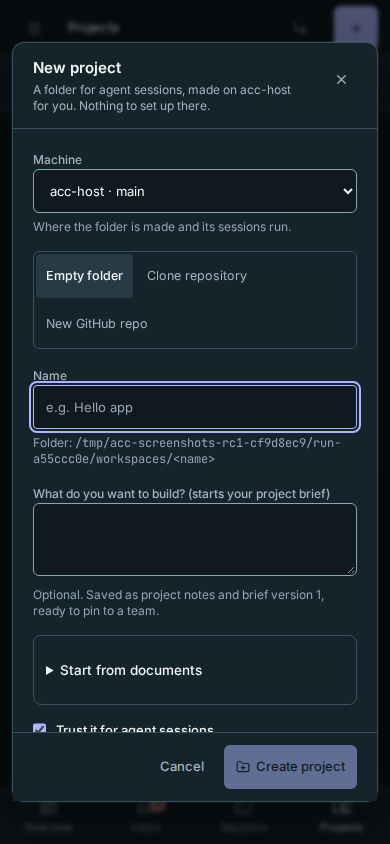
If it fails: the dialog says why and nothing is registered. already exists means a project or folder with that name is there: choose another name. clone failed quotes git: check the URL, and that your agent account can reach it (an SSH key, or GitHub signed in on Providers; on another machine, with that machine picked). … didn't answer means the machine went offline or its agent account's broker isn't running: check it on Host → Machines.
Register folder is the other way in: it registers a folder that already exists, without creating or moving it. Use it for a checkout you made yourself, or once a machine is added (see Nodes) for a folder on that Machine; the project's sessions run there. They run as your agent account on that machine; if the machine has other accounts and not yours, an owner picks one under Agent account.
Slugs are unique, and local and anything starting with local- are reserved for Rynhult's Local workspaces groups (see Workspaces).
Trust
Agents ask before working in a folder they don't know. Trusting a project records its folder as trusted for every agent CLI, so sessions start without that question. Rynhult never answers it by typing.
You can trust a project in three places:
- New project, with Trust it for agent sessions (ticked by default for an empty folder, unticked for a clone).
- New session: on a project that isn't trusted yet, the button reads Trust and launch. It asks once, names the folder, and then launches. What you entered stays if you cancel.
- Trust on the project's card.
The project page
The Overview tab starts with a compact summary and status line, then its own row of tabs, styled like Overview, Files and Preview above it. Select Preview to see a running web app on a listening reserved port (see Preview).
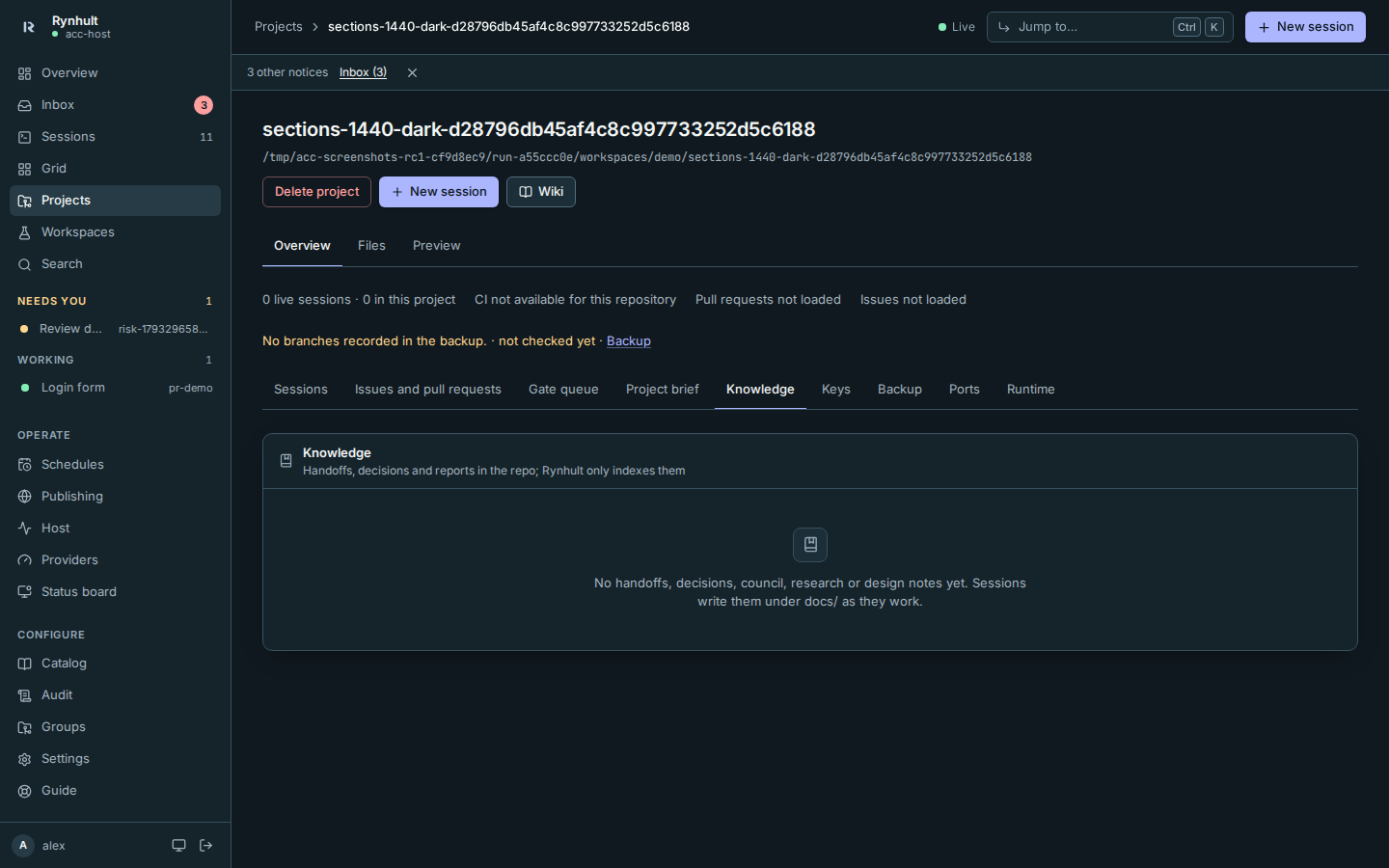
The Project sections tabs show one section at a time:
- Sessions, with the latest workflow runs;
- Issues and pull requests;
- Gate queue, when Orchestrator is available, for a managed project (see Orchestrator);
- Project brief, when Orchestrator is available, for reusable scope and private captioned references;
- Knowledge;
- Keys, Backup, Ports and the owner-only Runtime, where available.
Sessions is shown first. Select a tab, or Tab to the row and use the arrow keys to move along it. The address
follows (#project-ports), so a saved or shared link opens that tab and puts focus on it. Links from before, such as
#project-settings, open Keys. A section you leave keeps its unsaved choices while you stay on Overview.
Arrow keys move and select a section immediately, without a delayed focus jump back to an earlier tab.
The status line above the tabs keeps everything that needs attention in sight, whichever tab is open: backup failures; off, unconfigured or empty backups; runtime problems; and held autostart. Each has a link to its tab. Following that link puts keyboard focus on the tab, even when it is already selected. Home and End move to the first and last project sections. Repeated arrow presses keep focus and the shown section together as you move around the row. Read-only, untrusted and offline status stays in the project header. Failed reads show errors, not healthy or empty results.
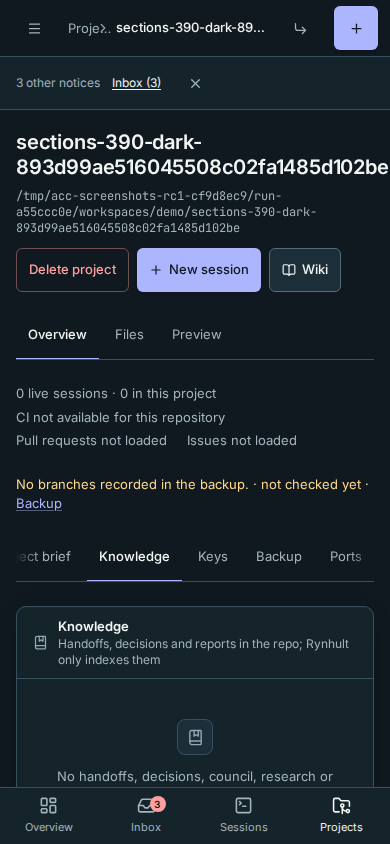
- Summary. Live sessions, CI on the default branch, open pull requests and issues, with checking/unavailable states when needed.
- Sessions in this project.
- Actions, pull requests, issues, recent commits and branches from GitHub, refreshed every few minutes (select the refresh button to fetch now).
- Knowledge. Handoffs, decisions and reports in the repository's
docs/. A failed read shows an error with Retry, never an empty list. - Wiki. The project's wiki (see Wikis).
- Keys tab. The API keys its sessions get as environment variables, with Give and × to remove one (see Keys). Archived projects show it too.
- Backup tab. The project's git backup on the main Rynhult (see Backups).
Sessions from issues and pull requests
On a managed, trusted project, each open issue has Start session and each open pull request has Review. Either one opens New session with the project selected, Own worktree ticked, a name (issue-<number> or review-<number>) and a short first prompt: for an issue, read it with gh issue view and open a pull request that closes it; for a pull request, check it out with gh pr checkout, run the tests and post a review with gh pr review without pushing. You still choose the agent and press Launch, and you can edit anything first. Nothing starts by itself.
Connect GitLab or Linear
Gitea and Forgejo use the same connection and session flow, described below.
Before you start: register the repository's folder, trust it for launching, and add a dedicated token in
Settings → Keys. GitLab needs read_api access to the repository; Linear needs read access to the team.
Do not paste a token into project notes, the repository remote, or a session prompt.
- Give the vault key to the project in Keys, then open the Issues and pull requests tab and select Connect issue sources.
- For GitLab, select GitLab vault key, enter Repository remote (for example
git@gitlab.example.com:example/demo.git) and GitLab base URL (https://gitlab.example.com). HTTPS and git SSH remotes work; the API base must be HTTPS and match the remote. Nested groups, HTTPS ports and installation path prefixes are supported. The API hostname must resolve only to public addresses; loopback, private networks and link-local destinations are refused, including after a DNS change. For the hosted service, keep the default base URL. - For Linear, select Linear vault key and enter Linear team ID. Optionally restrict the list to a Linear project ID (optional) or Linear label ID (optional). Use the provider's ids, not display names.
- Leave Comment PR link on Linear off for read-only access, then select Save connections.
- In External issues, choose Issue source: GitLab issues, GitLab merge requests, Gitea / Forgejo issues or pull requests, or Linear issues.
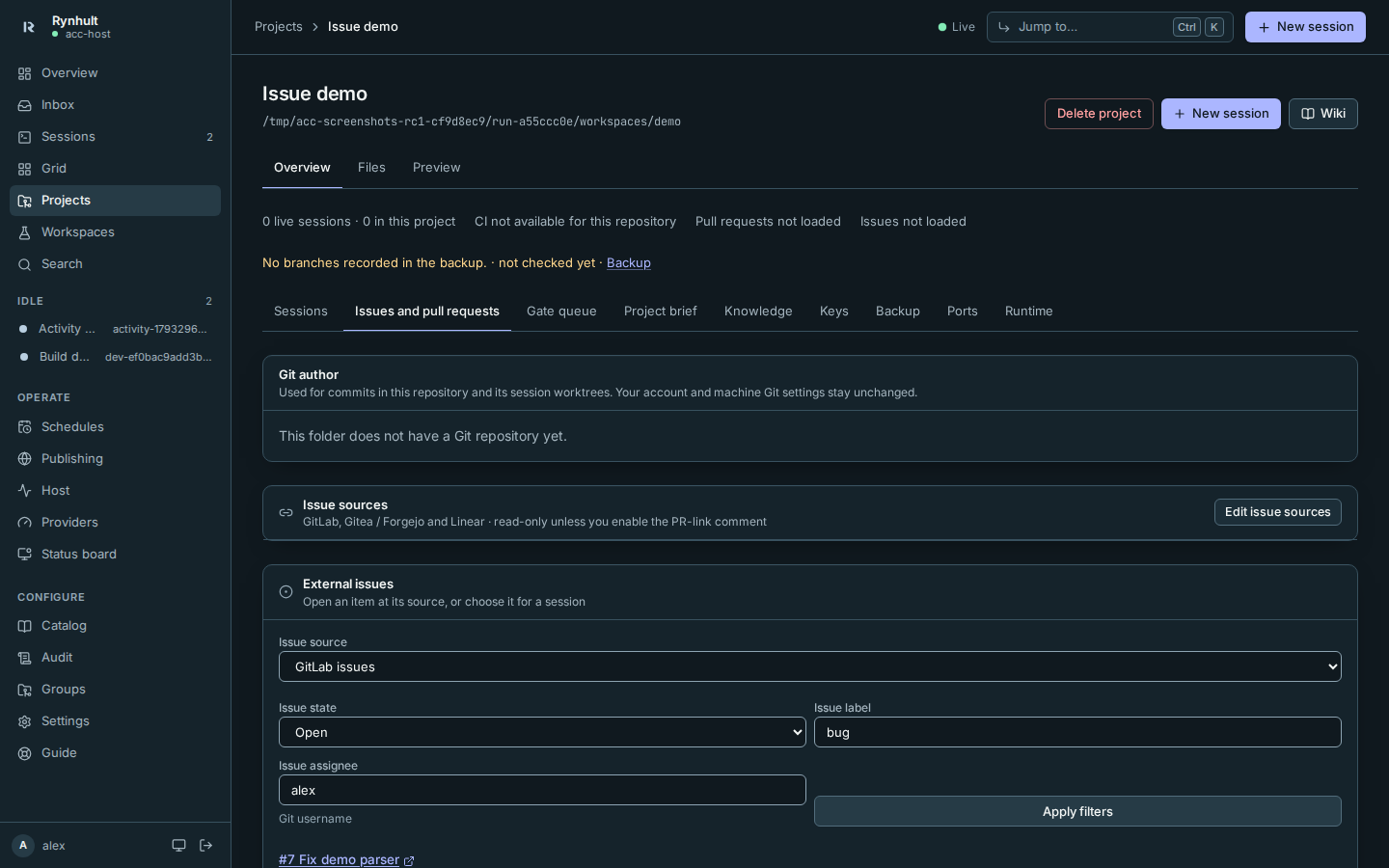
Choose Issue state, Issue label (name), and Issue assignee (GitLab username or Linear email), then Apply filters. Next page and Previous page move through results when there are more. The list says when it was checked; requests may use a cached result for up to 30 seconds. Open the item's link to read it at its source, or select Start session. GitLab merge requests use the same handoff, with their description and link.
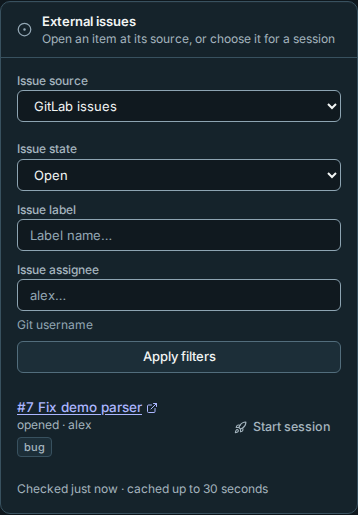
What you should see: New session has the project, name and Own worktree preselected. The command preview includes the item's title, description and link as untrusted external issue data. You choose the agent, can add your own assignment in Task (optional), and press Launch. Rynhult never assigns or closes an issue, creates a PR, or merges anything by itself.
Source keys stay on the server: they are marked server only in Keys and excluded from new session environments and MCP delivery. Disconnecting a source keeps that restriction. To deliberately repurpose a key as an agent environment variable, remove it from the project, then give it again after disconnecting the source. Sessions that already received that key keep their previous environment until stopped and resumed; use a dedicated source key, not one already in running sessions.
Optional Linear comment: turn on Comment PR link on Linear in Edit issue sources and give the token write access. When Rynhult observes a PR/MR on a Linear-started session's own worktree branch, it posts one comment with the link. GitHub uses its existing project snapshot; GitLab checks the branch every minute. This requires the launcher to retain project/key access, and GitHub views must be available for that project. Sessions without their own worktree are not eligible. Status and failures appear in Issue sources; uncertain sends are not retried automatically, to avoid duplicate comments. Check Linear before posting the link manually.
Troubleshooting: an expired token needs Replace value in Settings → Keys; a scope error needs provider read access (write access for comments); an inaccessible item needs the correct remote/team and repository access. If a key was removed or made private, give a usable key to the project and select it in Edit issue sources. Rate-limit errors mean wait before refreshing. HTTPS certificate/network errors need the correct base URL and a certificate Rynhult trusts. Rynhult never follows an API redirect: use the final HTTPS base URL. Private-network servers require an owner-allowed entry in Settings → Issue sources. Choose it in GitLab server or Gitea / Forgejo server. Do not enter a private base URL in the public-server field. If DNS changes, ask an owner to re-confirm the server addresses. A removed entry must be replaced in the connection. Responses are limited to 2 MiB of uncompressed JSON; a source must honor Rynhult’s request for an uncompressed response. If a page exceeds the limit, narrow the filters or shorten unusually large issue descriptions.
Connect Gitea or Forgejo
- Create a vault key in Settings → Keys with a token that can read the repository and issues, and give it to the project.
- In the project's Issues and pull requests tab, select Connect issue sources (or Edit issue sources). Enter Repository remote, for example
https://forge.example.lan/example/demo.git, and select Gitea / Forgejo vault key. - For a private server, select its owner-allowed entry in Gitea / Forgejo server. For a public server, choose Public HTTPS server and enter Gitea / Forgejo base URL. Select Save connections.
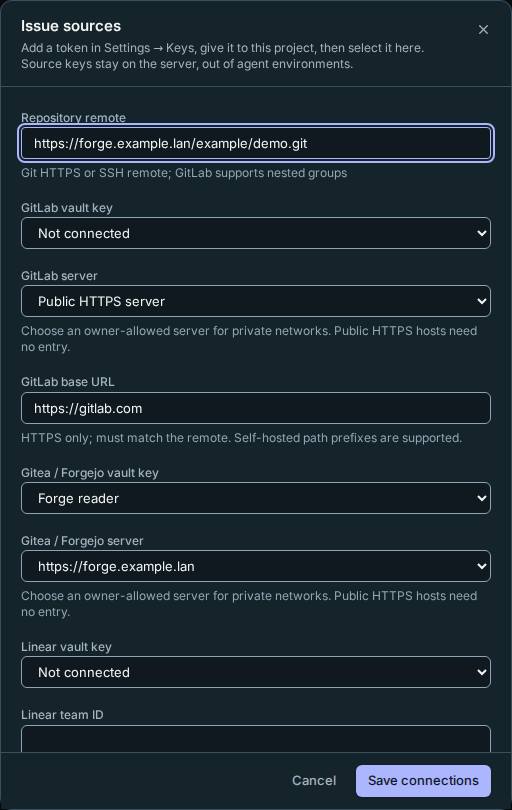
- Choose Gitea / Forgejo issues or Gitea / Forgejo pull requests in Issue source. Filter by open/closed/all state, label or git username, then select Start session for an item. The session preview fetches its current title, description and link as untrusted reference material, with credentials kept out.
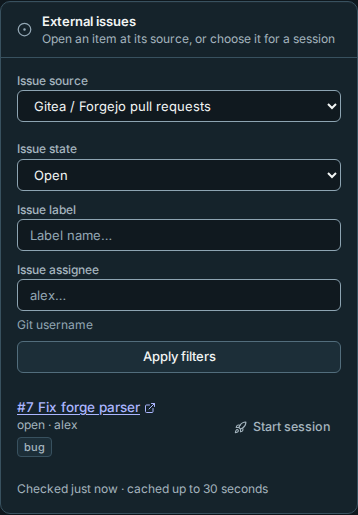
A full page offers Next page; the last full page may lead to an empty page. Closed pull requests can show merged state, but there is no merged-only filter. These connections read issues and pull requests; they do not create, close or merge them, or automatically comment PR links on Linear.
Finishing pull requests
A session's own pull request is finished from its Pull request tab: create it from the session's handoff note, edit it, mark it ready, request reviewers, send failed checks or review comments to the agent, and merge it yourself once checks and branch rules allow. The project page's pull request list links to GitHub as before. Members' projects work too, through their agent account's own GitHub sign-in (the project's GitHub views remain owner-only).
Containers and autostart
A project card shows how many of its compose containers are up. Autostart (owners only, off for new projects) brings its stack up whenever Rynhult starts, for example after a reboot. Members see their project's containers once an owner has turned on Autostart for it; until then the card says Stack not run by Rynhult.
You approve what autostart runs. The stack runs under the projects' Docker account, normally the person who installed Rynhult, and agents in the project can edit its compose files. A volume in compose.yaml could reach that person's home. So:
- Ticking Autostart opens the stack's compose files for you to read (
compose.yamland any override file). Look forvolumes,privileged,network_mode: hostand images you don't expect, then choose Approve and turn on autostart. - If the files change afterwards (or their
.env, an included file, or anything else compose reads), the card shows Changed · Approve compose files, and Rynhult won't bring the stack up when it next starts. The Inbox says so too. Stacks that were never approved show Not approved · Approve compose files. The same button is on the project page under the Runtime tab → Docker stack. - Approve compose files shows what changed since the last approval, and who approved it when. Approve records the new files; if Rynhult held the stack at its last start, it brings it up now.
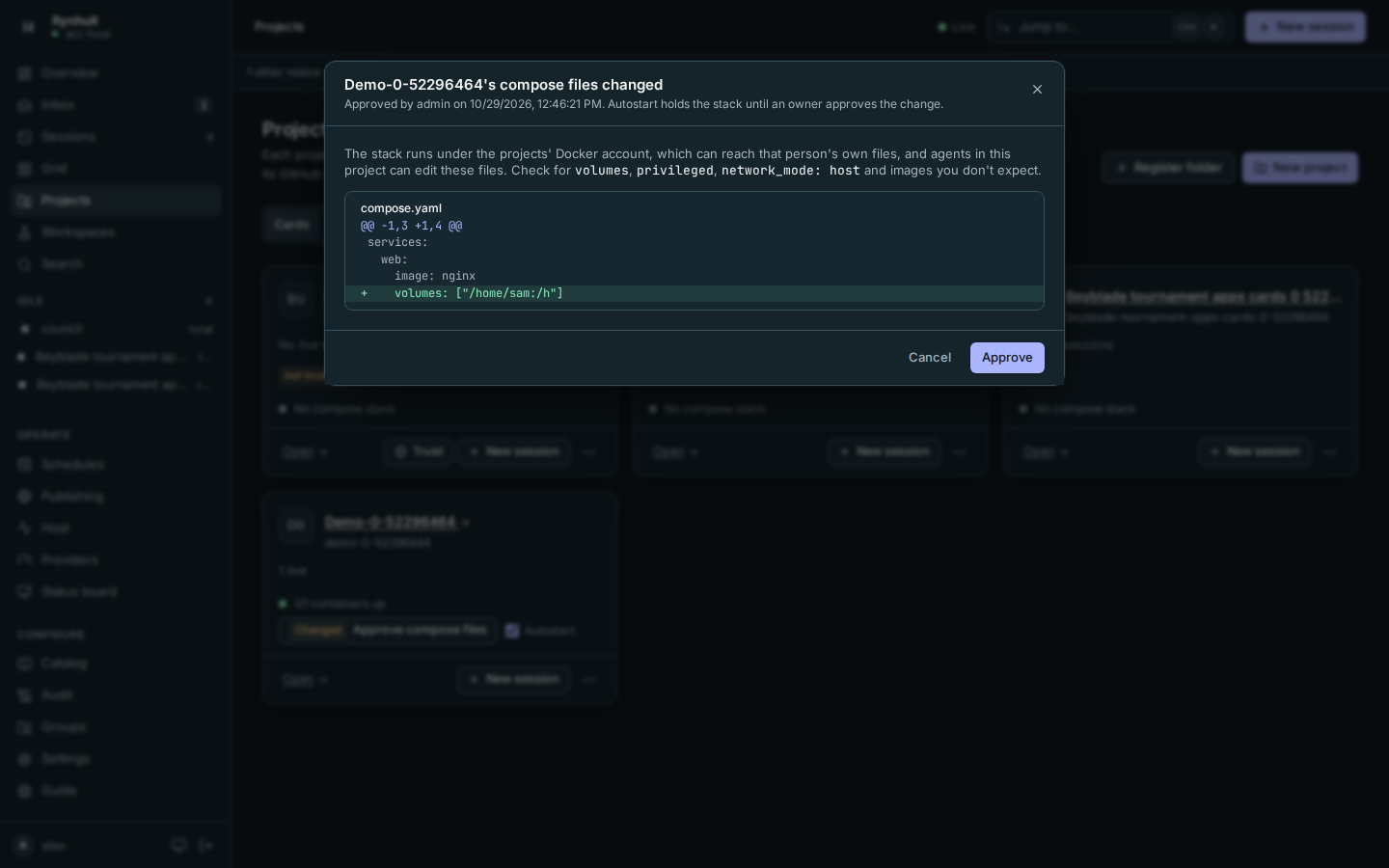
Stacks that had autostart on before this check existed are held until an owner approves their files once. Turning autostart off and on again with unchanged files needs no new review.
Run sessions in containers
Owners can switch a project's new sessions to containers under the Runtime tab → Containers. Containers are a Preview: off by default, and available only on a host that has passed the container qualification. See Sessions in containers for what changes and what isn't ready yet.
Archiving
The archive button hides a project from lists and New session. Its folder, containers and repository are left exactly as they are. Its page still opens, keys can still be given to it or taken from it, and its sessions can still be resumed.
Ports
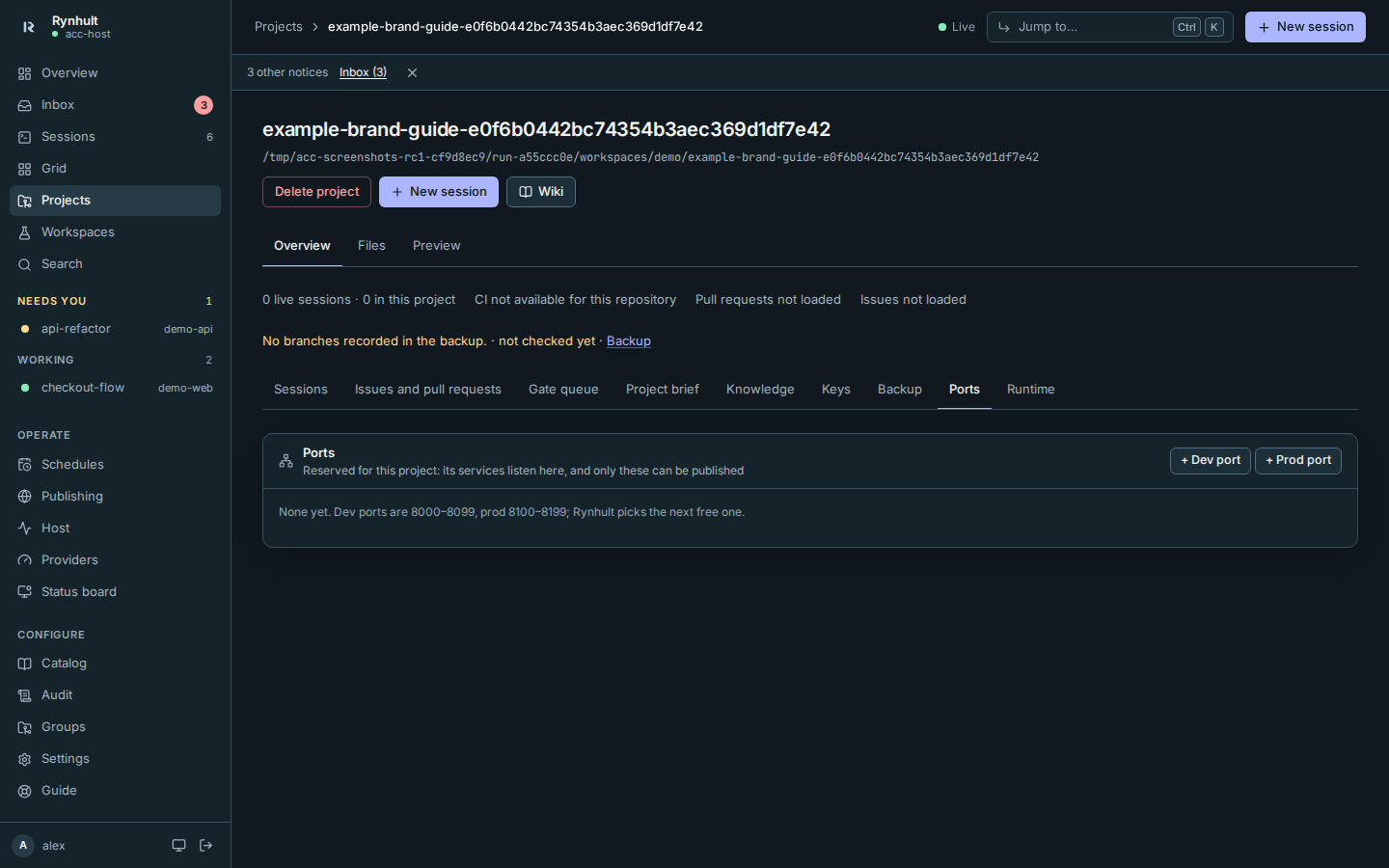
Each project reserves the local ports its services listen on, on its page under the Ports tab: + Dev port (8000–8099) or + Prod port (8100–8199) takes the next free one. Reserved ports never go to another project, and only a project's own ports can be published for it (owners can publish any). Owners can also reserve a port for something outside Rynhult.
Backups
What it's for: a copy of every branch and tag of the project on the main Rynhult, besides GitHub. It keeps history that was rewritten upstream. For a project already on the main, this is another local copy, not protection against losing that machine. Use Host backups with an independent target for that.
Before you start: the project's folder must be a git repository with at least one commit, and Rynhult needs its https address (it has one when you open the dashboard over https; otherwise an owner sets ACC_BACKUP_URL, see Configuration).
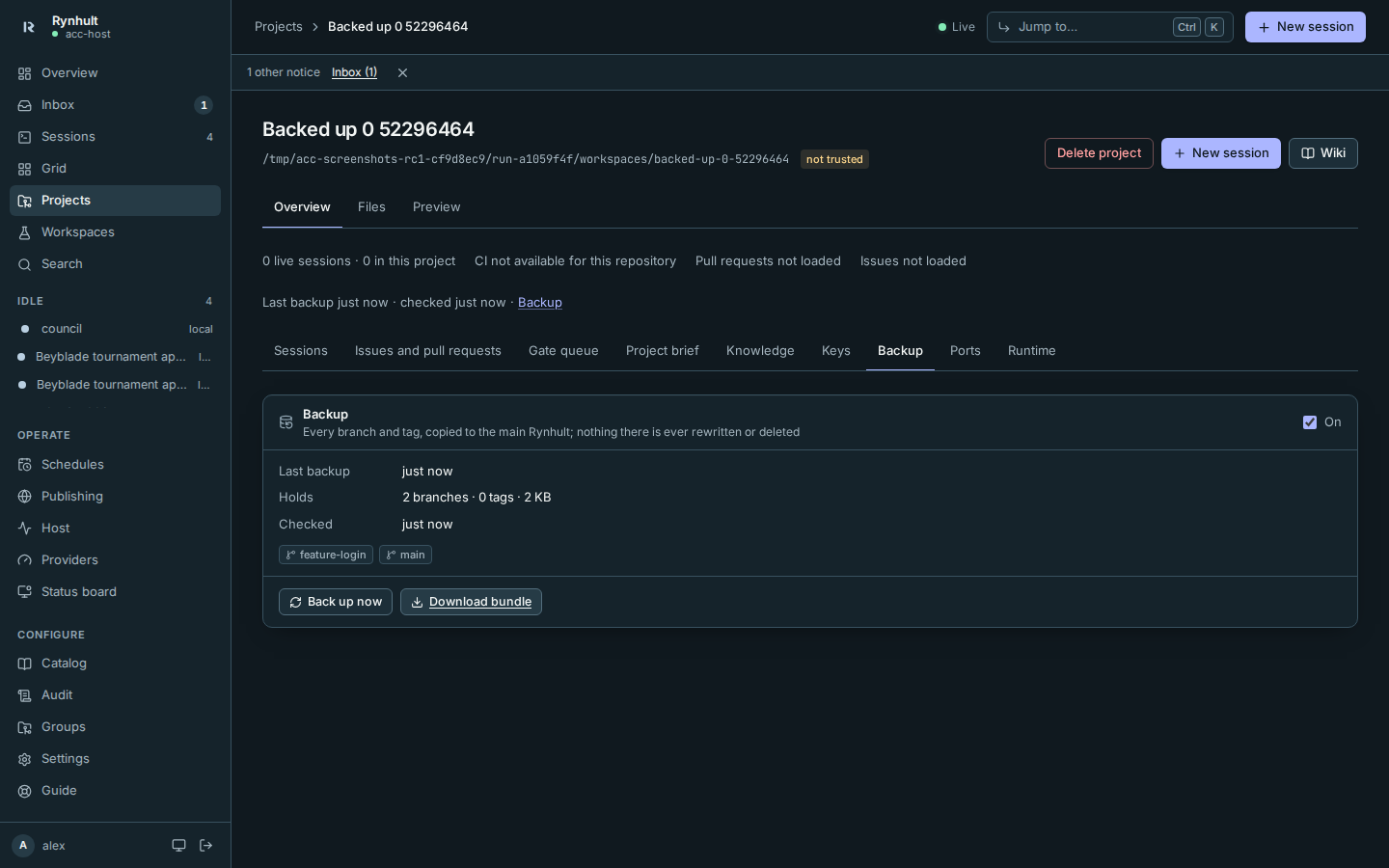
Backups are on for every project. Open the Backup tab on the project page to see:
- Last backup: when Rynhult last copied new commits.
- Holds: how many branches and tags the backup has, and its size, with the branches listed below.
- Checked: when Rynhult last looked for new commits.
- On a project on another machine, the machine it's pushed from.
Rynhult looks for new commits every 15 minutes, and right after a session in the project stops; it copies only when something changed. Projects on other machines are pushed by that machine to the main Rynhult.
Updated roaming machines can fall back from the private backup address to the public address, but this is off by default: verified public access and machine identities must both be enabled, and the machine still needs a private control link to receive the job. TLS errors, refused HTTP requests and redirects fail rather than triggering fallback. See Git backups while roaming for prerequisites, limits and Last backup via public address on Host. Only committed git history is copied, not dirty files or provider credentials.
Steps:
-
Open the project, then the Backup tab.
-
Select Back up now to copy what's there without waiting.
-
Select Download bundle to save the whole backup as one file,
<project>.bundle. -
To turn backups off for this project, clear On. What was backed up before is kept; turn it on again to continue.
Restoring. A bundle is a git repository in one file:
git clone demo-api.bundle demo-api        # a new checkout with every branch
git -C demo-api branch -a                 # what came back
Or, in an existing checkout, replace /path/to/demo-api.bundle with your downloaded bundle path and run:
git fetch /path/to/demo-api.bundle 'refs/heads/*:refs/remotes/backup/*'
What you should see: within a minute of Back up now, Last backup says just now and Holds lists the project's branches.
Git pushes cannot rewrite or delete backup history. If a branch was rewritten (for example amended and force-pushed to GitHub), the backup keeps the old history under the branch's name and the new one as backup/<date-time>/<branch>; the card lists these under Rewritten upstream, kept under a new name. Branches you delete in the project stay in the backup. This does not protect against loss or compromise of the main itself.
Owners can download any project's bundle; members only their own projects'. Turning backups on or off and every download are recorded in Audit. Host shows how much space all backups use.
Troubleshooting
| The card says | Meaning | Fix |
|---|---|---|
| Backups need this Rynhult's https address | Rynhult has no https address to give machines | Open Rynhult over https, or set ACC_BACKUP_URL in /etc/default/accd and restart accd |
| The project's folder isn't a git repository yet | Nothing to back up | Initialize git in the project folder using the command below and commit, or wait for the first commit |
| Last attempt failed: host … is not reachable | The project's machine is offline | Wake/reconnect it, then select Back up now. Rynhult cannot wake it, and roaming fallback does not replace its control link. |
| Last attempt failed: unknown method | That machine runs an older Rynhult | Update the machine (see Nodes) |
| Last attempt failed: … certificate … | The machine doesn't trust Rynhult's certificate | See Install on trusting Caddy's certificate |
Files and editor
Select Files on the project page or workspace card to browse folders, edit Markdown with a live preview, save files and optionally commit locally as yourself. A session’s Files tab opens its own worktree. See Files for conflicts, protected files and limits.
Stack approval distinguishes a changed-file conflict (review and approve again) from a broker failure. An unavailable broker reports a service error; restore its connection before retrying. A broker refusal reports the underlying refusal rather than asking you to approve unchanged files again.
Project names must contain at least one character other than whitespace and may contain up to 200 characters, including Unicode. Session names have a 40-character limit and also cannot be blank.
If New project cannot contact a machine or create its folder, check the machine’s connection, repository access and allowed workspace roots. Raw node and clone diagnostics are withheld because they may contain credentials. Folder slugs accept only lowercase letters, digits and dashes; line breaks and paths are refused. Members may create on a connected machine only through their own reported account; owners may choose a regular agent account reported by that machine.
To initialize a project folder that has no git repository, open a terminal in that folder and run:
git init
Delete a project
Archive stays available in the project's actions menu. To permanently remove a project, choose Delete from that menu or Delete project on its page. An owner can delete personal projects; members can delete their own. Built-in workspace projects and group projects cannot be deleted this way.
The in-page confirmation lists what will go. Type the project's exact slug, for example demo-api, to enable Delete project. Cancel leaves everything in place. A failure stays in the dialog so you can read it and retry.
Deletion removes the project record, its settings and brief, and its port reservations. Schedules for it are disabled. A checkout that Rynhult created as a new empty project or new repository is deleted with its managed worktrees, including uncommitted files. The confirmation lists those folders. The owning account's service checks their identity and workspace root and refuses symlinks or aliases before removing files.
Registered folders, imported or read-only projects, and older projects without recorded creation provenance keep their folders and worktrees. The dialog explicitly says that only the Rynhult record goes. External folders are not read or removed by this operation.
The owning account service must support authenticated worktree deletion; if Rynhult asks for an update, update that service before retrying. Git worktree listings are discovery hints. Linked worktrees must have matching Git links back to this project's repository. Corrupt or inconsistent links refuse deletion. Any deletion folder referenced by another registered project or session is also refused, including a registered folder inside a worktree. Resolve that reference or repair the Git metadata before trying again; stopping the other session alone does not transfer its folder to this project. Registering a child folder waits up to ten seconds for an enclosing deletion. If deletion continues, registration is refused; if it finishes, the owning account’s service checks that the folder still exists before registration. Reload and choose an existing folder if it was removed. An ordinary launch, resume or conversion in an enclosing folder does not cause this refusal.
The GitHub repository is never touched. Sessions are archived, detached from the deleted project and kept in searchable history; they cannot be resumed. Audit entries, Inbox approvals and alerts stay. Existing backups follow their retention policy.
Rynhult refuses deletion while sessions or a team are live: choose Stop all first, wait for stopping to finish, then Check again. Queued or running gates must finish or be cancelled. Published sites must be unpublished through Publishing; unfinished publishing requests must be resolved first. Running compose containers must be stopped through their owning Docker account. Rynhult refuses if it cannot verify their status. It also refuses deletion when the project's remote machine or account service is offline; reconnect that machine and retry. A failed file removal can leave the project archived for a safe retry.
This page is generated from docs/wiki/User-Guide/Projects.md; the same page is under Guide inside Rynhult.