Remote Access
Screenshots use fictional demo accounts and fixed example metrics, not live systems or qualification evidence.
For v1.0, reach Rynhult from outside your network through your VPN or Tailscale (see Connect your phone); you need nothing on this page for that.
Review and manage public remote access and prepare browser identities on the LAN. Public access defaults to Off. Saving settings or pairing a device never enables it. Apply requires a separately installed, qualified root helper; this release installs neither helper and does not enable public routing. Remote previews stay private. The owner-approved rollout uses a separate public hostname with private LAN fallback, 90-day browser identities and manual renewal from a signed-in device. An iOS Home Screen app that cannot present its identity will use browser-only remote access, not a weaker device gate. Cloudflare-terminated access is not approved; any future tunnel must preserve TLS to Rynhult's own edge.
Before you start
Both devices must be on the private LAN. Use the private recovery address, such
as https://rynhult.example.lan. First make the receiving browser trust Rynhult’s server
certificate using Connect your phone; the device
identity import does not install server trust. An owner must separately install and qualify the
new device signer before identities can be issued; this feature does not install
it. This is a different CA from the server trust certificate under Settings.
Verify your sign-in again under Settings → Passkeys with the available verification method. Verification lasts five minutes. A signed-in member can start pairing; an owner must confirm it. An API token cannot manage identities.
Prepare pairing (owner)
-
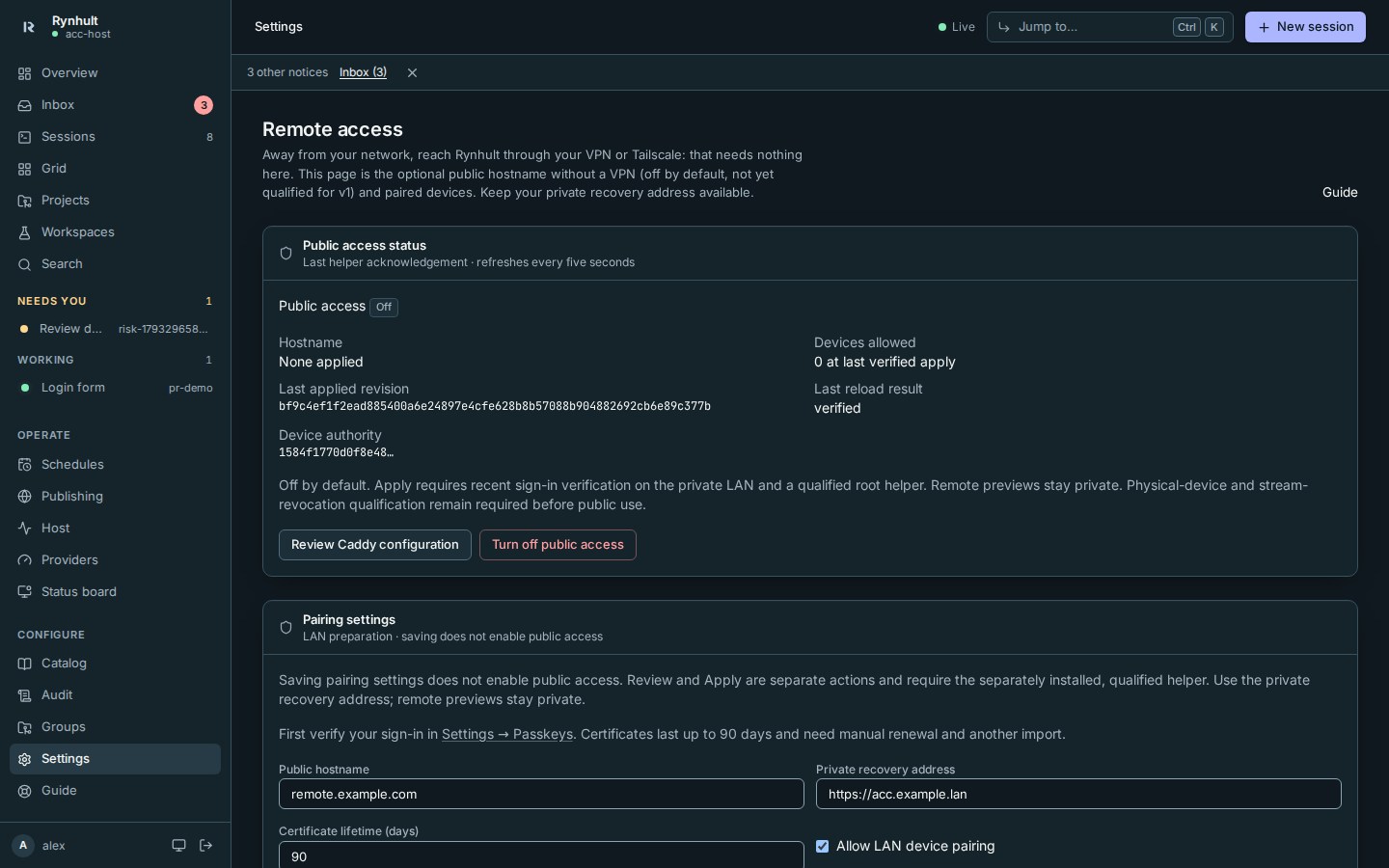
Open Settings, then Remote access.
-
Enter a separate Public hostname, for example
remote.example.com, and the Private recovery address, for examplehttps://rynhult.example.lan. Keep the private address as the recovery path. -
Leave Certificate lifetime (days) at 90, or choose a shorter lifetime. Select Allow LAN device pairing, then Save pairing settings. This allows preparation on the LAN; it does not enable public access.
-
To let enrolled machines use the public address later, also select Give enrolled machines identities. It is off by default. See Machines through the public address.
On a phone the same controls stack vertically:
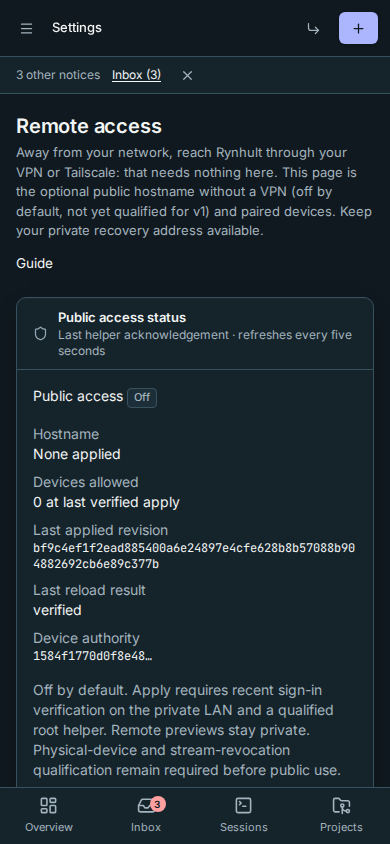
If another tab saves pairing settings first, your older form is refused rather than restoring its old hostname, pairing choice or Give enrolled machines identities choice. Reload, review the current settings, and make your change again. Ordinary status refreshes do not discard unfinished edits. Turning machine identities off still closes their public connections within a minute; a stale tab cannot turn them back on.
Pair a browser
-
In Settings → Access devices, enter a Device name, such as “Alex phone”, then select Pair device. Owners can also use the registry on Remote access. Names use letters, numbers, spaces and punctuation; Rynhult refuses invisible or text-direction characters so an owner sees exactly what they confirm.
-
On the new device, scan the QR code or open the One-use pairing link while connected to the LAN. Keep this link private; it expires after five minutes. Close pairing, or leaving the page before an owner confirms, ends the link at once; once confirmed, the import stays for the new device to download. The token is removed from the browser address before claiming it. Refreshing the receiving page loses the capability; start again if needed.
-
Select Request pairing on the new device. It shows a six-digit Matching code; only the new device shows it. An owner reads the code on that device (or has the person read it out), types it into Matching code shown on …, then selects Confirm and Confirm device. If the new device shows an error instead of a code, someone else used the link: close the pairing and start again. A wrong code cancels the pairing; start a fresh one. An owner starting pairing can confirm inside the pairing dialog; other requests appear under Confirm pairing on the owner’s Remote access page. Only one confirmation can issue an identity; a second owner confirming at the same moment is told the device is already being confirmed. If the signer is unavailable, the request stays waiting so it can be confirmed again before it expires. If a wrong code cancels the request, the cancellation explanation stays visible even after the request disappears from Confirm pairing. Create a fresh link; the correct code cannot revive a cancelled request.

-
On the original trusted device select Show import password. Tell the receiving person the password separately; it is never in the QR or profile.
-
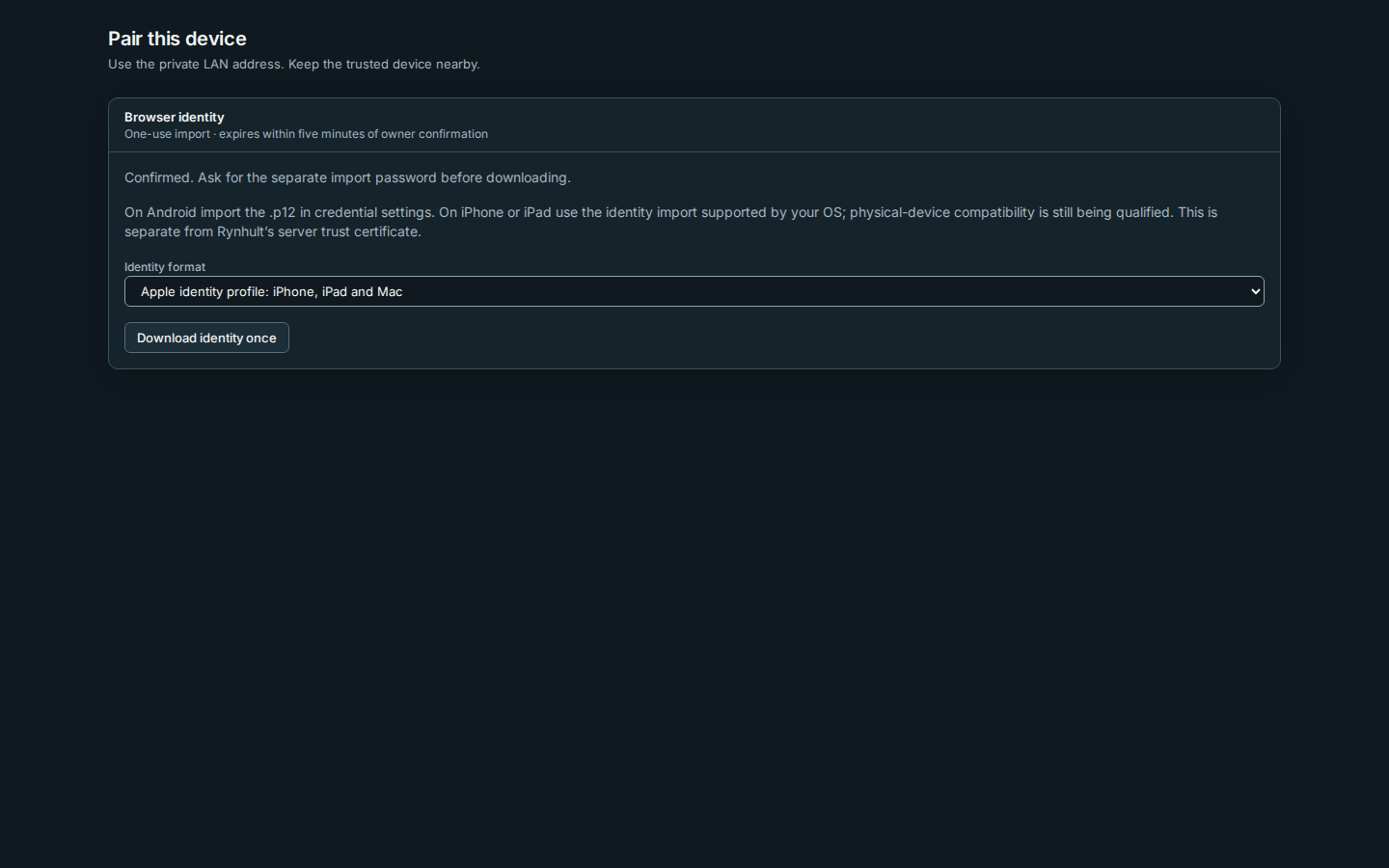
On the new device choose Identity format: an Apple identity profile for iPhone, iPad or Mac, or PKCS#12 for Android and desktop browsers. Select Download identity once. The one-use download expires five minutes after confirmation, and its server copy is destroyed after one download. A downloaded file does not erase itself; keep it private and delete it after import. Rynhult cannot detect whether the OS actually installed it. The five-minute window is within the owner's approved maximum of 15 minutes. A failed/lost download needs a new pairing; revoke the unused device record.
-
Import the downloaded identity in the OS/browser using the separate password. Physical-device import screens and certificate selection are still being qualified. Do not install the device CA as a trusted server root. After import, delete the local download when no longer needed.
If the connection drops while waiting for confirmation, the receiving page shows an error and retries without losing its receipt or matching code. Leave it open; the error clears after a successful check. An expired, cancelled or already-used pairing stops checking and disables download: start a fresh pairing on the trusted device instead of refreshing the one-use link.
The trusted device's Pair device dialog also retries failed status checks and clears that connection error after recovery. A wrong-code cancellation is different: its explanation remains visible even after a later successful check.
A certificate admits a device at the TLS gate; normal Rynhult sign-in is still required. Public access stays off until an owner separately applies a qualified policy. Safari tabs, Android browsers, Home Screen apps, background workers and push are separate compatibility gates; pairing here does not promise remote PWA or push support.
Rename, renew or revoke
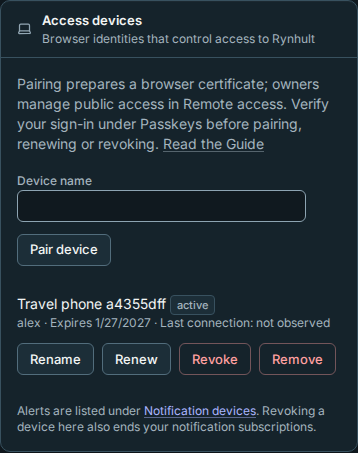
Access devices lists your browser identities. Owners also see everyone’s identities in the Device registry. Expiry is shown; last connection stays “not observed” until trusted edge identity reporting is implemented. The list shows 30-, 14- and 7-day reminders as expiry approaches.
- Rename changes only the display name. The Audit page records the old and new names.
- Renew in Access devices starts a new, manually confirmed LAN import for your active, unexpired device. Verify your sign-in again first. Selecting Renew again replaces the earlier renewal link, so only the newest one works. Renewal keeps the device ID and replaces its certificate with no overlap. After importing the renewed identity, remove the older identity/profile from the OS or browser to avoid selecting it again. Keep LAN recovery available. After expiry, pair again on LAN.
- Revoke requires recent verification and confirmation. It ends all of the person’s Rynhult sign-ins, closes registered terminals and removes their push subscriptions because sign-ins are not yet attributed to a device. Remove the imported identity from the lost/replaced device when possible. Already viewed content cannot be recalled.
Remove deletes the registry record and performs the same revocation cleanup. It does not erase an imported identity on the device.
Revocation/removal is recorded immediately in Rynhult. While public access is enabled, Rynhult automatically re-renders and re-applies the allow list, normally immediately and otherwise on its 15-second reconciliation cycle, within one minute when the helper is healthy. Removing a person and certificate expiry also remove their leaves. Check Public access status for the verified result. A reload failure clears enable intent and attempts to remove all public routing instead of restoring a revoked identity. Removal pending or Unknown means Rynhult cannot verify the edge: use private recovery, select Turn off public access, and ask the operator to resolve the helper/Caddy problem. Never assume a pending change succeeded. Already open TLS connections need the later per-request/stream enforcement; new-connection revocation alone does not qualify public release.
Review, apply and turn off (owner)
Public release remains blocked until the device, stream and outside-network checks pass. The controls are ready for a separately reviewed installation; they do not install helpers, change DNS or router forwarding, or authorize public exposure. Keep a signed-in private recovery tab open.
-
Save the separate Public hostname and Private recovery address under Pairing settings. The public hostname must be provisioned in root policy and have a qualified server-certificate path.
-
Select Review Caddy configuration. Review what Apply adds to the root-reviewed base: public hostname, mandatory device gate, active certificate allow list, the public route and the server settings it changes. The base itself (private recovery, other sites, DNS credentials) stays with the root helper and is named by its base revision. Zero devices means an explicit empty gate, which denies every public client. Render Caddy fragment remains an optional preparation view; it is not the configuration Apply uses.
-
Verify your sign-in again, then select Apply reviewed configuration and Apply public access only after qualification. The helper independently checks the reviewed revision, validates, writes, reloads and verifies it. Any settings, registry or root-template change requires a fresh review.
-
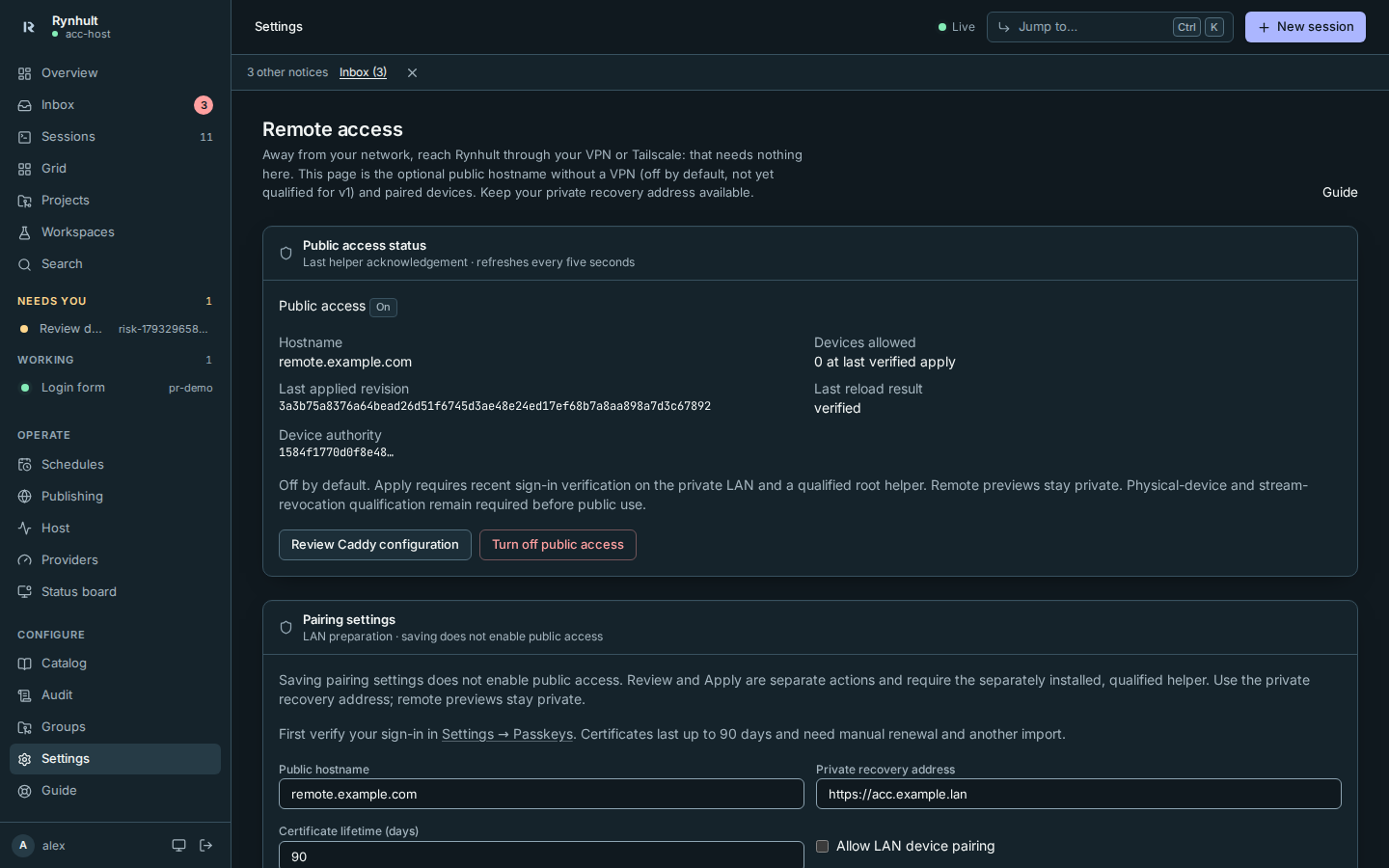
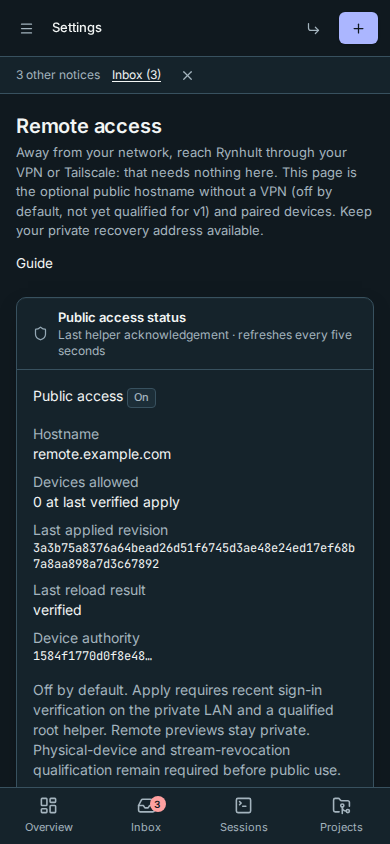
Public access status shows On only after a verified apply, with its hostname, last applied revision, devices allowed and last reload result. These are the last helper acknowledgement, refreshed on the page every five seconds; the enabled policy is checked by the worker every 15 seconds.
-
Select Turn off public access at any time, including while already off or after an apply error. It requires no fresh sign-in verification, saved hostname or CA. A verified Off result removes the public route and public TLS policy entirely while retaining private recovery. Rynhult also ends every open public connection at once, including live updates and terminals, without waiting for the edge's answer, even while an earlier change is still waiting on it. Change the public hostname only after turning access off. A stale/failed helper leaves a visible pending result; the action remains available to retry.
A Caddy restart or an unexpected loaded configuration clears enable intent; Rynhult never silently re-enables routing. An operator must reconcile any unrelated Caddy/DNS/site change with the reviewed root base before another apply.
Machines through the public address
Machines are always added and enrolled on the private address: installing and enrolling are refused through the public hostname, for every identity. After that, a machine can get its own machine identity, separate from any person's browser device.
- In Remote access, select Give enrolled machines identities and Save pairing settings. Nothing changes for machines until you do.
- Each connected machine creates its own key, which never leaves it, and asks for a certificate over its existing signed link. Certificates last 30 days. Machine identities don't appear in Access devices or the Device registry; they belong to the machine.
- After the next Review and Apply, a machine using the public address,
for example
https://remote.example.com, can reach its link, its update download and its own projects' git-backup endpoints. Browser identities can't reach those, and a machine identity can't reach the dashboard. The machine still checks the server certificate it pinned at enrollment and still proves its enrolled key on every connection.
Host → Machines shows each machine's public identity under its row. It's read-only: Remote access turns identities on, and removing the machine revokes its identity.

| Shown | Meaning |
|---|---|
| Being issued over its link / issued when it next connects | Identities are on; this machine has no certificate yet. |
| Valid until … · last used through the public address … | Its current certificate, and when it last connected through the public hostname. |
| New certificate issued, switching after its next connection | A successor exists; the machine switches once the edge admits it. |
| Expires soon: reconnect this machine | Under three days left while it's offline; it renews only over its link. |
| Renewal overdue: check Remote access | Under three days left on a connected machine without a successor; check that the last Apply is verified. |
| Public identity off | Identities were turned off; its certificate is no longer admitted. |
About ten days before expiry the machine gets a successor certificate. The old one keeps working until the edge admits the new one; then the machine reconnects once, usually within a second, and the old certificate is retired (at the latest 24 hours later). The machine stays enrolled throughout.
Removing a machine (Host → Machines, bin icon) also revokes its identity: its open public connections close at once and the edge policy is updated. Turning Give enrolled machines identities off closes machine connections within a minute and removes their certificates from the next policy.
Git backups while roaming
Updated machines prefer the usual private git-backup address (LAN or Tailscale). When it cannot be reached, a machine can request its backup token and send that project's git backup through the public address with its own machine identity. Both Give enrolled machines identities and verified public access must be on. An owner must also opt in that particular machine; this permission defaults to Off, including for machines enrolled before the option was added. Old machines continue using the private address until updated.
- Keep the usual private backup address configured. The node also needs its existing signed control link to receive the main's scheduled backup job; this fallback does not change the control link's configured addresses.
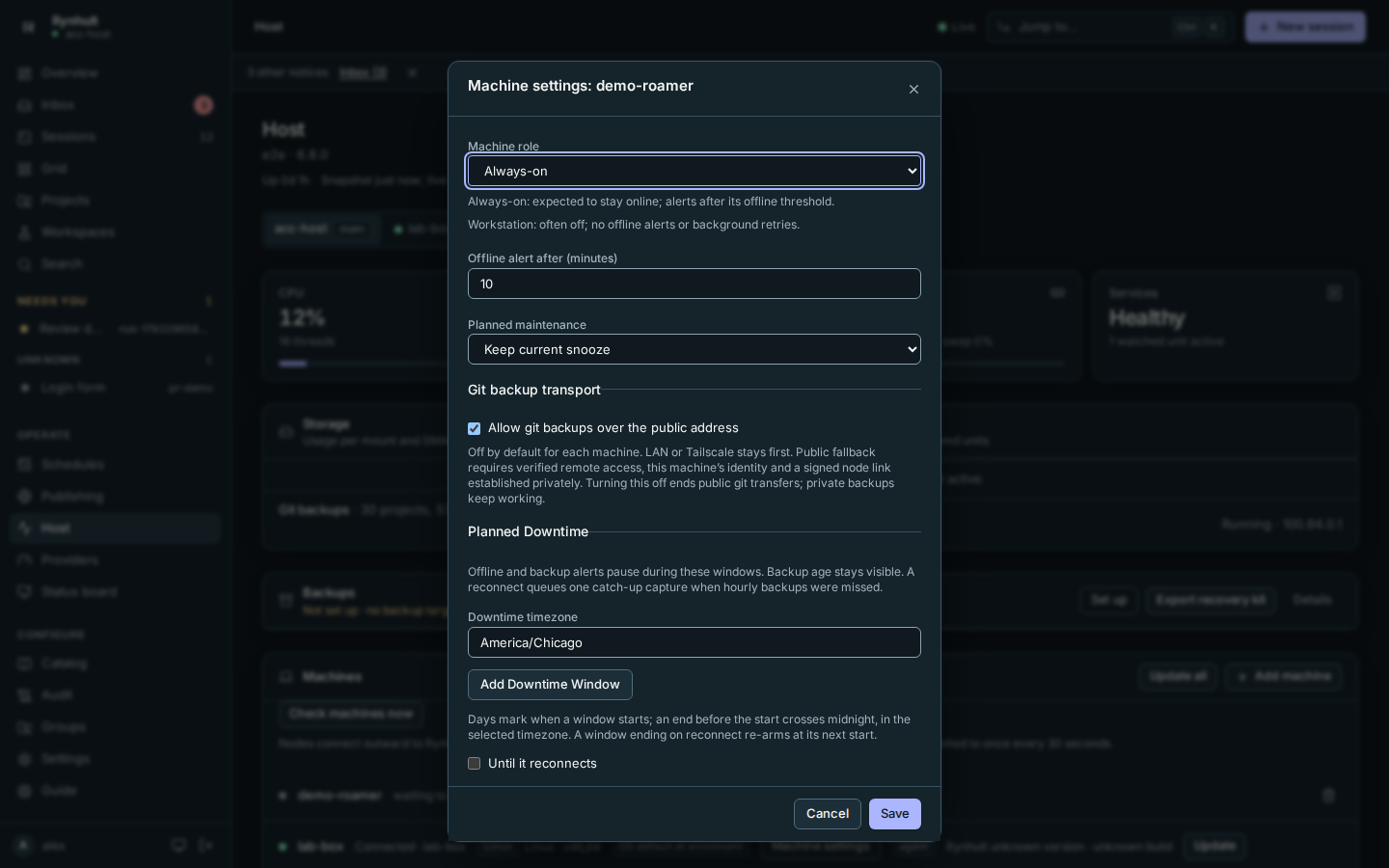
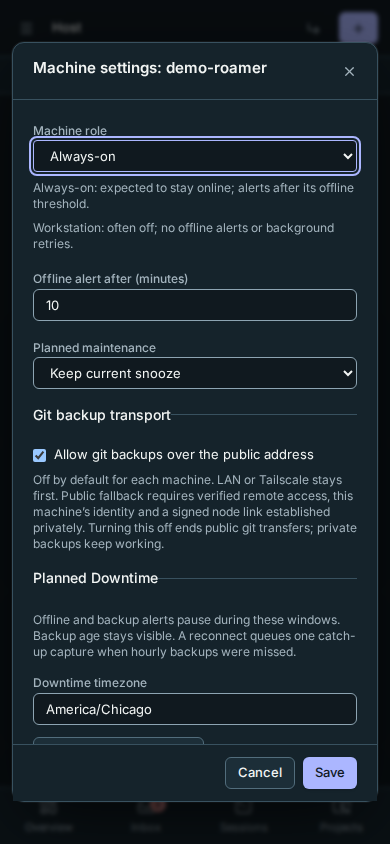
- Open Host → Machines → Machine settings for the machine. Check Allow git backups over the public address, then select Save. LAN or Tailscale remains preferred. Only owners can change this permission; changes appear in the audit log. Turning it on must be done from the private LAN address, with a freshly verified sign-in: if Rynhult asks, verify again in Settings → Passkeys and save within five minutes. Turning it off works from anywhere, without verification. If another tab changed the machine policy, cancel and reopen the dialog before saving.
- After the existing owner review/apply and machine identity setup, let a due backup run, or use the project's Backup → Back up now.
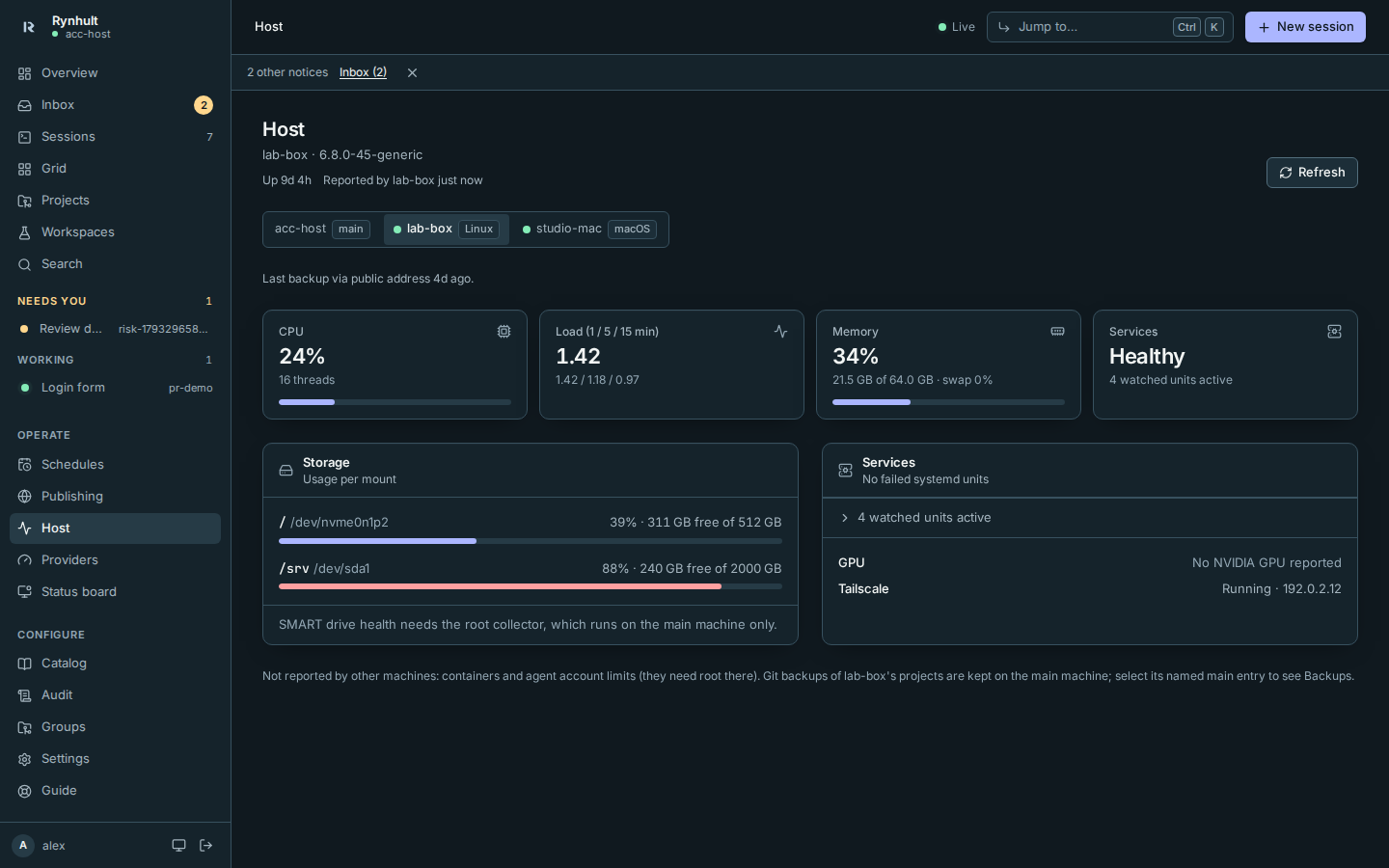
- Open Host, then select the machine under Machine. After a successful public backup, Last backup via public address shows when it completed. That historical timestamp remains visible while the machine is offline and after later private backups.
The public address is used only for the git-backup token request and push. A certificate problem, refused request or redirect fails the backup; it does not silently switch addresses or send credentials elsewhere. Check the project's Backup error, the machine identity and Public access status, then retry. A machine with no usable identity needs private connectivity to obtain or renew one. This feature does not make an offline control link reconnect publicly.
To withdraw permission, uncheck the same option and save. Pending public jobs and active public git streams are stopped; private backups keep working. Once withdrawal is processed, further data on that public connection is refused. A push may already have saved some refs before it is stopped; existing backup history is retained. A machine removed and enrolled again starts with permission off. Turning this option on does not itself enable public access or issue an identity.
Transfers retain HTTPS encryption, machine mutual TLS and the signed control-link job/token commitment checks. Git repositories remain stored in their existing format on the main; this switch adds no encryption at rest or commit signatures.
A few more things to know:
- Roaming backups need the machine's control link to have been established privately (LAN, Tailscale or another private address). A backup job that reaches a machine whose control link runs through the public address is refused. Whoever answers for that name would also choose the job's token, so this keeps the backup from going to an impostor.
- The machine learns the backup addresses from each job over its private control link. After you change the public hostname, nothing else is needed.
- The public address is tried only when the private name doesn't resolve or the connection is refused or times out. Some hotel and office networks answer for every name; there, the private name reaches some other server, the certificate check fails, and the backup fails instead of roaming.
- A machine backs up one project at a time; other projects on it wait their turn.
- Roaming needs the usual backup address to be a plain
https://address with no path. Otherwise the machine keeps backing up over the private address only. - Each backup token handed out through the public address is recorded in the
audit log as
git_backup.public_token, even if the push then fails.
Troubleshooting
Lost device
- Open Settings → Remote access from the private recovery address. Sign in with your password and second factor if necessary. Verify your sign-in again under Settings → Passkeys before revoking or removing a device.
- Find the device in the registry and choose Revoke (or Remove), then confirm with Revoke device (or Remove device). Both stop that identity from appearing in the active certificate policy. Revoking a device also ends all of its person's sign-ins and push subscriptions, so revoking your own device signs you out too. Sign in again from private access.
- Check that policy is no longer pending. If apply fails or status is unknown, select Turn off public access from private recovery and ask the operator to resolve the helper failure. Do not treat a pending result as revocation.
- After a verified update, try a fresh connection using the lost test identity: it must fail before reaching Rynhult. Another active test identity and the private recovery address must still work. Record the elapsed time; the target with a healthy helper is under one minute.
The automated drill proves new TLS connection refusal. Established browser connections and streams need separate qualification before public release. Do not use these preparation controls to claim that an open connection has ended.
Device authority rollover
An operator can replace the device authority on a schedule without turning public access off. During the rollover:
- Remote access shows the current authority and how many identities still come from the previous one.
- Devices marks each device that needs renewing: Issued by the previous device authority. Renew it on the LAN as usual.
- Machines says a machine's identity is from the previous authority; it's replaced over its link with no action from you. At most 10 machines are replaced an hour, so pairing and renewing devices keep working; a large fleet takes a few hours.
- The audit log records the authority change, the deletion of the old authority's key (it happens as soon as the new authority takes over) and each machine asked to replace its identity.
The old authority is retired only once that count reaches zero. After a suspected compromise the operator instead turns public access off and everyone pairs again (see below).
CA recovery and real-network acceptance
The device certificate authority (CA) is separate from the server's HTTPS CA.
Its signing key is held by the uninstalled signer, outside normal Rynhult
backups. Once an operator installs the root-only recovery tool and its
passphrase, the daily server backup adds an encrypted device-ca.enc; without
them the backup says the authority was NOT backed up and never copies it in
plain form. Restoring is an operator step on the machine itself and needs the
CA fingerprint you wrote down when the CA was created. There is no CA backup or
restore button. See the recovery runbook.
Restoring the same authority preserves existing certificates; it must never
restore a revoked device's membership. If current revocations cannot be recovered,
keep public access off and re-issue identities through private access.
The owner must record these checks on real networks after the remaining release gates are met. A loopback test does not complete them. Keep private recovery available throughout, and use disposable identities.
| Check | Evidence to record |
|---|---|
| External IPv4 | Date, outside network, hostname such as remote.example.com, valid identity success, no/invalid/revoked identity refusal with zero application requests, and verified Off. |
| External IPv6 | Test independently from outside IPv6, including the AAAA route and firewall; confirm private recovery is not exposed over IPv6. An IPv4 pass does not cover this. |
| Carrier NAT | Compare router WAN addressing with the provider's public addressing. Record whether inbound forwarding is possible. If not, leave access off until a separately qualified raw TCP tunnel is available. Do not substitute TLS termination at a provider. |
| Lost device | Revoke while connected, check new handshakes within one minute, session sign-out and that open terminal and machine connections close within one minute. Repeat for Remove and for a helper failure; pending must remain visible. |
| Physical phones | Record model, OS and browser versions, actual import screens and prompts, restart/reboot, expiry, renewal, revocation and reconnect after sleep. Qualify iOS Safari and Home Screen separately, plus Android Chrome. Use browser-only iOS if needed; never add an anonymous exception. |
| Recovery | Record the independently kept CA fingerprint, backup date, restore result, old active identity success, revoked identity refusal and private recovery. Never attach keys, import passwords or backup contents to the record. |
Messages
Each heading is the exact text Rynhult shows.
- Device pairing is off. Ask an owner to turn on LAN pairing in Settings → Remote access. It defaults to off.
- Verify your sign-in again in Settings → Passkeys, then try again within five minutes. Verify under Settings → Passkeys, then retry within five minutes.
- Open Rynhult at its private LAN address to pair a device. Both devices must use private access; pairing through the public hostname is denied even with a certificate.
- That service isn't available right now. Try again in a moment. Open Details. The signer and remote apply helper are separately installed and qualified. Rynhult does not install them. An apply helper error never counts as a successful reload. Retry Turn off public access from private recovery and ask the operator to inspect pending status.
- A public access change started while this device was being confirmed. Apply it or turn public access off in Settings → Remote access, then pair again. The identity was discarded before delivery. Resolve the policy from private recovery with Turn off public access, then start fresh pairing or renewal.
- This pairing has expired or was already used. Start again on the trusted device., This pairing link was already used. or The import expired. Start pairing again. Generate a fresh link. A server restart also loses pending import bundles; revoke the unused identity and pair again.
- Too many pairing attempts. Wait ten minutes and try again. Link creation and claims are bounded by person and address; a new address does not remove the person's limit.
The receiving page shows the identity-format choice only after owner confirmation:
Your personal list is separate from the owner’s registry:
Owners can review pairing, rename, renewal, revocation and preparation actions in Audit. Apply, off and failed-policy entries record the verified result or pending failure.
The receiving page follows your saved appearance preference, or your device’s system theme when you use System, including changes while pairing is open.
This page is generated from docs/wiki/User-Guide/Remote-Access.md; the same page is under Guide inside Rynhult.