Publishing
Screenshots use fictional demo accounts and fixed example metrics, not live systems or qualification evidence.
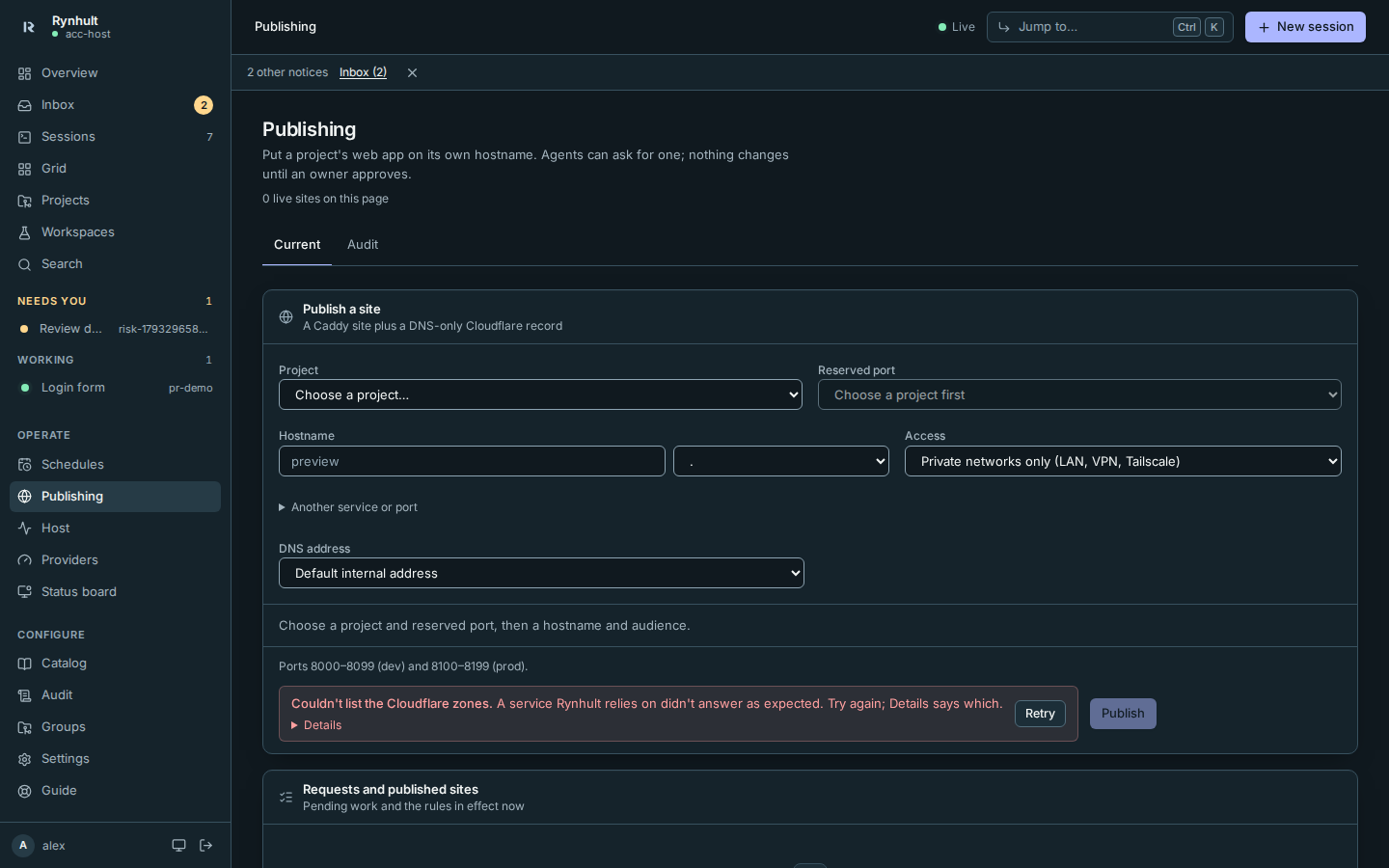
Publishing puts a project's port on a hostname: Rynhult adds a site to Caddy and a DNS record at Cloudflare, then checks that HTTPS answers.
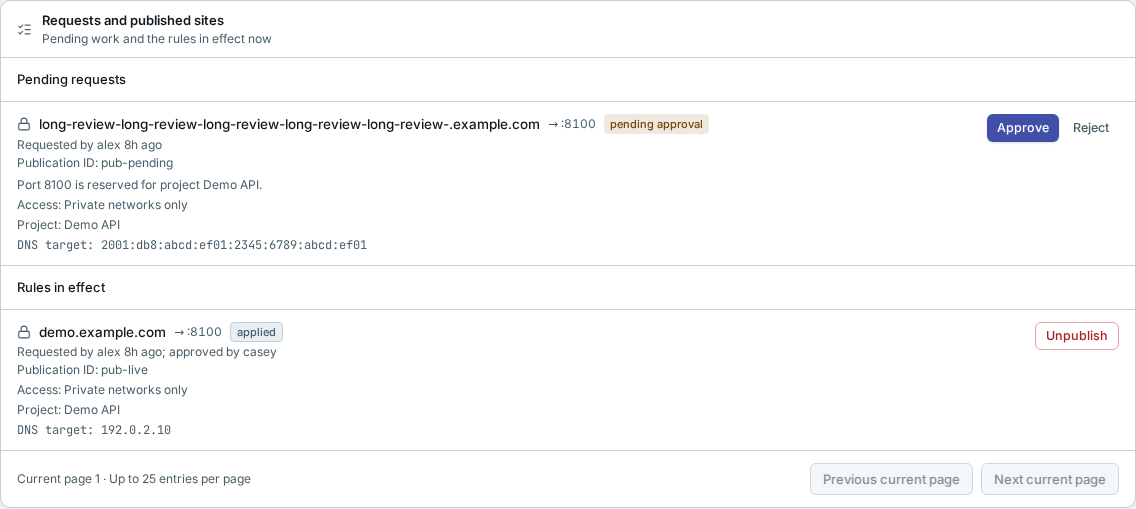
Current rules and Audit
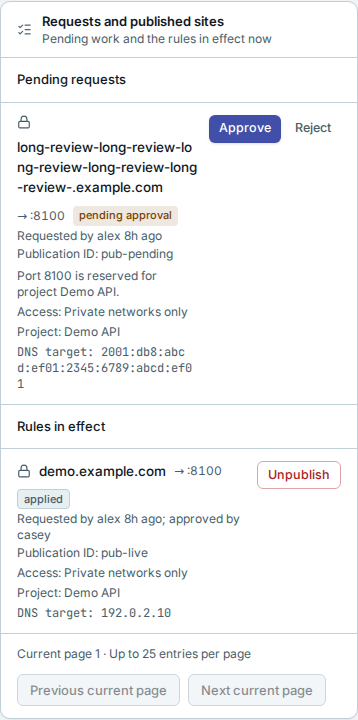
Current shows the publish form and Requests and published sites. Pending
requests include work waiting for approval, approved work and work being applied.
Rules in effect lists only live published sites on the selected Current page, with hostname, port, access,
project, approver and (for owners) the pinned DNS target. A failed replacement
does not remove the previous live rule. These are Rynhult's applied records, not
an independent reachability or Caddy-drift check. Current shows up to 25 entries
per page; use Previous current page and Next current page to reach older
pending requests and live rules. The counts describe the selected page. On narrow
screens, pagination buttons wrap onto separate lines so both stay reachable. Current
links retain current_page, independently of Audit's page parameter. Publishing
a hostname checks its live rule independently of the selected page before offering
replacement confirmation. The API caps Current pages at 100 entries.
New successful operations keep their DNS/helper/HTTPS outcome as structured records. Members receive only non-address outcome facts; target addresses and address-bearing helper/HTTPS diagnostics are owner-only. Address literals in older request text are redacted in member responses, including Audit and the legacy list.
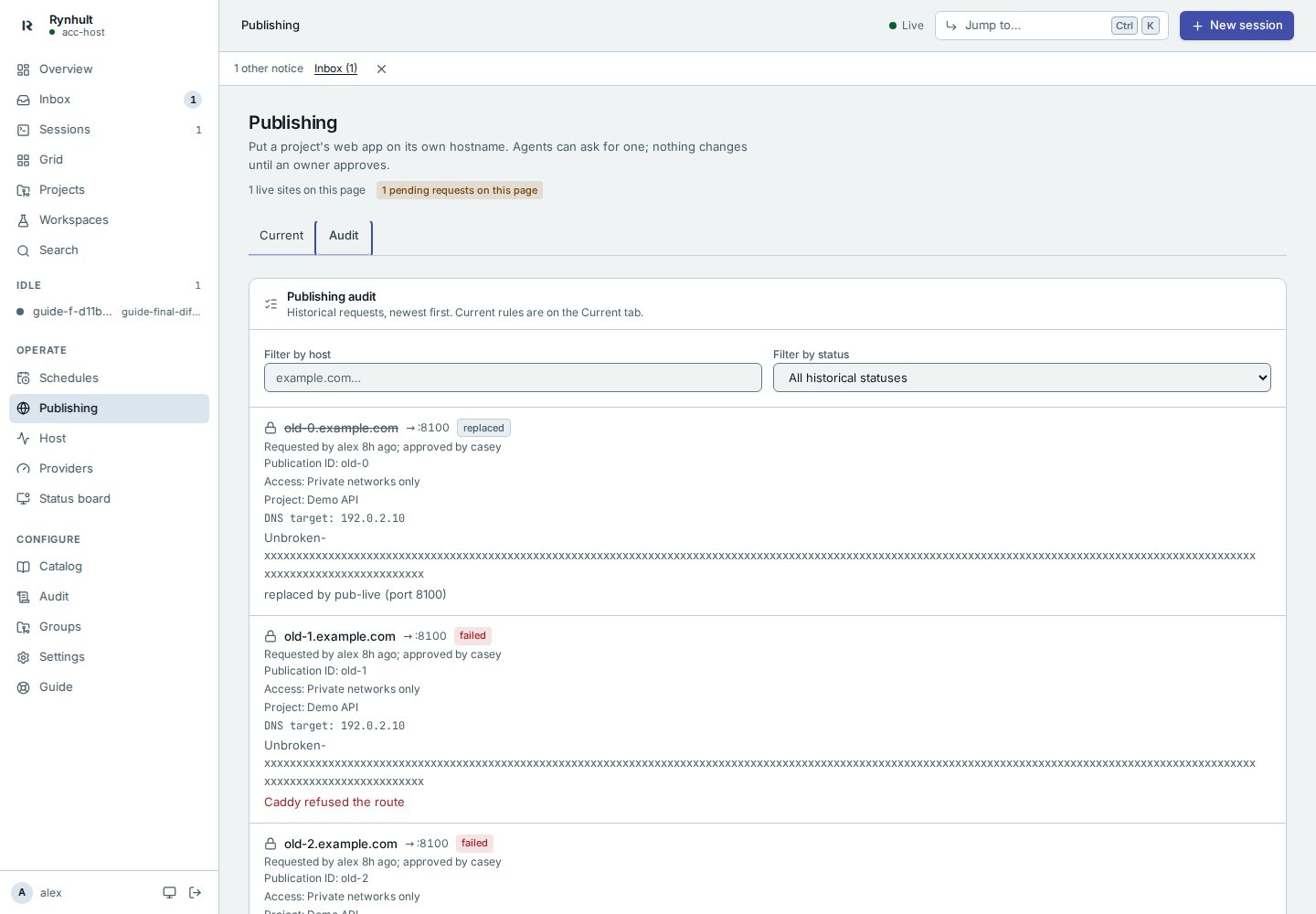
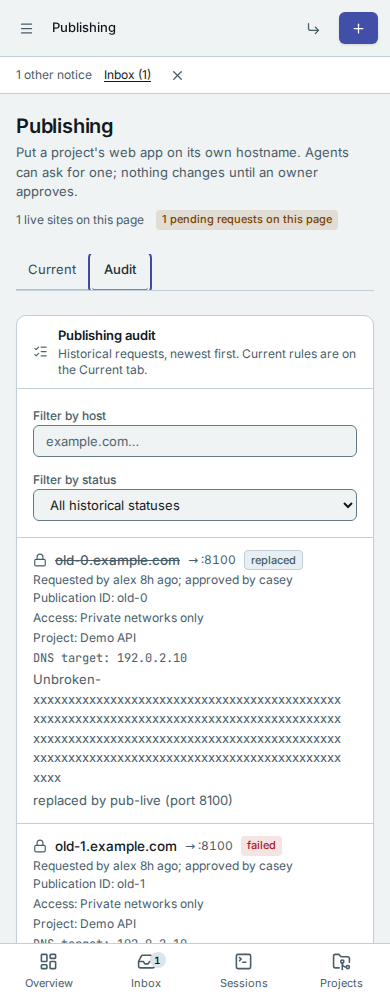
Audit keeps failed, rejected, removed and replaced requests separate, newest request first, with the recorded details and requester/decision actors. It shows 25 entries per page; use Previous page and Next page to browse. Filter by host matches part of a hostname (ignoring case); Filter by status narrows the history. Replaced sites appear as Replaced, separately from removals. Existing data, Inbox approvals and failure alerts are unchanged. Members see only their own requests in either view; owners see all requests.
Both tabs have shareable addresses: /publishing?tab=current and
/publishing?tab=audit. Audit links retain host, status and page, for example
/publishing?tab=audit&host=demo.example.com&status=failed&page=2. Reload and
browser navigation keep that selection. With a keyboard, focus a tab and use
Left/Right arrows, then Tab to reach the panel controls.
Before you start
Publishing needs an approved DNS zone and address inventory. Owners select separate purpose-bound credentials in Settings → DNS and certificates. Cloudflare uses its selected vault credential; without a binding, existing installations retain the legacy token path. Cloudflare is qualified; the other five adapters remain offered in preview, labelled Preview: not yet qualified for this release. Their existing production gate remains until both live certificate and Publishing tests pass. Saved bindings are retained. See DNS providers for credential setup, exact ownership checks, reviewed legacy-record adoption and deliberate legacy-token rollback.
Publish a site
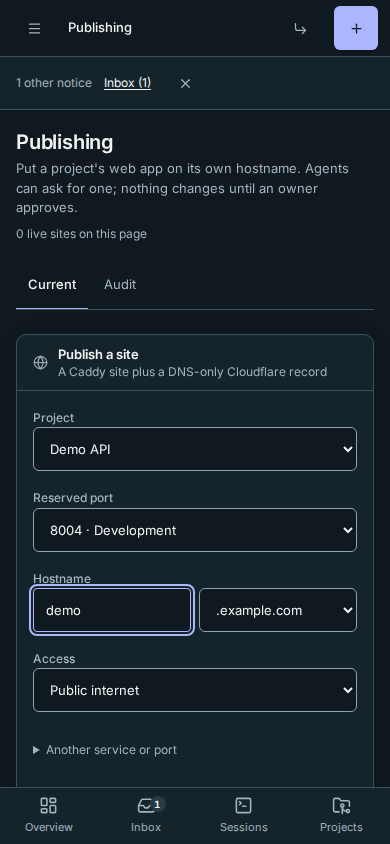
- Choose the Project and its Reserved port. Development and production reservations are labelled. Changing project clears the old port selection. If there are no reservations, open Project → Ports and reserve one first.
- Enter the Hostname and pick the zone.
- Choose Access: Private networks only (LAN, VPN, Tailscale) or Public internet. Review the full HTTPS address, port and audience above Publish. Public asks for confirmation.
- Owners can choose DNS address, or keep the default for this access level. For a CIDR block, enter one Host address from block; Rynhult refuses addresses outside that block and IPv4 network/broadcast addresses.
- Select Publish. To change a live site's address, enter its hostname and port again, choose the new address, and confirm Replace the live site. This updates its managed DNS record through Cloudflare.
A reserved port always links a publication to its owning project, including publications created by an owner. Rynhult refuses new publications while that project is being deleted or has a workspace operation in progress; wait for the operation to finish before retrying. Older publications without a recorded project link still block project deletion when their port is reserved for that project. Unpublish live sites and resolve unfinished requests before deleting the project.
For a service outside a project, expand Another service or port and enter its Local port. Reserving or publishing a port does not start the application: it must already be listening on the machine.
On a phone the same project-first flow stacks vertically.
Names directly under the wildcard zone (for example preview.example.com) reuse its wildcard certificate, so they never appear in public certificate logs.
Requests from agents
Agents never edit Caddy or DNS. They ask with rynhult-request publish --host … --port … --reason "…". The request appears here and in the inbox; nothing changes until you Approve it. Reject drops it.
- An agent can only ask for a port reserved for its own project (on the project's page, under Ports), whoever started the session, and can only unpublish its own project's sites. Anything else is refused before it reaches you, with an inbox note saying why.
- Each request shows the same summary here, in the Inbox and on the Overview: who asked, for which project, whose port it is (port 8004 (reserved for project demo)) and who can reach it.
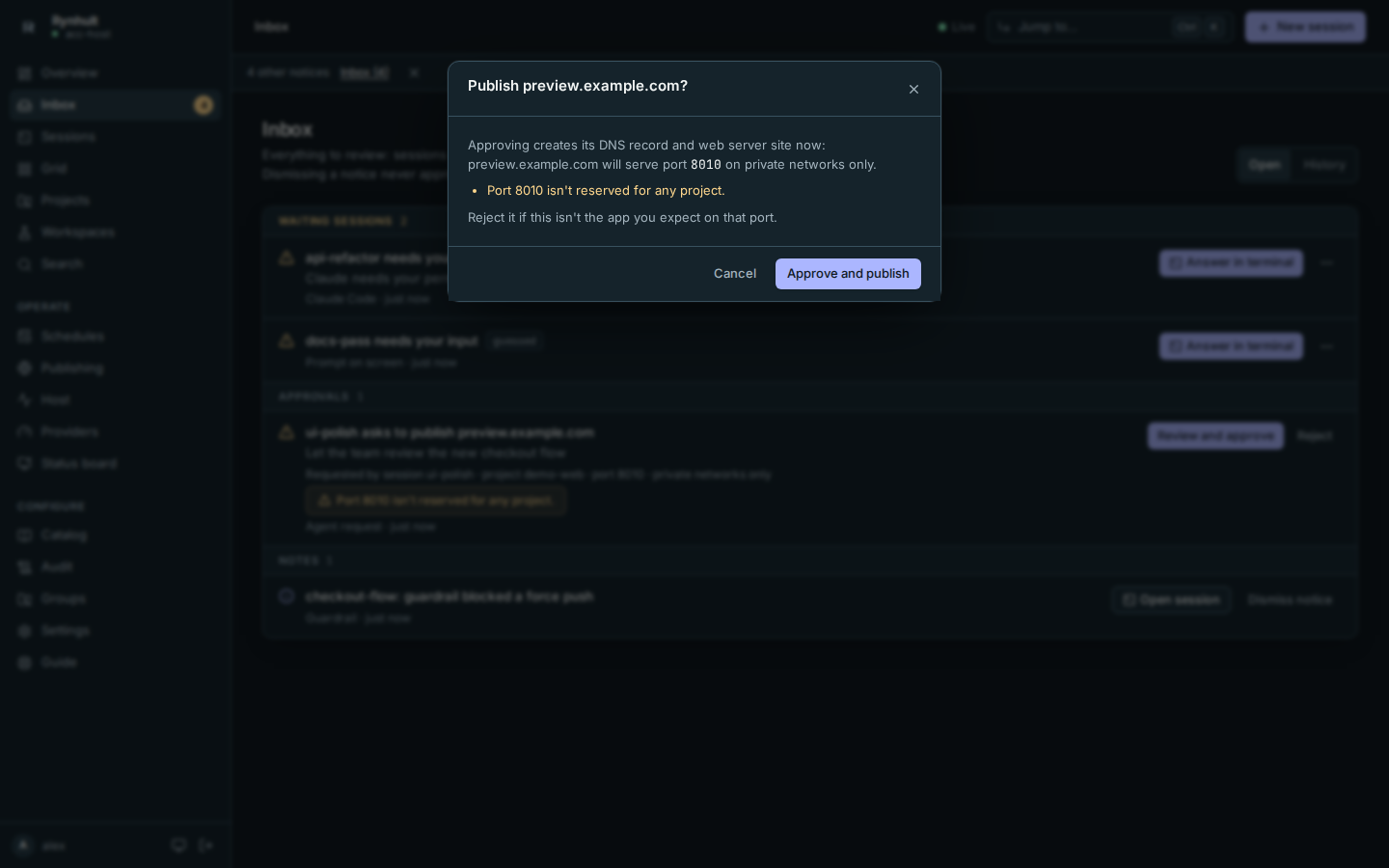
- Anything unusual is an amber note under it: Port 8010 isn't reserved for any project, a port reserved for a different project, or Anyone on the internet can reach it. Then the button reads Review and approve, and it asks first, naming what approving does (the DNS record and web server site are created now). Cancel leaves the request waiting.
A request for a name that is already live
If the hostname is already published, approving the request would point a working site somewhere else. The inbox item is marked critical and titled Retarget live site host: old port (project) → new port, and the button reads Review and approve. It opens what changes: which port and project the name serves now, who approved that, and where it would point after. Only Replace the live site approves it; the old site keeps running until then. Reject it unless you meant to move the name.
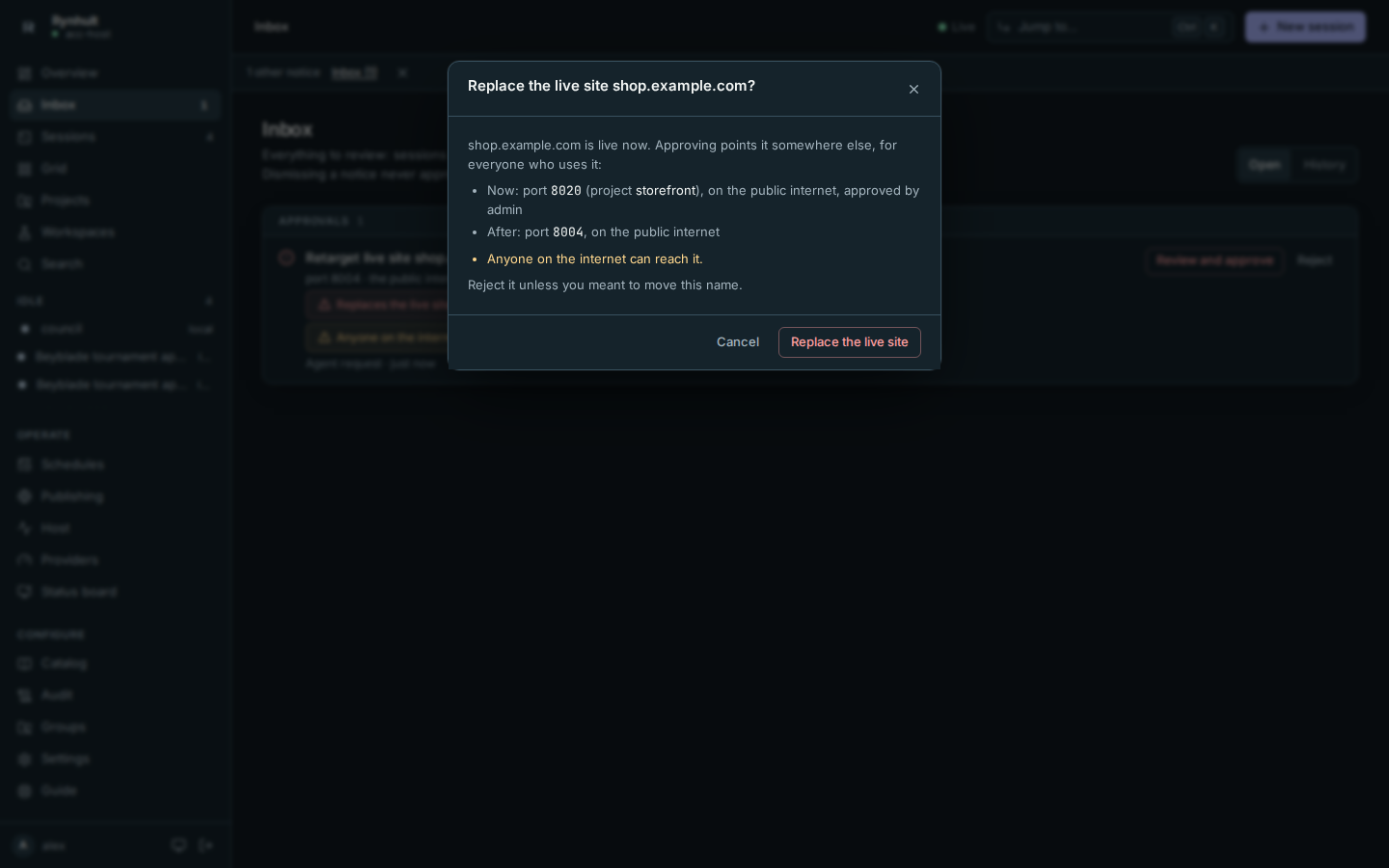
Publishing a live name yourself from this page asks the same question first.
Unpublishing
Unpublish removes the site and its DNS record. The application keeps running on its port.
If Cloudflare's zone lookup fails, the publish form shows its error. Check the configured token and its zone permissions, then reload the page. A demo without Cloudflare credentials explains that publishing needs a Cloudflare zone and links to setup; it does not publish DNS.
Manage addresses (owners)
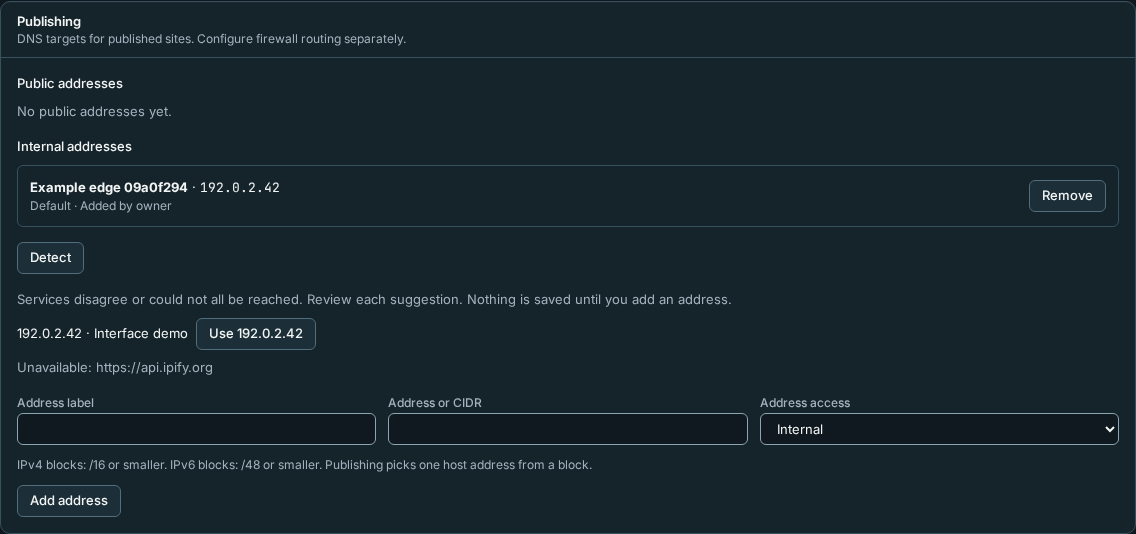
- Open Settings → Publishing. Public and internal targets appear in separate lists, with a label and one default per list. Members cannot view or edit this inventory or run detection.
On a phone the fields stack vertically.
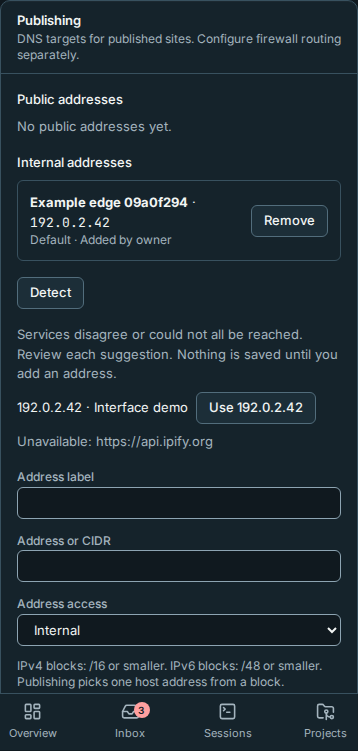
- Enter an Address label, an Address or CIDR, and Address access, then select Add address. IPv4 blocks must be /16 or smaller; IPv6 blocks /48 or smaller. Blocks remain a single entry, never a huge dropdown. You pick an individual host address when publishing. Overlapping entries are refused, including overlaps between public and internal lists.
- Optionally select Detect. Rynhult compares two HTTPS public-IP services with short timeouts and lists machine interface addresses. A disagreement or failed service is shown. These are suggestions, not proof of ownership or reachability: an edge firewall's additional addresses may need manual entry. Use fills the form; only Add address saves it.
- Select Make default to change the target of future requests. Existing requests and published sites keep their chosen address. Remove asks for confirmation and refuses entries used by approved, applying or live sites. Move those sites first. A failed request whose DNS change may remain also holds its address: publish that hostname successfully again, or unpublish its live site, before removing the entry. A pending request whose target is removed fails when applied; review and submit it again.
New public entries must be globally routable IPv4 or IPv6 unicast. Private, loopback, link-local, carrier-grade NAT, multicast, documentation, reserved and special-purpose addresses are refused. Use Internal for LAN/VPN targets. Documentation addresses in this guide's demo are examples only, not valid new public targets. Configure address ownership, NAT/firewall forwarding and port 443 routing yourself; adding an address does not configure the network.
On first use, ACC_ORIGIN_PUBLIC_IP and ACC_ORIGIN_INTERNAL_IP become From environment (bootstrap) entries. Existing requests are pinned to those original targets. These environment variables remain installation bootstrap defaults; after the inventory exists, changing them does not overwrite owner choices. Legacy values are preserved so existing installations keep working, even if a value would fail new-entry validation. Address additions, removals, default changes and bootstrap are recorded in Audit.
IPv6 targets use AAAA records; IPv4 targets use A records. Changing between them updates the existing managed record. An unmanaged DNS record or multiple existing address records needs reconciliation before publishing. Rynhult checks the chosen address against the current inventory again before applying DNS and handing the route to the root helper. Approval, project port reservations and internal-only routing rules still apply.
Detect only connects to public HTTPS destinations, checks and pins each service's DNS answer, and limits each reply to 128 uncompressed bytes within four seconds. A private DNS answer, compressed or oversized reply, or slow service appears as a failed service. Interface suggestions still appear. Detection never saves an address; review suggestions before adding one, even when both services agree.
Owners can copy Publication ID from each row when adopting a reviewed legacy DNS record in Settings. The server verifies that the selected applied publication exactly matches the remote record.
This page is generated from docs/wiki/User-Guide/Publishing.md; the same page is under Guide inside Rynhult.