Company sign-in with Microsoft Entra ID
Off by default; not yet qualified. Company sign-in is the first slice of Organizations phase 1. It is tested against a local test identity provider only. No Entra tenant has been used with it yet, so treat this page as a setup guide for a pilot on a test tenant, not as supported production SSO. SCIM provisioning, SAML, LDAP and organization roles/teams are parked until after v1 (owner decision Oct 25), built on request or from contributions. Directory group admission and provider logout are not shipped.
Company sign-in lets members sign in to Rynhult with their company account through OpenID Connect (OIDC). Microsoft Entra ID is the first provider being prepared. Rynhult uses the authorization code flow with PKCE and checks every ID token itself: the signature from the tenant's published keys, the issuer, the audience, the times and a one-use nonce.
What stays the same
- Owners never sign in through the provider. They keep their passkey or password and authenticator code. That is the break-glass path: it works when Entra is down, misconfigured or switched off. See When the provider is down.
- Nobody gets in just by having a company account. Rynhult refuses a first sign-in unless an owner added that person or sent them a sign-in link. It matches the provider's issuer and subject, never an email address or display name.
- Personal installs see nothing new. The setting only appears when the server runs in organizations mode.
Before you start
- The server must run in organizations mode: whoever runs Rynhult's service sets
RYNHULT_ORGANIZATIONS=1(legacyACC_ORGANIZATIONS=1also works) in its environment and restarts it. This mode is off by default. Without it, Settings has no Company sign-in section and the sign-in routes are off. Even with the mode enabled, company sign-in stays off until an owner selects Allow company sign-in and saves. - Rynhult must be reached at its https address, for example
https://rynhult.example.lan. The redirect address is built from the first https address inACC_ALLOWED_ORIGINS. - Company sign-in follows the same access rule as the rest of Rynhult: private network only, unless Remote access is on, and then only behind its device check.
1. Copy the redirect URI
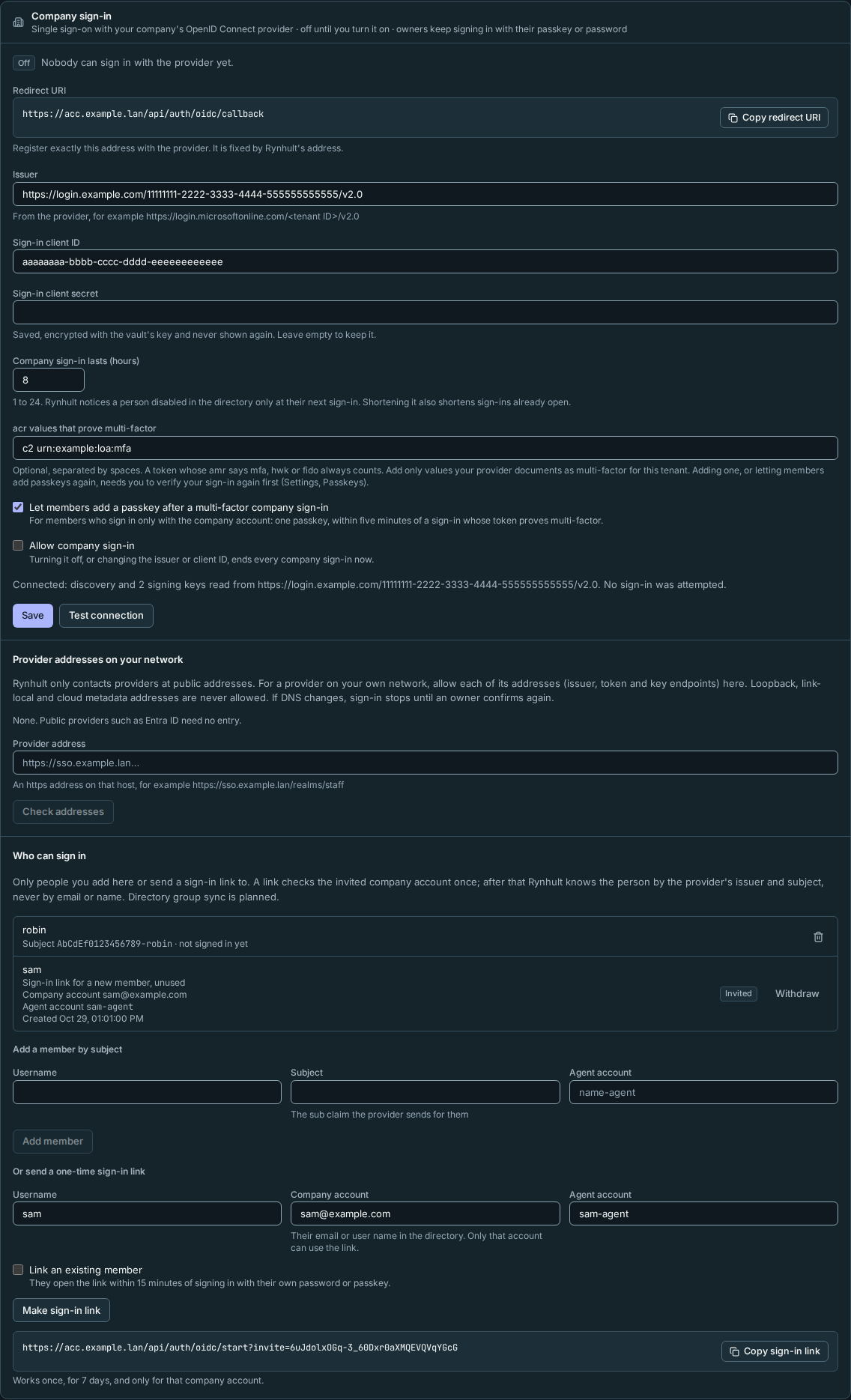
Open Settings → Company sign-in and copy Redirect URI, for example
https://rynhult.example.lan/api/auth/oidc/callback. Entra must have exactly this address, letter for letter.
2. Register Rynhult in Entra
In the Microsoft Entra admin center, as someone allowed to register applications:
- App registrations → New registration. Name it, for example, Rynhult (example.lan).
- Supported account types: accounts in this organizational directory only (single tenant).
- Redirect URI: platform Web, and paste the address from step 1. Register.
- On the app's Overview, copy the Application (client) ID and the Directory (tenant) ID.
- Certificates & secrets → New client secret. Copy its Value now (Entra shows it once). Note its expiry date: when it expires, sign-in fails until you enter a new one in Rynhult.
- Authentication: leave Access tokens and ID tokens under implicit grant off. Rynhult never uses the implicit flow.
Rynhult asks for the openid profile email scopes. It reads only the subject, and the email or user name
(UPN) to check a sign-in link against the invited account. It does not read mail or group claims.
Multi-factor authentication. Rynhult counts Entra's MFA only when the ID token itself says MFA was used:
its amr claim contains mfa (or hwk or fido, which name a hardware or FIDO authenticator). Entra adds
mfa when a Conditional Access policy requires MFA for the Rynhult app, so create one for it, and check the actual token claims before the pilot: a successful provider
prompt alone does not prove Rynhult received that evidence. What MFA proof changes:
- If passkeys are Required for members (Settings → Passkeys → Owner policy), a sign-in without that proof isn't enough: a member who has a Rynhult passkey must also confirm with it before Rynhult opens, and a member without one is refused. When passkeys are only allowed, the company sign-in is enough.
- A member who signs in only with the company account can add a Rynhult passkey only right after a sign-in with MFA proof. See Passkeys for company members.
3. Enter the provider in Rynhult
Back in Settings → Company sign-in:
-
Issuer:
https://login.microsoftonline.com/<Directory (tenant) ID>/v2.0. Use the tenant ID itself, notcommonororganizations: Rynhult compares the issuer exactly. -
Sign-in client ID: the Application (client) ID.
-
Sign-in client secret: the secret's value. Rynhult encrypts it with the vault's key. It is never shown again, never given to sessions, and saving the form without a new value keeps it. Changing the issuer or client ID drops the saved secret, so enter it again.
-
acr values that prove multi-factor (optional): leave it empty for Entra ID with Conditional Access, which proves MFA through
amr. Some providers signal MFA only through theacrclaim, with values each tenant defines (for example an authentication context such asc2). Enter only values your provider documents as multi-factor for this tenant, separated by spaces. Rynhult never countsacrvalues you didn't enter, and refuses0and1, which Entra's older tokens send after a password alone. Adding a value relaxes sign-in, so Rynhult first asks you to verify your sign-in again (Settings → Passkeys) and lets you save within five minutes; removing values needs nothing extra. -
Let members add a passkey after a multi-factor company sign-in (on by default): see Passkeys for company members. Turning it back on after turning it off also needs a fresh verification.
Select Save, then Test connection. The test reads the tenant's discovery document and signing keys only; it does not sign anyone in. If it reports a problem, check the issuer first.
A provider on your own network. Entra ID is public and needs nothing more. Rynhult refuses to contact a
provider whose address is private (for example a self-hosted provider at https://sso.example.lan) unless an
owner allows it. Under Provider addresses on your network, enter an https address on that host, select
Check addresses, confirm the addresses shown and select Allow these addresses. Allow each host the
provider uses: its issuer, token and key endpoints. Only ordinary LAN addresses can be allowed; loopback,
link-local and cloud metadata addresses never can. If the host's DNS answer later changes, company sign-in stops
until an owner checks and confirms again. Allowing and removing addresses is recorded in the Audit log.
4. Decide who can sign in
Entra sends each person a subject (sub). For a given app it stays the same for that person, but it is
specific to the app registration, so you usually don't know it in advance. Use one of these:
- Make sign-in link (recommended): enter the new member's username, their company account (email or user
name in Entra, for example
robin@example.com) and agent account. Rynhult gives you a one-time link that works for 7 days, and only for that account: Entra must report the same verified email or user name, so a forwarded link is useless to anyone else. After the first sign-in Rynhult knows the person by Entra's subject, so a later rename in Entra doesn't lock them out. - Link an existing member: tick Link an existing member and enter their username and company account. They must first sign in to Rynhult with their own passkey or password, then open the link within 15 minutes. Owners can't be linked.
- Add a member by subject: if you already know the person's subject for this app, enter it with a username and agent account.
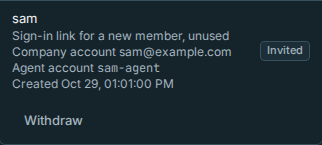
Withdraw an unused link: under Who can sign in, check the company account, agent account and Created
time on the invitation row, then select Withdraw and confirm. Only that invitation is revoked: its link and
sign-in attempts already started with it stop working, with an invitation-withdrawn message.
Other invitations and existing company sign-ins stay. Withdrawing a link you just made
also removes its copy box. Used invitations cannot be withdrawn: they are kept as history, not shown in the
unused invitation list. To stop someone who has already signed in, use the remove action on their member row.
Withdrawal is owner-only and recorded in Audit as org.invite_withdrawn with the invitation ID
and username.
Directory group sync through SCIM is parked until after v1, built on request or from contributions. For the shipped OIDC pilot, each person needs a link or their subject.
People added this way are members. They have no usable Rynhult password; they sign in with the company account only. Company sign-ins last 12 hours unless you change Company sign-in lasts (hours) (1 to 24), shorter than local ones, because Rynhult only notices that Entra disabled someone at their next sign-in. Shortening it also shortens sign-ins already open.
5. Turn it on
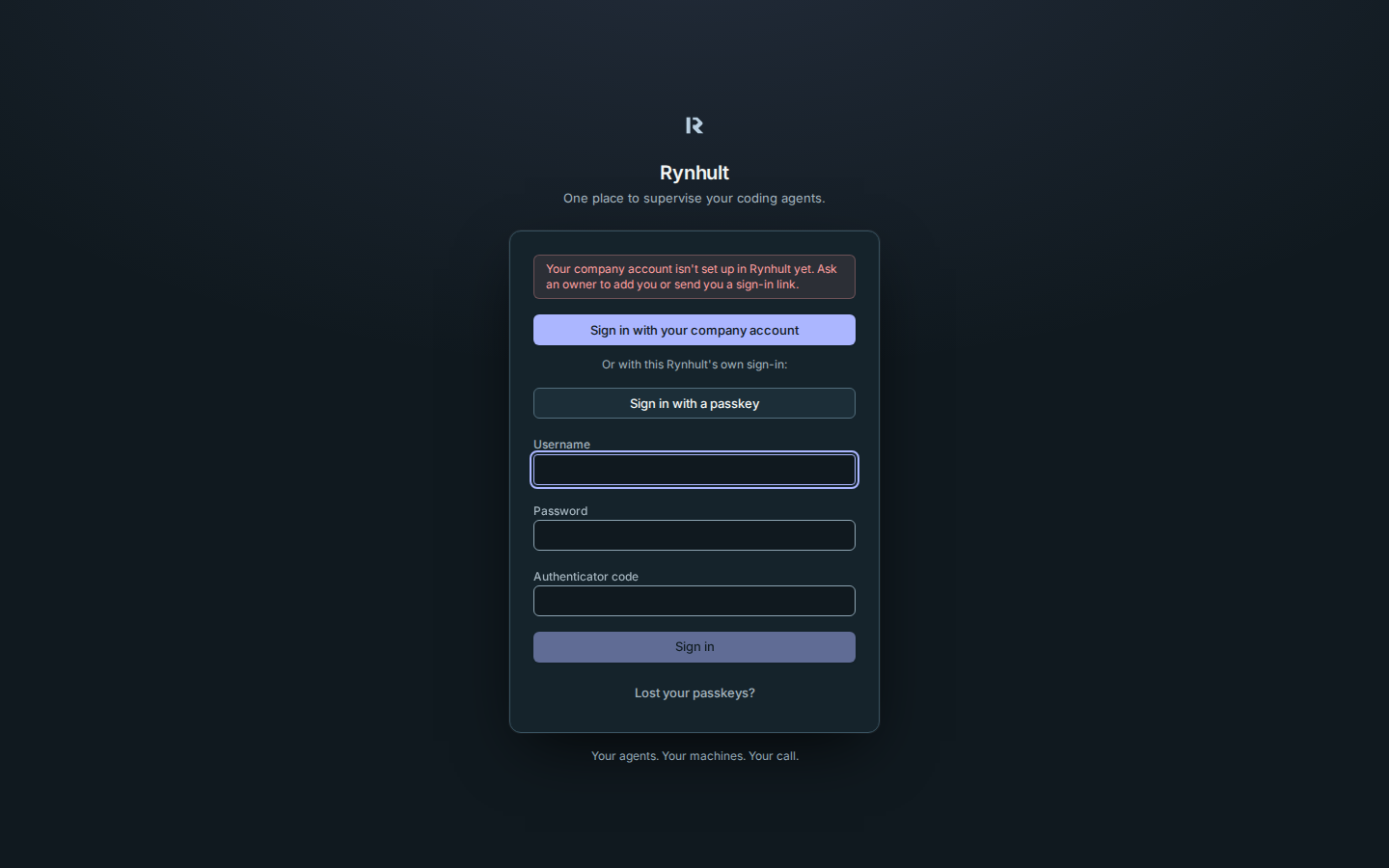
Tick Allow company sign-in and Save. The sign-in page now shows Sign in with your company account above Rynhult's own sign-in.
Passkeys for company members
Members that company sign-in created have no Rynhult password or authenticator, so they can't verify their sign-in the usual way before adding a passkey. Instead:
- The member signs in with Sign in with your company account, completing Entra's multi-factor prompt.
The provider must confirm that authentication happened within the last ten minutes. Rynhult requests this
with
max_age=600; a newly issued token alone does not prove a recent authentication. - Within five minutes, they open Settings → Passkeys, enter a Passkey name and select Add passkey. Rynhult says the sign-in proved multi-factor authentication and until when a passkey can be added.
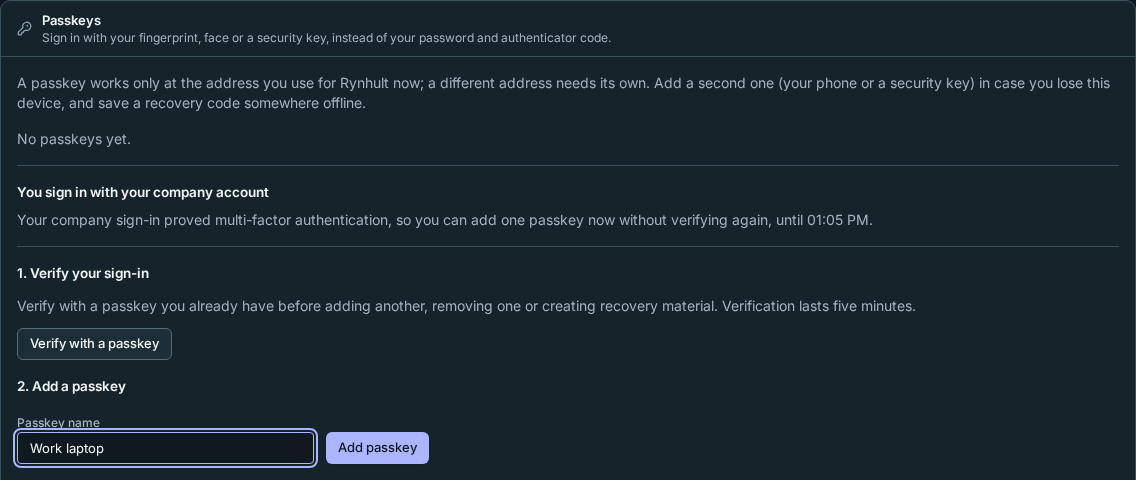
Each such sign-in allows one passkey. Removing a passkey and other changes still need a verification with an existing passkey. Passkeys doesn't offer company members a recovery code: recovery needs a Rynhult password, which they don't have. Require for members still needs their passkey, but does not require them to save a recovery code. Owners and members with local credentials still need recovery codes. If the token didn't prove MFA or recent authentication, or the five minutes have passed, Passkeys says to sign out and sign in again with the company account. A member with a passkey can verify with it to add more, like anyone else, and uses it when an owner requires passkeys and Entra's token doesn't prove MFA. A lost passkey is replaced the same way: another sign-in with MFA and recent provider authentication. If the provider omits its authentication time, company sign-in can still succeed, but no enrollment window opens.
A company member's passkey only confirms their company sign-in. Sign in with a passkey on its own refuses them and points to the company sign-in, so removing someone under Who can sign in, or disabling them in Entra, still locks them out.
Members who were linked to an existing Rynhult account keep their own password and authenticator, and verify with those or a passkey as usual.
To stop company members adding passkeys this way, clear Let members add a passkey after a multi-factor company sign-in and save. Any window already open closes at once; passkeys already added stay. Each passkey added this way is in the Audit log as a registered passkey from that member.
Using a password reset link turns a company-only member into one with a local password and authenticator (see Removing access below). For administrators rolling back the pilot: migration 0054 refuses a downgrade while any company-only account has passkeys. Remove those passkeys or accounts before retrying; the migration does not delete them for you. This prevents an older version from accepting those passkeys as standalone sign-in credentials.
Removing access
-
Stop one person: in Who can sign in, select the bin icon next to them. The confirmation says which of these happens:
- A member added here or through a sign-in link signs in only with their company account, so this removes
them from Rynhult, exactly as Remove under People does. Choose whether their projects, sessions and
keys become yours or are archived. They are signed out everywhere and their username is retired. The Audit
log records
organizations.identity_unboundanduser.remove. - A member linked to an existing Rynhult account keeps their own password and authenticator. Only their company sign-in stops; their sign-ins with it end at once and their projects and sessions stay. Remove the person under People if they are leaving.
A company member an owner later sent a password reset link to has a password of their own once they use it, so they are treated like a linked member. An owner is never removed here: owners never sign in through the provider, so only the binding is removed. Remove an owner under People.
- A member added here or through a sign-in link signs in only with their company account, so this removes
them from Rynhult, exactly as Remove under People does. Choose whether their projects, sessions and
keys become yours or are archived. They are signed out everywhere and their username is retired. The Audit
log records
-
Stop everyone: clear Allow company sign-in and save. Every company sign-in ends at once. Changing the issuer or client ID does the same.
-
Disabling the account in Entra stops new sign-ins, but a sign-in already open lasts until it expires (at most the configured hours). Remove them in Rynhult as well for an immediate stop.
Signing out of Rynhult ends the Rynhult sign-in only. The Entra session in the browser stays, so the next Sign in with your company account may not ask for a password. Sign out of Microsoft too on shared computers.
When the provider is down
If Entra is unreachable, the sign-in page says Rynhult couldn't reach the company sign-in service. Owners sign in as usual with a passkey, or password and authenticator code, and can switch company sign-in off or fix its settings. Members who only have company sign-in wait for Entra to come back. Keep at least two owners with their own passkeys so one lost device doesn't leave nobody able to get in.
If sign-in fails
Changing or disabling the provider also refuses sign-ins already waiting for its response. Start again after the owner finishes the change. Malformed or oversized provider replies are refused; unknown MFA claim formats do not count as proof of MFA.
| What the sign-in page says | What to check |
|---|---|
| Your company account isn't set up in Rynhult yet | Add the person or send them a sign-in link. |
| The provider's answer couldn't be verified | The issuer, client ID and secret match the app registration; the server's clock is right. |
| Couldn't reach your company's sign-in service | The server can reach login.microsoftonline.com; use an owner's local sign-in meanwhile. |
| That sign-in link is for a different company account | They signed in with another account than the one invited; check the address on the link, or make a new one. |
| That sign-in link was withdrawn by an owner | Ask an owner for a new invitation. The old link cannot be used again. |
| Didn't confirm multi-factor authentication | Passkeys are required: add a Conditional Access policy requiring MFA for the app (or enter the provider's multi-factor acr values), or have the person add a passkey after a multi-factor sign-in. |
| That sign-in attempt expired or was already used | Start again from the sign-in page, in the same browser, within 10 minutes. |
| Company sign-in is off or was just changed | Settings changed while signing in; start again. |
| Company sign-in must start from this page | The attempt was started by another website. Select Sign in with your company account on Rynhult's sign-in page. |
| Too many sign-in attempts | Too many sign-ins were started from this network, or with this sign-in link, and not finished. Wait up to 10 minutes. |
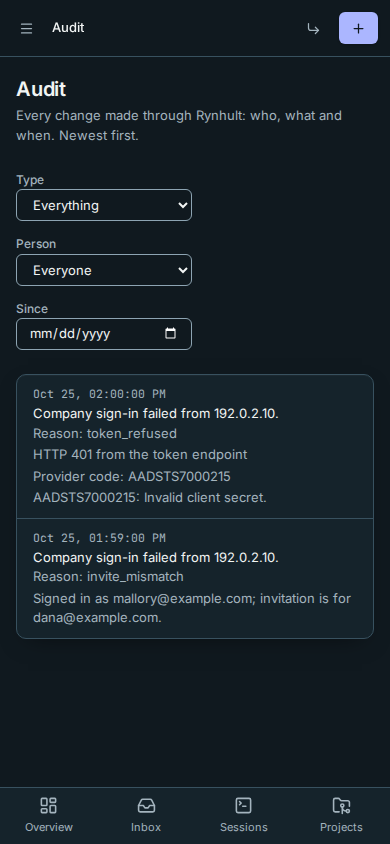
Owners can open Audit for refused callbacks (auth.sso_failed), with a reason and, when available,
a local diagnostic such as HTTP 401 from the token endpoint. Token-endpoint refusals also show a Provider code:
an Entra code such as AADSTS7000215, otherwise the OAuth error such as invalid_client. The audit stores this as
error_code, alongside oauth_error and aadsts_code when available. error_text is the provider's description,
limited to 300 characters, with control characters removed and reflected credentials redacted before truncation.
Malformed, oversized or credential-reflecting codes are omitted. Use the code to look up the provider's failure.
Opening a sign-in link that was already used, has expired or was withdrawn is recorded too, as auth.sso_failed
with the reason invite_used, invite_expired or invite_withdrawn, the invitation ID and the address it came from
(never the link itself). A link
Rynhult does not recognize is refused without an audit entry.
For an account mismatch, Audit shows the returned company account next to the invited account
(returned_account and invited_account). Only an account eligible for the invitation check is reported; an
unverified email or an untrusted provider's preferred user name is not treated as proof. If no eligible account was
returned, the audit says so. These details are owner-only and readable on a phone without hovering.
The public sign-in page keeps its generic mismatch message and never displays these account names or provider details.
Authorization codes, tokens and secrets are never logged or audited. Rynhult's own logs record sign-in addresses without their query, and sign-in links without their token.
Leaving Settings open does not extend the five-minute passkey-enrollment window. When it expires, Settings asks you to sign in with your company account again or verify with an existing passkey. If Rynhult refuses enrollment because the permission has changed, the old “add one passkey now” message is removed from that tab as well.
This page is generated from docs/wiki/User-Guide/Company-Sign-In-Entra.md; the same page is under Guide inside Rynhult.