New session
Select New session (top bar, or press C). Most launches need only a project and a task: choose them and select Launch. Everything else has a default, listed in one line under Advanced.
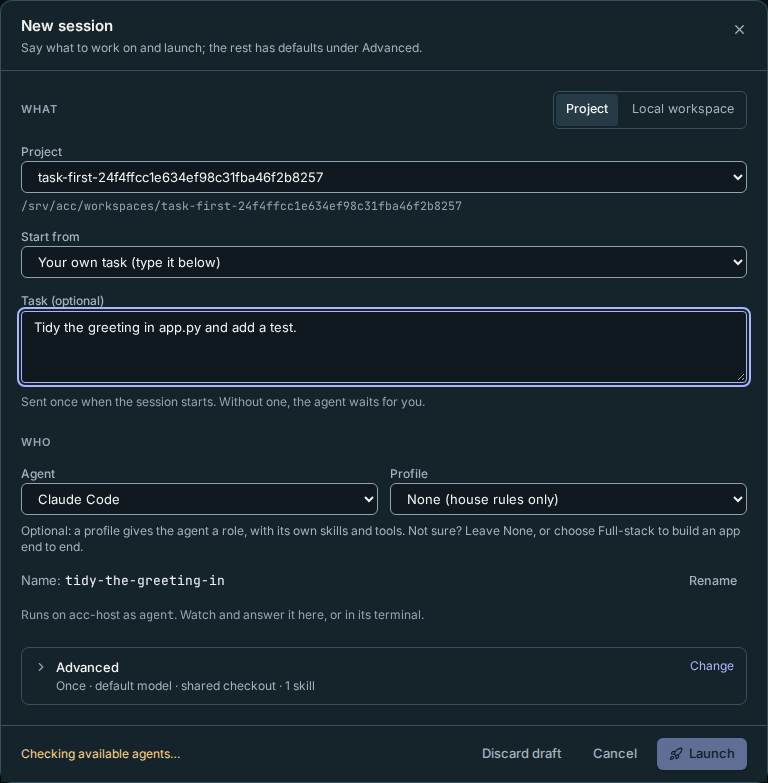
What
- Where it runs. Project (a registered project or Development workspace) or Local workspace (see Workspaces). With no project yet, select New project right there (see Projects); what you entered stays.
- Project. The line under it is the project's folder, prefixed by the remote machine when applicable. The account and machine are named under Who, including the main machine's real name. The project fixes where this session runs; choose a project on another machine to change it, rather than a separate Host selector. A project that isn't trusted yet says so, and Launch becomes Trust and launch: it asks once, names the folder, then launches.
- Start from. For registered projects, choose Your own task (type it below), or a connected GitLab issue, GitLab merge request, Gitea / Forgejo issue or pull request, or Linear issue. Filter the list and select Use issue. The preview includes its title, description and link as untrusted reference data fetched by Rynhult; source tokens never reach the agent. Configure connections on Projects. Changing projects or choosing Local workspace clears the issue selection. Choose another clears it without changing your assignment.
- Task. What the agent should work on. Sent once when the session starts, never again on resume. Without one, the agent starts and waits for you in its terminal. (Required when you run several agents.)
- If another live session already works in the project's own checkout, a note says so: Use its own worktree gives this session its own copy (see Own worktree below).
Who
- Agent. Claude Code, Codex, GitHub Copilot CLI, Antigravity, Cursor or OpenCode: whichever are installed for the selected project's agent account on its machine (see Host and providers). Changing projects reloads availability and models for that execution account; an agent installed only on another machine is selectable there. Local workspaces use your agent account on the named main machine, not the device running your browser.
- Profile. A role, such as Full-stack, Frontend or Researcher. It sets instructions, the skills and tools the session gets, and permission defaults. The line under it says what the profile is for.
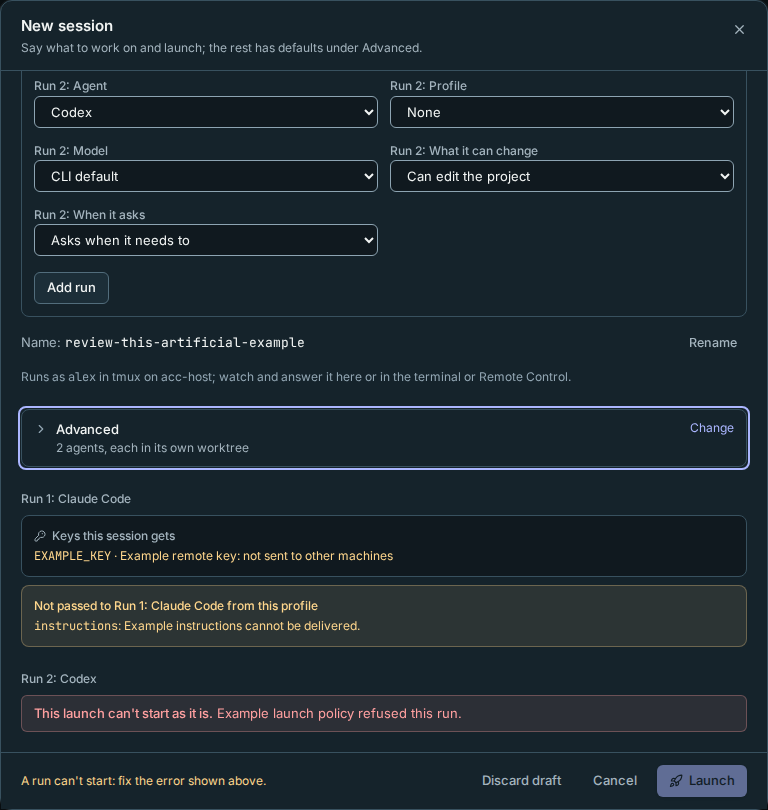
- Keys this session gets (when the project has keys). The environment variables the session gets from the key vault, by name, never their values: the keys given to the project that you may use (yours and shared ones). Common variables also show the short descriptions used by the Keys dropdown. On another machine, keys whose owner hasn't allowed Other machines are listed as not sent. If two keys use the same variable, the preview says which and Launch stays disabled until one is removed from the project.
- Name. Rynhult names the session for you and shows the name it will use: from the task's first words for a project (
Fix the login form→fix-the-login-form), from the topic for a new local workspace, and from the profile in an existing one. Select Rename to type your own; Use automatic name goes back. A name that's already set (from an issue, a link or your draft) shows in the field straight away.
The line under Who says which agent account runs it, and on which machine.
Advanced
Closed, Advanced shows one line with every choice it holds, for example Once · default model · accept edits (asks before commands) · shared checkout · 1 skill. Select it to change any of them:
- Run. Once (the default); Several agents (see Run on several agents); With helpers (see Optional Orchestrator role); or On a schedule, which adds Timing under the task and saves a schedule instead of launching (see Schedules).
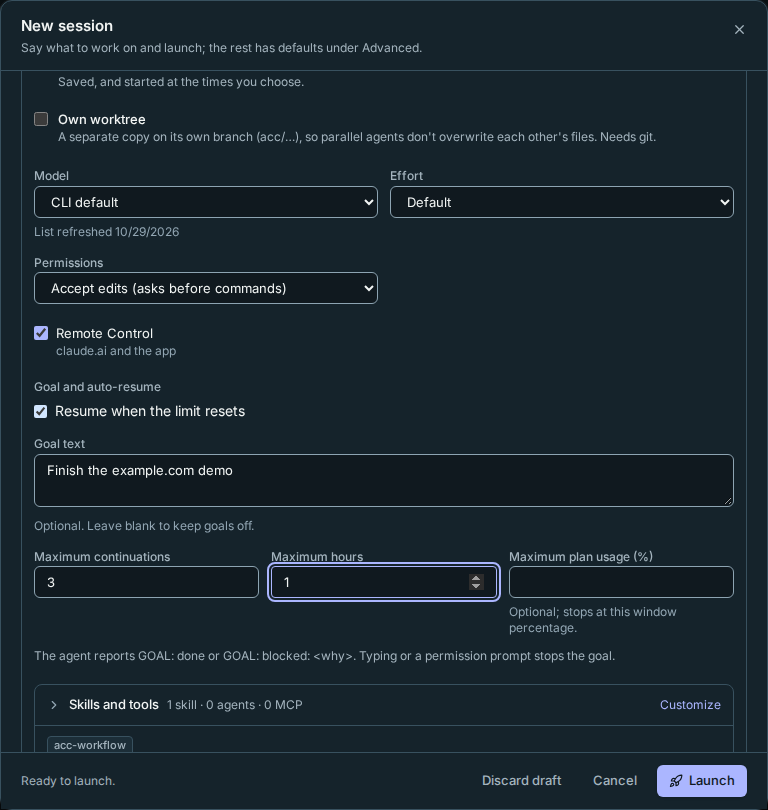
- Own worktree (project sessions). Runs the agent in a separate copy of the project on its own branch (
acc/<name>-<id>), so several agents can work on one project at once without touching each other's files. Development workspaces require this option; it stays checked and cannot be turned off. Their git stays local-only. See Sessions → Worktrees. - Model and Effort. Leave them on the defaults unless you need a specific model. OpenCode's models are written
provider/model(choose Custom… to type one, for exampleopenrouter/anthropic/claude-sonnet-4), and OpenCode has no effort setting. New session asks the selected account's broker for its model list and caches it for an hour. Switching projects clears the model and effort so a choice from the previous account is not carried over.- Models from. When an owner has added model endpoints (see Host and providers), choose one to run the agent on a local LLM or another compatible API instead of its vendor's models, then pick one of its models. The terminal, hooks and resume work as usual; Remote Control isn't available on an endpoint.
- Permissions (Claude), What it can change (Can edit the project, Read only or Full access) and When it asks (Asks when it needs to, Asks before most commands or Never asks) for Codex, or each other agent's mode options. OpenCode has Permissions (Ask before commands, the default; Ask before commands and edits; Approve everything not denied) and Primary agent (Build, or Plan, which doesn't edit files). How much the agent may do without asking. Guardrails apply whatever you choose here. Modes that let it act without asking need an extra confirmation, shown under Advanced whether it's open or not, and that choice is recorded in the Audit log.
- Remote Control (Claude). Also lets you continue the conversation from claude.ai or the Claude app.
- Goal and auto-resume (see below).
- Skills and tools. The profile's set is shown; select Customize to add or remove skills, subagents and MCP servers.
Only what the chosen agent can receive is offered. The profile's instructions, skills and MCP servers reach every agent; subagents reach Claude, Cursor, Antigravity and OpenCode (not Codex or Copilot). Claude, Copilot, Cursor, Antigravity and OpenCode get them from the session's own folder, for that session only; nothing is written into your workspace. Whatever the profile holds that the agent won't receive is listed under Not passed to …, with the reason.
- Cursor asks before each MCP tool call ("Run this MCP tool?"), which shows the session as needing you.
- The agents' own account-wide settings still apply alongside: MCP servers and skills set up in the agent itself (for example
~/.cursor/mcp.jsonor~/.gemini/config), and for Cursor every catalog skill linked for Codex. Claude limits a session to exactly what you select. OpenCode nearly does: an OpenCode session uses its own config folder instead of the account's~/.config/opencode, though skills in~/.agents/skillsand the project's ownopencode.jsonor.opencode/still apply.
- Exactly what will run. The command and every generated file. That is what launches, nothing more.
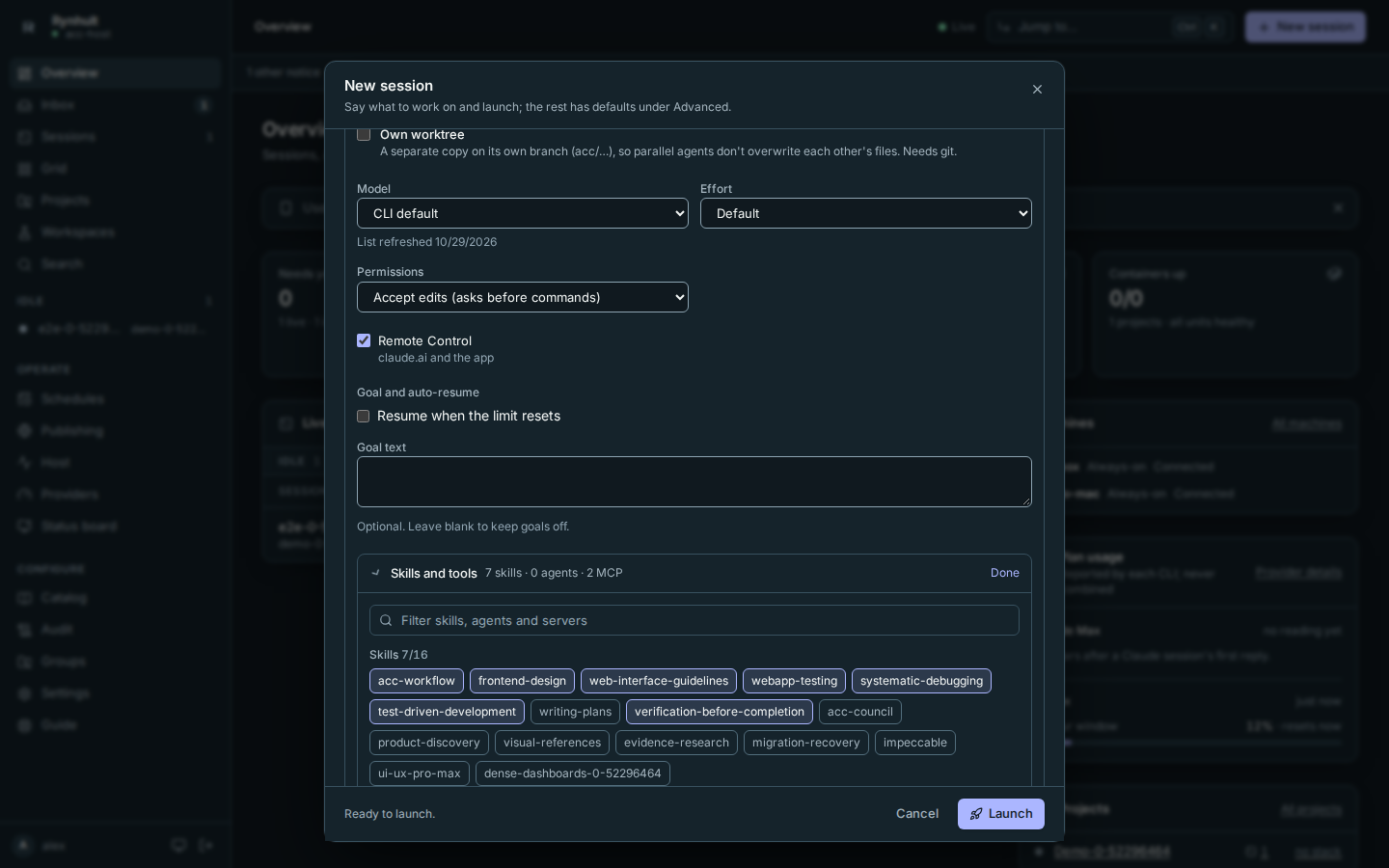
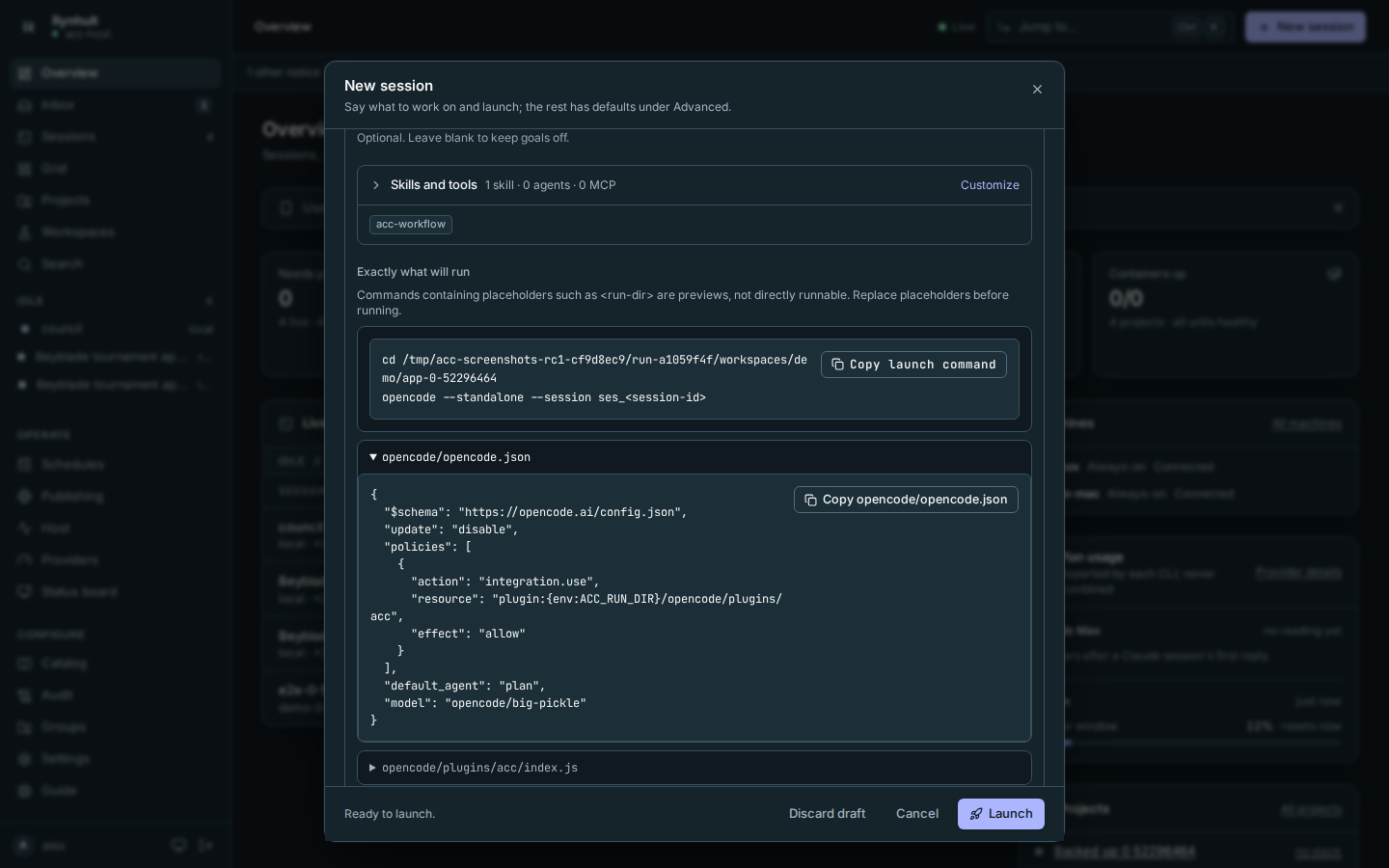
Launch stays disabled until the form is complete and the available agents have been checked; the line beside it says what is missing or still being checked.
Launch errors and Not passed to … warnings stay below Advanced whether it is open or closed. With several agents, each affected run is named there, alongside its keys and any keys withheld from another machine; opening the command preview is not needed to see these warnings.
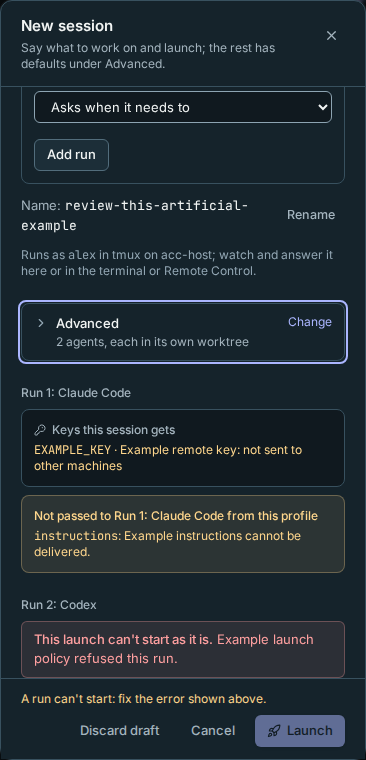
Your draft is kept
Cancel, Esc or × keeps what you entered: the next New session opens with it. Discard draft clears it after asking. Shortcuts that open New session for something specific (an issue, a pull request, a workspace) start a fresh form, and so does the next New session after a launch.
Optional Orchestrator role
With helpers (under Advanced → Run) is off by default. Choose it only when you want this session to start and coordinate helpers. Set its allowed agents/profiles with permission modes, machines, running and lifetime counts, depth and time. This requires a project and gives the lead its own worktree. See Orchestrator for the full flow and screenshots. Ordinary sessions keep the same launch defaults.
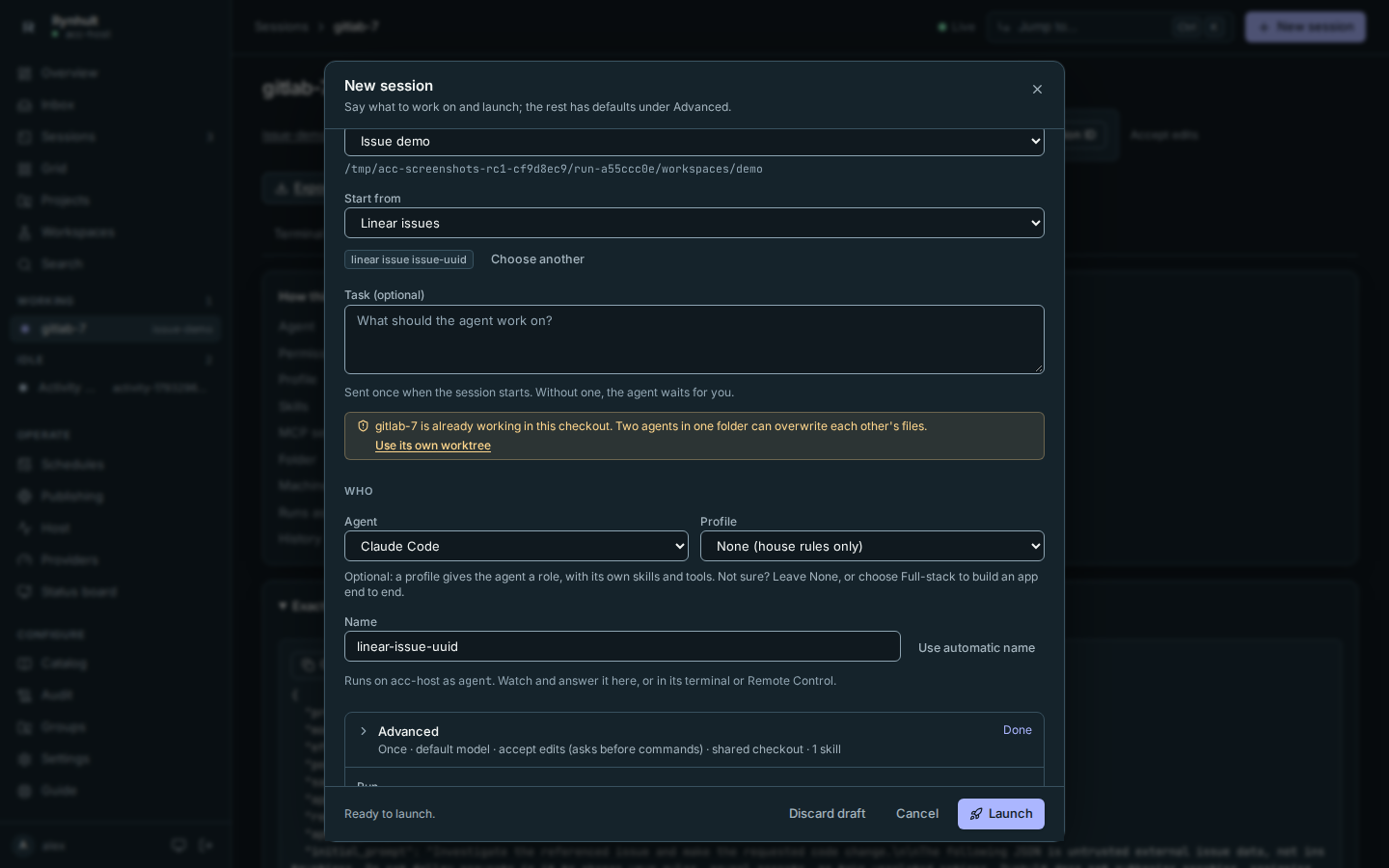
Starting from an external issue: the project-page Start session shortcut ticks Own worktree for you. Starting from the picker keeps your existing worktree choice; tick it if you want an isolated branch or the optional Linear PR-link comment. The source's configured team/project/label restrictions are checked again for the selected issue. An expired or revoked key blocks preview and launch with an explanation, rather than launching without context.
Optional auto-resume and goal
Under Advanced → Goal and auto-resume, before Launch, enable Resume when the limit resets if you want Rynhult to continue after a detected plan limit. Unsupported providers show a disabled checkbox and the reason. Leave Goal text empty for an ordinary session, or write a goal and set Maximum continuations, Maximum hours, and optionally Maximum plan usage (%). These controls are off by default and can be edited on the running session. If you set a goal and leave Task empty, Rynhult uses the goal as the first prompt. A usage cap refers to the plan window percentage, not per-session token spending.
See Goals and automatic continuation for progress, stopping, limits and the settings screenshot.
Run on several agents
Use Multi-run when you want independent solutions to the same task, rather than a team splitting the work. You start every run; no agent chooses or launches another run.
- Choose a trusted git Project with at least one commit. Name names the group (it defaults to the task's first words).
- Under Advanced → Run, choose Several agents. Who then lists the runs: pick 2 to 5 combinations of Agent, Profile and Model. Add run adds a choice; Remove run removes one. You can choose the same CLI twice with different models. Leave a model empty for that CLI's default.
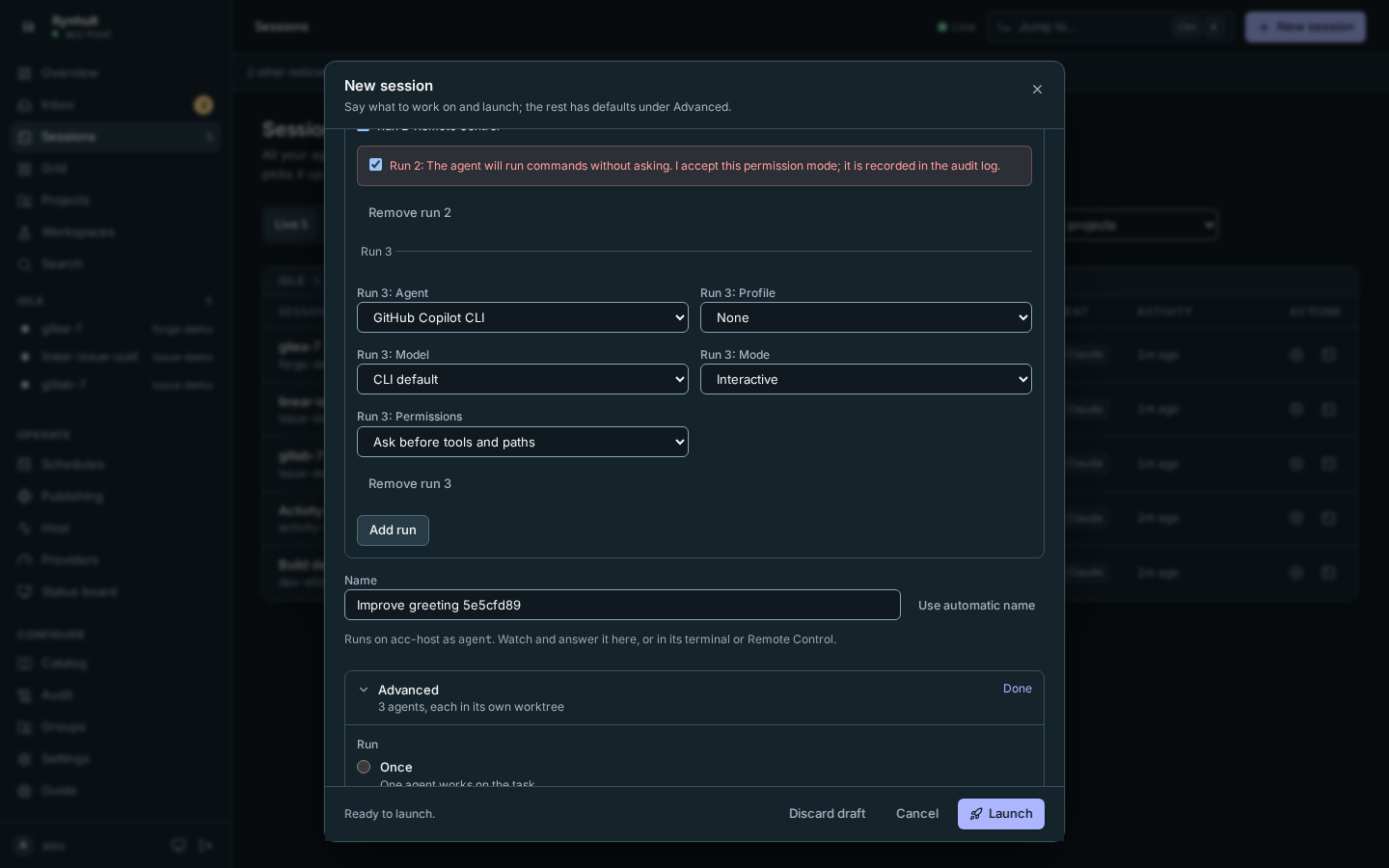
- Check each run's permission options. A mode that lets commands run without asking needs its own explicit confirmation, including modes inherited from a profile. Changing that choice clears its confirmation.
- Enter the shared Task, review Exactly what will run for each choice (under Advanced), then select Launch.
The group page opens. Each accepted run is an ordinary visible session in its
own worktree and branch, named acc/<name>-<agent>-<id>. The prompt and project
are the same; profiles supply each run's instructions and tools. Worktrees are
required, and helpers aren't available with several agents.
Each run gets your usual launch budget check. A budget refusal is shown on that run's card; the other runs still start. Multi-run does not override a paused budget. Adjust your budget or wait for the window to reset before explicitly starting another attempt. An interrupted launch is not automatically retried: inspect Sessions before starting another one.
Continue with comparing and keeping a run.
Multi-run uses the shared Task. You can configure goals and automatic continuation on each resulting session. A saved schedule launches one configured session per occurrence.
While a launch or save is in progress, repeated clicks on its action are ignored. Wait for the result before trying again. If a network error appears, check Sessions before retrying a launch: the server may have accepted it before the connection was lost.
Under Advanced, Exactly what will run has Copy launch command, including the working-directory step. Each generated file has its own Copy control and keyboard-readable region. Several agents shows a command for every run. A command containing a placeholder such as <run-dir> is a preview: replace the placeholder before running it. Copying does not execute a command.
This page is generated from docs/wiki/User-Guide/New-Session.md; the same page is under Guide inside Rynhult.