Install on Windows
v1.0: run the main Rynhult as a Linux server and use its dashboard from your Windows browser. Windows PCs remain supported as additional machines through WSL. Native Windows is post-v1, one candidate in a one-platform-at-a-time native-app sequence whose order is not chosen yet; it no longer starts immediately after rc.1. See v1.0 platform scope.
The separate desktop-app work has a Linux standalone developer slice and an unqualified Mac port. Windows standalone execution is not available, and this installer does not install that desktop app.
Rynhult Setup installs Rynhult on a Windows 11 PC in one go. Rynhult runs in Linux inside Windows (WSL, with Ubuntu 24.04), so this works the same as on a Linux machine. The PC can be your main Rynhult, with the dashboard and sessions on it, or an additional machine that runs sessions for a Rynhult you already have (see Nodes).
Installer availability: Windows and Mac installers are built only for v1.0.0 and later release tags. Pre-v1 builds and release candidates (such as 0.15.0-rc.1, a server release candidate) have no Windows installer: to add a new PC without one, follow Add this PC before v1.0 (WSL by hand, then one command from Add machine). If an already enrolled WSL node is too old to update itself, use its copyable recovery commands in Host → Machines, not Add machine. See Update an older machine.
Can Rynhult run without WSL?
The installer currently requires WSL. Native Windows delivery is post-v1. Its runtime design remains a proposal starting with an additional machine connected to an existing Linux/WSL main Rynhult. It is not available to install yet.
The proposal uses dedicated Windows accounts. It would show Not isolated because sessions for the same person share access and Rynhult's planned per-session container protection would be unavailable. Native mode would require an owner-approved project exception; company policy could prohibit it. Provider support would be enabled only after Windows login, hooks, command checks and resume are tested. Keep using the WSL setup below for now.
The source-tree design is docs/WINDOWS-NATIVE.md; the proposed decision is
docs/decisions/0011-native-windows-node-first.md. No setup steps or permissions
change with this proposal.
Developers qualifying native mode can use the owner-run probe described in
scripts/windows-phase0/README.md in the source tree. It creates a temporary
standard service account, tests no-login boot/ConPTY and named-pipe identity,
and removes its resources through a protected manifest. Install/uninstall
require elevation; evidence collection runs unelevated as the owner. The probe
has now run on an owner-operated Windows 11 test PC: gates 1, 2 and 5 passed
(boot-time ConPTY without a signed-in owner, a separate SID/profile, and
named-pipe identity/squatting checks). Gates 3, 4 and 6 remain unrun: native
CLI hooks, Codex sandbox behavior and guard feasibility are not qualified.
The service token also needs impersonation/global-object privileges removed
and a stricter recheck before any agent runs under it. These partial results do
not install a native node or prove session isolation. The probe was removed
after the run. The supported WSL setup below is unchanged.
These are owner-console qualification scripts, never tasks to run through a Rynhult agent or WSL. See the developer probe boundary.
Before you start
- Windows 11 x64 with an administrator account. A main Rynhult needs version 22H2 or later.
- A main Rynhult on Windows can't use a Cloudflare zone: the Caddy build it needs requires an approved checksum (
ACC_CADDY_SHA256) that Setup can't pass. Leave Cloudflare DNS zone empty, or run the main on Linux (Install). - Virtualization turned on in the BIOS/UEFI settings (Intel VT-x or AMD-V/SVM). Most PCs have it on already.
- At least 20 GB free disk space for WSL, Ubuntu and Rynhult; allow more for projects and agent tools.
- Outbound HTTPS to the main Rynhult for an additional machine.
- WSL will be installed if missing. Windows may need one restart; setup continues after sign-in. Rynhult keeps running only while you are signed in and the PC is awake.
Rynhult-Setup-<version>.exe, from the project's GitHub release. For an additional machine, your Rynhult links to it from Host → Machines → Add machine.- For an additional machine, the dashboard open on the main Rynhult. The command it gives you works for 10 minutes.
The installer isn't signed yet. Windows SmartScreen may say Windows protected your PC: select More info, then Run anyway.
Install the main Rynhult
- Run
Rynhult-Setup-<version>.exeand allow it to make changes. Accept the licence. - Under What this PC will be, choose Main Rynhult.
- Answer the questions. A box you leave empty keeps its default:
- Name people open Rynhult at, for example
rynhult.example.lan. Empty: this PC's name. - Owner: the Linux user in WSL who owns Rynhult's projects. It's filled in from your Windows user name, for example
alex. Setup creates it. - Cloudflare DNS zone and Cloudflare API token (optional), for example
example.com. Rynhult uses them for its HTTPS certificate and to publish sites. The token needs Zone:DNS:Edit on that zone. Without a zone, Rynhult makes its own certificate, and your devices are asked to trust it.
- Name people open Rynhult at, for example
- Choose the Agent CLIs to install besides Claude Code (always installed): Codex, GitHub Copilot CLI, Antigravity, Cursor CLI, OpenCode.
- Check the summary, then select Install. Setup shows each step while it works. On a new PC this takes 10 to 30 minutes.
- If Setup says Windows must restart, restart the PC and sign in again. Setup carries on by itself in a window of its own after Windows asks for permission. Windows needs this restart only the first time WSL is turned on.
What Setup does for a main Rynhult:
- installs WSL and Ubuntu 24.04, and turns on systemd there;
- turns on mirrored networking in
%UserProfile%\.wslconfig, so phones and other PCs reach Rynhult at this PC's address. Other settings in that file stay as they are; - allows HTTP and HTTPS into WSL through the Windows (Hyper-V) firewall;
- restarts WSL once (
wsl --shutdown) so the networking change applies. Other Linux distributions you have running in WSL restart too; - runs Rynhult's Linux setup inside WSL with your answers;
- adds the task ACC (WSL), which keeps WSL running while you're signed in. Its compatibility name is unchanged.
What you should see
The last page says Rynhult is installed in WSL. If Setup created your Linux owner account, first initialize its password from a trusted root terminal; it stays locked until then, and Rynhult does not collect the password. Then:
- Point the name you chose (for example
rynhult.example.lan) at this PC's address, using a local DNS entry or your router. - Open
https://rynhult.example.lanand set up the first user with the one-time token. To see it, run this in PowerShell:wsl -d Ubuntu-24.04 -u root -- cat /srv/acc/data/secrets/setup_token
Add this PC to a Rynhult you already have
- On your main Rynhult, open Host → Machines → Add machine, name this PC (for example
alex-pc) and copy the command it shows. It looks like this:rynhult-node enroll --primary https://rynhult.example.lan --trust system --code 3fa21c-0b9d4e-77aa01-c4d5e6 --name alex-pc - On this PC, run
Rynhult-Setup-<version>.exeand choose Additional machine. - Paste the command into Paste the command from Host → Machines → Add machine, then select Next. Setup checks that it's exactly that command and uses only its values. It never runs what you paste. If the command has anything else in it, Setup says so.
- Select Install. Setup installs WSL and Ubuntu 24.04, Rynhult's node inside it, connects this PC to your Rynhult, and adds the task Rynhult node (WSL), the same task Add machine's optional block adds. Updating from an older Setup replaces its ACC node (WSL) task.
- If Windows has to restart first, the code may run out before Setup carries on. The install still finishes, and the log tells you what to do: make a new command under Add machine, then run it in PowerShell as administrator:
wsl -d Ubuntu-24.04 -u root -- rynhult-node enroll --primary https://rynhult.example.lan --trust system --code <new code> --name alex-pc
What you should see
The last page says This PC is enrolled, and the PC shows under Host → Machines on your Rynhult. If Setup created your Linux owner account, initialize its password from a trusted root terminal before using sudo.
If your main Rynhult is unreachable, Setup stops rather than automatically installing an older bundled release. An intentional offline install requires /ALLOWBUNDLEDNODESOURCE=1 on the Setup command line and shows an older-version warning; see offline installation and its risks. Certificate and archive failures cannot use this fallback.
Sessions on this PC only run while you're signed in to Windows and the PC is awake. To keep it available all day, go to Settings → System → Power and set the PC never to sleep while it's plugged in.
Add this PC before v1.0 (no installer)
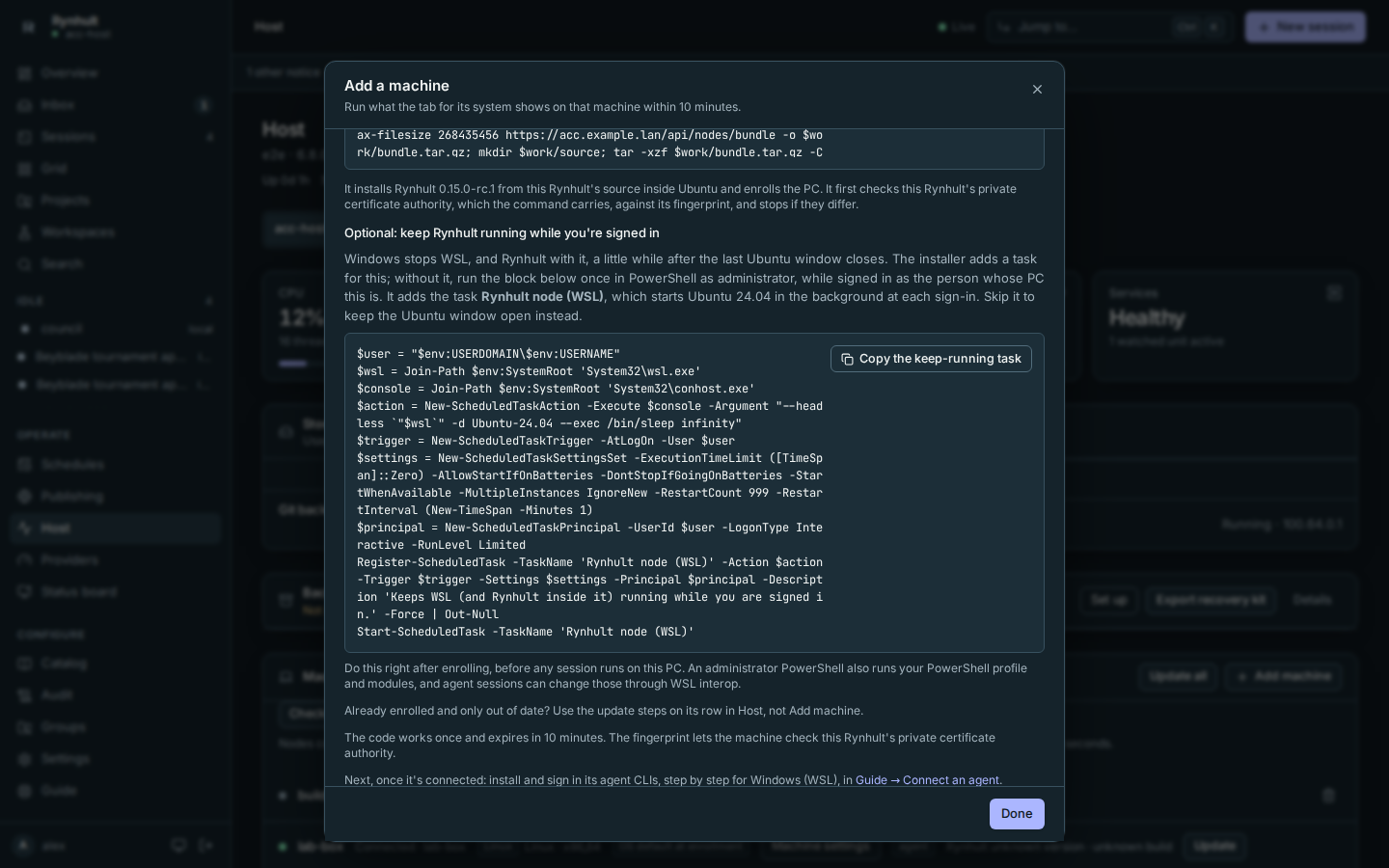
Before v1.0 there is no Rynhult-Setup-<version>.exe. Add machine then shows these steps on its Windows (WSL) tab, with a copy button for each command. Have the dashboard open on the main Rynhult; the code in the command works once, for 10 minutes.
- On your main Rynhult, open Host → Machines → Add machine, name this PC (for example
alex-pc), select Create enrollment code, then the Windows (WSL) tab. - On this PC, open PowerShell as administrator and run:
If Windows asks to restart, restart and sign in again. If the code runs out meanwhile, select Add machine again for a new one.wsl --install -d Ubuntu-24.04 - Open Ubuntu 24.04 from the Start menu. The first time, it asks you to create a Linux user name and password. That password is the one
sudoasks for next. - In the Ubuntu window, paste the Ubuntu command from the tab and press Enter. It starts with
echo <code> | sudo sh -c 'set -eu; read code; …and ends with--code - --name alex-pc'. It:- downloads this main Rynhult's source over HTTPS (
/api/nodes/bundle), into a temporary folder it removes afterwards; - with a private certificate (Caddy's own), first checks the root certificate written into the command against its fingerprint, and stops before downloading anything if they differ. It never turns certificate checks off;
- runs the node installer,
deploy/node/install.sh --install-prereqs, as root. It may ask whether to opt into WSL isolation; - enrolls the PC with the one-time code. The code is passed to
acc-node enrollthrough a pipe (--code -), so it doesn't show in the process list or in sudo's log. Your shell history still has it; it works once, for 10 minutes.
- downloads this main Rynhult's source over HTTPS (
What you should see
The command ends with acc-node: enrolled, and the PC shows as connected under Host → Machines on your Rynhult, as WSL2.
Optional: keep Rynhult running while you're signed in
Windows stops WSL, and Rynhult with it, a little while after its last window closes. Rynhult Setup adds a task that prevents this; without Setup, the Windows (WSL) tab offers the same task as a PowerShell block under Optional: keep Rynhult running while you're signed in. You can skip it and leave the Ubuntu window open instead.
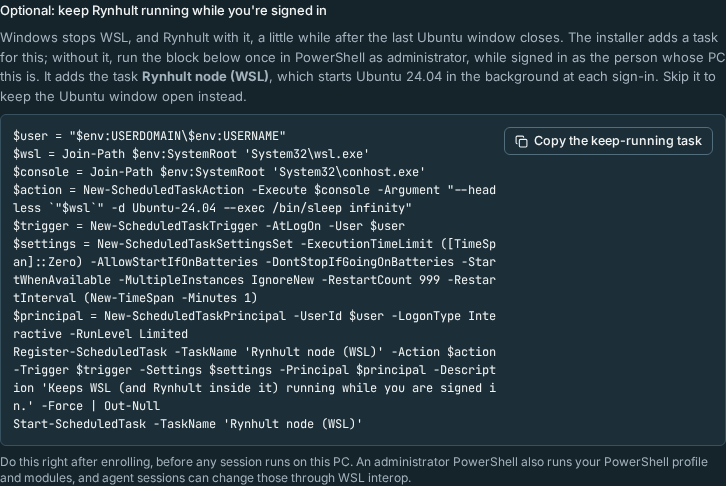
- Do this right after enrolling, before any session runs on this PC. An administrator PowerShell also runs your PowerShell profile and modules, and while WSL interop is on (the default, see isolation) agent sessions can change those as you.
- Sign in to Windows as the person whose PC this is (the task runs as that user). Use that person's own administrator rights: if Windows asks for a different administrator's password, the task is added for that other account instead. Not tested yet: registering this task for your own account may work in a normal PowerShell window, without administrator. That would avoid the risk above. If you try it and it says Access is denied, use the administrator steps here.
- Open PowerShell as administrator, paste the block from Copy the keep-running task and press Enter. It contains no addresses, codes or names from your Rynhult.
- It registers the task Rynhult node (WSL): at each sign-in it starts Ubuntu 24.04 in the background, without a window (
wsl -d Ubuntu-24.04 --exec /bin/sleep infinity), restarts it if it stops, and runs with your normal (not administrator) rights. It also starts it now.
To remove the task later, in PowerShell as administrator:
Unregister-ScheduledTask -TaskName 'Rynhult node (WSL)' -Confirm:$false
Keep the PC awake while sessions should run (Settings → System → Power).
Troubleshooting
| What you see | What it means and what to do |
|---|---|
| the CA in this command does not match its fingerprint, stopping | The command was changed or cut off when it was copied. Copy it again with Copy the Ubuntu command. Nothing was installed. |
curl: (60) or another certificate error |
The PC reached something other than your Rynhult, or its certificate isn't trusted by Ubuntu. Check the address; with a private certificate, make sure you copied the whole command. |
curl: (22) … 404 on /api/nodes/bundle |
The main Rynhult has no source bundle for its version. Run its installer (deploy/install.sh) once, which builds it. |
| systemd is not running | Add [boot] and systemd=true to /etc/wsl.conf in Ubuntu, run wsl --shutdown in PowerShell, open Ubuntu again and run the command again (with a new code if it ran out). |
| Enrolling failed or code is invalid | The code is used up or older than 10 minutes. Select Add machine again and run the new command. The node itself is installed already; installing again is safe. |
Update
For an additional machine, first use Update on its row in Host → Machines. If it is too old to update itself or does not respond within two minutes, Host shows a copyable command to download this main's source bundle and run the node installer with --update as root, keeping enrollment and accounts. No desktop installer or new enrollment code is needed, including before v1.0.
Run the shown wsl -d '<distro>' -u root --exec sh -c '…' form in PowerShell on this PC. Replace <distro> only if Host could not fill it in; find the existing node's distribution with wsl --list --quiet. The script intentionally contains no inner double quotes because PowerShell can strip them when passing arguments to WSL. Or open the existing Ubuntu terminal, run sudo -i, and paste Host's in-Ubuntu root command. Follow Update an older machine, including the private-CA note.
On upgrade, Setup validates the old and replacement node tasks against your Windows identity, the expected keep-alive action and the chosen WSL distribution. It observes Rynhult node (WSL) running (waiting up to ten seconds) before removing ACC node (WSL). If starting the replacement fails, the old task stays; a newly registered replacement may also remain. If cleanup fails, both may remain. Setup reports the names to inspect in Task Scheduler. A task for someone else or another distribution is left unchanged and requires administrator review; do not delete it just to get past the check. Uninstall applies the same validation to node tasks.
When a newer Windows installer release is available, you can also run Rynhult-Setup-<version>.exe and give the same answers. It replaces Rynhult's files in WSL and keeps your data and settings. For an additional machine, paste the command you used the first time: Setup sees that the PC is connected already and doesn't enroll it again. Updating a Windows main Rynhult uses its normal main update flow, not the node recovery command.
Isolation for dedicated WSL nodes
By default, WSL lets Linux processes start Windows programs as the Windows user
who runs the distribution. It also mounts Windows drives, usually at /mnt/c.
An agent can therefore reach Windows files and credentials despite having a
separate Linux account. This is not a Windows or per-session sandbox.
Review the machine's warning
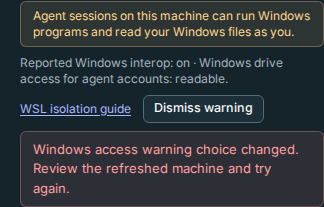
- Open Host → Machines. A WSL machine with reported interop or Windows-drive access shows: Agent sessions on this machine can run Windows programs and read your Windows files as you. The row also reports whether interop is on and whether its agent accounts can read Windows drives.
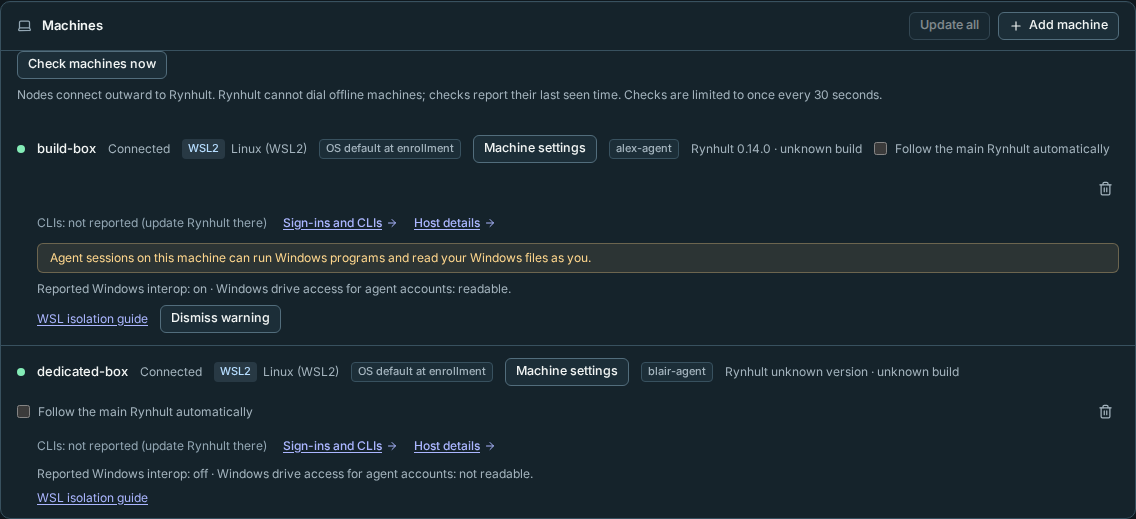
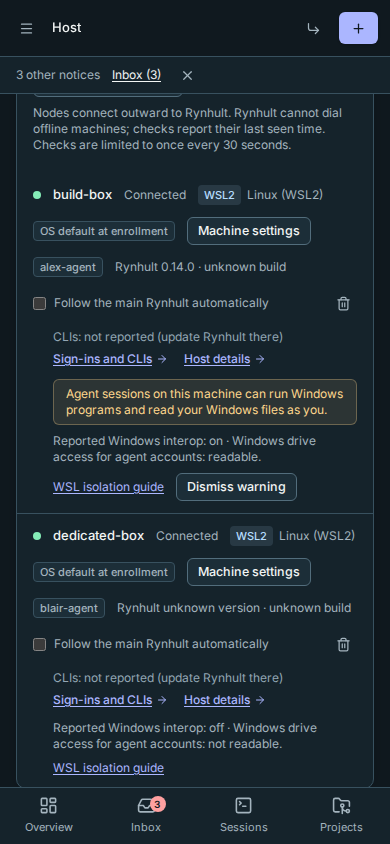
These are effective, node-reported observations, not a claim based on the contents
of wsl.conf. Drive checks run as the agent accounts and inspect only mount
metadata and access permissions; they never open Windows profiles or file
contents. Reports refresh on connection and with the node's periodic heartbeat.
An offline machine shows its last report. Unknown means evidence is missing,
not that access is blocked; update an older node and reconnect it.
The drive check recognises the mounts WSL makes for Windows drives (drvfs,
9p and virtiofs), including ones added in /etc/fstab. A readable mount
that only looks like a Windows drive (a drive-letter source, a folder such as
/mnt/e, or drvfs in its options) shows as unknown, never as
not readable. Check such mounts yourself.
Opt into isolation
Use this for an additional WSL node dedicated to Linux agent work, not a Windows-development box or the Windows main Rynhult. Stop work and arrange a WSL restart first. You need a trusted root terminal in the existing node distribution. If its installer does not recognize these flags, update the node first.
-
In Ubuntu, run the node installer without
--update. An interactive install asks Opt into WSL isolation? [y/N]; the default is No. It then asks separately whether to disable Windows drive automount completely; that default is also No. -
For an explicit, unattended choice on an already installed node, run:
sudo bash /opt/acc/app/deploy/node/install.sh --wsl-isolateThis merges these settings into
/etc/wsl.conf:[interop] enabled=false appendWindowsPath=false [automount] options="metadata,uid=0,gid=0,umask=077,fmask=077,dmask=077"Existing sections, comments and unrelated keys/options are preserved. An already disabled automount is not re-enabled. A changed existing file is backed up as
/etc/wsl.conf.rynhult-backup-<id>before an atomic replacement. Repeating the same choice makes no further change. An unparsable, linked or unsafely writable file is refused: inspect and repair it rather than bypassing the check. Files larger than 64 KiB, byte-order marks, duplicate or padded section names are also refused without changing the file. Close other configuration editors while applying isolation. -
To disable Windows drive automount instead of restricting it, make the second explicit choice:
sudo bash /opt/acc/app/deploy/node/install.sh --wsl-isolate --wsl-disable-automountThis writes
[automount] enabled=falseand keeps its other keys. Custom mounts in/etc/fstabor mounts made by an administrator may still expose a Windows drive; review the reported access after restarting. -
From Windows PowerShell, run:
wsl --shutdownThis stops all running WSL distributions, not just this node. Open the node's existing Ubuntu distribution again, then check Host → Machines after it reconnects. Until shutdown and restart, the old interop/mount state remains in effect and the warning may remain.
--no-wsl-isolate skips the prompt and leaves settings unchanged. Non-interactive
installs without an opt-in also leave them unchanged. --update never prompts
or changes WSL isolation, even if isolation flags are supplied. No Windows
commands are executed to apply this option.
What changes and what breaks
Interop off prevents processes in this distribution from starting Windows
programs, including powershell.exe, cmd.exe, Windows browsers, editors and
Windows toolchains. Windows PATH entries are no longer appended. Restricting
drives can break projects, scripts and file sharing that depend on /mnt/c or
another Windows drive; keep agent projects on Linux storage instead.
This reduces the WSL-to-Windows bridge for unprivileged Linux agent accounts. It does not isolate same-account sessions, constrain network access or protect against a trusted Linux root/Windows administrator. Existing custom mounts and permissions must still be checked. Windows apps outside this distribution keep their normal Windows access. Keep Windows UAC enabled.
Accept the risk for a Windows-development box
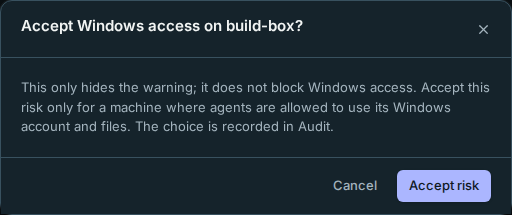
Owners can select Dismiss warning on that machine's row and confirm Accept risk. This records the decision in Audit and hides the warning for that enrolled machine for every owner; it does not change WSL settings or block Windows access. Select Show warning again to restore it.
The acceptance covers only what was shown when you confirmed it: whether Windows interop is on, and which agent accounts can read the Windows drives. If that changes (interop turns on, a drive becomes readable, a new agent account appears, or the machine stops reporting it), the warning comes back with Windows access changed since an owner dismissed this warning. Review it and accept again if the new state is still fine.
If the reported state or another owner's choice changes while your tab or confirmation is open, Rynhult refuses your older choice and refreshes the machine. Review the current warning, then confirm again if you still want the change. The refused attempt does not change the saved choice or add a dismissal to Audit.
If agents need Windows tools, prefer running the distribution under a separate, non-administrator Windows user rather than the owner's everyday Windows account. That user's Windows files remain reachable. Its WSL sessions are available only while that Windows user is signed in.
Undo isolation
Open the distribution's Linux terminal as root and edit /etc/wsl.conf. Restore
the previous interop and automount values from the printed backup, preserving
any changes made since it was taken. WSL defaults are interop enabled, Windows
PATH appended and Windows drive automount enabled. Remove only the isolation
options you no longer want; keep unrelated keys. If no file existed before
opting in, remove just the added sections/keys rather than deleting other settings
added later. --no-wsl-isolate does not undo an earlier opt-in.
Then run wsl --shutdown from Windows and reopen the existing distribution.
Windows interop and drive access may become available to agent sessions again;
Host reports that exposure after reconnecting.
Uninstall
Open Settings → Apps → Installed apps, find Rynhult and select Uninstall. This removes:
- the task that keeps WSL running;
- Rynhult's services and programs inside WSL.
This stays:
- Rynhult's data in WSL (
/srv/acc/data, the workspaces, the settings in/etc/default/accd); - the Ubuntu-24.04 distribution;
- the mirrored networking setting in
.wslconfig.
To delete the distribution and everything in it as well, tick Also delete the Ubuntu-24.04 WSL distribution and everything in it when you uninstall. This can't be undone.
Without the wizard
Setup runs deploy\windows\install-acc.ps1, which also works by itself. Run it from an elevated PowerShell in a copy of Rynhult. -DryRun shows every step and changes nothing:
powershell -ExecutionPolicy Bypass -File deploy\windows\install-acc.ps1 -Role Main -Hostname rynhult.example.lan -Owner alex -AgentClis codex,cursor -DryRun
$env:ACC_ENROLL_COMMAND = 'rynhult-node enroll --primary https://rynhult.example.lan --trust system --code 3fa21c-0b9d4e-77aa01-c4d5e6 --name alex-pc'
powershell -ExecutionPolicy Bypass -File deploy\windows\install-acc.ps1 -Role Node
For a Cloudflare zone, put the token in the environment first ($env:CF_API_TOKEN = '…') and add -CloudflareZone example.com. Setup never takes the token on the command line. To uninstall, use -Uninstall; add -RemoveDistro to delete the distribution too.
For a silent install, run Rynhult-Setup-<version>.exe /VERYSILENT /ROLE=main /OWNER=alex /CLIS=codex or set $env:ACC_ENROLL_COMMAND as above and use /ROLE=node. Keep enrollment commands out of setup arguments: Inno Setup records its command line in its own log. Add /DRYRUN to change nothing.
Troubleshooting
Setup writes to C:\Program Files\ACC\logs\install-acc.log (and uninstall.log). On failure it shows a bounded excerpt with the full path and an Open log button. Enrollment codes and the supplied Cloudflare token are redacted. The standalone node PowerShell installer writes C:\Program Files\ACC\logs\install-node.log and prints its path on failure.
| Message | What it means and what to do |
|---|---|
| not the command from Host → Machines → Add machine | What you pasted isn't exactly that command: for example the Linux one-liner, an http:// address, or extra text. Copy the command again from Add machine. |
| needs Windows 11, build 22621 or later | A main Rynhult needs Windows 11 22H2 for mirrored networking; an additional machine needs Windows 11. Update Windows, or use a Linux machine instead. |
| The Windows Subsystem for Linux is not installed followed by wsl --install -d Ubuntu-24.04 failed (exit 1) | Older setup tried to install Ubuntu through the inbox wsl.exe stub. Use a build with the WSL bootstrap fix. It runs wsl --install --no-distribution first; when that option is unavailable it enables the WSL and VirtualMachinePlatform Windows features. Restart when asked, then sign in for setup to continue. If a download or Windows feature fails, select Open log and keep the full error. |
| turn on virtualization (Intel VT-x or AMD-V/SVM) in the BIOS/UEFI settings | Turn on Intel VT-x or AMD-V/SVM in the BIOS/UEFI settings, then run Setup again. |
| enrolling failed | The code ran out: it works for 10 minutes. Make a new command under Add machine and run it as the log shows. |
| systemd did not start | In PowerShell, run wsl --shutdown, then run Setup again. |
| Other devices can't reach Rynhult | Check that the name points at this PC's address. Mirrored networking needs WSL to restart: run wsl --shutdown, then sign out and in again. |
| Setup doesn't continue after the restart | Run Setup again with the same answers. Nothing is done twice. |
Setup keeps logs and restart answers in administrator-protected folders under C:\Program Files\ACC. Resume only accepts scripts in protected locations. If setup reports an unsafe path, use the standard installer location; do not weaken its permissions. Old profile resume files are ignored; rerun Setup to recover an interrupted older installation. Opening logs outside the installer may require elevation.
Setup uses Windows system executables directly. It does not elevate per-user Ubuntu Store launchers. If an older distribution still needs its first launch after a restart, open Ubuntu from Start as your usual Windows user, finish that initialization, and rerun Setup.
This page is generated from docs/wiki/User-Guide/Install-Windows.md; the same page is under Guide inside Rynhult.