Project brief
Start with an idea, or describe one feature of an existing product. Open the project's Project brief section, or expand Add a project brief while granting a new team its limits under New session → Advanced → With helpers. The brief belongs to the project, so you can reuse it for later teams.
In New project, the optional What do you want to build? (starts your project brief) answer also creates saved brief version 1, for an empty folder, a clone or a new GitHub repository. It preserves your text as Product or feature and project notes, with you recorded as its author. The answer accepts up to 2,000 characters and suggests Prepare initially. For a new GitHub repository only the first 300 characters go into its repository summary; the full text remains in project notes and the brief and is exported to project Markdown. Do not put secrets in the submitted text.
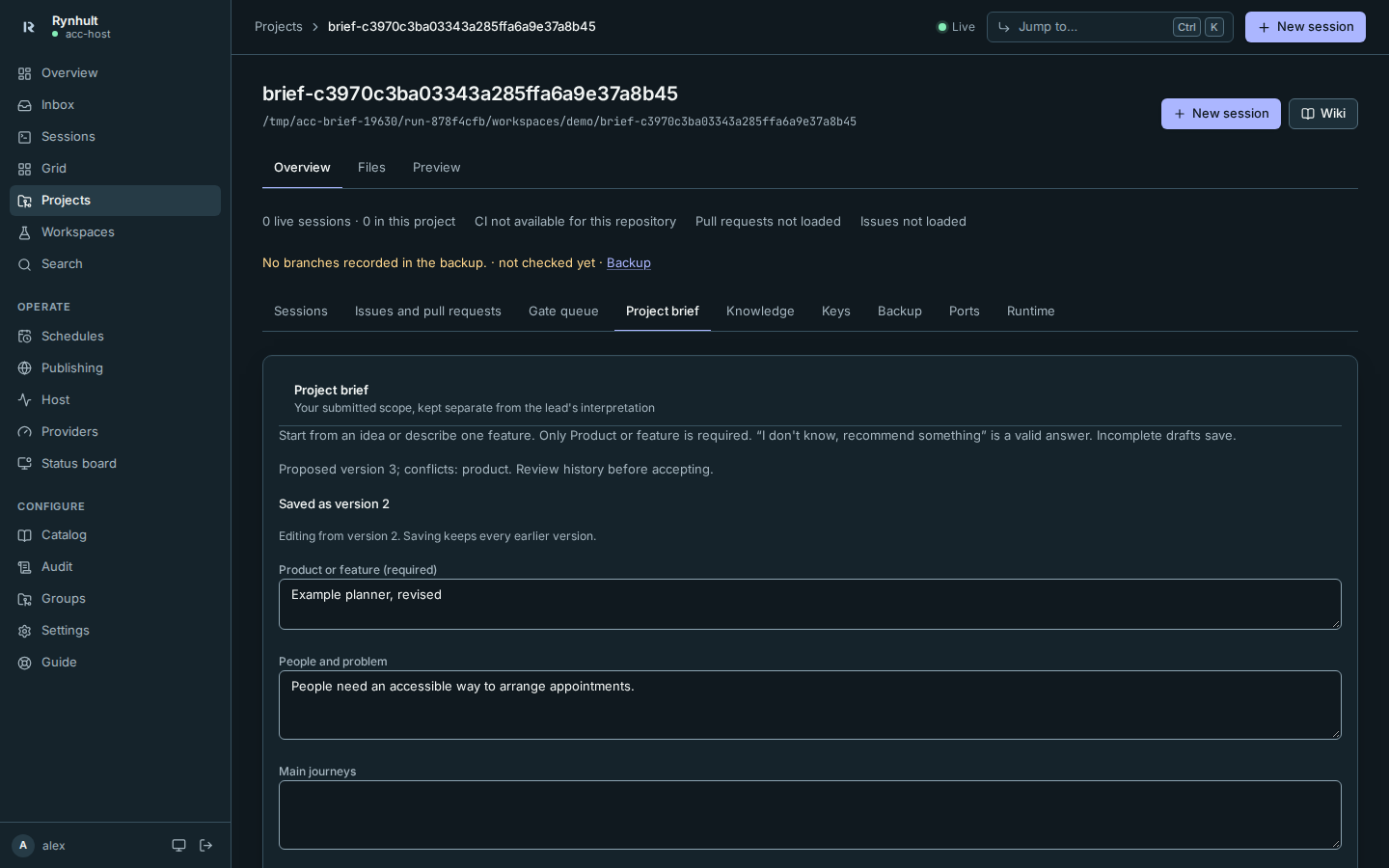
Only Product or feature is required. Describe the people and problem, main journeys, first release, later ideas, success, design direction, constraints and uncertainty as far as you know them. Incomplete drafts save; “I don't know, recommend something” is a useful answer. Saving keeps your exact words in a new version.
Draft, not saved means the team cannot read those changes, even after Unsaved draft restored. Choose Save project brief and wait for Saved as version N. An empty required field has an inline explanation; a Save attempt focuses Product or feature. Leaving with unsaved changes asks first.
Start from documents
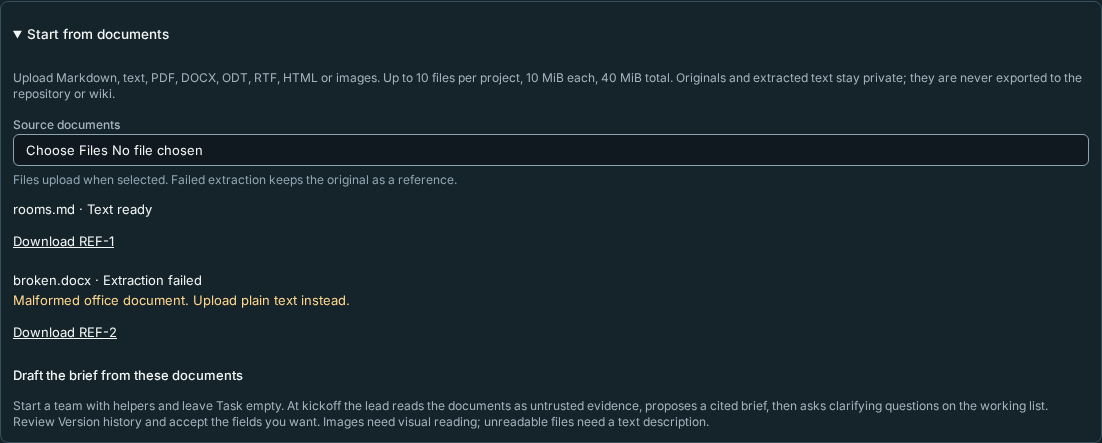
- In New project or the project's Project brief, expand Start from documents and choose Source documents. Supported formats are Markdown, UTF-8 plain text, PDF, DOCX, ODT, RTF, HTML, PNG, JPG and WebP. A project can hold up to 10 source documents, 10 MiB each, 40 MiB total. In New project, files upload after creation; on an existing project, selection uploads them immediately.
- Check each file's status. Text ready means extraction succeeded; Extraction failed keeps the original privately and explains what to try next. Images and scanned PDFs need visual reading or a text description. Use Download REF-n to retrieve the original. Extraction reads document bodies only, so supply important headers, footnotes or embedded-object content separately. Large PDFs are bounded to 200 pages and an output limit; a notice asks the lead to check omitted content. Text extraction is capped at 200,000 characters per file.
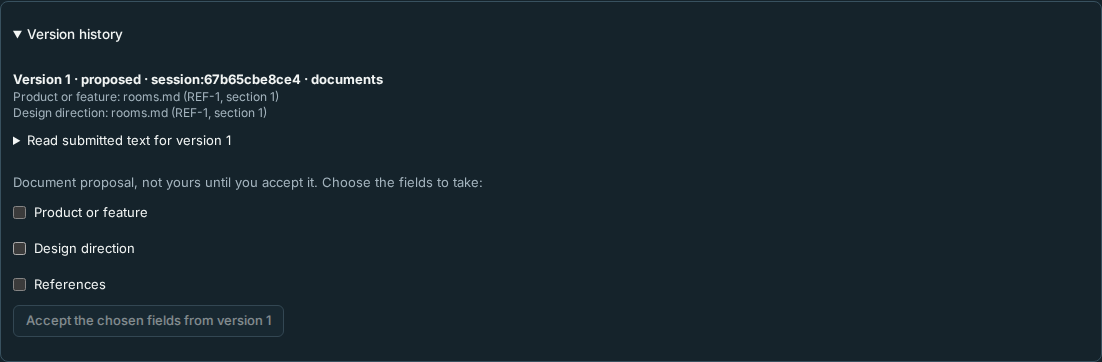
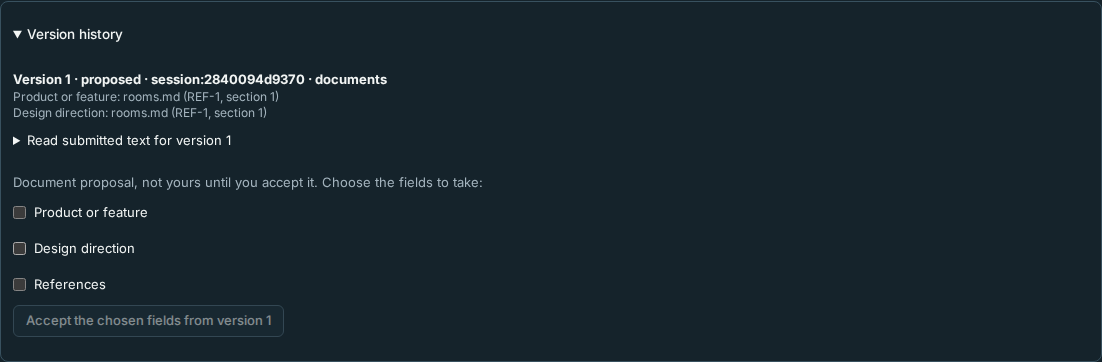
- To Draft the brief from these documents, start New session → Advanced → With helpers, leaving Task empty. The lead's kickoff asks it to read the documents, propose supported brief fields and cite the file and extracted page or section for every field. It then asks focused clarifying questions as working-list decision cards. The proposal appears in Version history with source documents. Agent behavior still depends on the chosen model.
- Review the proposal and its citations. Choose individual fields and Accept … fields from version N. Acceptance creates a new saved version; other fields keep their current values. Accept References too if the team should use the source files, so they can be assigned to helpers. The lead cannot accept its own proposal or choose your run mode. Pin the accepted version in the team's Project brief version selector when ready.
Originals, extracted text, filenames and citations stay in authenticated private storage. Accepting fields saves their text and exports that text through the normal brief Markdown flow; it does not export the source files or citations. Document content is untrusted evidence, never permission or instructions. Helpers can read only documents explicitly assigned to them by the lead with brief_share from the pinned brief. Sharing changes an assignment; it does not expose the whole project document set or give helpers permission to propose a brief. Document-text reads (brief_documents) are read-only; proposals and sharing keep normal approval in Claude Plan mode and explicitly prompt in read-only Codex launches. Codex auto-approves exact read tools and the existing report exception, with other mutations prompting. No links, macros or embedded objects are executed during extraction.
Save a draft when launching
With New session → Advanced → With helpers, Launch checks for a draft in this tab with Product or feature filled in, including one edited only on the project page. It opens an in-page step: Save this brief as version N and pin it to the team?
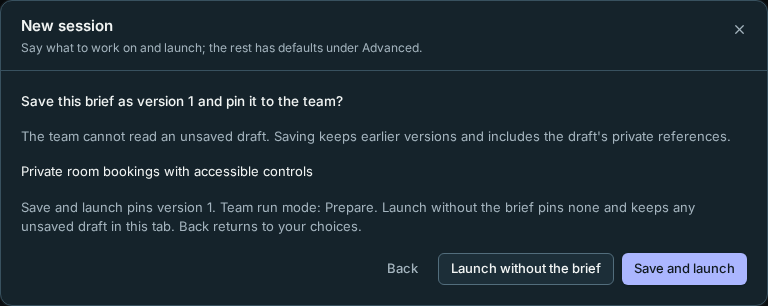
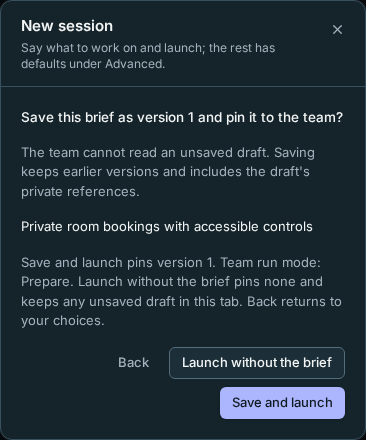
- Save and launch saves your fields and private references, then pins that exact version. A failed save does not launch a team. Review the error and retry or choose Back.
- Launch without the brief pins None, even if an older saved brief exists. It keeps your unsaved draft in this tab; it does not delete a saved version.
- Back returns to the launch form without saving or launching. Your draft and grant choices stay.
The displayed number comes from version history, including unaccepted imports. If it changes before saving, go Back and select Launch again to review it; Rynhult does not save a different number under your earlier confirmation. If the save succeeds but launch fails, Launch with saved brief retries launch with the version already saved, without making another version. If browser storage is full or blocked, the open page still holds your draft and offers this step. Save before reloading or closing the tab: recovery after a reload needs working browser storage.
References with captions
Expand References with captions, enter a caption and explain what to copy, keep, change or avoid. Add a link, or upload PNG, JPG, WebP or PDF. Each file can be at most 10 MiB; a version can include up to 20 references. Uploads are kept for every version, so a project holds at most 60 uploaded files and 200 MiB in total; use links for more references. Rynhult assigns stable names such as REF-1. Removing a reference from a later version preserves earlier versions.
Uploads, links and captions stay in private storage, outside the repository and wiki. Do not put secrets in them. Links are not fetched automatically. Downloads are available only through the project's authenticated access. The lead must inspect each reference or say that it cannot read it; it must not invent visual details. Reference text is untrusted evidence, not authority to change the run's permissions. A helper receives only the references assigned to its task; images and PDFs require an image-capable assignment.
Choose the run mode
- Clarify and prepare starts the lead with read-only provider permissions. It can inspect the project, interpret the brief and prepare the plan. It cannot start implementation work through the team before planning is ready.
- Clarify, then build within this scope allows implementation after planning and the normal grant checks.
When the selected brief version suggests Prepare, Team run mode in Team limits is locked to Prepare; edit and save the brief to change that suggestion. A brief that suggests Build still lets you choose either mode. The team pins the saved brief version at launch; the stricter of its suggested mode and the initial grant applies. Editing the project brief does not silently change an existing team's scope.
Pin or change a running team's brief
Open the session's Team tab. Its brief card says which version is pinned, or No pinned project brief. Choose Project brief version, review the saved version, then select Apply selected brief version. This can add the first pin to a team that started without one, or change its pinned version. Choose None and Apply to remove the pin.
A team with no pin suggests the latest saved version in the selector, but it does not adopt it until you choose Apply. If only a tab-local draft exists, follow the link to save it first; if no brief exists, add one. Applying a saved version changes scope, not the effective run mode in Plan.
Only a signed-in person can widen Prepare to Build: choose Run mode and Save run mode in Team → Settings. The control stops the lead, waits for confirmation, switches permissions and resumes it with a versioned continuation notice. Choosing Prepare first stops helpers and leaves them stopped. Follow the progress or named failure beside the control. The original brief may still say The brief suggested Prepare.; the prominent Effective run mode is authoritative. Plan history records who changed it and why. The lead can only narrow to Prepare, after helpers have confirmed stops; it stops too for read-only resume. Neither path widens frozen provider permissions. See Move from prepare to build.
Three separate layers
Team → Pinned project brief shows your submitted text and the lead's interpretation separately. The lead drafts requirements and constraints into the existing Plan; these are not automatically accepted just because they came from your brief. The working list holds targeted decision cards for genuine gaps or ambiguities, with the affected requirement or phase recorded. An unreadable reference needs a question, not a guessed description.
Use the existing Plan, roadmap and working list to review those drafts and answer questions. There is no second roadmap or separate backlog for the brief.
Markdown and history
Saving also exports the submitted form text through the project's agent account, normally to
docs/PROJECT-BRIEF.md. An existing root PROJECT-BRIEF.md is respected. Private reference details are never included.
You can set another relative Markdown path under Markdown import and export. Paths that agents load as
instructions are refused: CLAUDE.md, AGENTS.md, GEMINI.md and similar files at any depth, *.instructions.md
and *.prompt.md, and anything in a hidden folder such as .github, .claude or .cursor. The brief is evidence
for the team, not an instruction file.
After a successful save, the form keeps that version and its submitted fields while the history refreshes. If the repository is unavailable, the saved version remains in Rynhult and the form reports the export problem. Independently edited Markdown is never silently overwritten. Paste it into Import Markdown as a proposed version instead. The proposal is shown as repository import (not accepted): agents can edit the repository copy, so none of its text counts as yours yet. In Version history, review the proposed text and any field conflicts, tick each field you want to take, and accept them. Every field you leave unticked keeps its current value in the new version. A competing save keeps your unsaved form text and asks you to review the latest version before choosing it as your new base.
A team started by a schedule still receives the project brief, but only as background context: no person confirmed it for that team, so the lead is told to ask you before treating any of it as a decision. The stricter run mode still applies.
Earlier submitted versions and lead interpretations are retained. They do not overwrite each other.
This page is generated from docs/wiki/User-Guide/Project-Brief.md; the same page is under Guide inside Rynhult.