Install
How to put Rynhult on a computer. Every computer is one of two things:
- the main Rynhult: the dashboard everyone opens, standalone or with other machines attached;
- an additional machine (a node): it runs sessions for an existing main Rynhult, which you keep using as the one dashboard. Using machines once they're added is in Nodes.
v1.0 platform scope
v1.0 is the self-hosted Linux server, used through a browser on any client platform, including the phone web app. Existing Linux, macOS and Windows-through-WSL nodes stay supported as they work today. The main's supported distributions are Ubuntu 24.04+ and Debian 13+ with systemd; other distributions remain test installs until separately qualified.
Native applications come after v1.0, one platform at a time to reduce total cost. The order is not chosen yet; the candidates are native Windows, the macOS standalone desktop app, the Linux desktop app, iOS and Android. Desktop/mobile code in the source is experimental groundwork, not a v1 app release. The Mac node and Windows WSL node are not those deferred native apps; installing the web app from a browser is part of v1, not a native app install. See Decisions and roadmap.
The existing installer roles are below. A Windows main runs Linux inside WSL2; it is not a native Windows main or a separate native qualification target.
| System | Main Rynhult | Additional machine |
|---|---|---|
| Ubuntu 24.04+ / Debian 13+, systemd | qualified main | existing Linux node path, Python 3.12+ |
| Fedora / RHEL / openSUSE / Arch | unqualified test install only | unqualified test install only |
| Windows 11 | Linux inside WSL2 (existing setup path) | yes, inside WSL2 |
| macOS | not yet | yes |
Rynhult uses SQLite by default, so there's no database server to install. Manual high availability instead needs separately provisioned PostgreSQL. The installers set up the normal main/node dependencies (Caddy for a main's HTTPS, Python and uv, tmux, git, the agent CLIs you choose). They can be rerun; follow the documented update flow rather than creating a new enrollment for an existing machine.
The next planned public release is v0.15.0-rc.1, after the feature freeze
(target November 9–13), alongside the public repository and site. This is a
release candidate for the server/browser product, not a native desktop release.
Until publication, use a reviewed source snapshot supplied by your administrator.
Windows and Mac node installer availability is still checked separately; source
installation remains available as documented below.
Existing 0.14.0 installations do not automatically update to prereleases; RC
installation is manual. Version order is 0.14.0 < 0.15.0-rc.1 < 0.15.0, so
stable 0.15.0 can be offered normally. Later RCs also require manual installation.
Compatibility folders and services still use acc.
The default update source changes with this refresh. Before upgrading an existing
installation, have an administrator review the root-owned ACC_SOURCE_URL and
ACC_UPDATE_REPOSITORY settings. Explicit overrides remain in effect.
Verify a source release
Before installing a published source release, download its source archive,
BUILD, SHA256SUMS and SHA256SUMS.asc into one folder. You need GnuPG and
a SHA-256 checksum tool. Download and inspect the public release key:
curl --fail --show-error --location --output rynhult-release-key.asc \
  https://rynhult.dev/keys/rynhult-release-key.asc
gpg --show-keys --with-subkey-fingerprint rynhult-release-key.asc
Compare both full fingerprints with an independently trusted copy of these values before importing. A short key ID or a key downloaded alongside the files does not establish the publisher's identity:
- Primary:
0C2C E126 57BD 833F B5B5 63B2 B555 F6E1 2799 0DB5. - Signing subkey:
B072 4912 051F F1F2 74CD EE7F EDE4 F41B 077B D2A7.
Stop if either differs. Then, from the release folder:
gpg --import rynhult-release-key.asc
gpg --verify SHA256SUMS.asc SHA256SUMS && sha256sum -c SHA256SUMS
On macOS use shasum -a 256 -c SHA256SUMS for the checksum step. Only proceed
when the signature is valid and every listed file reports OK.
If the signature is missing or either check fails, stop and get the correct
release files; do not bypass the check.
Only SHA256SUMS is signed. Its verified hashes cover the listed files,
not a Git clone or release tag. The source-install Git route below does not
perform this verification. The in-app updater does not verify signatures yet;
that is follow-up work. A valid signature does not establish freshness or prove
the release has no bugs.
Main Rynhult on Linux
Before you start
- Ubuntu 24.04 or newer, or Debian 13 or newer, with systemd; amd64 or arm64. Fedora/RHEL, openSUSE and Arch aren't
qualified mains: setup recognises their managers and stops by default. On those systems,
sudo acc/deploy/setup.sh --unqualified-distro(not theacc-installwizard) allows a test install (Podman for project stacks, Claude Code from Anthropic's pinned native release). - A user account for yourself on it (Rynhult's projects belong to that user) and
sudo. - Optional: a domain on Cloudflare and an API token for it (Zone → DNS → Edit). With one, Rynhult gets a public certificate and can publish project sites. Without one, Caddy signs Rynhult's certificate itself, and you add its root to your devices (see Trust Rynhult's certificate).
For Cloudflare mode, also preinstall a reviewed Caddy build with its Cloudflare DNS module, or obtain an independently approved SHA-256 for the build-service download and pass ACC_CADDY_SHA256 to setup using the example below. Replace <approved-hash> with your independently approved hash before running it. Cloudflare mode needs a Linux main: Rynhult Setup on Windows can't pass ACC_CADDY_SHA256, so a Windows main with a Cloudflare zone is not supported (leave the zone empty there).
sudo ACC_CADDY_SHA256=<approved-hash> acc/deploy/acc-install
Without it a new Cloudflare build is refused. No-domain mode uses the signed apt package and needs no download hash.
Linux root helpers run Python in isolated mode. They do not use PYTHONPATH,
user-installed Python packages or modules beside the current working directory.
If a helper reports an unsafe settings reader or update source, have the
administrator restore the reviewed root-owned files and protected directories
and rerun the reviewed installer. Do not work around the refusal with Python environment
variables or writable copies of helper modules. The optional device-CA tools
also require their cryptography dependency in the reviewed system Python
environment; they are not installed by the normal installer.
Steps
- Get Rynhult and start the installer:
git clone https://github.com/rynhult/rynhult accsudo acc/deploy/acc-install - Choose Main Rynhult.
- Answer the questions. Each shows a default; press Enter to keep it.
- Linux user who owns Rynhult's projects: you.
- Cloudflare DNS zone: for example
example.com, or empty for none. With a zone it asks for the token next (it isn't shown as you type). - Name to open Rynhult at: for example
acc.example.com. - This machine's LAN/VPN address: detected for you, for example
10.0.0.20. - First public address (only with a zone): add more later in Settings → Publishing; empty for private sites only.
- Agent CLIs besides Claude Code: for example
codex copilot. - Whether to set up rootless Docker (projects' stacks need it), Ollama (local models) and the daily backup.
- The installer creates a separate non-login build account,
acc-build, for web and npm dependencies. It installs the GitHub MCP executable automatically. The installer shows its progress and keeps a log in/var/log/acc-install.log. It takes a few minutes. - At the end it lists the next steps: a DNS entry for Rynhult's name, and the one-time setup token for your first sign-in:
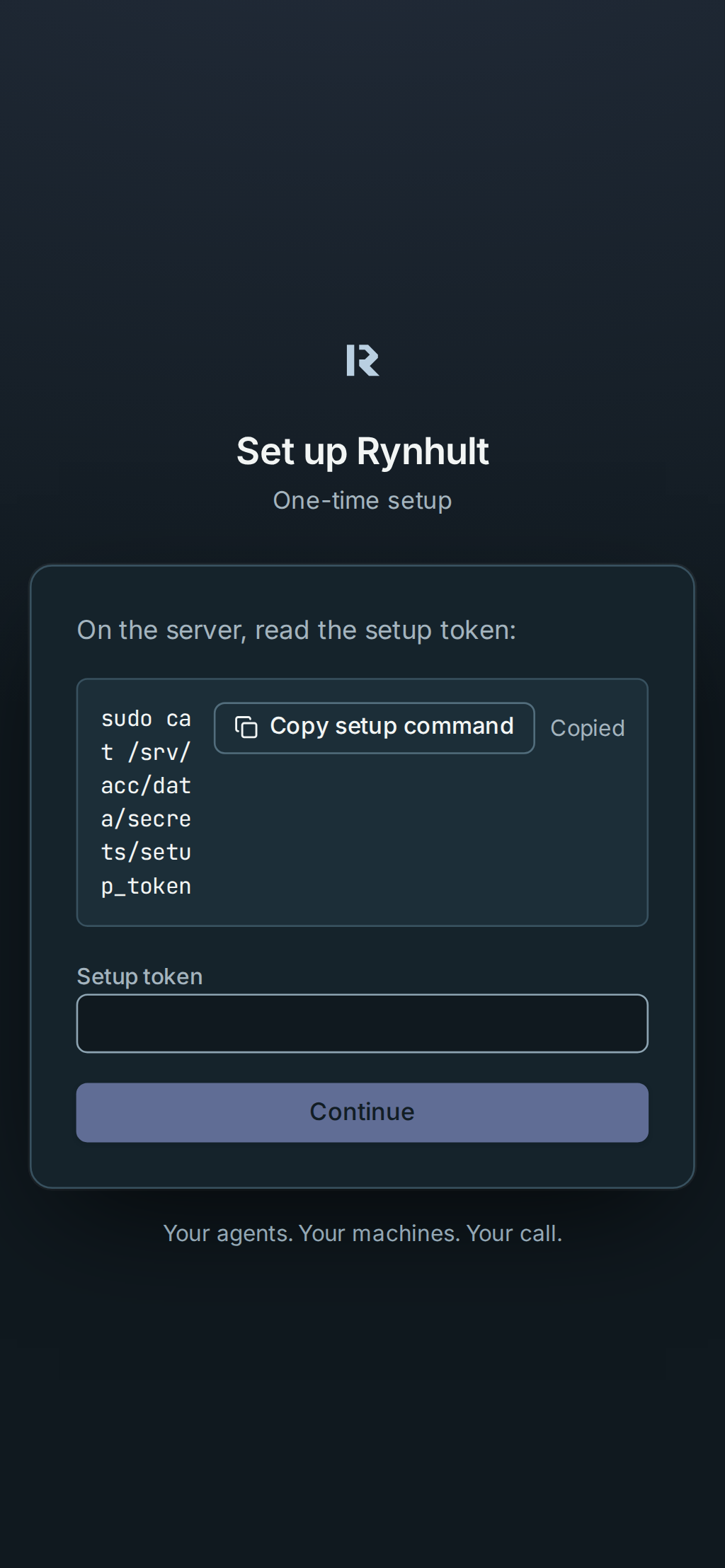
sudo cat /srv/acc/data/secrets/setup_token - Open Rynhult in a browser and set up your sign-in (see Getting started), then sign the agent account in to its CLIs on Providers.
Without questions (scripts and automation): put the answers in the environment and add --yes:
sudo ACC_OWNER=alex ACC_HOSTNAME=rynhult.example.com ACC_ZONE=example.com CF_API_TOKEN=… ACC_CADDY_SHA256=<approved-hash> acc/deploy/acc-install --main --yes
With a Cloudflare zone, ACC_CADDY_SHA256 is needed unless a reviewed Caddy with the Cloudflare module is already installed (see Before you start). acc/deploy/setup.sh --help lists every other setting. Add --dry-run to see what it would do without changing anything.
Main Rynhult on Windows
Rynhult runs inside WSL2 (Ubuntu 24.04 with systemd). Needs Windows 11 with virtualization turned on. Every screen of the installer, and uninstalling, are in Install on Windows.
The executable steps below require a published Windows installer release. Pre-v1 installations use administrator-reviewed source; see the manual route below.
- Download Rynhult-Setup-version.exe from Rynhult's release page and open it. Windows warns that the publisher is unknown (the installer isn't signed yet): select More info, then Run anyway.
- Choose Main Rynhult, then answer the same questions as on Linux (the Cloudflare zone is optional).
- It turns on WSL and installs Ubuntu 24.04 if needed. If it asks to restart Windows, do that; it continues when you sign in again.
- It sets up WSL's mirrored networking, so phones and other computers on your network reach Rynhult at this PC's address. Then it installs Rynhult inside WSL and shows the same next steps as on Linux.
Keep the PC awake while Rynhult should be reachable (Settings → System → Power).
By hand: in PowerShell as administrator, wsl --install -d Ubuntu-24.04; in Ubuntu, add [boot] systemd=true to /etc/wsl.conf; add [wsl2] networkingMode=mirrored to %UserProfile%\.wslconfig; run wsl --shutdown, then follow Main Rynhult on Linux inside Ubuntu.
Main Rynhult on a Mac
The installed server is not available on a Mac: its services need systemd and separate accounts for agents. A Mac can be an additional machine. The separate standalone desktop developer port is unqualified and still needs owner review of the agent's home-access boundary; it is not a supported Mac server installer.
Additional machines
Start on the main Rynhult:
- Open Host, then select Add machine on the Machines card.
- Give the machine a name: lowercase letters, digits and dashes, for example
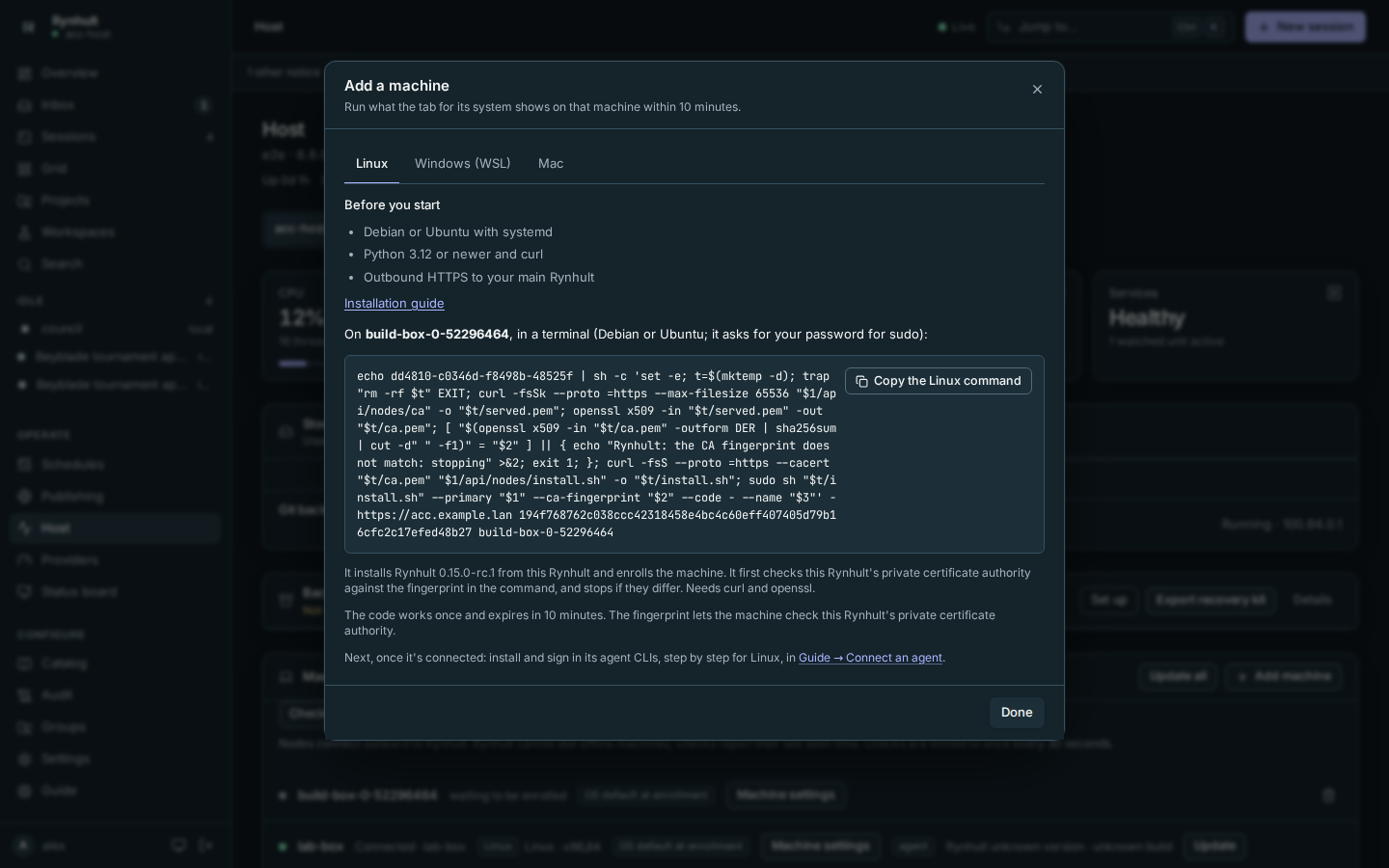
build-box. Select Create enrollment code. - Select the tab for the machine's system: Linux, Windows (WSL) or Mac. Each lists short prerequisites and links to the relevant Guide section before showing what to copy. The code in it works once, for 10 minutes; if it runs out, select Add machine again.
Add a Linux machine
Debian or Ubuntu with systemd, Python 3.12 or newer, and curl (and openssl when your Rynhult uses a private certificate). The machine needs outbound HTTPS to the main Rynhult. Fedora/RHEL, openSUSE and Arch nodes remain unqualified: the installer recognises dnf, zypper and pacman and refuses by default. A Fedora result does not qualify RHEL, and Arch derivatives need their own qualification. A test install only: run sudo deploy/node/install.sh --install-prereqs --unqualified-distro from a source checkout, then enroll by hand (By hand); the Add machine command doesn't pass it.
- On the machine, paste the command from the Linux tab into a terminal and press Enter. It asks for your password for
sudo. - It downloads Rynhult from your main Rynhult (the same version), installs it, and enrolls the machine. It also installs Rynhult's agent software helper (
acc-packages), so you can install and update the agent CLIs there from Providers on the main Rynhult.
Node software and provider packages are separate from desktop packages. This path installs no desktop window, GUI dependencies or dashboard on the node. Desktop RPMs, Arch packages and AppImages are experimental post-v1 work; they are not node installers. Additional distro support still needs a separate node qualification; recognising the package manager or building a desktop package does not provide it.
With a public certificate, the command looks like this:
echo 1a2b3c-4d5e6f-7a8b9c-0d1e2f | sh -c 'set -e; t=$(mktemp -d); trap "rm -rf $t" EXIT; curl -fsS --proto =https "$1/api/nodes/install.sh" -o "$t/install.sh"; sudo sh "$t/install.sh" --primary "$1" --trust system --code - --name "$2"' - https://rynhult.example.com build-box
The code at the start is piped in: it reaches acc-node enroll on stdin (--code -), so it never shows in the process list or in sudo's log. It is still in your shell history, and works once, for 10 minutes.
When Caddy signs your Rynhult's certificate itself, the command is longer. The new machine doesn't trust that private certificate authority yet, so the command first downloads Rynhult's root certificate without checking HTTPS (curl -k). For that one download the trust comes from the fingerprint written into the command, not from TLS: the command keeps only the first certificate, computes its SHA-256 and stops, having installed nothing, unless it matches. Everything after that (the installer, Rynhult's source, enrolling) is checked over HTTPS against that verified root.
From reviewed source, you can also run the wizard below. Choose Additional
machine, and paste the exact rynhult-node enroll … line supplied by the owner.
Windows/Mac tabs show it only when an installer is available; prerelease
administrators can obtain it through the enrollment API.
The wizard accepts exactly that line and nothing else.
sudo deploy/acc-install
Add a Windows PC
Before v1.0: Windows and Mac installers are built only for v1.0.0 and later release tags, so on a pre-v1 Rynhult these tabs show commands that install from your main Rynhult's source instead (below). Release candidates (such as 0.15.0-rc.1) are server builds without Windows or Mac installers, so these tabs show the from-source commands too, with a note saying so. Already enrolled machines update from their row in Host → Machines (see Update an older machine).
Windows 11 x64, an administrator account, virtualization enabled in firmware, and at least 20 GB free disk space for WSL, Ubuntu and Rynhult (allow more for projects). WSL is installed if missing and may need one restart. The PC needs outbound HTTPS to the main Rynhult. Sessions run in Linux inside Windows (WSL). Details: Install on Windows.
- On the PC, download Rynhult-Setup-version.exe from the link on the Windows (WSL) tab and open it.
- Choose Additional machine and paste the command from the tab.
- It installs WSL and Ubuntu 24.04 if needed (it may restart Windows once and continue when you sign in), installs the node inside WSL, enrolls it, and adds a task that keeps WSL running while you're signed in.
Sessions on a Windows PC only run while you're signed in and the PC is awake.
Before v1.0: no installer
Windows and Mac installers are built only for v1.0.0 and later. Before that, the Windows (WSL) tab shows the steps instead:
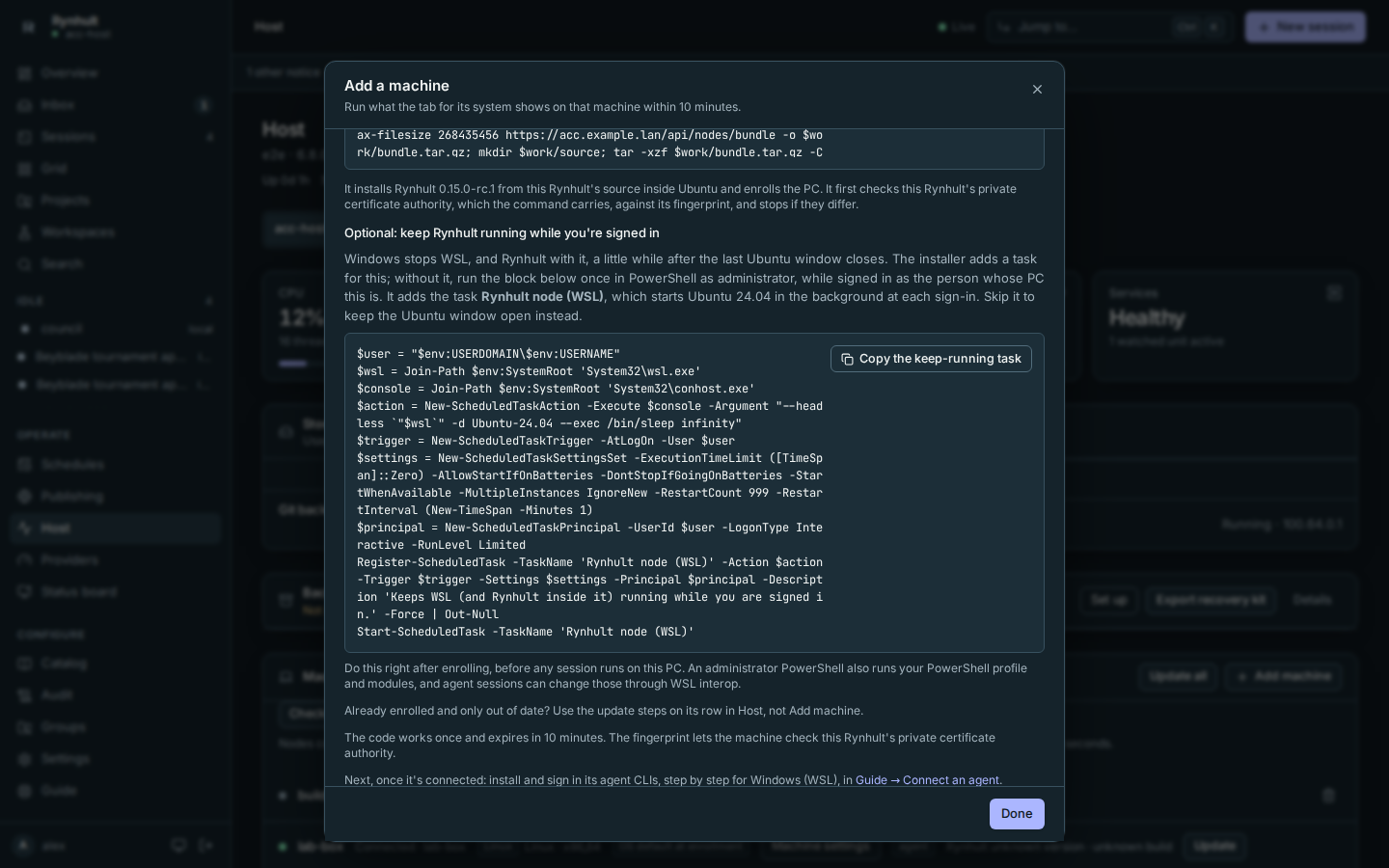
- In PowerShell as administrator, run
wsl --install -d Ubuntu-24.04(copy it from the tab). Restart Windows if it asks. - Open Ubuntu 24.04 from the Start menu. The first time, it asks for a new Linux user name and password; that password is the one
sudoasks for. - In the Ubuntu window, paste the Ubuntu command from the tab. It asks for your password for
sudo, downloads Rynhult's source from your main Rynhult over HTTPS, runs the node installer (deploy/node/install.sh --install-prereqs), and enrolls the PC with the one-time code. When Caddy signs your Rynhult's certificate itself, the command carries that root certificate and checks it against its fingerprint before it trusts any download, which is why it is long.
Windows stops WSL a little while after the last Ubuntu window closes. The tab also shows an optional PowerShell block that adds the installer's task Rynhult node (WSL), which starts Ubuntu in the background each time you sign in; run it once as administrator, or leave the Ubuntu window open instead. Details: Install on Windows.
Add a Mac
Before v1.0: Windows and Mac installers are built only for v1.0.0 and later release tags, so on a pre-v1 Rynhult these tabs show commands that install from your main Rynhult's source instead (below). Release candidates (such as 0.15.0-rc.1) are server builds without Windows or Mac installers, so these tabs show the from-source commands too, with a note saying so. Already enrolled machines update from their row in Host → Machines (see Update an older machine).
Needs macOS 13 or newer (Apple silicon or Intel), Homebrew, outbound HTTPS to the main Rynhult, and Node.js 22 or newer for agents installed with npm. To install Node.js:
brew install node
Details, and what to expect from macOS's security prompts: Install on a Mac.
- On the Mac, download Rynhult-version.pkg from the link on the Mac tab and open it. macOS may say it can't check the developer (the package isn't signed yet): open System Settings → Privacy & Security and select Open Anyway.
- When it asks, paste the command from the tab. If you cancel, run Rynhult Setup from Applications later.
Before v1.0 there is no Mac package. The Mac tab then shows one command instead: install Homebrew first, then paste the Mac command into Terminal as yourself (no sudo). It downloads Rynhult's source from your main Rynhult over HTTPS, runs deploy/node/macos/install.sh, and enrolls the Mac. See Install on a Mac.
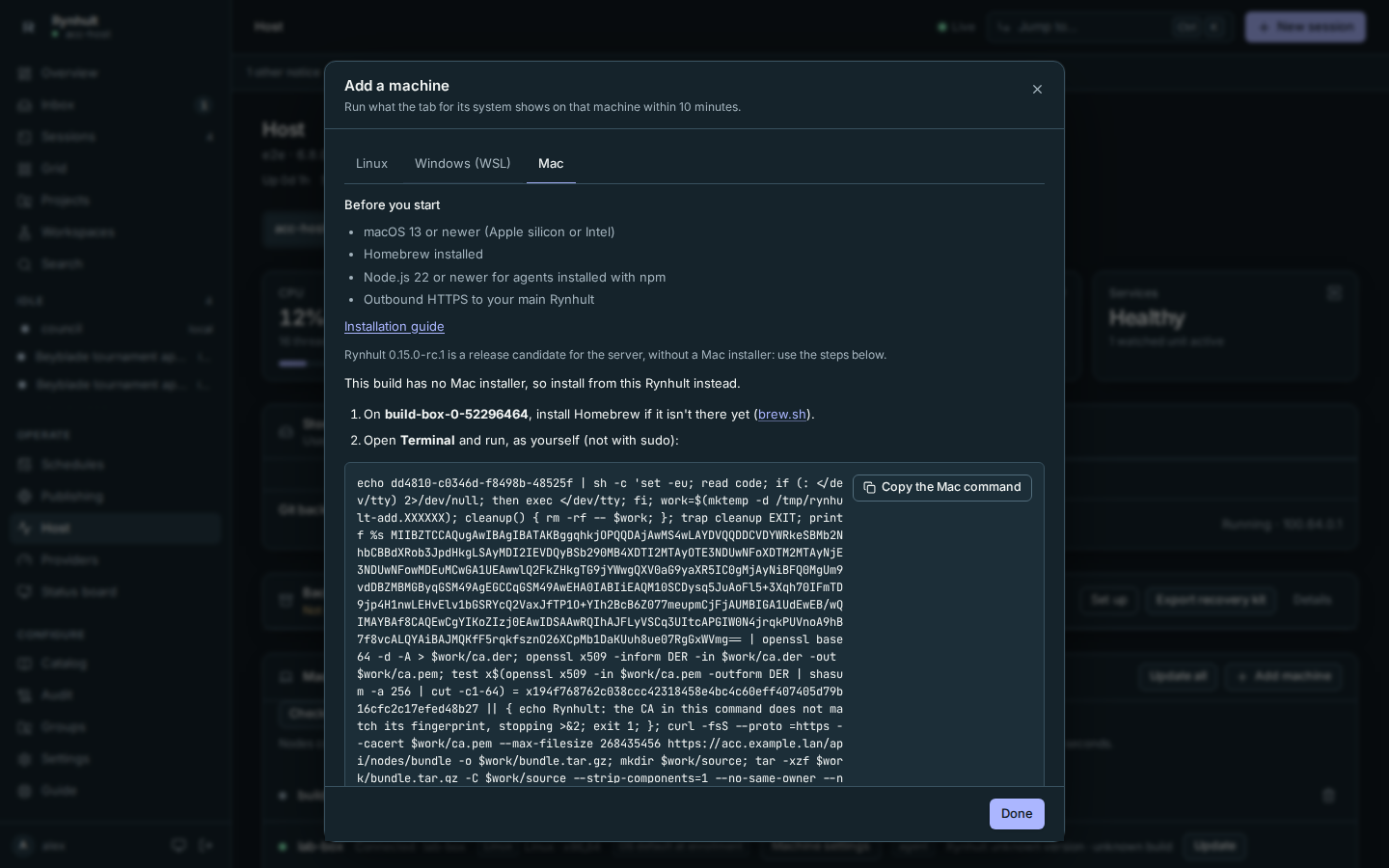
On a Mac, sessions run as your own user, so agents can reach everything your account can. If that's too much, create a separate macOS user for Rynhult and install it there.
By hand
The installers run these steps, which you can also run yourself from a copy of Rynhult (git clone https://github.com/rynhult/rynhult acc, at the same version as your main Rynhult):
Run the installer for your system, then use the exact enrollment command supplied
by the owner from Add machine. Before v1.0, the Windows/Mac tabs show
from-source steps instead of installer links. If a source command cannot be
built for the address, the tab shows the enrollment command for a by-hand
installation. Do not run the Linux bootstrap on a Mac. Commands shown with an
ellipsis are placeholders, not ready to run. To keep the code out of the process
list and sudo's log, pipe it in and give --code -, for example
echo <code> | sudo rynhult-node enroll --primary https://rynhult.example.com --trust system --code - --name build-box.
Linux:
sudo deploy/node/install.sh --install-prereqs
Windows (PowerShell as administrator):
powershell -ExecutionPolicy Bypass -File deploy\node\windows\install.ps1
Mac:
deploy/node/macos/install.sh
Each has a dry run that shows every step and changes nothing (--dry-run, or -WhatIf on Windows). --install-prereqs installs Python, tmux and git with apt, a pinned uv release, checked against its known SHA-256 before it's installed, and Node.js 22+. It also adds Anthropic's signed apt repository for Claude Code, after checking its signing key's fingerprint (without it, the first Install of Claude Code from Providers adds it).
What you should see
Within a few seconds of enrolling, the machine shows as connected on Host → Machines, with its system. Install agent CLIs on it and sign them in from Providers with that machine picked (Nodes). New projects and Register folder offer a Machine choice. New session uses the selected project's machine and names the account and machine under Who. Different or unknown source builds show Update available, even at the same version: follow Updating a node, including the installer-release limit on Macs.
No DNS server?
At the end, the installer asks for a DNS entry for Rynhult's name (for example rynhult.example.lan → 10.0.0.20). Without a DNS server you control, pick one:
- Your router: most home routers can add a local DNS name (often under LAN, DHCP or Local DNS). This works for every device, phones included.
- Tailscale: install Rynhult with the machine's MagicDNS name (for example
acc-host.example-tailnet.ts.net) as Name to open Rynhult at. Every device on your tailnet finds it, at home or away. - A hosts entry on each computer: add
10.0.0.20 rynhult.example.lanto/etc/hosts(Linux and Mac) orC:\Windows\System32\drivers\etc\hosts(Windows). Phones can't take one, so use one of the options above for them. - A Cloudflare zone: Rynhult's name is then in public DNS (pointing at its private address) and its certificate is public.
Then connect phones as in Connect your phone.
Trust the certificate on your devices
When Caddy signs Rynhult's certificate (no Cloudflare zone), browsers warn until each device trusts Caddy's root. Push notifications and installing Rynhult as an app need that. Rynhult copies the root when it's installed, so new machines check it by themselves; for phones and computers:
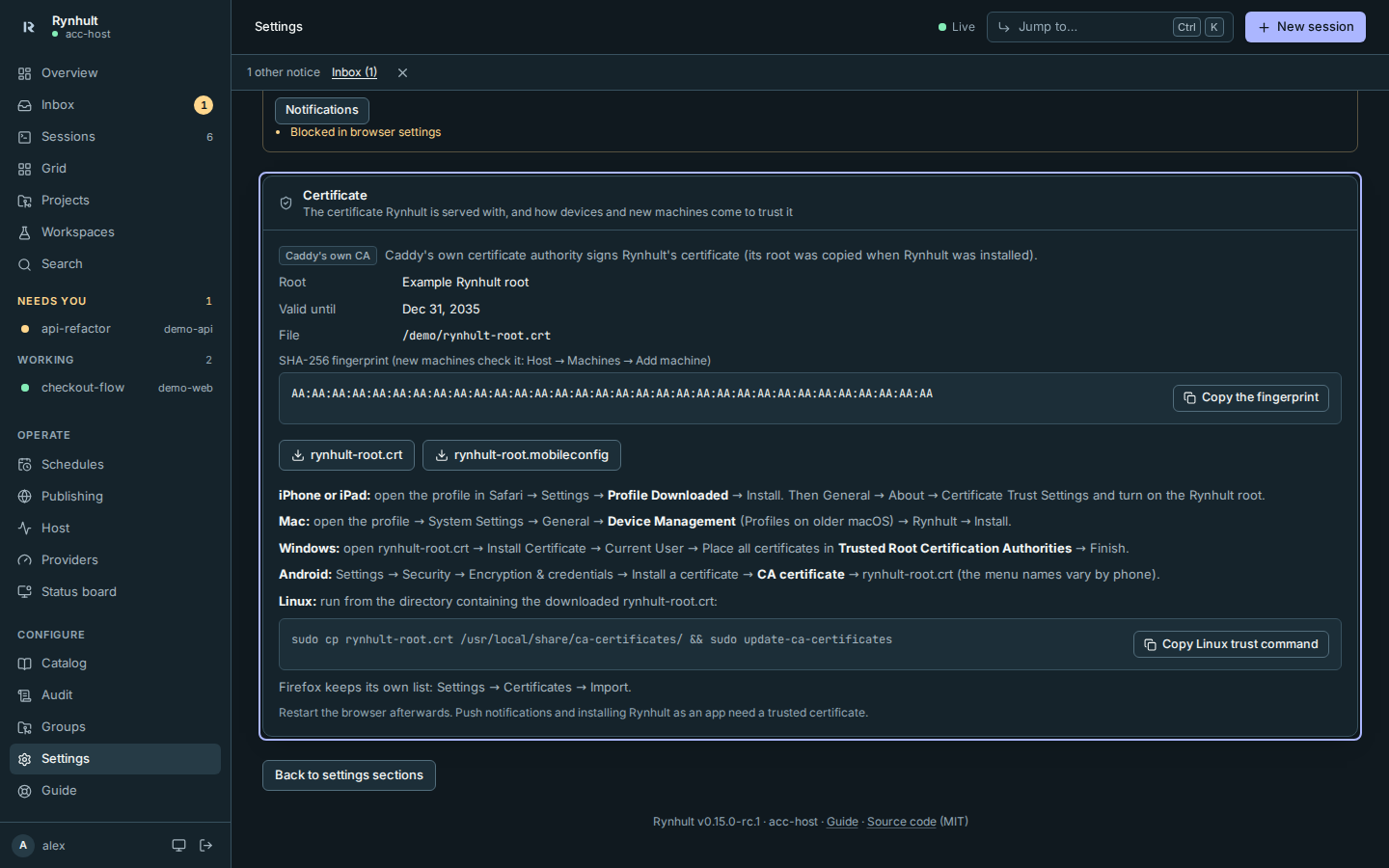
- Open Settings and choose Certificate in Settings section. The Certificate card shows which certificate Rynhult uses, its fingerprint and until when it's valid (owners), and two downloads (everyone):
- rynhult-root.crt for Windows, Linux and Android;
- rynhult-root.mobileconfig for iPhone, iPad and Mac (a profile that holds only the root).
- Follow the steps under them for your device. On an iPhone, also turn the root on under Settings → General → About → Certificate Trust Settings.
The root is valid for 10 years. If Caddy ever renews it, Rynhult picks up the new one at its next update; download it again on each device.
Updating
Owners can use Settings → Updates for release installations and Host → Machines → Update for Linux/WSL nodes. See Updating Rynhult for backup-first updates, schedules, build identities and Mac installers. Git checkouts keep the commands below.
- Main Rynhult on Linux: the command below.
sudo git -C /srv/acc/app pull && sudo /srv/acc/app/deploy/install.sh
-
Additional Linux machine: select Update on its row in Host → Machines (stable releases). For a release candidate, or a machine that can't update itself, copy the machine's update command from its row and run it there. It downloads the main Rynhult's version over HTTPS and, with a private certificate, carries that certificate and checks its fingerprint first. Don't point
curlat/var/lib/acc-node/ca.pemin a command you run as root: the node's own account can replace that file. Without a private certificate, the equivalent is:curl -fsS --proto =https https://rynhult.example.com/api/nodes/bundle | tar -xz sudo acc-*/deploy/node/install.sh --updateOr, from a copy of Rynhult, run:
git pull sudo deploy/node/install.sh -
Windows (WSL): the same as an additional Linux machine, from its row in Host → Machines.
-
Mac: use Update this Mac with the new installer when the build has one; before v1.0 its row shows a command to run in Terminal on the Mac (Update an older machine).
Running sessions keep running through an update.
Uninstall the main Rynhult on Linux
deploy/uninstall.sh lists exactly what it would remove and keep, and changes nothing. Add --yes to remove it:
/srv/acc/app/deploy/uninstall.sh
sudo /srv/acc/app/deploy/uninstall.sh --yes
It removes:
- Rynhult's services, unit files and Caddy drop-ins;
- its Caddy sites, AppArmor profiles, helper commands and settings;
/srv/accapart from your data;- the
acc,acc-buildand agent accounts.
It keeps:
- your projects (
/srv/acc/workspaces), Rynhult's database and secrets (/srv/acc/data) and git backups (/srv/acc/git); /var/backups/accand the agents' home folders;- installed packages and your own account.
An account that still runs processes is skipped: archive its sessions first. --purge-data also deletes your data,
after you type delete my Rynhult data.
Getting Rynhult's source
Everyone who uses a Rynhult can get the source of the version it runs: Settings links Rynhult's repository and Source of this version, a .tar.gz of exactly what this Rynhult was installed from (the same file new machines install). Rynhult is open source under the MIT License.
Troubleshooting
Failures show recent relevant log lines and the full path. Windows Setup has Open log; on a Mac, Show Log opens ~/Library/Logs/ACC/setup.log. The Linux wizard uses /var/log/acc-install.log; direct Linux node installs print a per-run /tmp/acc-node-install.* path, and direct Mac node installs use ~/Library/Logs/ACC/install-node.log. Enrollment codes are redacted.
| What you see | What it means and what to do |
|---|---|
The Windows Subsystem for Linux is not installed followed by wsl --install -d Ubuntu-24.04 failed (exit 1) (Windows) |
Older installers tried installing Ubuntu before WSL itself. Use a build with the WSL bootstrap fix; it installs WSL first and resumes after sign-in if Windows needs a restart. Keep the full log if it still fails. See Windows troubleshooting. |
turn on virtualization (Intel VT-x or AMD-V/SVM) in the BIOS/UEFI settings (Windows) |
Enable that firmware setting, save it, restart Windows and run Setup again. This prerequisite failure is expected until virtualization is enabled. |
run as root |
Start the installer with sudo. |
That isn't the Add machine command (or characters it never contains) |
The installer only takes the rynhult-node enroll … line from Add machine, as shown. Copy it again with the copy button. |
the CA from … has a different fingerprint or the CA fingerprint does not match |
The machine reached something other than your Rynhult, or the command is from another Rynhult. Check the address; nothing was installed. |
couldn't download Rynhult from …/api/nodes/bundle |
The main Rynhult has no download for its version yet: run the current installer from a source checkout on the main Rynhult (command below). Also check the machine reaches the main Rynhult's address. |
uv missing (or not root's) (installing by hand) |
The installer runs uv as root, so it only uses a uv that belongs to root outside home folders. Add --install-prereqs, or install uv for the system. |
too many downloads from this address |
Wait 10 minutes. Rynhult limits how often one address downloads it. |
| The code is invalid or expired | A code works once, for 10 minutes. Select Add machine again. |
systemd is not running (WSL) |
Run the Windows installer, which turns it on, or add [boot] systemd=true to /etc/wsl.conf and run wsl --shutdown. |
| The browser warns about Rynhult's certificate | Trust Caddy's root on that device (see Trust Rynhult's certificate), or use a Cloudflare zone. |
| The Certificate card says Not verified | Rynhult's certificate isn't public and Rynhult doesn't know the root that signs it. Set ACC_NODE_CA_FILE in /etc/default/accd to that root and restart accd. |
Installer refuses an unsafe path or download
An unsafe data-path error means installation found a symlink or unexpected owner under /srv/acc/data. Stop and have the host administrator inspect the path; do not follow it or change its owner blindly. Existing vault keys are preserved. A checksum or apt signing-key mismatch stops installation: check the release or key change before retrying. Cloudflare mode requires the approved hash described above when downloading a new Caddy build.
Caddy's private-network filter includes local processes and Docker containers. They still need a Rynhult sign-in. Both HTTPS modes use a private Unix admin socket to prevent local accounts from rewriting proxy configuration.
Installer diagnostics redact enrollment codes, the supplied Cloudflare token, credential-bearing URL authorities, bearer credentials and labeled token/password/secret values. Redaction cannot identify every arbitrary secret: inspect logs before sharing. Direct Linux node logs use a private per-run directory in /tmp regardless of TMPDIR.
The first-run setup command also has Copy setup command. Only the command is copied; Rynhult never reads the setup token for you.
To restore the main Rynhult's node bundle from its source checkout, run:
sudo deploy/install.sh
This page is generated from docs/wiki/User-Guide/Install.md; the same page is under Guide inside Rynhult.