Updating Rynhult
Owners can back up and update the main Rynhult from Settings, then sync the other machines to its exact source build. Members do not see update controls or release notifications. Installing updates automatically is off by default.
PostgreSQL installations: the main Rynhult's Back up and update workflow and scheduled installation are refused because their backup/rollback only supports the default SQLite database. Turn off Install updates automatically and ask the installation owner to follow an independent PostgreSQL backup, update and recovery procedure. A leftover SQLite database is not a backup of PostgreSQL. Updating additional machines is unaffected.
Update the main Rynhult
The built-in updater offers stable releases only, not release candidates. On an RC, follow the release's manual upgrade instructions for the main and each node; retrying the node's Update button does not install an RC build.
- Open Settings → Updates. Check the current version and build, the latest release, its notes and the last check. Rynhult checks once a day; Check now checks immediately.
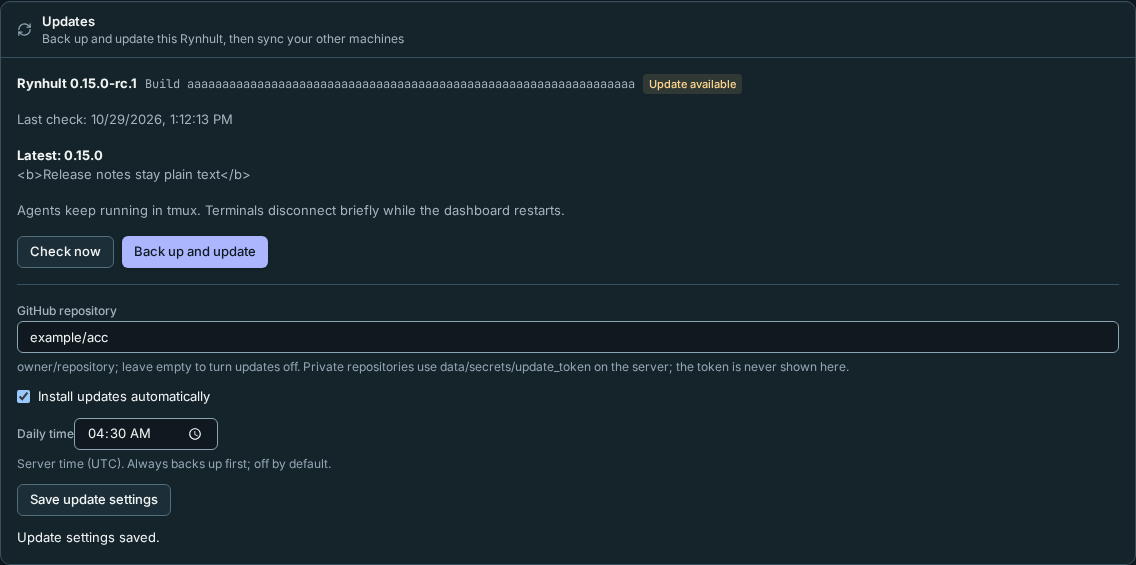
- If updates are off, enter the GitHub owner/repository, such as
example/acc, in GitHub repository and select Save update settings. Leave it empty to turn checks off. The initial repository comes from the installation's source URL when it points to GitHub. - When Update available appears, select Back up and update, read the confirmation and confirm. Rynhult first backs up the database and secrets. A failed backup stops the update. Downloaded source must pass its checksum and archive safety checks before installation starts.
- The dashboard restarts. Terminals disconnect briefly; agents keep running in tmux under their brokers. Reconnect after the restart and check the step results. If installation or health checks fail, Rynhult attempts to restore the previous source and database and shows whether rollback succeeded.
A newer release creates one owner Inbox item per version; the sidebar also links to Updates while an update is available. The build identifies the actual source, so machines with the same version can still need an update.
Source archives used for releases, installation and additional-machine downloads exclude host inventory, private handoffs, reviews, qualification material, rename/rollout inventories and private operational documents. They contain the public application source for that build. Keep private operational records in your own backups.
Schedule automatic installation
Under Settings → Updates, turn on Install updates automatically, choose Daily time, then select Save update settings. The time uses the server's timezone, shown below the field. If the server was off at that time, it checks when it returns. Automatic installation always makes the same full backup first.
Sync additional machines
- Open Host → Machines. Update available means a machine has a different source build from the main Rynhult. unknown build means an older node has not reported a build identity yet.
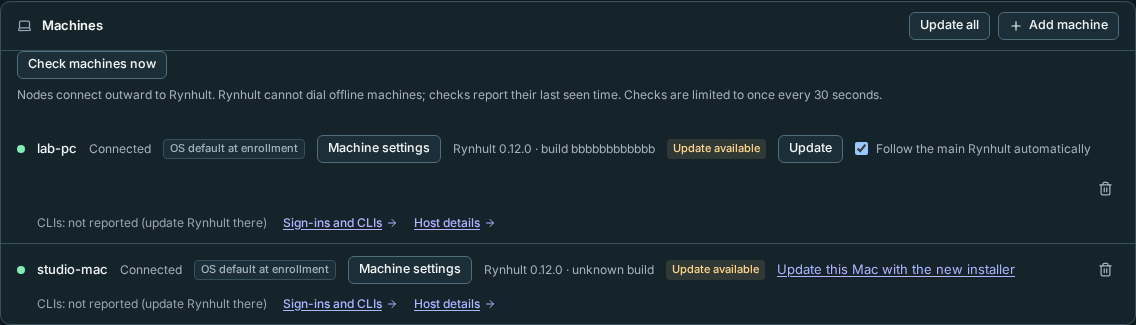
- Select Update beside a Linux or Windows/WSL machine and confirm, or Update all to sync connected machines that need it. They download source from this main Rynhult using the TLS trust set at enrollment. They never check GitHub themselves. Offline machines must reconnect before a manual update can be sent.
- Optionally turn on Follow the main Rynhult automatically for a machine. It is off initially. A follower syncs after the main changes build, including when the machine reconnects.
- A Mac uses Update this Mac with the new installer when this build has an installer: download and run it, then finish Rynhult Setup as described in Install on a Mac. Pre-v1 builds and release candidates have none here: the Mac's row shows a command to run in Terminal on the Mac instead, which reinstalls from this main's source and keeps the enrollment (Update an older machine). There is no root update helper on a Mac.
An older Linux/WSL helper can reject a genuine new bundle with node bundle version or build mismatch. It needs a one-time manual reinstall from the updated main's source, not another retry or the old installed source. Use the older-machine recovery steps; enrollment, accounts and certificate checks stay intact. Backup receivers require independently reviewed updates instead of main-supplied root recovery commands.
After a successful helper-driven update and reconnect check, Linux/WSL keeps its two latest previous installations and removes older helper-created copies. Failed updates keep recovery sources. Host shows the helper's failure detail or a cleanup warning; a cleanup warning does not undo a healthy update.
Troubleshooting
-
Git checkout: the main update button is replaced with “This Rynhult runs from a git checkout: update it with git pull and deploy/install.sh”. Update the checkout and run its installer as before.
-
Repository needs authorization: an administrator sets
ACC_UPDATE_REPOSITORY=example/accin root-owned/etc/default/accdand restarts accd. The default authorizes the repository derived fromACC_SOURCE_URL. An Rynhult preference can never redirect the root installer to another code source by itself. -
Private repository: the administrator puts the optional GitHub token in
data/secrets/update_token, readable by the Rynhult service and root, with mode 0600. The token is never displayed by the dashboard or included in audit. -
Repository not found: check the repository name; private repositories need the token in
data/secrets/update_token. -
GitHub refused access: check the token and its repository permissions.
-
Rate limited: wait for GitHub's limit to reset, then select Check now. The last release details remain visible with the error.
-
Older node with unknown build: sessions keep working. If its old node daemon does not understand update messages, use the copyable recovery commands on its Host → Machines row. They keep enrollment and install the helper without needing a desktop installer release; see Update an older machine.
-
Helper missing: from the current source checkout on the main Rynhult, run:
sudo deploy/install.shOn an additional Linux node, use this command instead:
sudo deploy/node/install.sh -
Archive refused: release archives must fit the file, header and metadata limits. Refusal happens before extraction. Ask the release publisher to rebuild an ordinary source archive; do not bypass verification.
-
Update failed: read the last result. A failed rollback needs an administrator: retained source is beside the installed app and the full pre-update backup is under
updates/backups/. Restore the database and secrets from the same backup; keep the secrets passphrase if backup encryption is enabled. -
Upgraded by hand (for example the next release candidate installed over the last):
deploy/setup.shfrom a new version refuses while another version is installed at/srv/acc/app; it never runs the old one instead. To install the new one by hand, as root:- Take a backup:
sudo acc-backup. - Stop Rynhult:
sudo systemctl stop accd.service accd.socket. - First check that
/srv/acc/app.previousdoes not already exist, including as a broken link; if it does, stop and review that retained installation. Then move the installed version aside:sudo mv /srv/acc/app /srv/acc/app.previous. - Run the new version's
sudo deploy/setup.sh. It copies itself to/srv/acc/appand installs. Your data in/srv/acc/datais kept.
Before Rynhult upgrades the database schema at its next start, it keeps a copy of the SQLite database beside it, named
acc.db.pre-migration-<revision>(readable only by Rynhult's own account). An existing copy must be a private, regular SQLite file with valid integrity and the expected revision; otherwise the upgrade stops for review and does not replace it. If the new version fails:- Stop both entry points:
sudo systemctl stop accd.service accd.socket. - Check that
/srv/acc/app.faileddoes not exist, including as a broken link. Then retain the failed tree:sudo mv /srv/acc/app /srv/acc/app.failed. - Restore the previous tree into the now-empty location:
sudo mv /srv/acc/app.previous /srv/acc/app. Moving the previous folder onto an existing app folder would nest it inside the failed version instead. - With all database users stopped, retain the failed
acc.dband anyacc.db-wal/acc.db-shmtogether in a private recovery folder. Restore the pre-migration copy asacc.db, owned byacc, mode0600, with its originalsecrets/vault.key. Never leave the failed database's WAL beside the restored copy. If secrets also changed or their pairing is uncertain, restore the complete backup from step 1 instead. - Run
sudo /srv/acc/app/deploy/install.sh.
Remove old copies once the new version runs well; they hold the same data as the database. PostgreSQL gets no copy: back it up first.
- Take a backup:
-
Updater configuration is corrupt or unreadable: checks, automatic installation and automatic machine following stop. Rynhult keeps the damaged file for diagnosis. Ask an administrator to repair its contents or permissions, or enter the intended repository, automatic setting and time and select Save update settings to replace it. Re-enable any machine follow switches afterward; damaged values are not recovered.
Source bundles served for installation and node downloads use the same exclusions as the public-source
exporter: private documentation folders, generated artifacts, secrets and environment files (including
case variants and .env.local) are omitted. A damaged Git checkout refuses bundle creation; repair
its Git metadata before retrying. Publishing new source still requires reviewing the exact exported tree.
Rynhult name compatibility
This release accepts both ACC_* and RYNHULT_* environment settings. Use the
same suffix: RYNHULT_LISTEN corresponds to ACC_LISTEN. If both are set, the
Rynhult name wins, including an empty value. Keep one configuration file at its
existing location; an update needs no manual path or database changes.
On Linux, the installers add new service names as aliases: rynhultd.service
and accd.service address the same service, and the same applies to the node,
brokers and helper services and their sockets/timers/path triggers. Existing
service names keep working. If another program already installed a service
with one of the new names, the installer stops and names it instead of hiding it. On Mac, launchd labels stay unchanged until a later
maintenance operation; running a second job is unnecessary.
Cookies, the CSRF header, acc.db, service accounts and existing /srv/acc paths
remain permanent. Old and new names will coexist for at least two stable releases
and until every enrolled machine reports support. Offline machines extend that
window. Future path/default/label changes are separate from this compatibility
release. The owner-approved naming convention for new installs will be applied
in a later qualified phase.
Owners can use the read-only rename readiness tool against an offline snapshot to review aliases and proposed future changes. A failed future stage 2 migration must preserve the database while reverting binaries/configuration.
Add the public names without a software update
An administrator can install just the Linux/WSL command and unit aliases from a reviewed checkout. On the main, first inspect the read-only plan:
bash deploy/install.sh --dry-run
This plans phase B aliases only, using the components already installed. It is not a simulation of dependency installation or a complete software update. After phase B has been applied, Linux/WSL dry-runs need sudo to read its root-private journal. They remain read-only. After checking the plan, an administrator deploys the aliases with:
sudo bash deploy/install.sh --aliases-only
On an existing Linux/WSL node, use deploy/node/install.sh --aliases-only, adding
--dry-run to inspect first. This changes links and reloads systemd definitions;
it does not restart the dashboard, brokers, agents or node daemon. A normal
software update still follows the update procedure above, with its existing
restart behavior. No machine is upgraded or re-enrolled by adding aliases.
On a Mac with an existing installation, run the following as the signed-in user, without sudo:
bash deploy/node/macos/install.sh --aliases-only --dry-run
bash deploy/node/macos/install.sh --aliases-only
This adds command aliases in the existing app and Homebrew bin directories. It
never unloads or loads a LaunchAgent. Mac rollback uses the same installer with
--rollback-aliases, after new-name consumers have drained.
Public commands include rynhult, rynhultd, rynhult-node, rynhult-restore
and rynhult-db-transfer. Session helpers have matching names such as
rynhult-request, rynhult-hook, rynhult-guard, rynhult-mcp-team,
rynhult-statusline and rynhult-wiki-check. Installed administrator helpers
also accept the rynhult- prefix, for example sudo rynhult-backup. The same
permissions and arguments apply as for each existing acc-* command. Optional
components receive aliases only when their legacy executables are installed.
Old commands, hook configuration and service names continue to work unchanged.
If rolling back these additions, first stop consumers of the new names or keep
the harmless aliases until they drain. Preview with --rollback-aliases --dry-run,
then an administrator runs --rollback-aliases on the appropriate installer.
This removes only links recorded as newly added by phase B. Pre-existing aliases,
legacy executables, units, data and configuration remain. A changed link blocks
rollback for manual review; never delete the conflicting object blindly.
This page is generated from docs/wiki/User-Guide/Updating.md; the same page is under Guide inside Rynhult.