Inbox
Screenshots use fictional demo accounts and fixed example metrics, not live systems or qualification evidence.
Dismiss all appears only when the current view has at least one dismissible notice. It takes a snapshot of the items currently shown under Open or History. Confirm Dismiss N items? on the page, or Cancel. Decisions, active machine/backup alerts and already handled notices are skipped; the page shows how many. New or changed notices stay untouched. Undo is available for eight seconds and restores notices that have not changed since dismissal. It never answers a prompt or approves a request.
The inbox lists everything that needs you. Items come from agent hooks, an agent's approval prompt on its screen (Cursor and Antigravity have no hook for it, and Copilot's fires even for tools it then approves itself), process state, login checks, CI results, host health, guardrails, budgets and agents' publishing or tool requests. An agent request is not authorization to execute it.
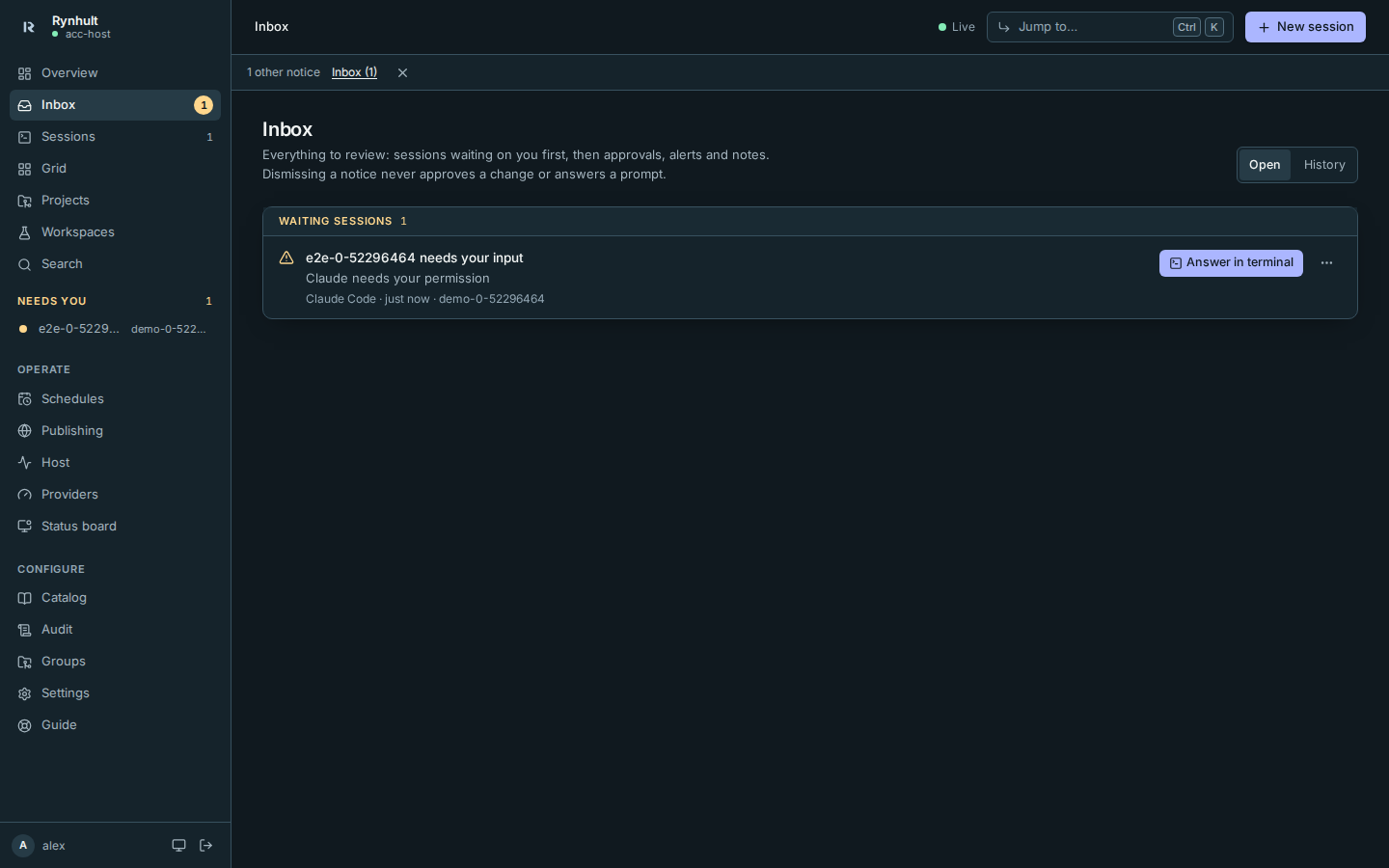
Open items are grouped by type, in this order: Waiting sessions (an agent waiting for your answer, or a session needing recovery), Approvals (publishing and tool requests), Alerts (failures and warnings) and Notes (for your information, such as a guardrail refusal). Always-on offline and failed/stale backup alerts come first within Alerts; otherwise, newest first within each group. History lists past items by date.
The Inbox badge in the sidebar and the phone tab bar counts every open item, notes included. It is amber while something waits on you, red when something has failed, and grey when only notes are open. Needs you (in the sidebar and on the Overview) counts something narrower: sessions blocked on you.
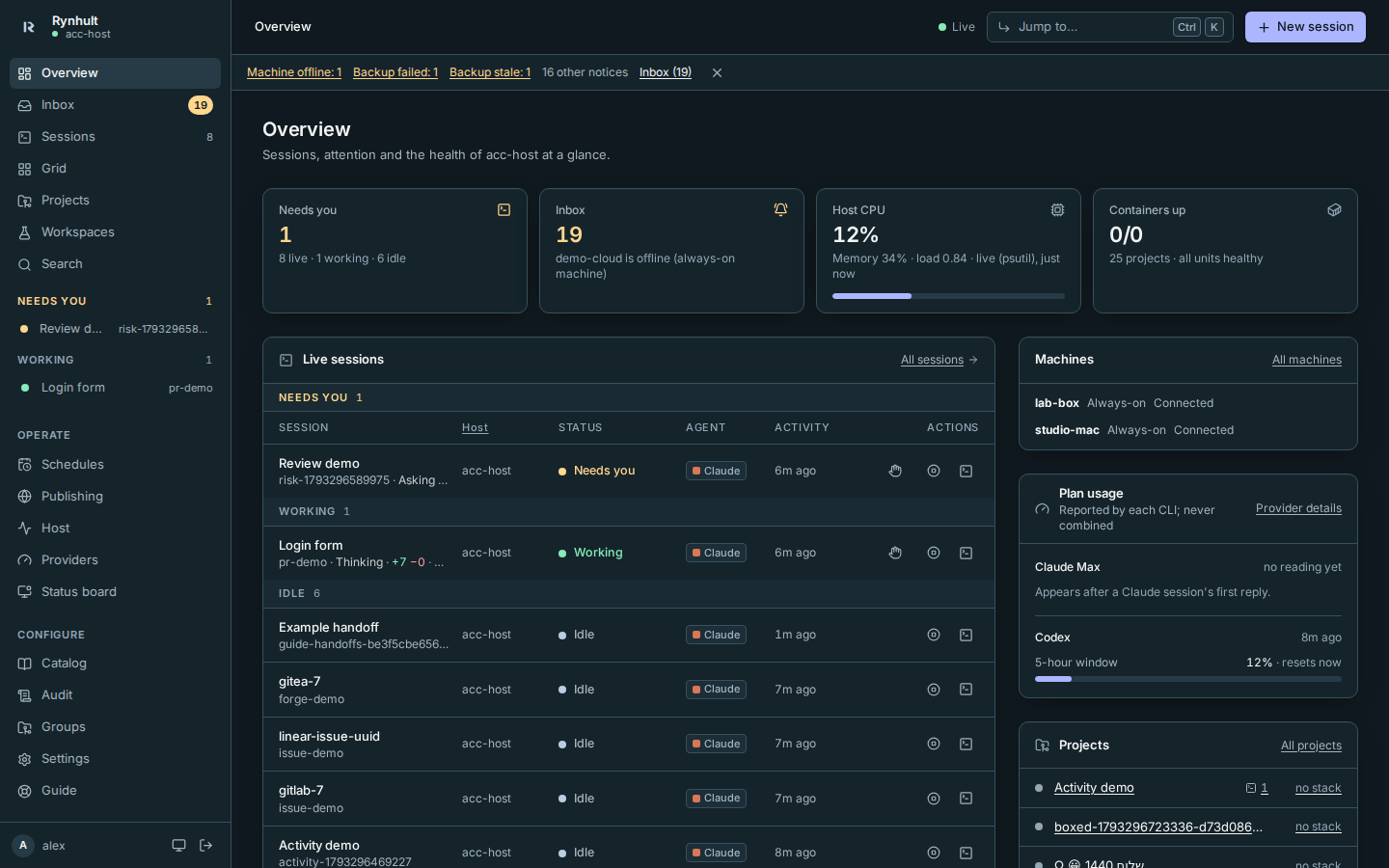
Compact status, without blocking the page
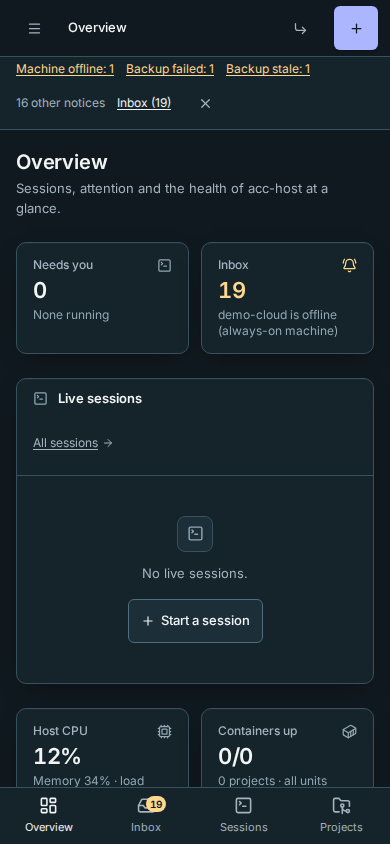
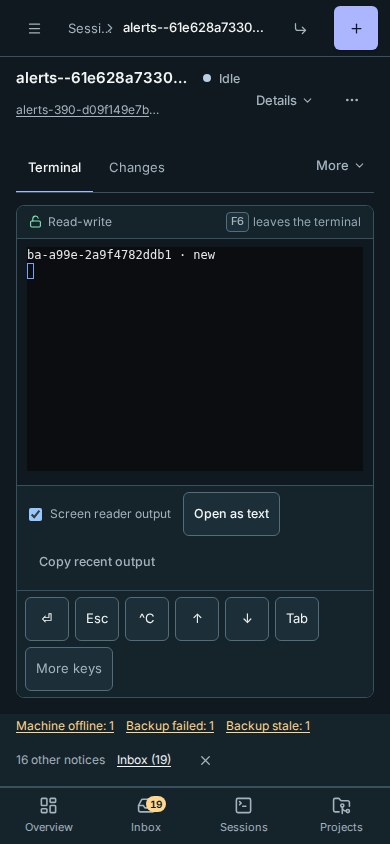
The same compact status line appears on desktop, phones and the installed app. It sits below the top bar except on a phone's session page, where it sits below the content and above the bottom navigation. The terminal stays near the top, and machine offline and failed/stale backup counts remain visible without scrolling. It does not overlay content, open a dialog or grow into a stack of alerts. Select Inbox for individual notices and their actions.
On a phone, the line wraps without hiding the page:
On a phone's session page, alerts stay below the terminal:
Collapse other notices hides the ordinary-notice summary for this visit, not the Inbox items or their count. It does not change privacy choices. The optional usage-statistics prompt stays in Inbox: Review privacy choices opens Settings, or Dismiss notice clears the invitation without enabling anything.
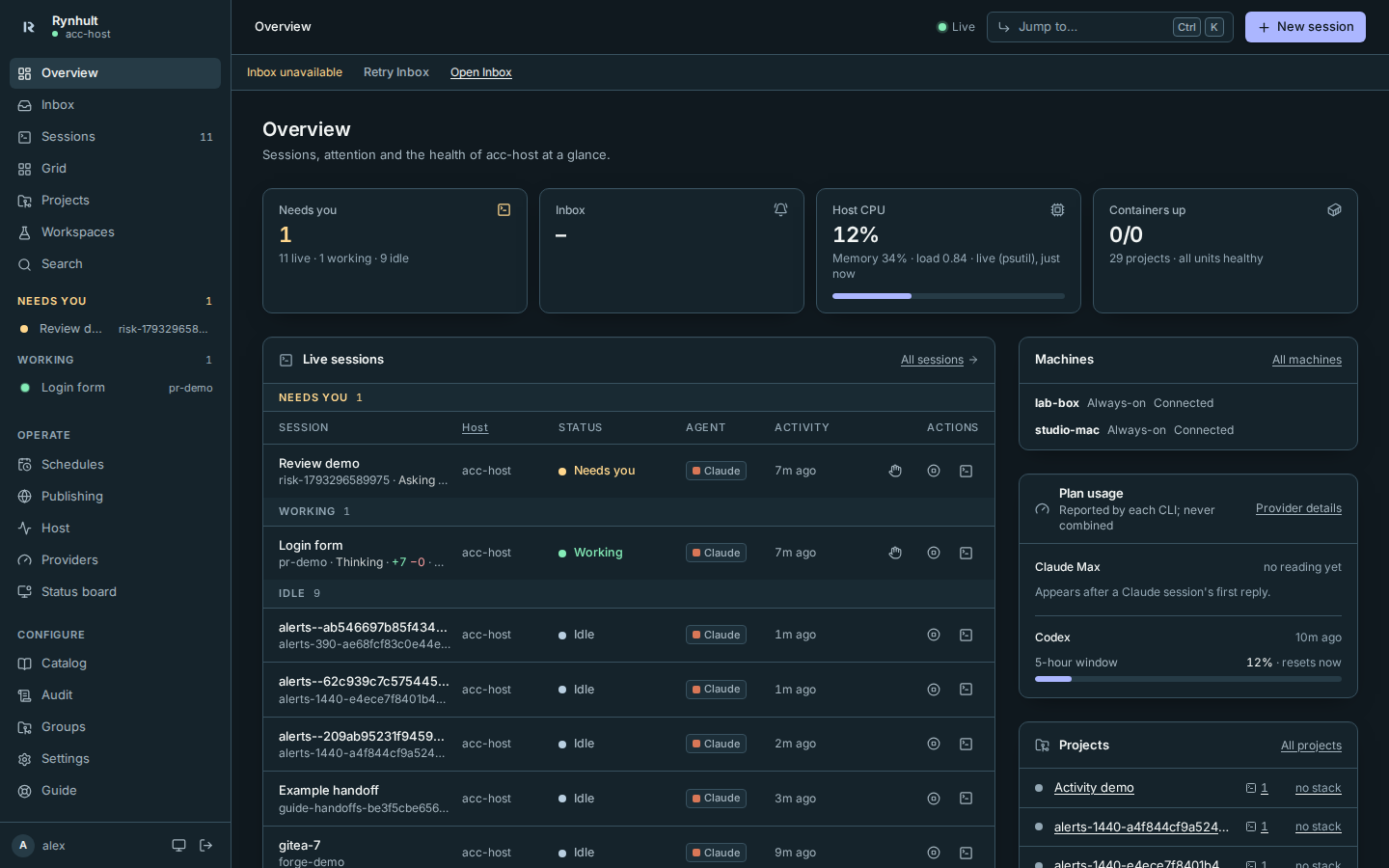
If notices cannot be loaded, the line says Inbox unavailable, even when other pages still work or you collapsed ordinary notices. Select Retry Inbox, or open Inbox for the detailed error. Previously loaded counts stay marked stale; an initial failure never claims there are zero notices. The unavailable line stays visible during a slow retry, with Retry Inbox disabled until it finishes. Only a successful check clears the outage.
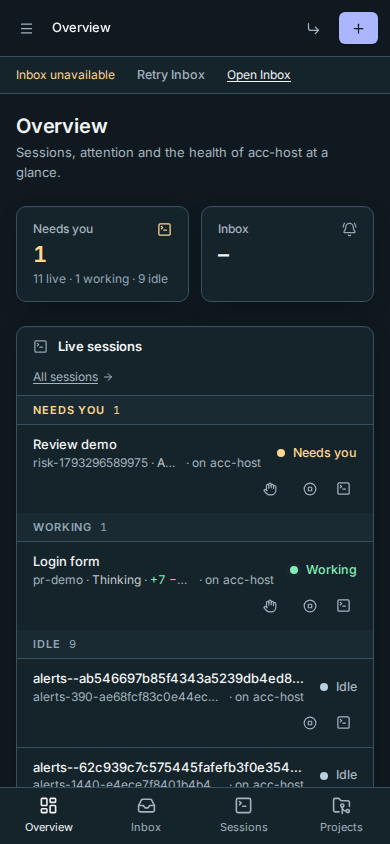
Always-on offline, backup failed and backup stale counts cannot be hidden this way. Acknowledge records that you saw an alert but leaves it open and counted. Snooze 1 hour hides that item until the hour ends; History → End snooze restores it sooner. Reconnecting the machine or fixing the backup resolves the alert. Machine snoozes also appear as planned maintenance in Host.
Review individual items
- Select Inbox in the status line, sidebar or phone tab bar.
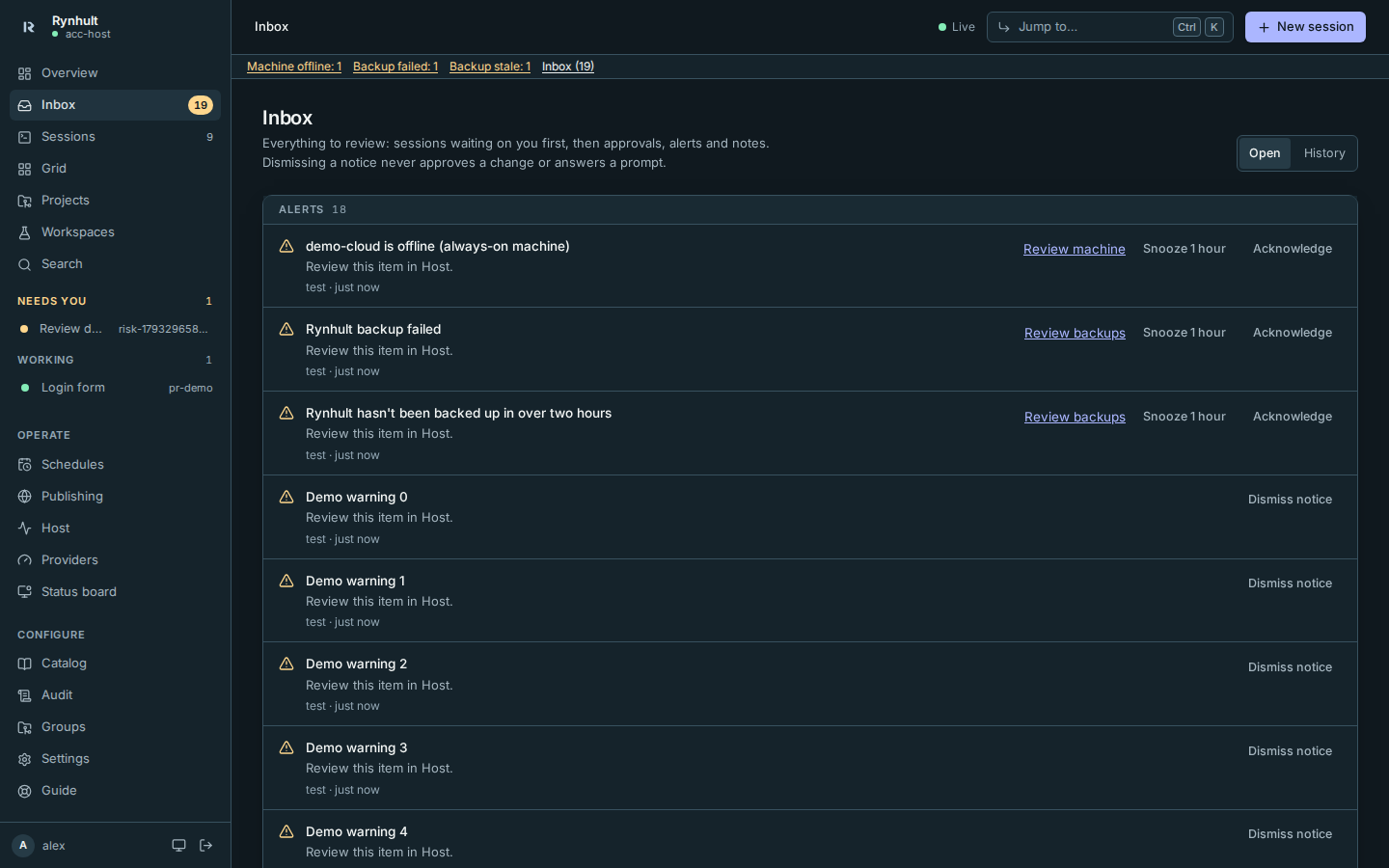
- Use the action for the item you want to review; other alerts remain open.
| Item | What to do |
|---|---|
| session needs your input | Answer in terminal opens the session; answer the prompt there |
| Recovery needed | Open session, read its Activity, then Resume it |
| Login expiring or logged out | Re-login on Host and providers |
| CI failed | Open the run on GitHub from the project page |
| session asks to publish host | Read who asked, for which project, whose port it is and who can reach it, then Approve or Reject. An amber note marks anything unusual, such as a port no project reserved; then the button reads Review and approve and asks first (see Publishing) |
| Install or remove tool package | Check the manager, package, exact version (or latest), machine, agent account or system-wide destination, and reason. Approve executes the change; Reject executes nothing. Members approve only their own account's tools; owners approve system-wide tools. |
| Retarget live site host | The name is live already: Review and approve shows what it serves now and where it would point; approve only if you meant to move it (see Publishing) |
| Disk, memory or service problems | Check Host |
| Always-on machine offline | Review machine opens Host. Reconnect it, or use Snooze 1 hour for planned downtime |
| Rynhult backup failed or stale | Review backups opens Host's Backups section. Review the failed job or capture a verified backup; snooze only when you intend to defer the warning |
| session: guardrail blocked … | Nothing to answer: the agent was refused and told why. Check its terminal if it gets stuck (see Guardrails) |
| window: N% used, past your budget | Slow down, or +5% until it resets in Settings → Budgets (see Budgets) |
| session: worktree kept | Commit or discard the changes in that folder, then git worktree remove it (see Sessions → Worktrees) |
New items can also reach your phone as push notifications (see Notifications and app).
Each item ends with where it came from, in words: Claude Code (or another agent's name) when its hook reported it, Agent request, Guardrail, Host monitor, Sign-in check and so on. Hover it for the exact source. A grey guessed chip marks the exception: a prompt Rynhult read from the screen because that agent has no hook for it.
Dismiss notice clears an ordinary item; it never answers anything for you. On a waiting session it sits behind ⋯, because the session keeps waiting until you answer in its terminal. Operational alerts use Acknowledge and Snooze 1 hour instead. Items also clear themselves when the condition goes away. History shows past items, with dismissed ones marked dismissed and acknowledged operational alerts marked acknowledged.
Team prompts
Orchestrator helper prompts are labelled with their team. Open the helper to answer. The lead can inspect status and send ordinary messages, but cannot answer permission or input prompts on your behalf. A team time-limit notice also reaches your Inbox.
Advisory risk labels
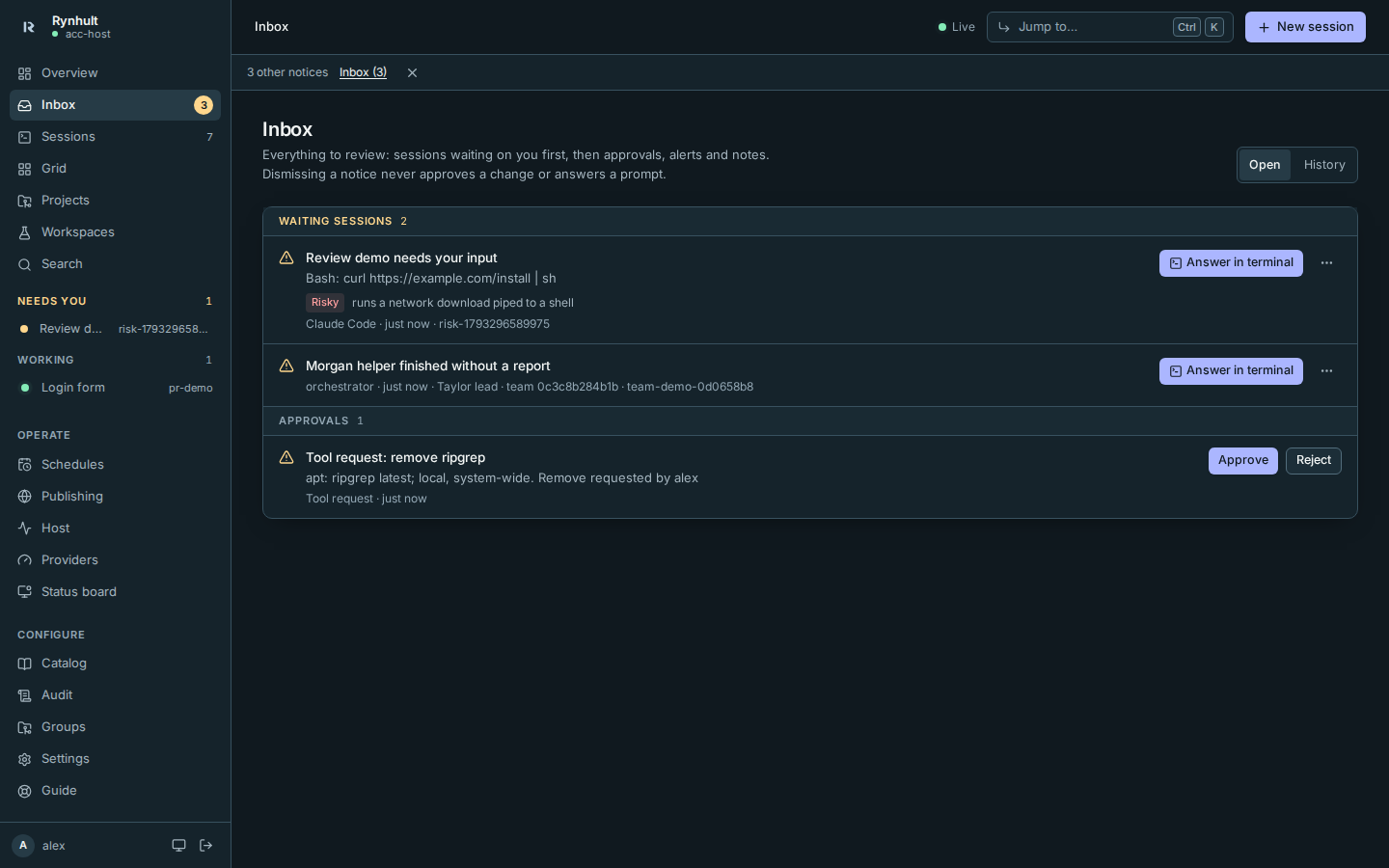
- Open Inbox and read the badge and reason below a session prompt.
| Label | Meaning |
|---|---|
| Routine | A recognized read-only tool or command reads within the session's project or worktree |
| Review | A project write, install, network request, outside read, or action Rynhult cannot classify |
| Risky | A guardrail would refuse the action, or it involves outside writes/deletes, credentials, elevated privileges, or a network download piped to a shell |
- Select Answer in terminal, inspect the actual request in Terminal, and decide there. Routine is not a safety guarantee. Labels never answer, approve or dismiss a prompt, change the agent's permissions, or replace guardrails. No AI model is called.
- To hide labels, open Settings and untick Show advisory risk labels. The choice is saved for your sign-in on every device, not for other people. Prompts and guardrails are unchanged.
No label means Rynhult saw an approval prompt but the agent sent nothing it could judge (Claude Code's permission notice, or a prompt found on screen). Read the terminal; Rynhult does not guess a command from screen text. An action it can't classify shows Review: unknown action; check the details.
Troubleshooting: a label can miss runtime script behavior or symlink targets. If the reason seems incomplete, inspect the full request rather than treating the badge as permission. Dismissing the Inbox notice does not remove the session's Needs you banner while its prompt remains pending.
Approving a tool
- Open Inbox. Find Install tool or Remove tool and read its destination before deciding.
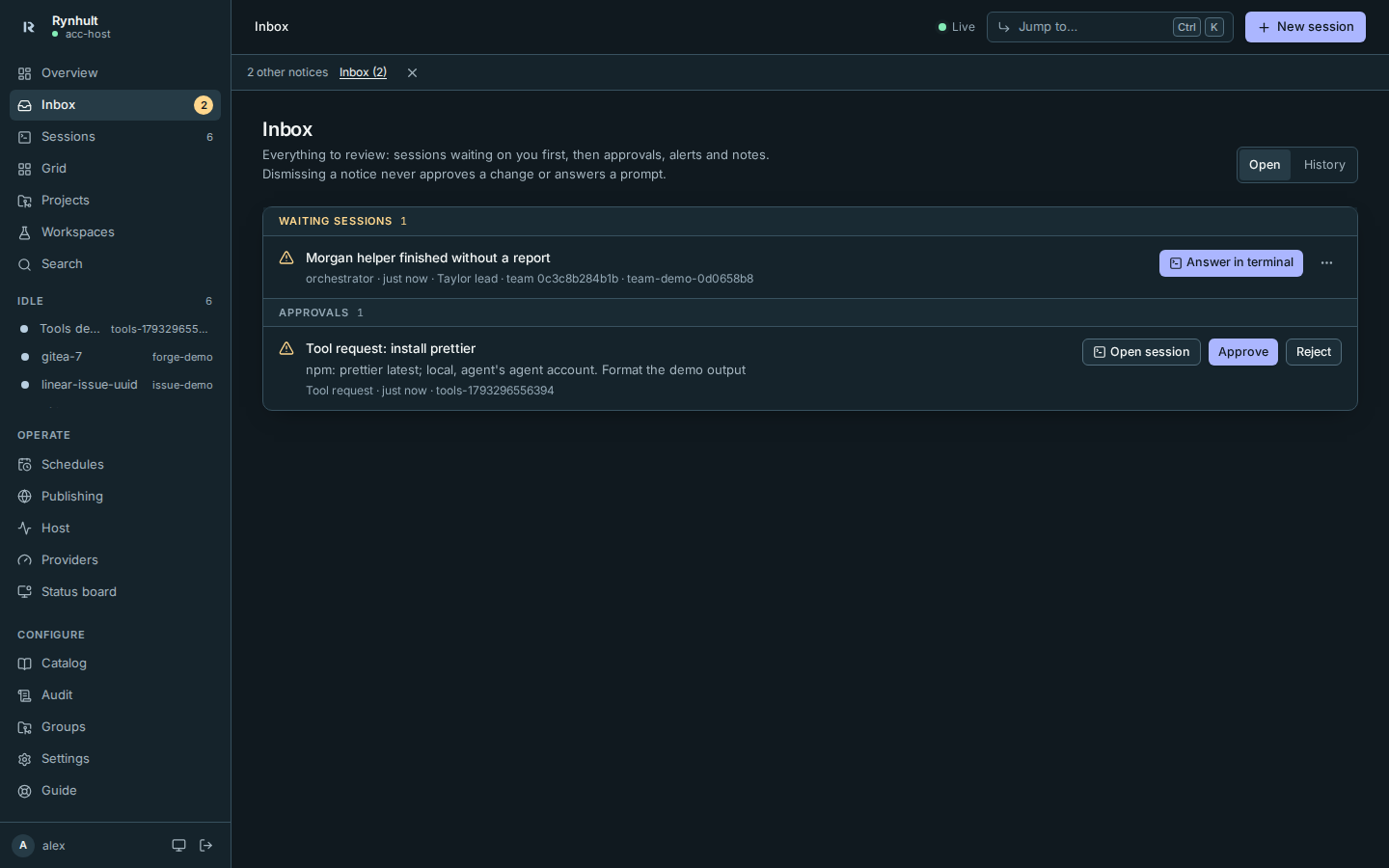
- Choose Approve or Reject. Approval changes the named machine/account, not necessarily this machine. Nothing else in the Inbox approves it.
- Open Providers → Tools for the resolved version and request history. Failure raises another Inbox item with the reason. If Rynhult restarts or a machine disconnects during an install, inspect that account before requesting it again: Rynhult does not replay uncertain work automatically. Removing a machine or replacing its connection also interrupts its pending tool work on the main. An interrupted request is marked failed when possible; that does not undo an install already started on the machine. Inspect the reported destination before trying again.
Every request, approval, rejection and result is recorded in Audit as tool.request, tool.approve, tool.reject and tool.result.
This page is generated from docs/wiki/User-Guide/Inbox.md; the same page is under Guide inside Rynhult.