People and sign-in
Screenshots use fictional demo accounts and fixed example metrics, not live systems or qualification evidence.
Everything here is on the Settings page, which also holds your Keys, the Guardrails every agent runs under, your own Budgets, and the Certificate card for trusting Rynhult's certificate on your devices.
Your sign-in
- Where you're signed in lists every browser and device signed in as you. Sign one out with its icon, or Sign out everywhere else. Signing out also closes that device's terminals.
- Password: changing it signs you out everywhere else. Sign-ins last 14 days.
- Too many attempts: after five failed sign-ins from one address (for IPv6, one /64 network), or ten for one username from anywhere, Rynhult answers Too many attempts. Wait 10 minutes, then try again. Your own correct password and code still sign you in while your username is locked, so someone failing on purpose can't lock you out.
Add and manage passkeys
A passkey lets you sign in using a fingerprint, face, device PIN or security key with user verification. It supplies both factors; Rynhult does not ask for an additional authenticator code. Your private key stays with your authenticator.
Before you start, open Rynhult at its configured HTTPS address, such as
https://rynhult.example.lan. Trust its private CA certificate first if needed
(Connect your phone). Use a browser that supports
passkeys and a device or security key that supports discoverable credentials and
user verification. Different Rynhult hostnames need separate passkeys. Before changing to another
hostname, select Allow at the old address, sign in at the new address with your
password and authenticator, enroll there and test it before reenabling Require.
If Rynhult’s health check is unavailable, Settings still shows Passkeys, with changes disabled while the connection recovers. When the check returns, an active main enables changes again; a standby shows its read-only High availability page.
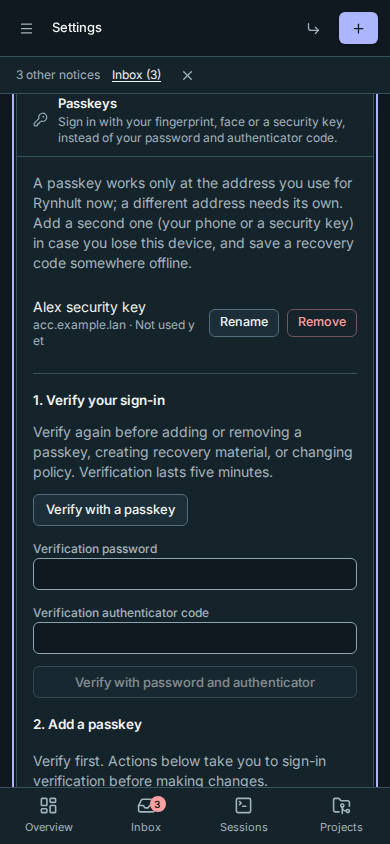
- Open Settings. It opens at Passkeys.
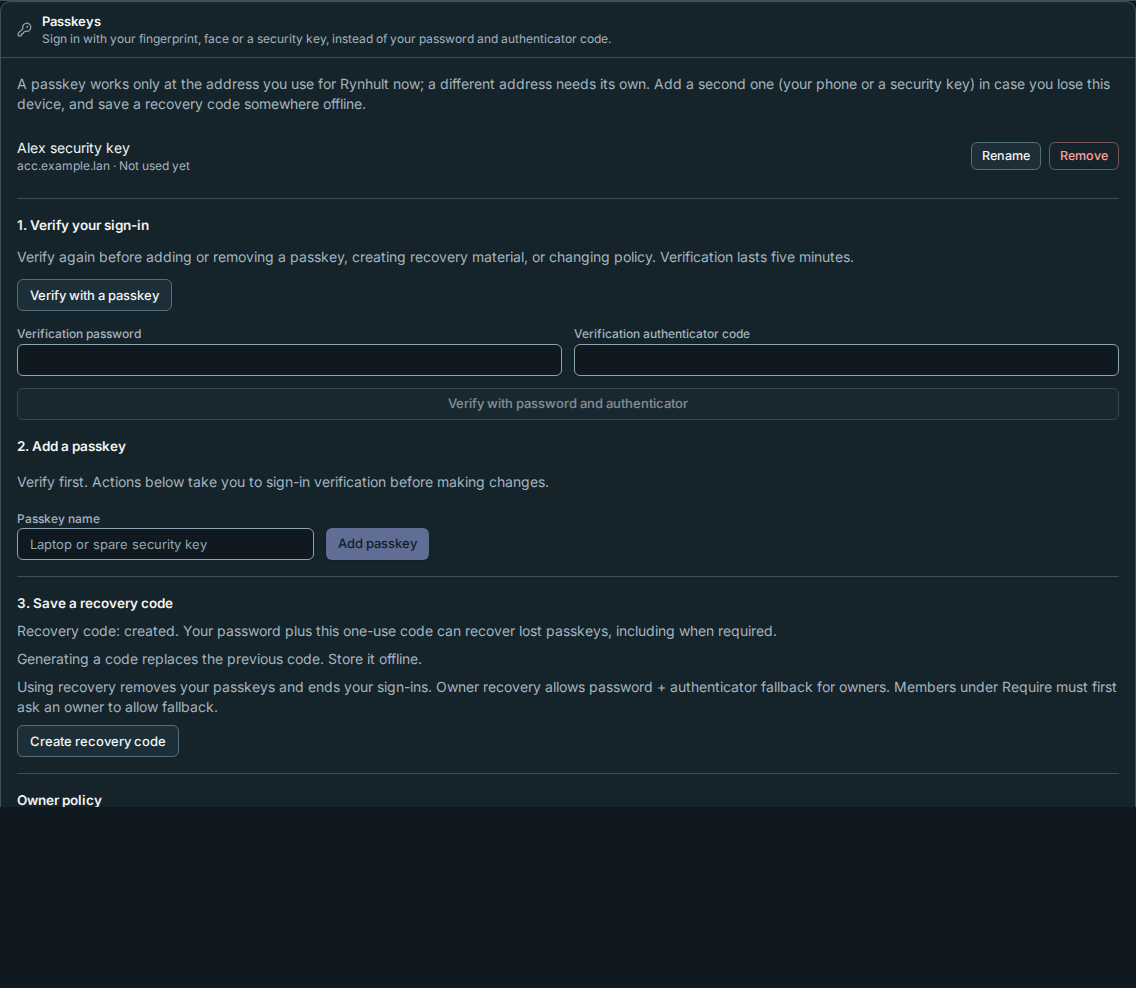
- Select Verify with a passkey, or enter Verification password and a fresh Verification authenticator code, then select Verify with password and authenticator. Verification belongs to this browser sign-in and lasts five minutes. When passkeys are required, use a passkey to verify.
- Enter a Passkey name, such as “Alex laptop”, then select Add passkey. Complete your browser's authenticator prompt. The named passkey appears in the list.
- Use Rename to change its name. To remove one, verify again if needed, then select Remove and confirm Remove passkey. This removes Rynhult's credential; remove any obsolete copy from your device's password manager separately.
- Enroll a spare authenticator stored separately, then select Create recovery code, confirm, save the code offline and select I saved the code. Rynhult shows it only once. Creating another code invalidates the old one.
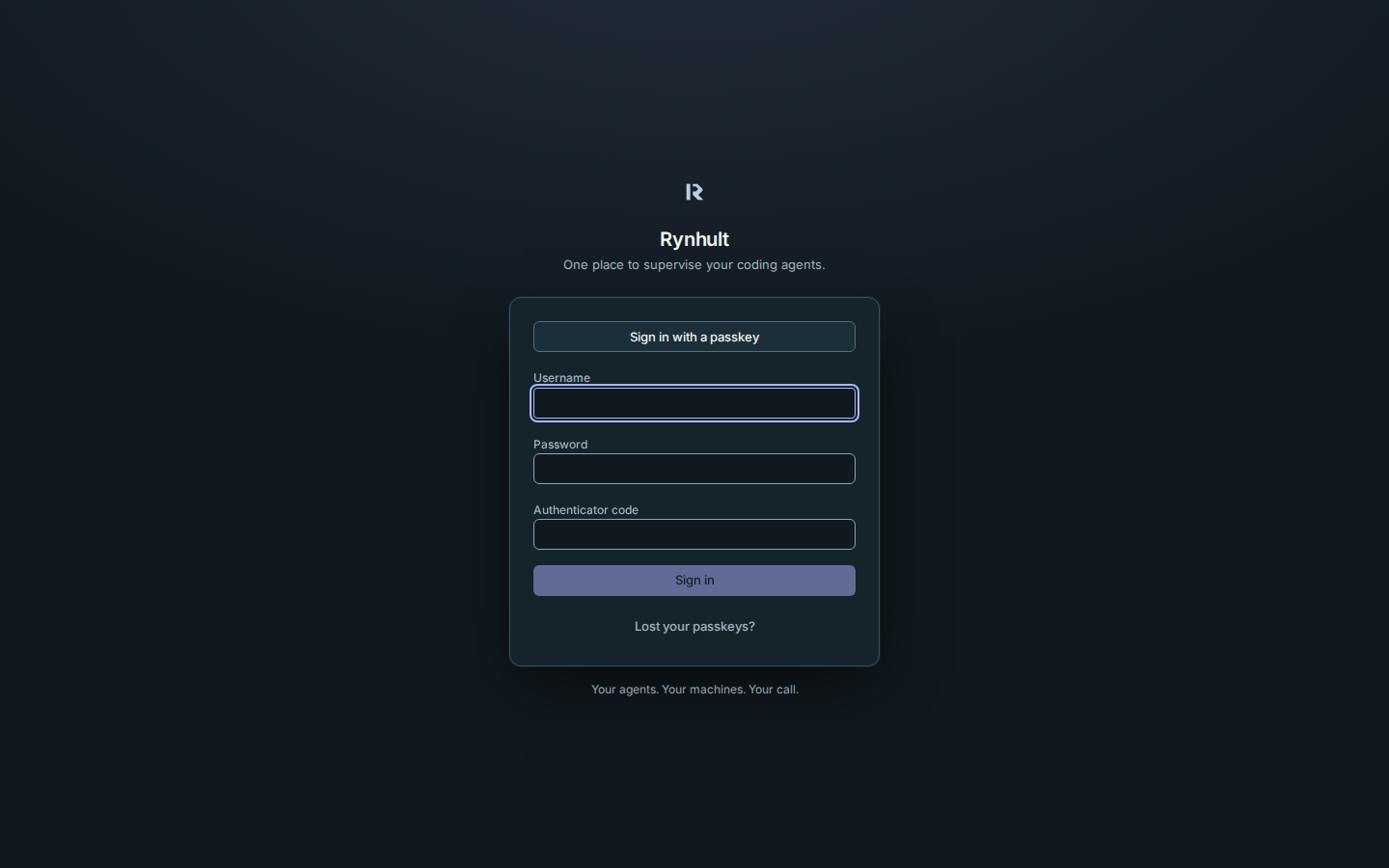
At the sign-in page select Sign in with a passkey. Choose your Rynhult credential and verify on your authenticator; a username, password and TOTP code are not needed. Cancelling the browser prompt changes nothing; try again when ready.
Owner policy and recovery
Owners choose Allow or Require independently in Passkeys for owners and Passkeys for members, then select Save passkey policy after verifying. Allow keeps password plus authenticator sign-in as fallback. Require refuses that ordinary fallback. Rynhult refuses Require until every affected owner has two passkeys at the current address and every affected member has one. Owners and members with local credentials also need a recovery code; company-only members are exempt because they recover through company sign-in. Use independently controlled authenticators; synced copies in one password-manager account are not independent spares.
The Passkeys card describes recovery in terms of password sign-in. It mentions company recovery only when company sign-in is offered on the sign-in page.
Rynhult prevents removal below those minima while Require is active. Temporarily select Allow before inviting or resetting someone in a required role. Existing sign-ins keep their normal lifetime when policy changes. A role change cannot promote someone into a required role without its passkeys and recovery material, and the owner making that change verifies again first: open Settings, select Verify with a passkey (or password and authenticator when owners aren't required to use passkeys), then change the role within five minutes.
The Inbox tells every owner when someone recovers sign-in with a recovery code, when an owner stops requiring passkeys, and when a passkey looks copied: it signed correctly, but its use counter went backwards. Rynhult refuses that sign-in. If you didn't expect the alert, remove that passkey and add a new one, or change the person's password and reset their sign-in.
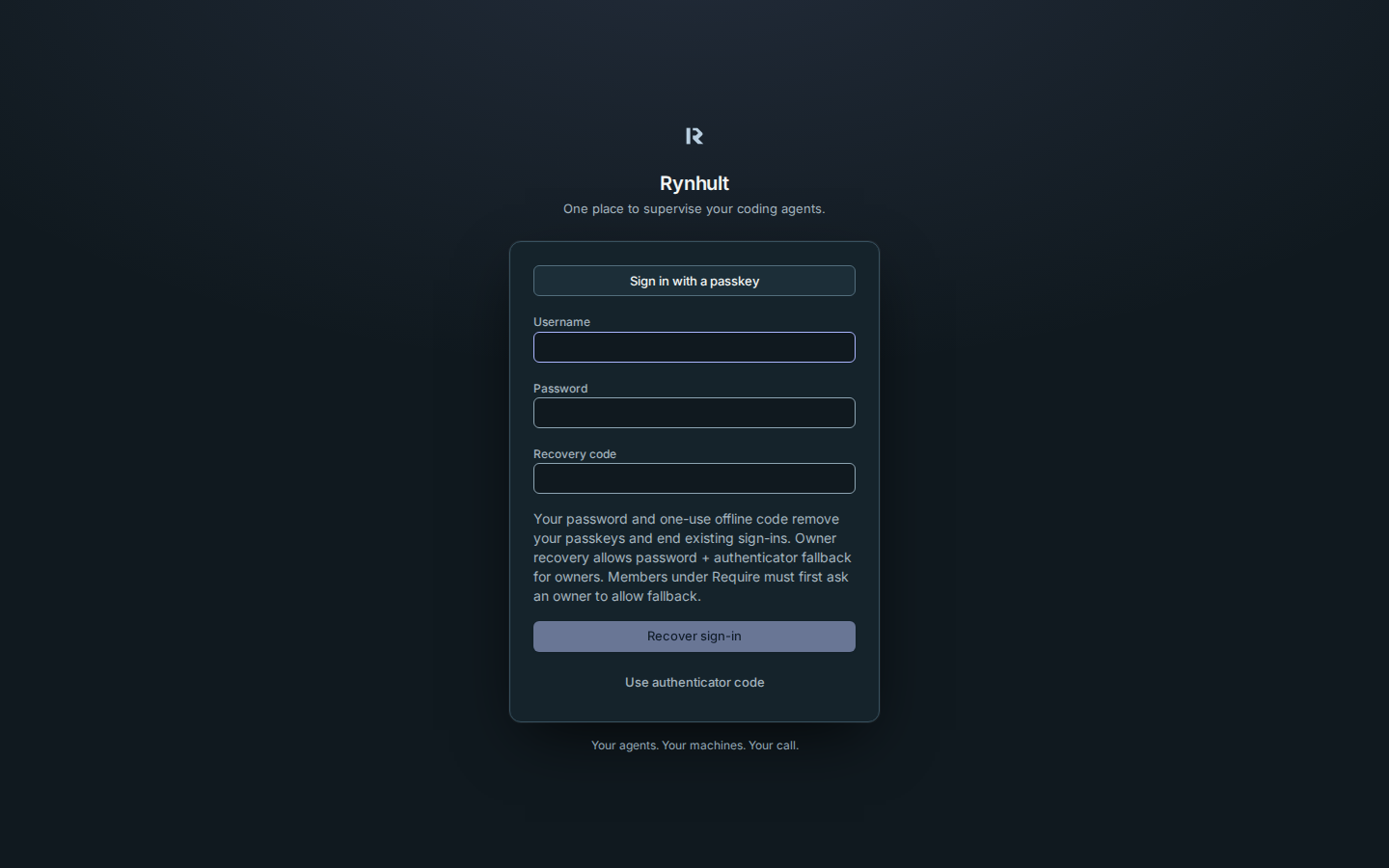
If you lose every passkey, use password plus authenticator under Allow. Under Require, select Lost your passkeys? on the sign-in page, enter your username, password and offline Recovery code, then select Recover sign-in. This works for the sole owner too. It consumes the code, removes all your passkeys, ends your other sign-ins and terminals, invalidates your reset links, and changes the owner policy to Allow. This explicit owner recovery also allows fallback for other owners. Members under Require must first ask an owner to explicitly Allow member fallback before using an offline recovery code; a member's recovery never changes policy. Enroll new passkeys, generate a fresh recovery code, then deliberately reenable Require. An owner can instead help another person with a reset link after allowing fallback. If you also lost the TOTP device, an owner can issue a reset link after recovery. The sole owner can use the key icon beside their own name under People to reset their own password and enroll a new authenticator. Then verify with a fresh code before enrolling replacement passkeys. A member asks an owner for that link. Losing both the password and recovery material needs help from a trusted host operator; Rynhult has no email recovery.
If Rynhult reports an origin mismatch, open the configured address instead of an IP
or another hostname. The operator should check ACC_ALLOWED_ORIGINS; proxy Host
headers do not change passkey trust. A private CA must be trusted by the browser
and operating system. A failed or expired prompt needs a new attempt. Passkey
attempts share sign-in rate limits; wait ten minutes if throttled. As with password
sign-in, failed attempts by someone else for your name never block your own correct
password and authenticator code when you verify.
People (owners)
Rynhult has two roles:
The Groups page adds opt-in group authority with maintainer, member and viewer roles. Private same-host Git exchange shares explicitly published commits, and members launch group sessions in private checkouts on the main. The instance roles and personal visibility below remain unchanged.
| Role | Can |
|---|---|
| Owner | Everything: people, the host, providers, publishing approvals, every project and session. Your inbox holds your own alerts and host-wide ones; members' alerts go to them |
| Member | Their own projects, workspaces and sessions, run as their own agent account; their inbox items and publish requests (an owner approves them); the catalog, read-only |
Each person's agent sessions run as an agent account: a Linux user of their own (no admin rights, no usage limits), with their own Claude, Codex and GitHub logins (see Host and providers). Rynhult creates it when you invite someone new.
Invite someone
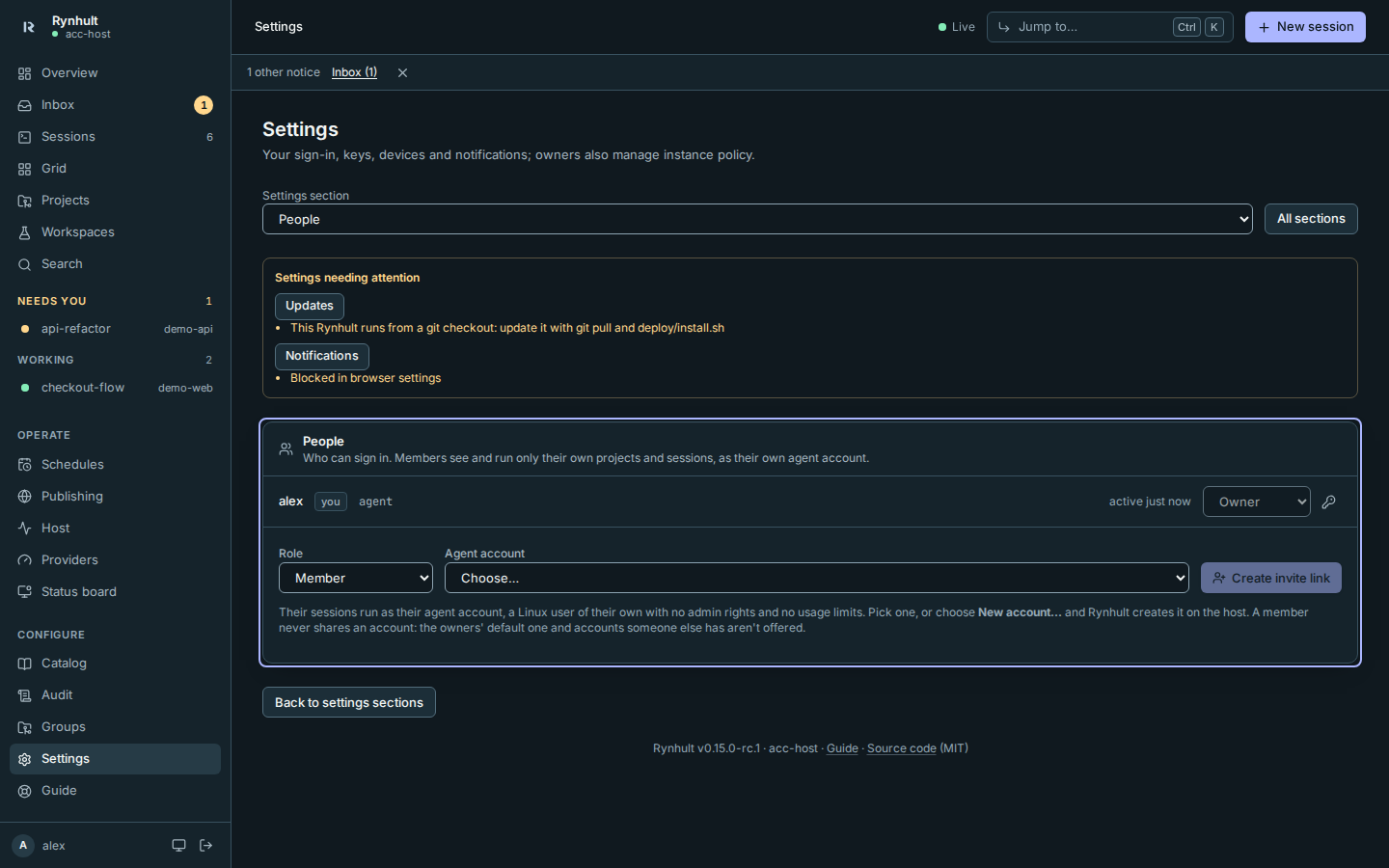
Inviting an owner needs fresh verification, whatever the passkey policy: in Settings, under Passkeys, select Verify with a passkey (or verify with password and authenticator when owners aren't required to use passkeys). Then create the invite within five minutes. Member invites don't need this. If you haven't verified, Rynhult refuses the invite, says why and records it in the audit log.
- Under People, choose the role. For Agent account, pick an existing one or New account… and type their name (Rynhult creates
<name>-agenton the host). Then select Create invite link. A member always gets an account of their own: the owners' default account and accounts someone else already has aren't offered for members, and an owner can't take a member's. - Send the link privately. It works once, for 72 hours, and Rynhult can't show it again.
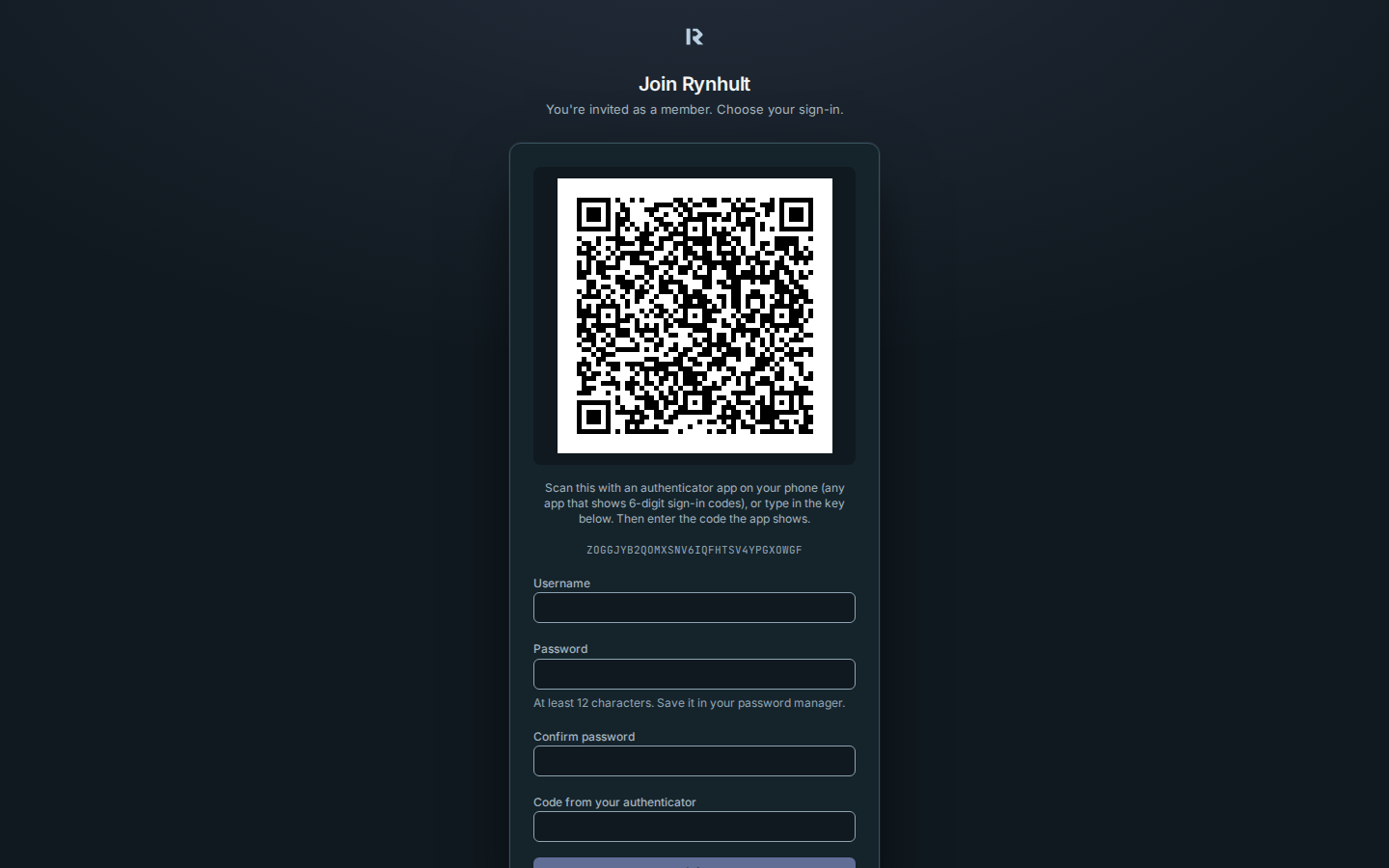
- They open it, choose a username and password, and scan the QR code with their authenticator app. Usernames are unique ignoring case, and a few names Rynhult uses itself (such as
apiandsupervisor) can't be chosen.
Reset someone's sign-in
Resetting someone else's sign-in needs the same fresh verification as inviting an owner: verify under Passkeys first, then select the key icon within five minutes. Refused attempts appear in the audit log. Resetting your own sign-in needs no verification, so a sole owner who recovered with a recovery code can still replace a lost authenticator.
Select the key icon next to their name to get a reset link. When they use it they choose a new password and authenticator, and all their existing sign-ins end. Their passkeys and recovery code are also revoked; they must enroll again. If passkeys are required for their role, explicitly select Allow before they use the reset link.
Change a role or remove someone
Use the role menu, or the bin icon to remove them. An owner who runs as the owners' default account (or shares an account) can't be made a member; invite them again with an account of their own. They're signed out at once, and their username is retired: nobody can join with it later. Rynhult always keeps at least one owner, and you can't remove yourself.
When you remove someone, choose what happens to their things:
- Give them to me: their projects, sessions, keys (private ones included) and port reservations become yours. Running sessions keep running.
- Archive them: their projects and sessions are archived (running sessions stop) and their private keys are deleted. Shared keys and port reservations become yours, because other people may be using them.
Either way their notification devices are removed and invite links they made stop working.
Changing an owner to Member immediately closes their open terminals into other people's sessions, including read-only views. Their sign-ins and terminals into their own sessions stay open.
Next to someone who has keys, the line says how many (never their names: members' private keys stay theirs). When someone leaves, the red key icon (Delete name's keys, confirmed with Delete keys) deletes all of them, private ones included. Keys an MCP server uses are kept until the server is removed. It's recorded in the audit log.
What owners can see
Owners see and manage everything, members' things included: they can open a member's session and its terminal (read-write), so they're trusted with whatever a session can see. Rynhult still keeps members' private keys out of owners' views, the audit log included.
What members see
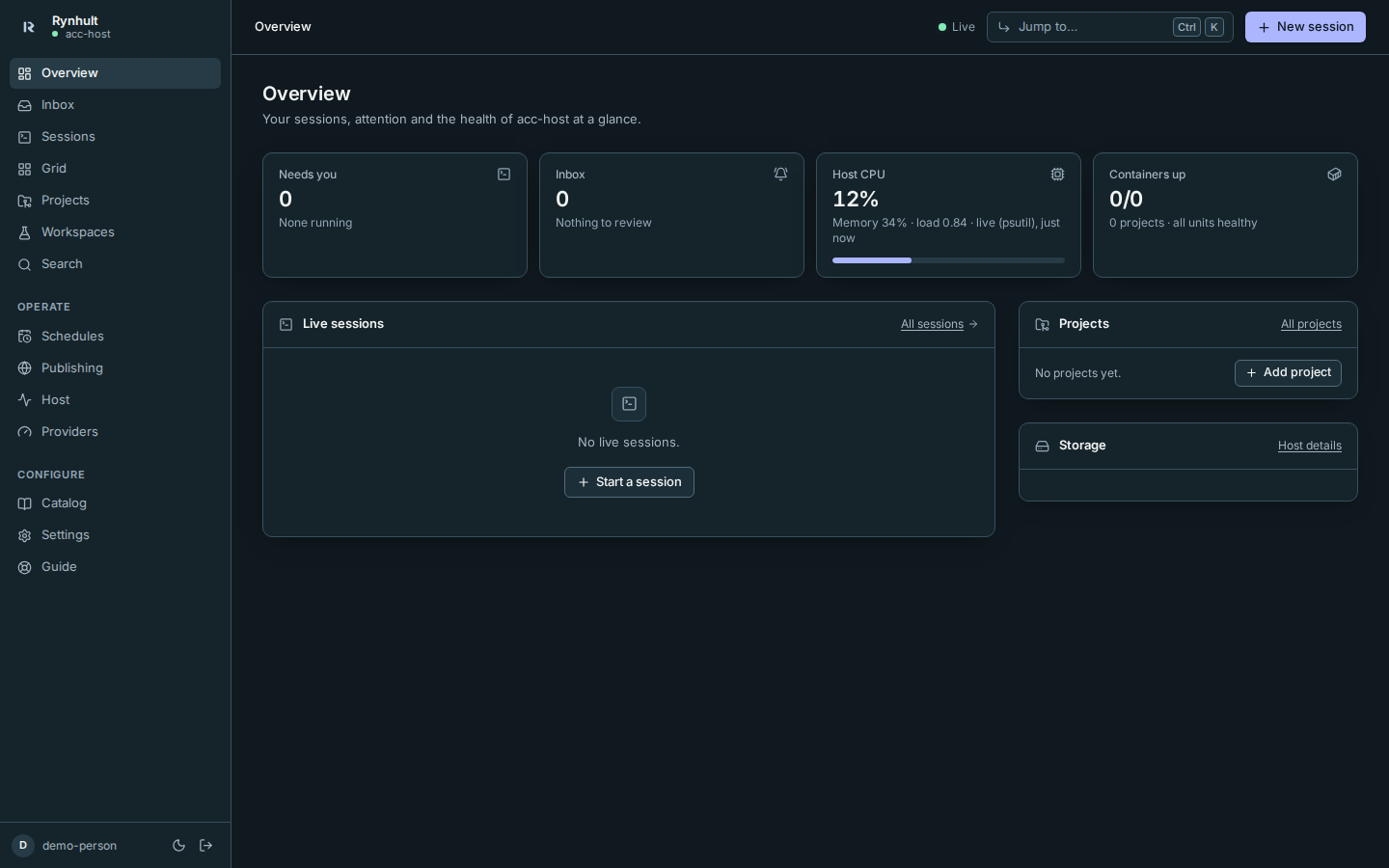
The same Rynhult, scoped to them: their own sessions in the sidebar, their projects and workspaces, their inbox, and the shared pages (Host, with the machine's health but not other people's accounts or containers; Providers for their own agent account, Catalog, Publishing for their own requests, Guide). There's no Audit page.
What members don't see
The audit log, other people's projects, sessions, terminals, wikis, inbox items and private keys, plan usage (it's the main account's), catalog changes, publishing approvals, and creating GitHub repositories with Rynhult's own token (they import repositories with their agent account's own GitHub login instead, or promote workspaces locally). Notifications reach each person only for what they can see. Which other machines exist, and which agent accounts they have, aren't shown to members either. Project slugs are shared by everyone, so a member trying a slug someone else uses is told it's taken.
Company sign-in and parked organization controls
SCIM, SAML (brokered and encrypted), LDAP and organization roles/teams are parked until after v1 (owner decision Oct 25), built on request or from contributions. Central policy remains roadmap work. The OIDC company sign-in pilot is implemented but off by default and not qualified with a real tenant. It needs organizations mode plus an owner's separate Allow company sign-in choice. Owners always retain local sign-in; members need an explicit identity binding or sign-in link, not just a company email address. Company sign-ins default to 12 hours, separately from local sign-ins. See Company sign-in with Microsoft Entra ID. Local passkeys are available now. Remote device pairing is separate: a passkey signs you into Rynhult; it does not pair a device, change network access, or sign an agent into its provider.
If you reload setup or an invite while enrolling your authenticator, Rynhult keeps the same QR code for 15 minutes from the first request. Repeated clicks and a second tab do not replace it. After it expires, start again and scan the new QR code.
Signing out
Sign out (bottom of the sidebar) ends this browser's sign-in and closes its terminals. If Rynhult doesn't confirm it (the connection dropped, or the server was busy), Rynhult says You're still signed in instead of showing the sign-in page: nothing was ended, so choose Try again. On a shared computer, don't walk away until it works.
Older browser sign-in cookies are removed automatically. If a page's request token is stale, Rynhult refreshes it and retries that action once. Sign out can end a valid sign-in even when that page token is stale; it still needs a request from Rynhult's own address.
Company organization support
SCIM and delegated organization roles/teams are parked until after v1 (owner decision Oct 25), built on request or from contributions. Company execution leases remain roadmap work. Company sign-in (OIDC) is available as an unqualified preview only when the server runs in organizations mode and an owner turns it on: members may then use Sign in with your company account, while owners always keep their own passkey or password, which also keeps working when the company's provider is down. Setup: Company sign-in with Microsoft Entra ID. None of this changes personal ownership or group access. An organization administrator will not automatically receive access to private sessions. Keep using the current owner/member and explicit group permissions until company mode is implemented, qualified and deliberately enabled by an owner.
Passkey setup steps
Follow 1. Verify your sign-in, 2. Add a passkey, then 3. Save a recovery code. Before verification, changing actions take you to verification. Verification expires after five minutes, including while the tab is in the background; verify again when prompted. The server still decides whether each change is authorized. Owners manage requirements in Owner policy. Generating a recovery code replaces the previous code; using recovery removes passkeys and ends existing sign-ins.
This page is generated from docs/wiki/User-Guide/People-and-Sign-in.md; the same page is under Guide inside Rynhult.