Overview
Screenshots use fictional demo accounts and fixed example metrics, not live systems or qualification evidence.
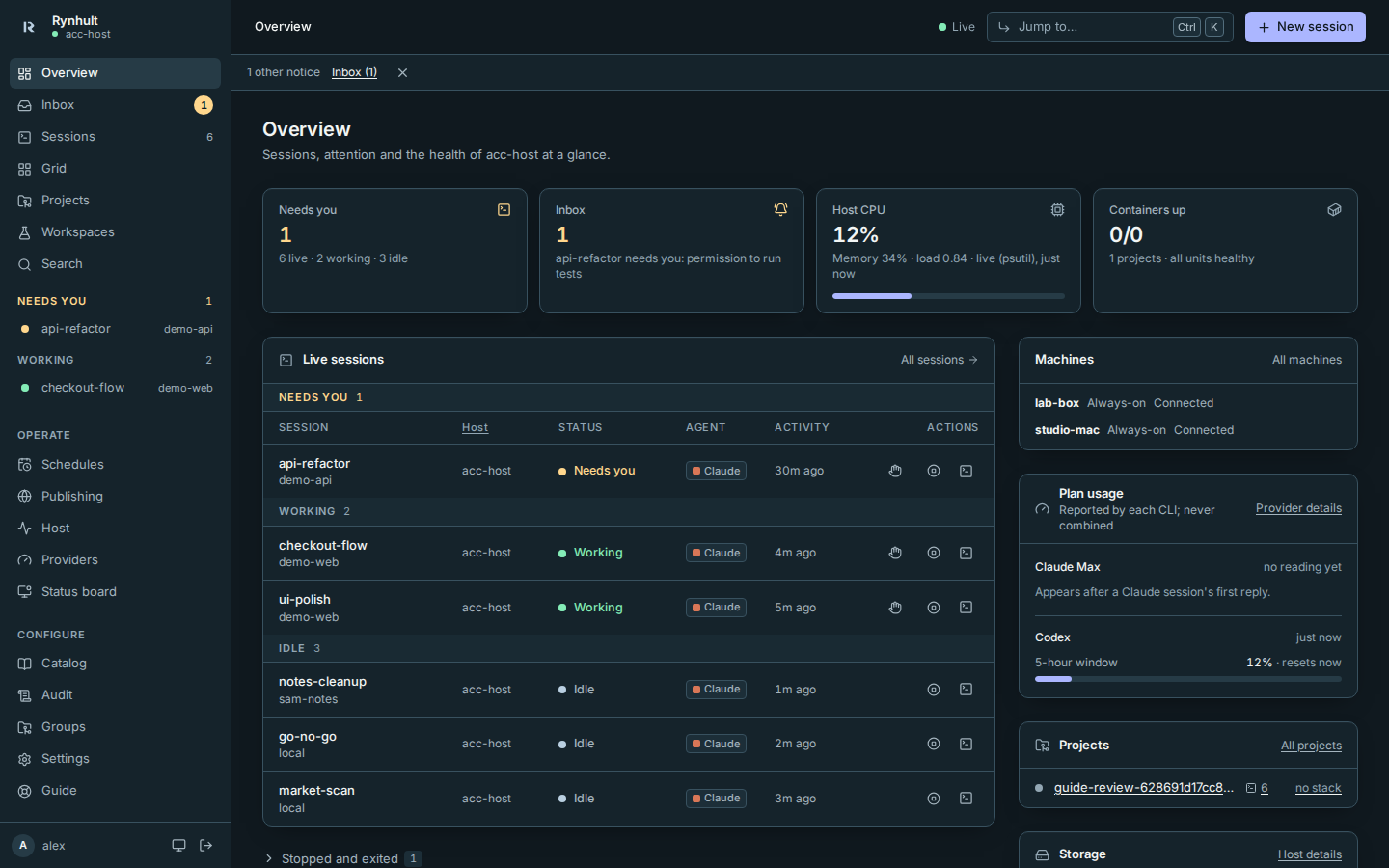
The home screen answers three questions: what needs me, what is running, and is the machine healthy.
On a phone:
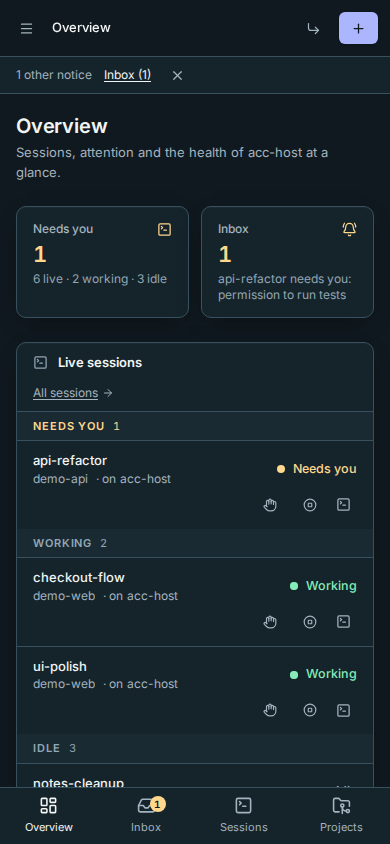
It reads in that order on a phone: what needs you, the sessions to answer, then health and machines. On a wide screen the four counts share the top row and machines join the right-hand column.
- Get started (until it's done or hidden). Three steps that tick themselves: sign in an agent, add a project, start your first session. See Getting started.
- Connect your phone (until you dismiss it). One line with a link to Connect your phone; Dismiss hides it for you on every browser.
- While a session needs you or a critical Inbox item is open, these two wait below Live sessions.
- Top row.
- Needs you: how many sessions are blocked on you (waiting for an answer, or needing recovery), and how many are live, working and idle. Their names are in Live sessions right below. Select it to see just those sessions. The sidebar's Needs you group shows the same number.
- Inbox: how many items are open in the Inbox (waiting sessions, approvals, alerts and notes), with the first one. Select it to open the Inbox. The Inbox badge in the sidebar shows the same number.
- Host CPU and memory (live readings from the host, with how old they are; Host shows its own live readings, taken at a different moment), and containers up. On a phone these two follow Live sessions.
- Inbox status. A compact line below the top bar replaces the stack of Inbox rows, including on a phone. Select Inbox for per-item actions. Collapse other notices hides only the ordinary-notice summary for this visit. Always-on offline and failed/stale backup counts stay until resolved or snoozed, even after acknowledgement. See Inbox.
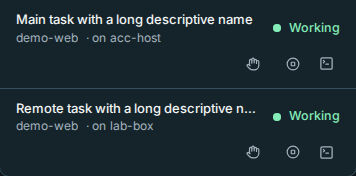
- Live sessions. Every running session with its machine (including the main Rynhult), status, agent, what it's doing now and what it has changed ("+44 −0 · 3 files"), grouped into Needs you, Working, Unknown (hook evidence is too old) and Idle. Empty groups are hidden. Wide tables have a dedicated Host column: select it for ascending/descending machine order within the priority groups. Phones show · on acc-host inline, including the main machine. Select a row to open it.
- Machines (owners, once other machines are added). Each machine's role and state; an offline always-on machine stands out. All machines opens Host, where Check machines now runs.
- Plan usage. How much of each CLI subscription's window is used, as the CLIs report it. Claude, Codex and Copilot measure usage differently, so Rynhult never adds them up. If you set a budget for a window, it shows next to it (amber when you're past it).
- Projects and Storage. Each project's containers and live sessions, and how full each disk is.
Status colours: amber means waiting for you, red means something failed, green dots mean healthy or working. Grey means idle or stopped.

Host readings refresh without writing Inbox alerts. The supervisor evaluates host alerts on its regular polling cycle, so an alert can appear after the live reading changes. If an explicit provider, model, account or GitHub refresh meets a busy database, Rynhult shows the last cached result; refresh again to retry.
The owner status board includes machine roles and availability. Check machines now, on Host → Machines, checks live links and reports offline machines from recorded presence; Rynhult cannot dial them. Always-on offline alerts use compact Inbox status and machine warning state. Workstations stay neutral. See machine roles.
This page is generated from docs/wiki/User-Guide/Overview.md; the same page is under Guide inside Rynhult.