Host and providers
Screenshots use fictional demo accounts and fixed example metrics, not live systems or qualification evidence.
The Provider sections button group jumps to Sign-ins and usage, Tools, Model connections or Available models. The current deep-linked section is marked. Use arrow keys, Home and End to move between links, then Enter to follow one; section URLs still work when bookmarked. The group wraps on phones.
Host
This machine's health comes first: CPU, load, memory and services at the top, then disks with SMART health and wear, GPU and Tailscale. Below them, owners see Backups as one line and the other Machines, then the agent accounts and every container by project. Healthy things are quiet; problems are coloured and also raise inbox items.
Problems are always in sight: a failed or stopped service, and a drive that fails SMART, has media errors, is 50% or more worn or doesn't report SMART at all. What is healthy waits behind one line you can open, such as 6 watched units active (with the GPU, if there is one) or 2 drives SMART ok. Disk usage per mount, Tailscale, and anything a machine doesn't report stay on the page.
A drive with media errors shows their count in words beside its SMART result, even when SMART still reports SMART ok. The red dot is not the only warning.
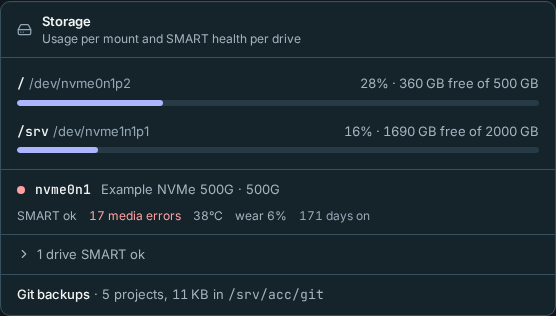
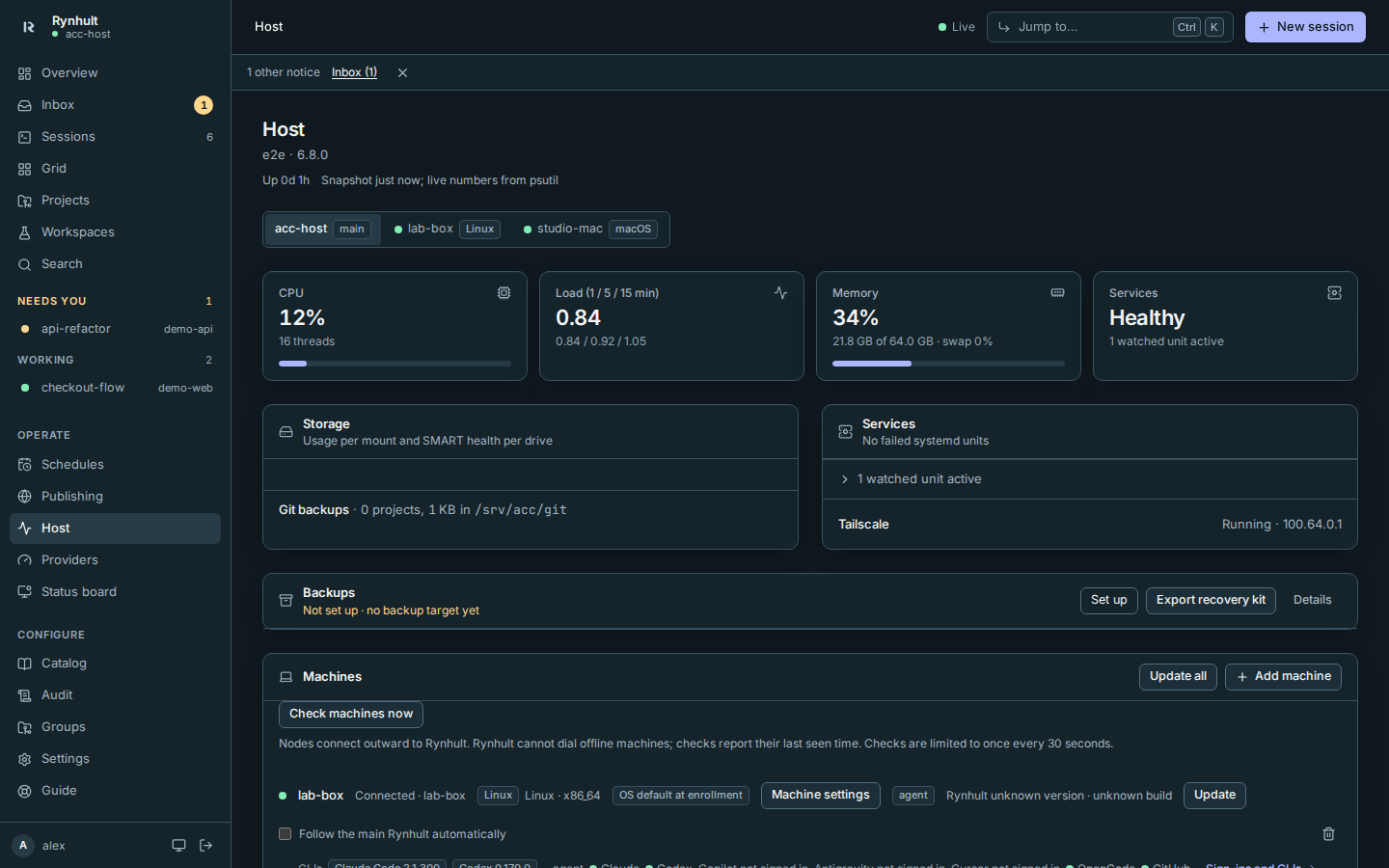
Everyone who can sign in sees this page. Health readings only report; the owner controls below can explicitly request backups, machine updates and other actions. Members see the machine's CPU, memory, disks and drives, their own agent account and the containers of their own projects that Rynhult runs; the systemd services, every container, the other agent accounts and the git backup total are for owners.
Long Host pages scroll inside the content pane. The desktop sidebar and phone navigation stay in view, including when Rynhult is installed as an app.
Under Storage, Git backups shows how many projects have a git backup on this Rynhult and the space they use in /srv/acc/git (see Backups).
Backups (owners) is one line: Not set up · no backup target yet with Set up for an enrolled Linux machine or S3-compatible storage; an administrator can separately provision a local target. After capture it reports Last off-machine backup …, or No off-machine backup yet; a local copy is labelled separately and does not satisfy off-machine coverage. True backup age remains visible during planned downtime. Details shows each target's verification, restore-test age, jobs and available actions. Prune backups is for local targets only; Linux receivers and S3 need independent maintenance. Scheduled captures (daily by default, with a weekly full restore check) and independent S3 retention maintenance start off. See Backups for the recovery kit and setup.

Agent accounts shows, for each person's agent account, the CPU, memory and processes its sessions use against its limits, and its disk use (measured every 15 minutes).
Another machine's details (owners)
When Rynhult runs sessions on other machines (Nodes), owners can see each one's health on the same page.
- Open Host.
- Under the page title, pick the machine with Machine. The main Rynhult uses its own name with a main badge, for example acc-host · main; it is never an ambiguous "This machine" choice. A green dot means a remote machine is connected. Host → Machines → Host details opens the same view.
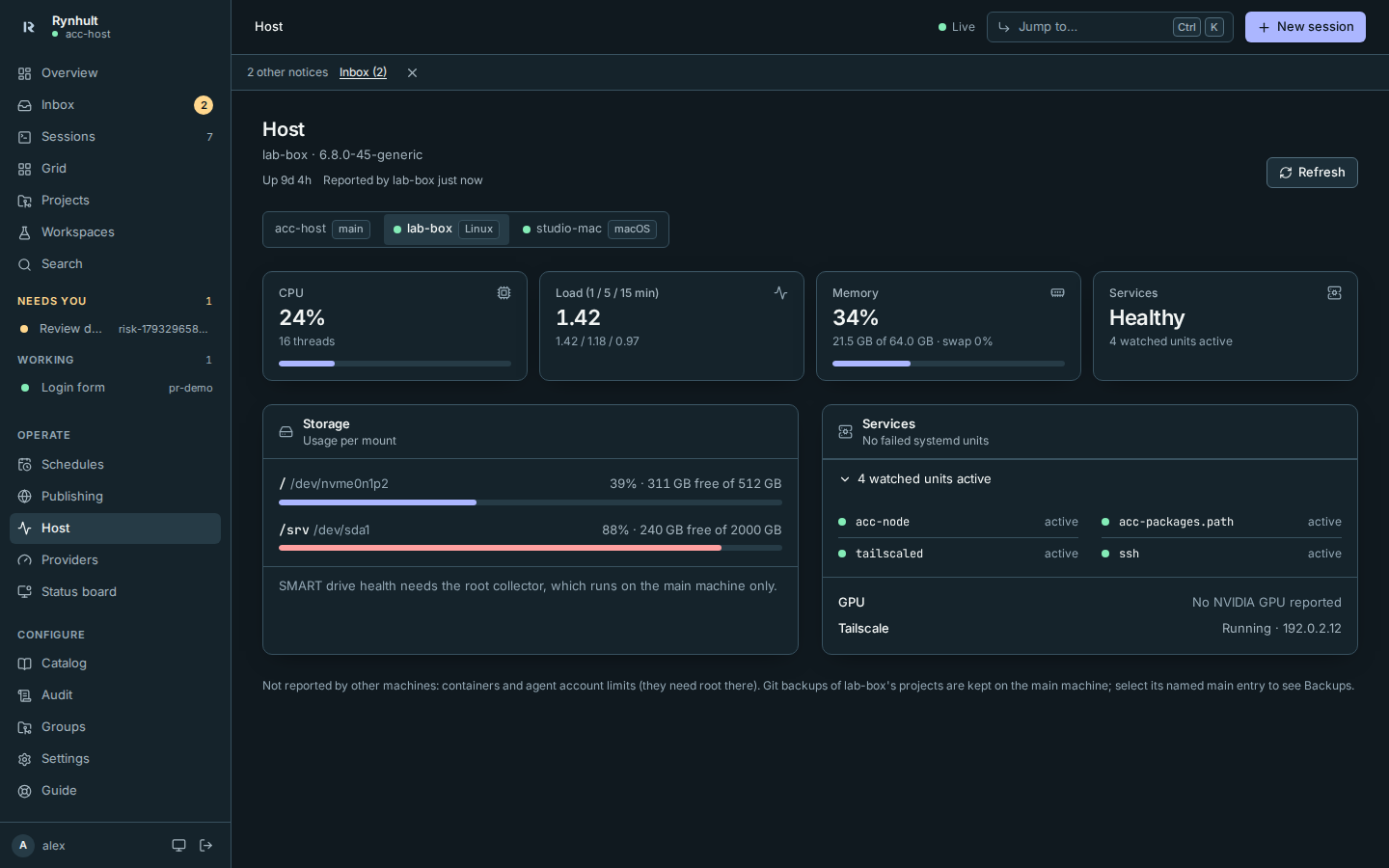
What you should see: that machine's CPU, load, memory, systemd services, disks, GPU and Tailscale, and when it reported them (Reported by machine just now). The machine collects them when you open it, at most every 15 seconds; select Refresh to ask again. Between visits it sends a short summary every minute, which the Status board shows.
When a machine has completed a git backup through the enabled public address, Last backup via public address appears below its picker. This is the main's record of a successful backup, retained when that machine goes offline and after later private backups. See Roaming git backups.
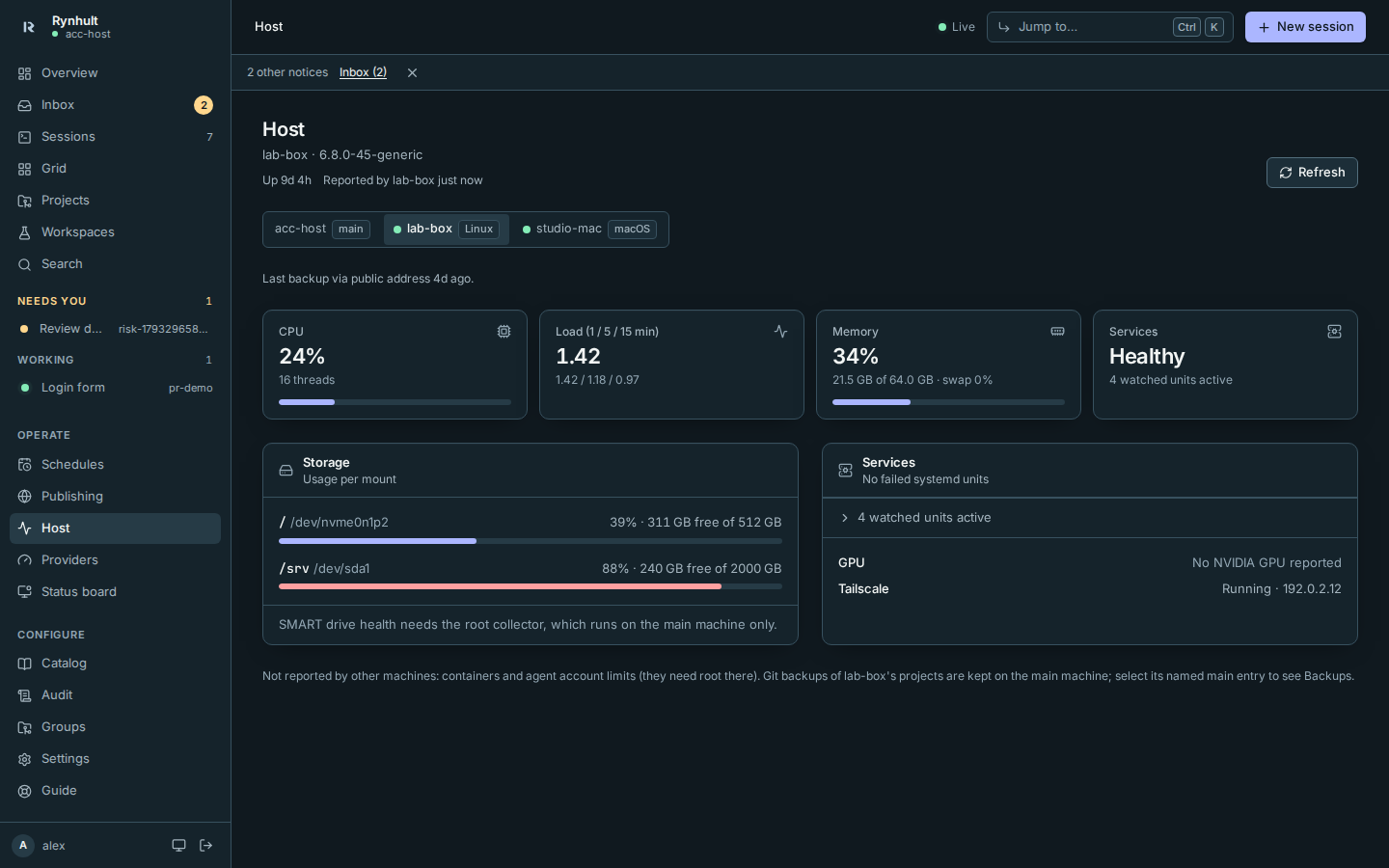
On macOS, the main disk is the writable APFS data volume, shown as Macintosh HD (data) in Storage and the status board. Its tooltip and reported mount remain /System/Volumes/Data. Storage, the status board and disk alerts exclude the sealed system volume, other system volumes, simulator runtimes, read-only mounts and disk images. Writable external and user volumes under /Volumes/ are included, with shared APFS container space counted only once.
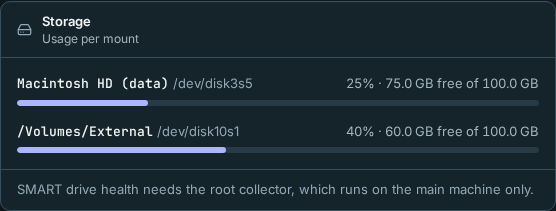
Another machine reports only what its Rynhult can read without administrator rights. What it can't read is named, never shown as zero or as an empty list:
- SMART drive health, containers and agent account limits need the root collector, which runs on the main machine only.
- On a Mac, or Windows (WSL) without systemd, Services reads Not reported by this machine.
- A machine without an NVIDIA GPU shows No NVIDIA GPU reported.
- Git backups of every machine's projects are kept on the main machine; see Backups with the named main machine picked.
Members see this machine only, as before: they have no Machine picker.
Troubleshooting
- runs Rynhult 0.11.0, which doesn't report host details: the machine runs an older Rynhult. Select Update this machine on Linux/WSL. If it cannot update itself, use Update an older machine. A Mac uses the new installer when one exists for this build; pre-v1 builds have none, so its row shows a command to run in Terminal on the Mac instead.
- is offline: the machine isn't connected; its details appear once it connects again. See Nodes.
- hasn't sent its details yet: the request is on its way; it usually takes a few seconds.
Machines (owners)
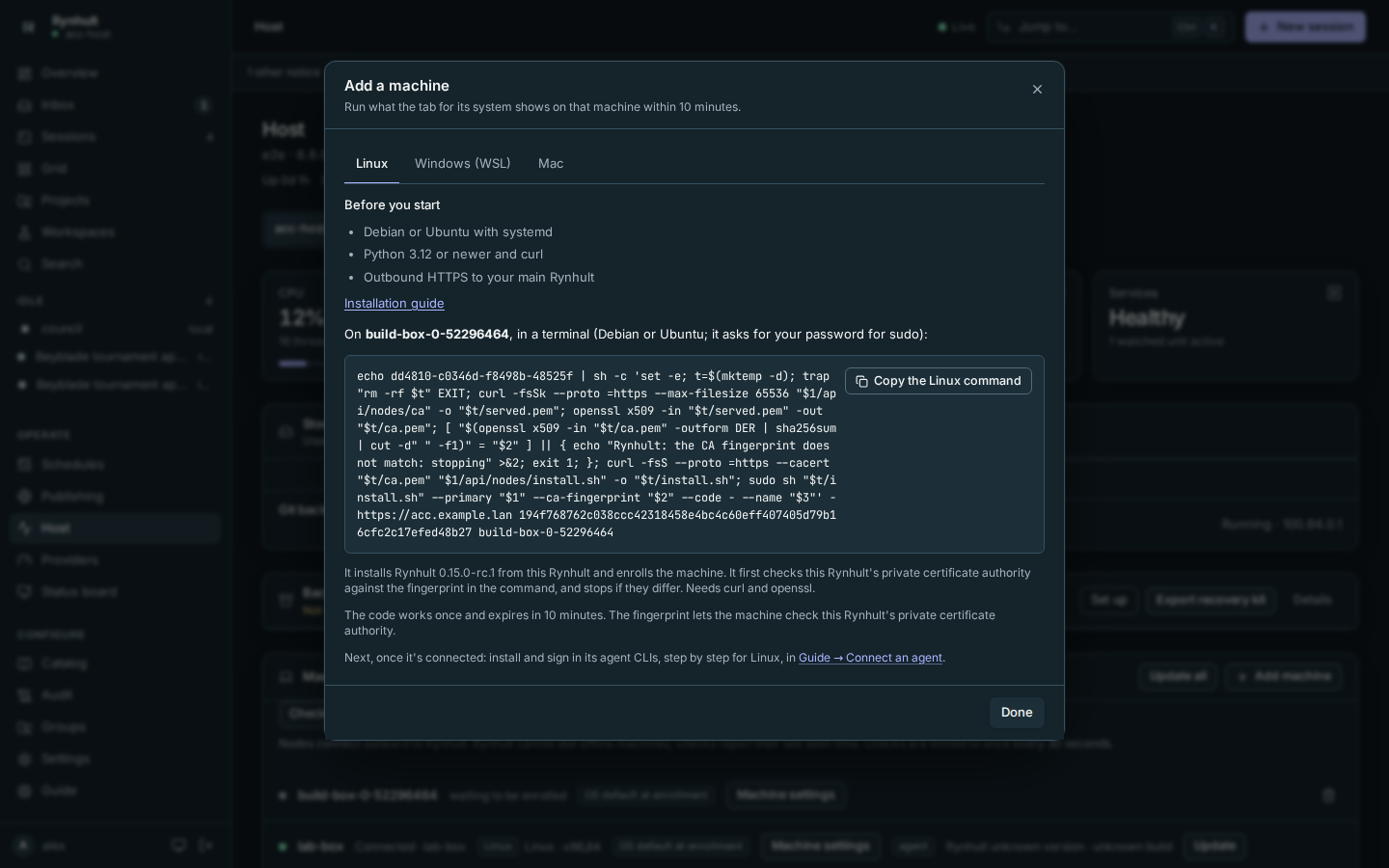
Machines lists the other computers this Rynhult runs sessions on, with whether each is connected, when it was last seen, its system (a Linux, WSL2 or macOS badge, and for a Windows PC its Windows version, see Nodes) and the agent accounts it offers. Under each machine you see its agent CLIs with their versions and, per agent account, which sign-ins work (a CLI that isn't signed in is listed quietly as not signed in, since you may not use it); Sign-ins and CLIs opens Providers with that machine picked, and Host details opens its details. Add machine creates a one-time code and shows system-specific steps. Linux has an install command; Windows (WSL) and Mac offer an installer and enrollment command only when this build has a release installer. Pre-v1 builds explain that none is available. A machine with a different or unknown build is marked Update available, even when its version is the same (not when it hasn't reported a version at all). Owners can confirm Update or Update all, and opt individual Linux/WSL machines into Follow the main Rynhult automatically. A Mac's row links to the new installer if available; otherwise it shows a command that updates the Mac from this main's source. See Updating Rynhult and older-machine recovery. Remove (the bin icon) disconnects a machine at once (archive its projects first). Setting one up: Install; using them: Nodes.
Backups
Owners see Backups on Host: encrypted control-state captures to Linux, S3 or local targets, capture/verification age, recovery-kit export, retention runway and quarterly restore reminders. Independent S3 retention maintenance is off by default, uses separate credentials on an independent host, and is never enabled by saving a target. See Backups for setup, exclusions and offline recovery. Main-host agent workspaces need separate backups. Directory copies show backed up, not protected.
Providers
Logins and plan usage for the CLIs that sessions run as.
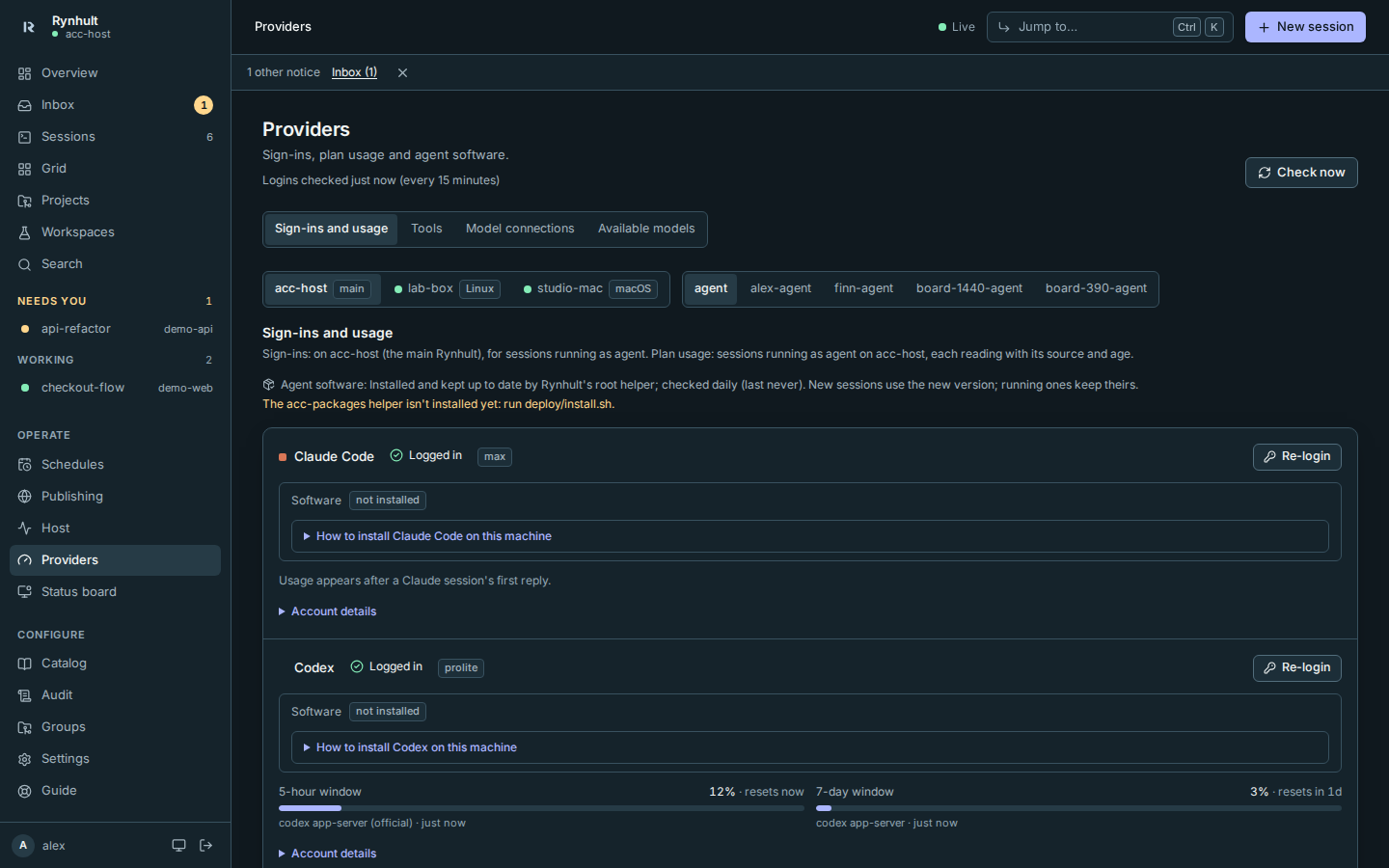
Use the section links at the top to jump to Sign-ins and usage, Tools, Model connections, or Available models. Owner-only sections appear only to owners. Links keep the selected machine and can be bookmarked or shared; each section names its machine/account scope. Model connections and the model catalog belong to the main Rynhult, not the selected remote machine.
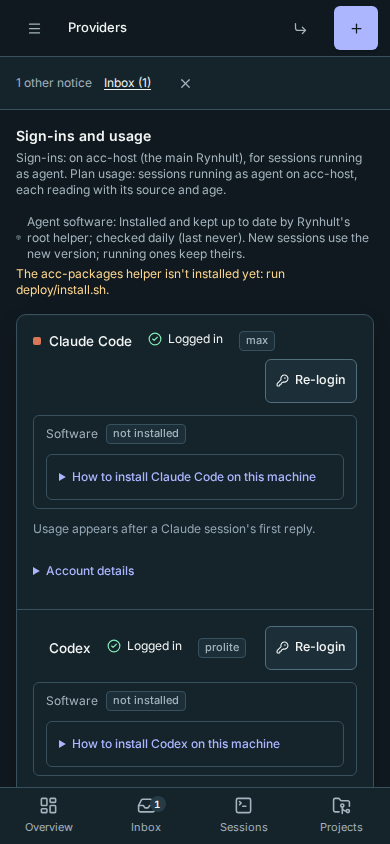
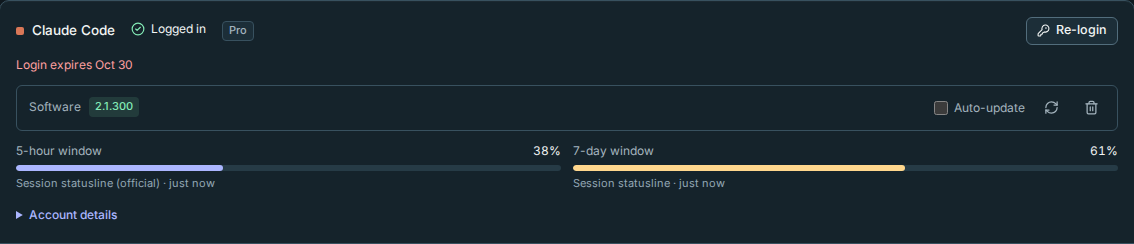
- Each provider has a compact account row. Status, plan and sign-in actions stay visible; expand Account details for the account identity, normal expiry or token-refresh metadata, connected providers and billing links. Failed checks, unknown sign-ins, near-expiry warnings and install guidance stay outside these details.
- Status, plan and expiry per CLI, checked every 15 minutes. Rynhult warns in the inbox 7 days before a login expires. Status reads Logged in or Logged out once checked, Checking… only while a check is under way, Not checked yet for a CLI Rynhult hasn't looked at (select Check now), Couldn't check when the check didn't answer, and Not installed for a CLI that isn't there.
- Each agent is marked with a small square in its colour (Claude's is coral). Round dots are kept for status, so a brand colour never reads as a problem.
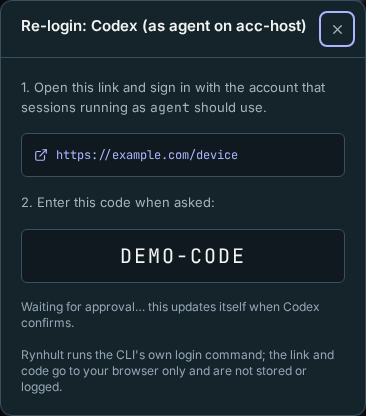
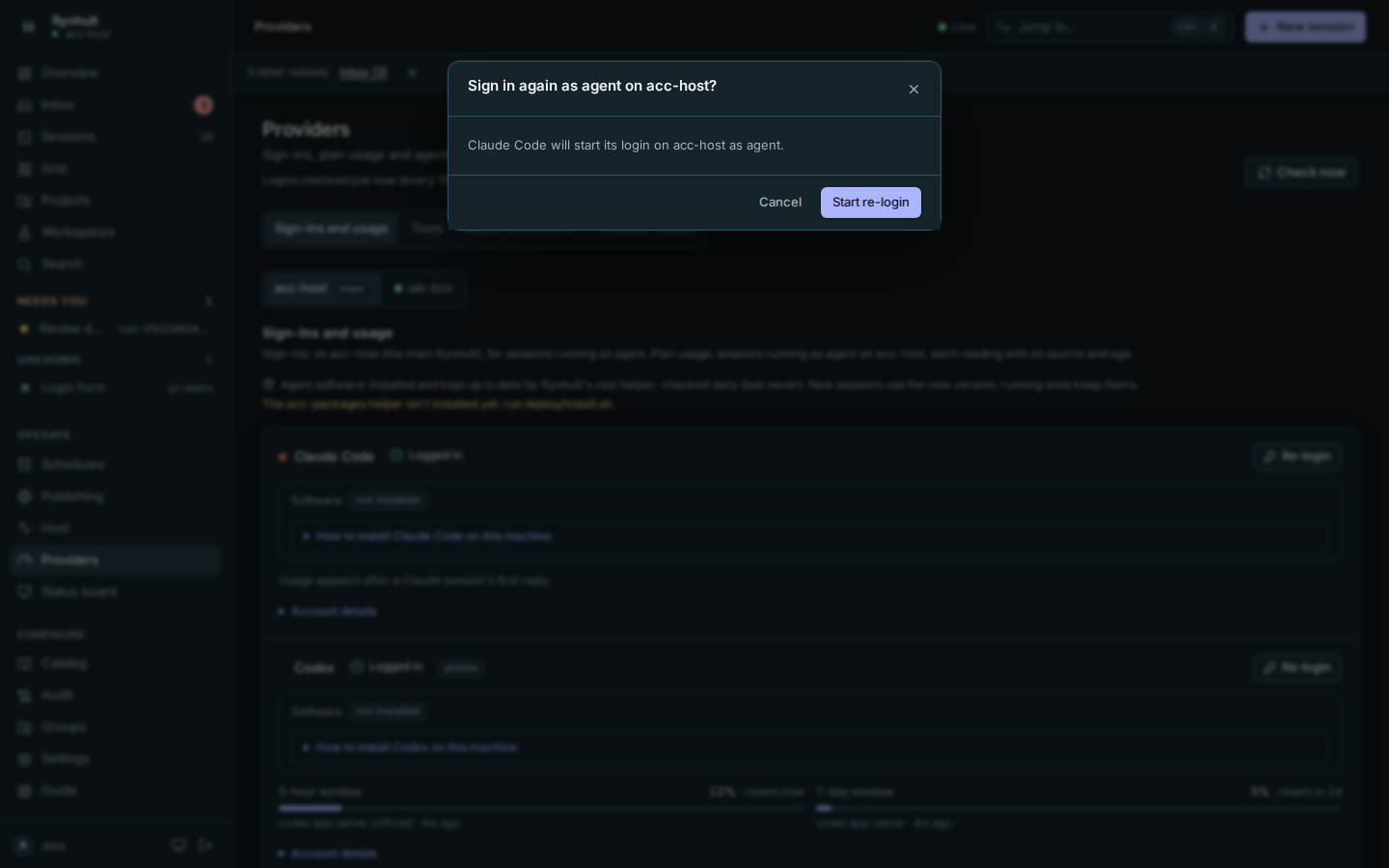
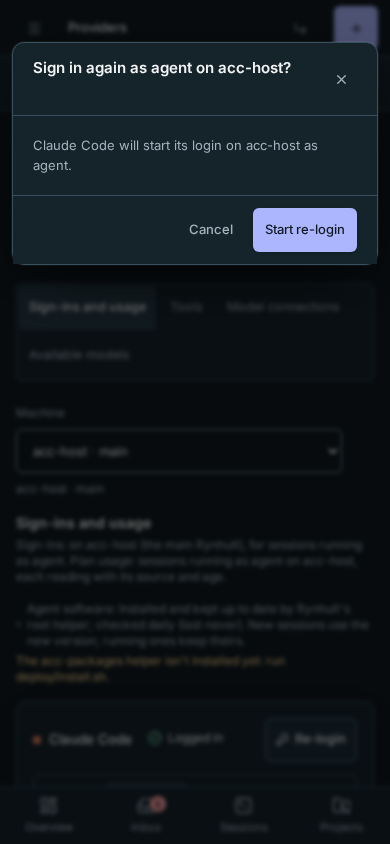
- Re-login first names the machine and agent account, for example Sign in again as agent on acc-host? Nothing starts until Start re-login; Cancel leaves the sign-in unchanged. The confirmed machine/account stay pinned even if the page selection changes. Claude: open the link, sign in, paste the code. Codex: open the link and enter the code shown. A Codex re-login signs the CLI out as soon as it starts, so its confirmation also warns that running Codex sessions lose access until you finish.
- The login dialog keeps keyboard focus inside, including while the CLI starts. Tab reaches the sign-in link once it appears; Esc or Close cancels the flow and returns focus to its trigger. Closing before the link arrives still cancels that login when its start request finishes. Switching accounts or machines starts a separate flow: a late result from the previous selection never replaces the new link or code.
- GitHub shows whether the agent account's
ghis logged in (agents push branches and open pull requests with it). Log in works without a browser on the server: open github.com/login/device on any device, enter the code shown, approve, and Rynhult finishes the rest (including git's credential setup). - Rynhult only warns that a CLI is logged out once that account has used it; a provider an account never set up (say, someone without OpenAI) never raises an alert.
- With more than one agent account, pick the account at the top; each has its own logins. With only one account, its name appears in the scope text without an extra selector.
- With other machines (owners), pick the machine at the top: see On another machine.
- Usage per window, with where each number came from and how old it is. These readings belong to the default agent account on the main Rynhult, not another selected account or machine; that selection shows an explanation instead of borrowing the default account's usage or plan.
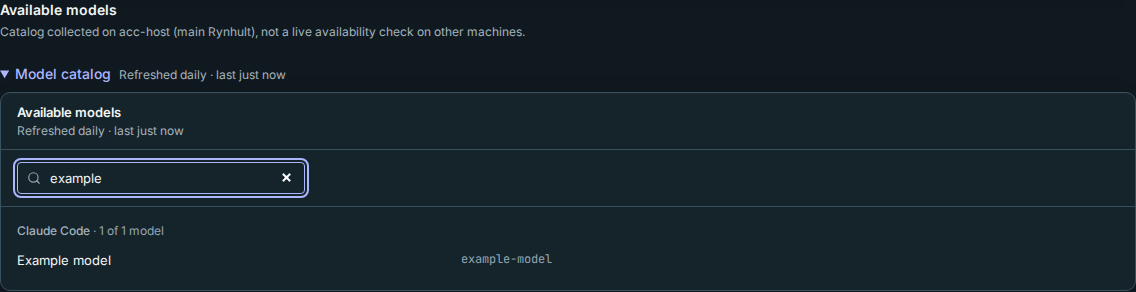
- Available models, refreshed daily, and what Rynhult deliberately cannot show. Expand Model catalog to browse, or use the Available models section link to open it directly. Catalog read errors stay visible even when it is closed. Each provider's list shows its first 6 models; Show all N opens the rest (and Show the first 6 closes it again), remembered for you in this browser. Filter models narrows every list at once, by name or id; providers with no match are hidden while you filter.
On another machine
When Rynhult runs sessions on other machines (Nodes), owners pick one with Machine at the top of Providers. The main machine uses its real name and a main badge, for example acc-host · main. A dot shows whether a remote machine is connected. You get there from Host → Machines → Sign-ins and CLIs too.
- The account rows show that machine's logins, for the agent accounts it offers. Log in and Re-login run the CLI's own login on that machine: the link and code come from there, and the login it saves stays there. You don't need a terminal on the machine.
- A CLI that isn't installed there, Claude Code and Codex included, says Not installed for account and offers Install (owners) instead of a login. Where that machine can't install it (a Mac, or a machine whose helper is missing), the card shows numbered steps instead: the provider's own install command, its install page, Check now, then Log in (Connect an agent). Rynhult never offers a button the machine would refuse, and the API refuses such a request itself. Codex's Plan is the one that machine's login reports.
- Logins on connected machines are checked every 15 minutes, like this machine's.
- Each CLI's tile shows its version there and installs, updates or removes it (see Agent software). Auto-update is set on that machine itself (it's on by default).
- Plan usage, model endpoints and the model list belong to this machine and aren't repeated per machine.
- A machine that's offline can't be asked: Rynhult says it isn't connected.
Tools per machine and account
Tools an agent requests are separate from the fixed agent software catalog.
- Open Providers. Owners can choose the Machine and Agent account at the top; members see only their own account's tools.
- Scroll to Tools. Each entry shows the registry manager, package, resolved version, machine and destination. These are the versions Rynhult verified after its installs, not a scan of every executable on the computer. Existing installed tools may always run without a tool approval.

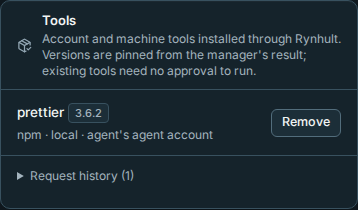
- Expand Request history for pending, rejected or failed work and the executor's result.
- To remove one, select Remove, then Request removal in the confirmation dialog. The tool stays installed until the new Inbox item is approved.
System packages (apt, snap, flatpak) are changed by that machine's root package helper, on Linux or WSL; only owners may request them. Account tools (npm, pnpm, yarn, pip, pipx, uv, cargo, go, gem, brew) run as the person's agent account through its broker, never as root. On another machine both paths use its authenticated link. Macs support account tools but reject system-manager requests. Homebrew versions require a matching versioned formula; Snap versions are revisions and Flatpak versions are commit hashes.
If a machine is offline, its helper is missing, a manager is unavailable, or the manager cannot verify the requested version, the request fails visibly. Update Rynhult on the machine to add the tool-helper and broker operations. No new tool is automatically upgraded. See Guardrails → Tools on approval for requests and owner-controlled exemptions.
Agents Rynhult can run
| Agent | CLI | Status |
|---|---|---|
| Claude Code | claude |
Full support |
| Codex | codex |
Full support |
| GitHub Copilot CLI | copilot |
Preview: sessions, hooks and sign-in checked with the real CLI; "needs you" comes from its approval prompt on screen (its permission hook also fires for tools it approves by itself), so it can lag a few seconds. |
| Google Antigravity CLI | agy |
Preview: "needs you" comes from its approval prompt on screen (the CLI has no permission hook), so it can lag a few seconds. Sign-in pastes a code back, like Claude's (you have 60 seconds). Profiles reach it as a session-only plugin (instructions, skills, subagents, MCP servers). Antigravity replaced Gemini CLI, so Rynhult has no separate Gemini agent |
| Cursor CLI | cursor-agent |
Preview: sign-in opens a cursor.com link you approve in the browser; "needs you" comes from its approval prompt on screen (no permission hook). Profiles reach it as a session-only plugin (instructions, skills, subagents, MCP servers) |
| OpenCode | opencode |
Preview: checked against OpenCode 2.1.3 with a stand-in model, not yet with real provider accounts. Each session runs its own private OpenCode server and its own config folder. Rynhult's plugin calls the guard before every tool and reports working, idle and "needs you" (permission prompts and the agent's questions) from OpenCode's own events. See OpenCode below |
Each agent's CLI is optional. Setup asks which to install (ACC_AGENT_CLIS); afterwards owners install, update or remove them on each agent's tile, and the New session dialog greys out agents that aren't installed. Copilot stays Working while its terminal shows the working/task indicator with esc esc interrupt, even during a long command with no new output.
Every agent gets its own account row here with its login status and Log in (Copilot signs in with a device code, like Codex). Launch options differ per agent; for Copilot they are Mode (interactive, plan first, or autopilot) and Permissions (asking is the default; allowing all tools or everything needs the same confirmation as other unrestricted launches).
OpenCode
OpenCode isn't tied to one vendor: it reaches 75+ model providers. Rynhult doesn't sign it in for you. Its row on this page shows Ready when it answers; expand Account details for Connected, listing the providers it can use (Free models only when there are none). There are three ways to give it models:
- Keys from the key vault. Give the project a key whose variable is the provider's usual one, for example
ANTHROPIC_API_KEY,OPENAI_API_KEYorOPENROUTER_API_KEY. Only that project's sessions get it, and OpenCode uses it without saving it. - A model endpoint, such as Ollama on this machine.
- An account (GitHub Copilot, ChatGPT, OpenCode Zen): type
/connectonce in any OpenCode session's terminal and follow it. OpenCode saves the account for the agent account, and later sessions use it.
OpenCode's free models work without any of these. Pick a model in New session as provider/model, for example opencode/big-pickle or anthropic/claude-sonnet-4-5.
Every agent reports each tool it runs to Rynhult before running it. That drives the "doing now" line and the Guardrails, whatever the agent's permission mode. Codex automatically trusts the exact hooks Rynhult installs on reviewed CLI versions (0.163.0 and 0.164.0). Other hooks still need your review. If Codex shows Hooks need review, Rynhult marks the session Needs you and says “Codex is asking to trust hooks; open the session to review”. Open the session and review the hooks (see Guardrails). Unknown CLI versions or config formats keep the review step.
Model endpoints (local LLMs and compatible APIs)
Owners can add model endpoints on the Providers page: a model server that agents use instead of their vendor's models.
| Server | APIs | Agents that can use it |
|---|---|---|
| Ollama, llama.cpp server, vLLM | OpenAI and Anthropic | Claude Code, Codex, Copilot CLI, OpenCode |
| LM Studio, OpenRouter | OpenAI | Codex, Copilot CLI, OpenCode |
| DeepSeek | OpenAI and Anthropic | Claude Code, Copilot CLI and OpenCode (Codex untested) |
- Add one with a preset (it fills in the usual URLs; everything stays editable), an API key if the server needs one, and optionally its context window, so agents compact their conversation before the server would cut it off. A key for a server on plain
httpon another machine would travel unencrypted, so Rynhult asks you to confirm that first (https, or a server on this machine, needs no confirmation). - Rynhult lists the endpoint's models when you add it; refresh after pulling new models.
- Keys are stored in Rynhult's database and handed only to sessions on that endpoint, through their private environment file. The API never shows them.
- Small local models are slow with agent CLIs, which send long instructions (often 15,000–35,000 tokens per request). Use the largest model your GPU holds, and a context window of 32k or more.
Agent software (owners)
Each agent's software is on its own tile under Sign-ins and usage: Claude Code, Codex, GitHub Copilot CLI, Antigravity CLI, Cursor CLI and OpenCode.
- Its Software line shows the installed version, an update when one is waiting, and what's running. It has Check, Update, Remove and Auto-update.
- Not installed: the tile offers Install, or the numbered steps where that machine can't install it. Software notes and refused install requests stay visible on that tile.
- Failures stay on the tile they belong to until a retry succeeds. That covers failed checks, notes and a failed action.
- Latest upstream version: for Codex and Copilot, the note also shows the newest release a check found.
Above the tiles, one line says how updates work on that machine. It also warns if the machine's helper is missing, the machine hasn't reported its software, or it refused a request.
Software that isn't a provider sign-in is in a small Other software card below the tiles:
- the Ollama model server;
- Backup tools, the restic that Backups use. These show only on the main Rynhult and on machines that hold a backup.
An old #provider-software link opens Sign-ins and usage.
- Install, Update and Remove for this catalog use fixed package entries in Rynhult's root helper (
acc-packages). Separately, approved Tools requests accept validated registry names for apt, snap and flatpak; neither path accepts commands, scripts, URLs or arbitrary paths. - Auto-update: a daily check (05:15) updates installed software within its selected channel. Codex and Copilot use exact Rynhult pins; OpenCode uses its supported release line. Rolling upstream channels (Claude Code, Antigravity, Cursor and Ollama) require explicit opt-in and start off. Existing implicit rolling defaults reset to off when this policy first arrives. New sessions use the new version; running sessions keep the one they started with.
- Codex and Copilot are pinned to 0.163.0 and 1.0.103 respectively. Install and Update select that exact Rynhult target on Linux, WSL and Mac. A newer upstream release is reported in the note and needs qualification in a new Rynhult catalog before the pin advances. Daily updates do not downgrade a newer manually installed version; manual Update can restore the pin.
- Claude Code stays held in apt between Rynhult's updates, so unattended upgrades never change it under a running session.
- Ollama can be installed here but not removed (its installer has no uninstall).
- OpenCode is pinned to the release line Rynhult was checked with (2.1). Install, update and auto-update all take that line's newest release, and the download is checked against npm's published checksum. A newer line (2.2, 3.0) arrives with a Rynhult update, once Rynhult has been checked against it. OpenCode's own updater is switched off.
On another machine (pick it with Machine, see above), the same buttons ask that machine to do it. Rynhult only sends a package name and an action; the machine checks both against the same list, and runs nothing else. Every request is in the Audit log with the machine's name.
- Linux and Windows (WSL): the machine's own root helper does the work, with the same list and rules as here. It's installed with the node (an older node says to update Rynhult there first). Codex and Copilot need Node.js 22 or newer on that machine.
- Mac: there's no root helper. Rynhult installs Codex and GitHub Copilot CLI itself, for the signed-in user, with Homebrew's npm (install Node.js first using Connect an agent → Mac). Claude Code, Antigravity, Cursor, OpenCode and Ollama can't be installed on a Mac from Rynhult: they show numbered steps (How to install agent on machine) with the provider's own command and page, then Check now, and once installed they're marked installed by hand with their versions. See Connect an agent.
Other machines' readings are untrusted reports. Rynhult ignores a collection time more than five minutes ahead of its own clock; if details stop arriving, check that machine's clock. Older readings keep their original time. If a cached date cannot be displayed, Host shows Collection time unavailable and keeps the rest of the page usable. Long machine, device and service text wraps or is shortened to fit its card.
Owners manage Machine role, offline thresholds and maintenance snoozes under Host → Machines → Machine settings. Check machines now refreshes live-link snapshots and versions, reporting latency or recorded offline state. See machine availability.
On phones, or when many machines are available, use the labelled Machine selector. It shows the selected identity and connection state. Desktop segmented choices use arrow keys, Home and End, with one Tab stop. A failed Check now shows an error and retains last-known values; it does not claim a fresh check.
For recurring shutdowns or an unknown return time, use Planned Downtime in Machine settings. It suppresses offline and receiver backup alerts while keeping backup age visible. See Plan machine downtime and Backup age and planned downtime.
This page is generated from docs/wiki/User-Guide/Host-and-Providers.md; the same page is under Guide inside Rynhult.