Nodes: running sessions on other machines
Screenshots use fictional demo accounts and fixed example metrics, not live systems or qualification evidence.
A node is another machine that runs sessions for your Rynhult: a Linux server, a Windows PC or a Mac. You keep using one dashboard. A project lives on a machine (you choose it when you register the project), and its sessions run there: terminals, Changes, guardrails, search and the rest work the same. Rynhult never moves work to a machine by itself.
v1.0 keeps existing node support: Linux, macOS and Windows through WSL. The existing Linux node path is Debian/Ubuntu with systemd and Python 3.12+. Fedora/RHEL, openSUSE and Arch are recognised test-install candidates, not qualified nodes; see Linux prerequisites. Deferring native desktop/mobile apps does not defer existing nodes. The main is a self-hosted Linux server; its browser dashboard, including the phone web app, remains the way to use it. See platform scope.
The node connects out to Rynhult and keeps that connection open. The node accepts no inbound connections from other machines, so you don't open any ports on it.
Before you start
- You are an owner in Rynhult (only owners add and remove machines).
- The machine can reach your Rynhult over HTTPS, for example at
https://rynhult.example.lan. - WSL nodes can expose the signed-in Windows account to agents. Review the optional isolation for dedicated WSL nodes.
On an experimental SELinux node, have the administrator install the
selinuxenabled detector before using the installer. The installer prepares
persistent labels for its executables, runtime sockets and updater/package
request folders before starting services. It refuses an unexpected detector
error and never disables enforcing mode. These checks do not qualify a new
distribution; see installation requirements.
Add a machine
Select Host → Machines → Add machine, name the machine, and follow its system tab. Linux has an install command. Windows and Mac use the release installer from v1.0; before that, their tabs show the steps to install from this Rynhult's source instead (Before v1.0: no installer). For an administrator-reviewed source installation, use the manual steps. Each tab lists prerequisites and links to its installation Guide section. Check those first, including virtualization and disk space on Windows, or Homebrew and Node.js for npm agents on a Mac. Every step, for each system, is in Install.
How the machine trusts your Rynhult is written into the command: --trust system checks Rynhult's certificate the normal way (as a browser does); --ca-fingerprint … means your Rynhult uses a private certificate authority (Caddy's own, when Rynhult has no Cloudflare zone), and the machine accepts that authority only if its fingerprint matches, so it can't be fooled by an impostor. When the command downloads that authority's certificate, it can't check HTTPS yet: the fingerprint, not TLS, is what that one download is trusted on, and every later download is checked over HTTPS against it. Certificate renewals don't affect enrolled machines.
Sessions on a Linux machine can work in /srv/acc/workspaces, on a Mac in ~/acc-workspaces. To allow other folders, run the machine's installer again with --roots /srv/acc/workspaces:/data/projects (see Install).
Agent software on the node
Each node runs the agent CLIs (Claude Code, Codex and so on) that are installed on that node, signed in as the account sessions run as. You manage both from the main Rynhult: open Providers, pick the machine with Machine at the top (or select Sign-ins and CLIs under it on Host → Machines), then:
- Install, Update or Remove a CLI on its tile (Ollama: under Other software on machine). On Linux and Windows the node's own root helper does it, with the same list and rules as the main Rynhult. On a Mac, Rynhult installs Codex and Copilot for you with Homebrew's npm; for the others, the card shows numbered steps with the provider's own install command and page (see Connect an agent). Claude Code comes from Anthropic's signed apt repository: the first Install adds it (after checking the signing key's fingerprint) if the machine doesn't have it yet.
- Log in or Re-login on a CLI's card: the CLI's own login runs on that machine, through its connection to Rynhult.
Details: Host and providers → On another machine.
What you should see
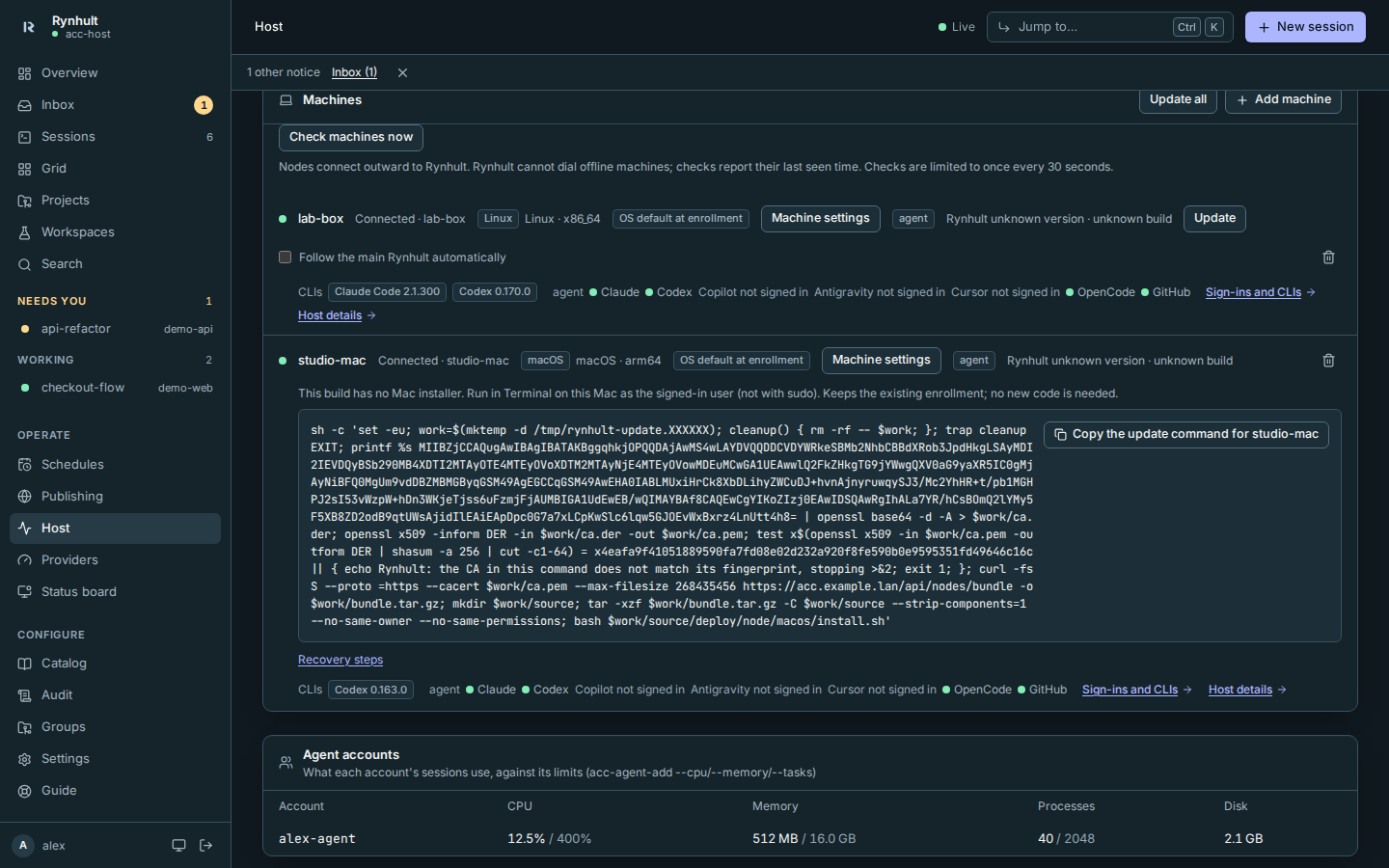
Within a few seconds of enrolling, the machine shows on Host → Machines as connected, with its system, when it was last seen, its agent CLIs and its sign-ins. A badge tells the systems apart: Linux for a Linux server or VM, WSL2 (blue) for a Windows PC, whose line reads like Linux (WSL2) · Windows 11 (build 22631), and macOS for a Mac. The Windows version shows when the PC lets WSL ask it (WSL interop); otherwise it says Windows version unknown. A machine running an older Rynhult shows unknown until it's updated. The same badge is in the Machine picker on Providers. Choose Machine when creating or registering a project; New session uses that project's machine and names it under Who, rather than offering a separate Host override.
What a machine says about itself (its host name, system and version) is shown as plain text: Rynhult removes control characters, invisible characters and characters that reverse text direction, and turns line breaks into spaces, so a machine can't make its row read like something else.
Projects on the machine are backed up to the main Rynhult: the machine pushes their branches and tags when there are new commits (see Backups). The machine needs to trust the main Rynhult's certificate for that, as for enrolling.
The optional roaming git-backup fallback uses the public address only after a private connection cannot be established. Public git backups also default to Off for every machine, including machines enrolled before this option existed. Public access and machine identities must be enabled, and a private control link is still required. This does not reconnect an offline machine publicly.
A project’s Preview also works on a connected, updated machine. Its app must listen on that project’s reserved port on that machine. Preview uses the existing authenticated connection and needs no additional listening port or firewall rule. Older nodes show Update this machine to enable preview; update the node, then reload Preview.
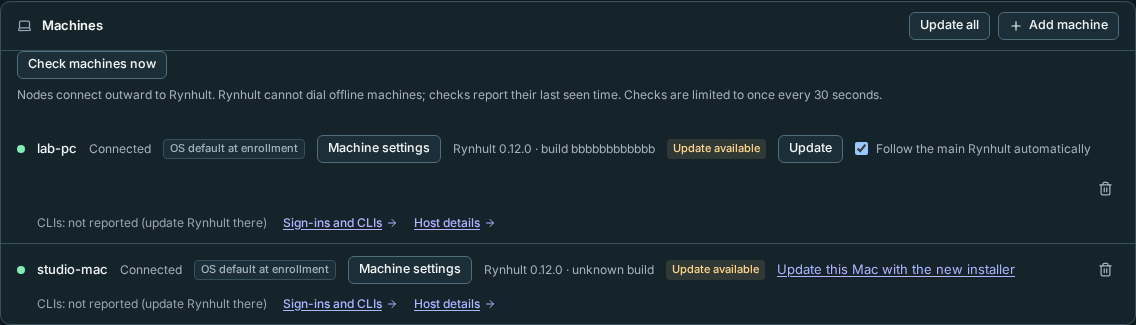
A machine with a different or unknown source build is marked Update available, even when its version label matches the main Rynhult. Older nodes show unknown build.
Updating a node
Owners can confirm Update beside a Linux/WSL machine or Update all, or turn on Follow the main Rynhult automatically for an individual machine (off initially). Machines download only from the main Rynhult with their enrolled TLS trust. If a machine cannot update itself, its row in Host → Machines shows recovery commands, with copy buttons. Macs use Update this Mac with the new installer when this build has an installer; otherwise their row shows a command that updates the Mac from this main's source. Desktop installers are built only for v1.0.0 and later release tags, not pre-v1 builds. Running sessions keep running; terminal links reconnect. An update validates and keeps the machine's agent accounts and their folders: it never adds an account (to add one, run the machine's installer with --agent).
See Updating Rynhult.
Release candidates: the Linux/WSL root update helper accepts stable releases only. For rc.1, update from this main's verified source with the manual older-machine steps, even when Host offers Update. Older helpers that reject a changed source bundle also need a one-time manual reinstall.
Removing a node
- In Rynhult, open Host, then select the bin icon next to the machine on Machines. Rynhult disconnects it and won't accept it again.
- On the machine, stop the node:
- Linux:
sudo systemctl disable --now acc-node - Windows: run this in PowerShell, then delete the task Rynhult node (WSL) (ACC node (WSL) on older installs) in Task Scheduler:
wsl -d Ubuntu-24.04 -u root -- systemctl disable --now acc-node - Mac: run this in Terminal, then delete
~/Library/LaunchAgents/local.acc.node.plist:launchctl bootout gui/$(id -u)/local.acc.node
- Linux:
To add it again later, select Add machine and enroll it with a new code. If it had own-machine group accounts, Rynhult keeps its old name reserved: enroll it under a new name. Close and reopen any old Machine settings dialog after removing or enrolling a machine, even if you reuse its name. An old dialog cannot save settings onto the replacement enrollment.
If machines have identities for the public address (Remote access), removing one also revokes its identity and closes its open public connections straight away.
Troubleshooting
| What you see | What it means and what to do |
|---|---|
systemd is not running |
On Linux the services need systemd. In WSL, run the Windows installer, which turns it on, or add [boot] systemd=true to /etc/wsl.conf and run wsl --shutdown. |
needs Windows 11 |
Rynhult's Windows installer requires Windows 11. Use a Linux server or a Mac instead. |
turn on virtualization |
Enable Intel VT-x or AMD-V (sometimes called SVM) in your PC's BIOS/UEFI settings, then run the installer again. |
| The enroll command says the code is invalid | The code is used up or older than 10 minutes. Select Add machine again for a new one. |
| The enroll command says the certificate can't be verified or the fingerprint doesn't match | The machine reached something other than your Rynhult, or your Rynhult uses a private certificate authority it doesn't know. Check the URL; for a private authority the owner sets ACC_NODE_CA_FILE and gets a new command from Add machine. Certificate renewals don't affect enrolled machines. |
| The host shows as disconnected | Check the node's log: journalctl -u acc-node (Linux and WSL) or ~/Library/Logs/ACC/node.log (Mac). It reconnects by itself once Rynhult is reachable again. |
| A Windows PC drops off overnight | The PC slept or you signed out. Keep it awake and signed in; see Windows setup. |
| The Agent software line on Providers says the machine hasn't reported it, or its helper isn't installed | The node runs an older Rynhult. Update it (Updating a node). |
Installing Codex or Copilot on a node fails with npm isn't installed |
Install Node.js 22 or newer on that machine (on a Mac, use the command in Install on macOS → Before you start), then try again. |
Node updates refuse linked, writable or malformed broker settings and system accounts. An administrator must inspect /etc/acc/broker and restore root ownership and permissions before retrying; do not relax permissions. Workspace roots must be absolute paths with ordinary letters, digits, spaces, dots, dashes or underscores, separated by colons, with no empty or relative components. An update cannot create a missing account, even with --agent; add accounts with a normal installer run first.
When an account’s first workspace folder is missing, provisioning first tries as that agent account. Creating a new folder as root requires protected, unlinked parents. If a parent is writable or linked, have an administrator provision the intended location safely; updates do not change ownership through workspace links.
Roles and offline machines
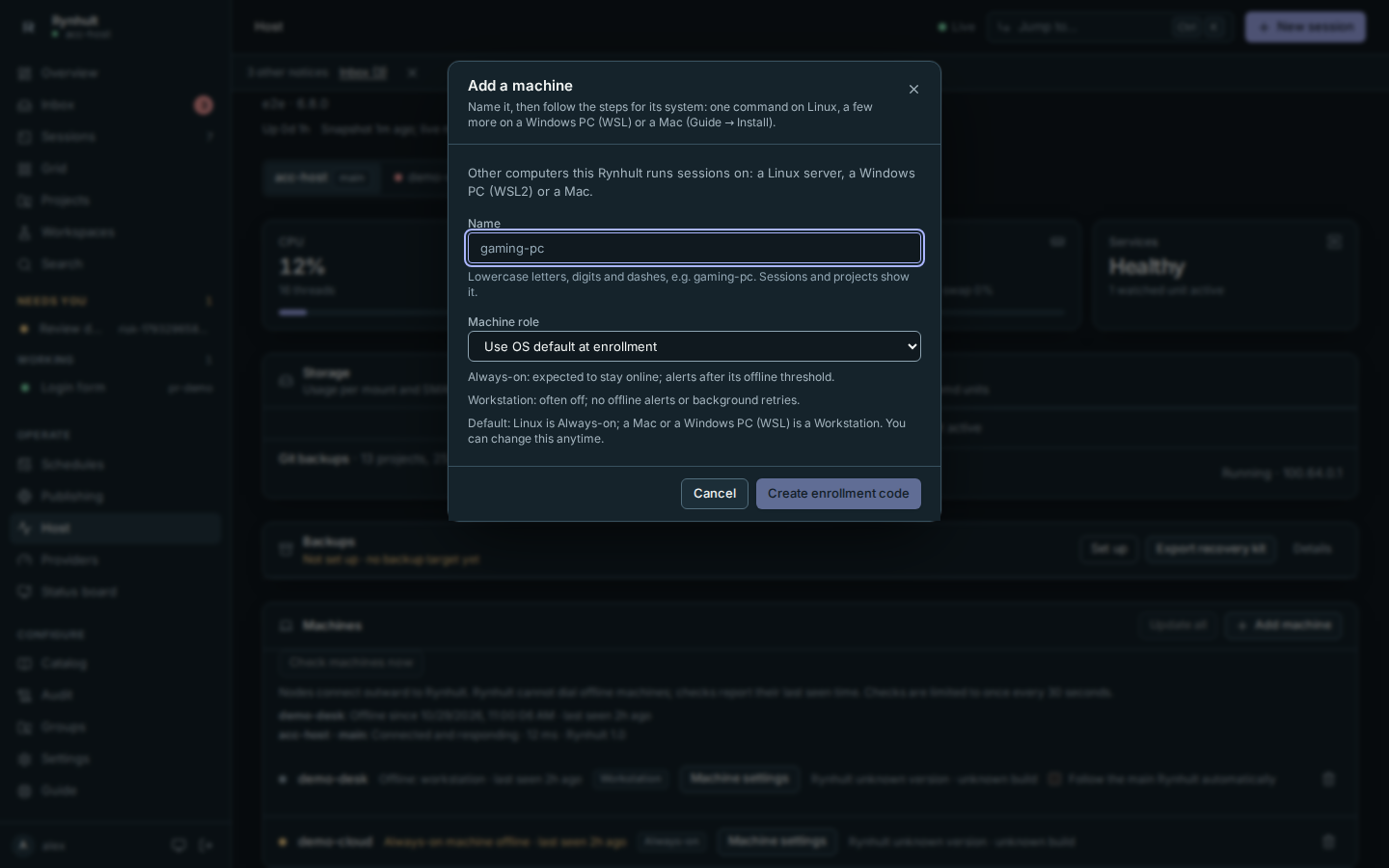
Every machine has an editable Machine role:
- Always-on: expected to stay online; alerts after its offline threshold.
- Workstation: often off; no offline alerts or background retries.
- In Host → Add machine, choose Machine role, or leave Use OS default at enrollment. Linux defaults to Always-on; Mac and Windows/WSL default to Workstation. The default is chosen when enrollment reports its OS. A later Host snapshot can correct an automatic Linux default to Workstation when it detects WSL.
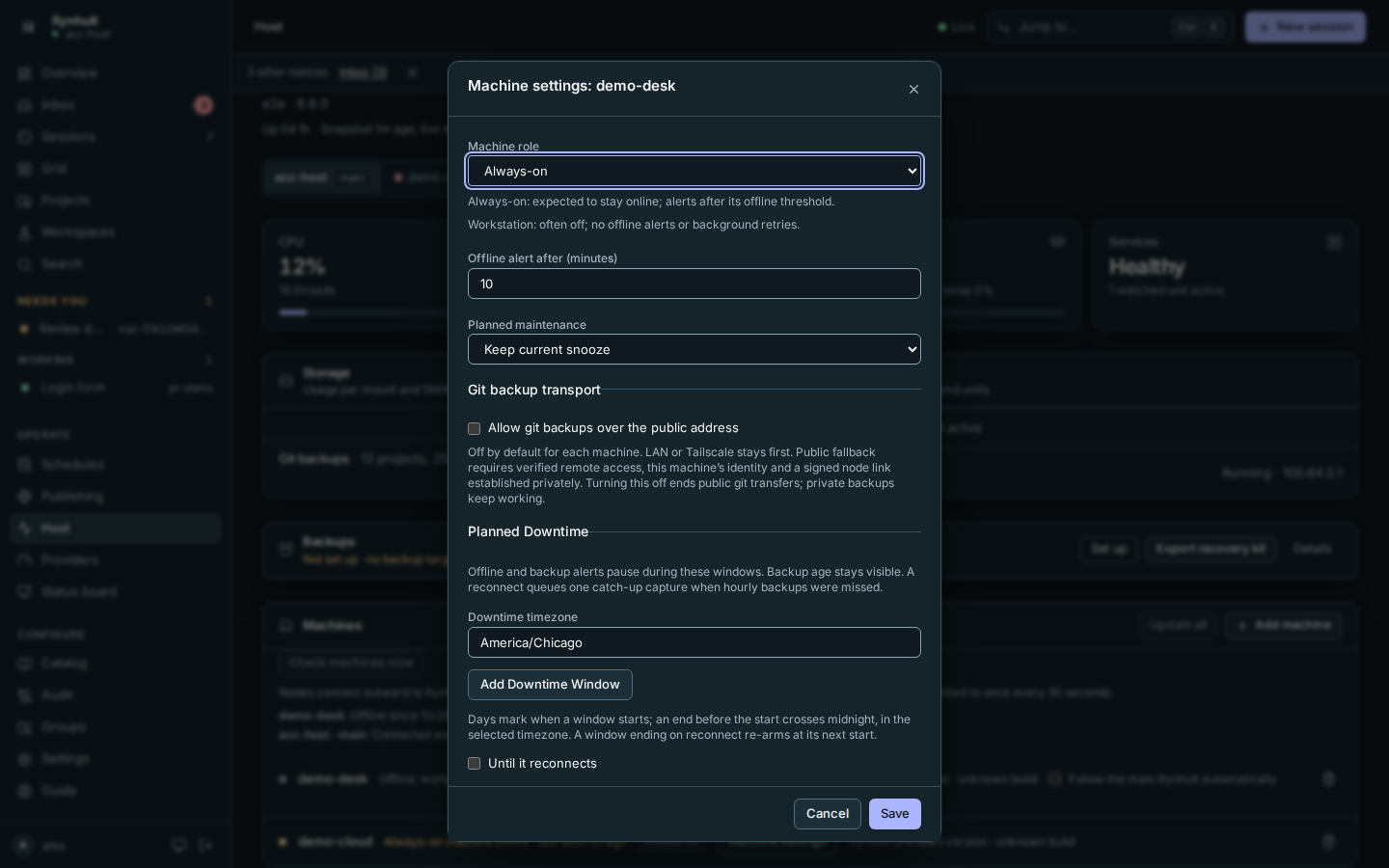
- To change it later, open Host → Machines → Machine settings beside the machine. A Mac home server can be Always-on; a Linux laptop can be Workstation. Changing the OS or reconnecting never changes your choice.
- For Always-on, set Offline alert after (minutes) (10 by default). Under Planned maintenance, choose a snooze duration, then Save. You can end the snooze early in the same place.
An offline workstation shows Offline: workstation, with its last seen time. Its sessions and projects show Machine offline. Rynhult keeps its sessions' last observed state, waits for the machine to connect, and makes no background broker or spool attempts while its link is down. Scheduled occurrences targeting an offline machine are skipped, with a Machine offline note and no failed session.
Offline sessions do not hold up search indexing for sessions on connected machines. Their saved history stays searchable; new conversation messages are indexed after reconnect. Queued team requests on an offline machine also wait without blocking team replies on connected machines.
An Always-on outage past its threshold appears in Inbox → Alerts, the compact status line and the Overview status board, and sends an owner push notification if notifications are enabled and Rynhult is not visible on that device. Acknowledge does not hide the outage. Maintenance snoozes, including Snooze 1 hour in Inbox, hide the open alert until the snooze ends. Reconnect resolves the alert, ends maintenance snoozing, and records downtime in Audit and Host. An owner can change the role or threshold at any time; Rynhult re-evaluates the alert. Restarting the main Rynhult preserves recorded outages; a newly observed outage starts its threshold when Rynhult can observe it again.
Existing machines get their stored OS's default once during the upgrade. Stored WSL1 and WSL2 metadata both select Workstation. When an older node reports WSL in its Host snapshot, Rynhult records that system and changes an automatic role to Workstation. An owner’s saved role stays in place. New node enrollment includes the OS release so WSL gets its workstation default.
Check machines now
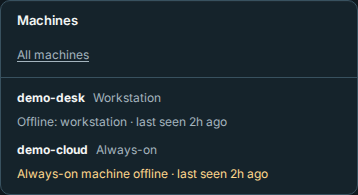
- Open Host → Machines and select Check machines now (owners only). The Overview lists each machine's state and links there with All machines.
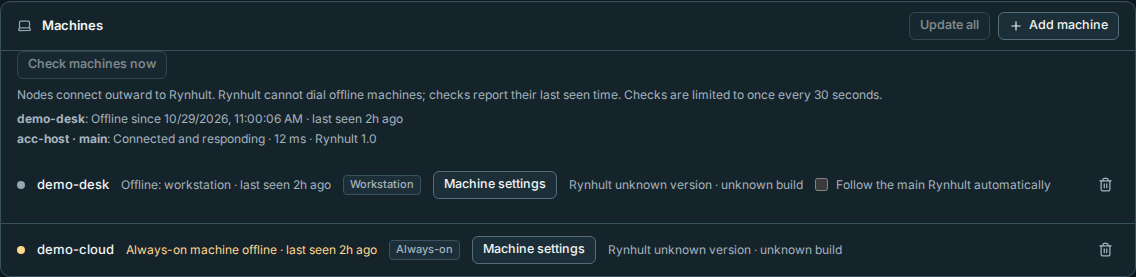
- Read the result beside each machine:
| Result | Meaning |
|---|---|
| Connected and responding · … ms | A fresh round-trip succeeded; Rynhult refreshed its version and live host readings. |
| Connected but not responding | The node link is up, but its broker did not answer the bounded check. Check the node and broker logs. |
| Offline since … · last seen … | The link is down. Nodes connect outward to Rynhult; Rynhult cannot dial offline machines and did not try. |
Checks are audited and limited to one every 30 seconds. Host keeps the latest results, with a checked time. Older node software may answer without a snapshot; update Rynhult on that machine to get live readings.
Let a workstation sleep
An idle agent CLI can keep a laptop awake. Owners can let Rynhult pause idle sessions on a Workstation, keeping each conversation for Resume. This is off by default and never applies to Always-on machines.
- Open Host → Machines. A workstation shows Keeping this machine awake: N sessions and names its idle sessions. This count comes from Rynhult's session states, not the operating system's sleep assertions. You can also select the workstation in the Machine picker.
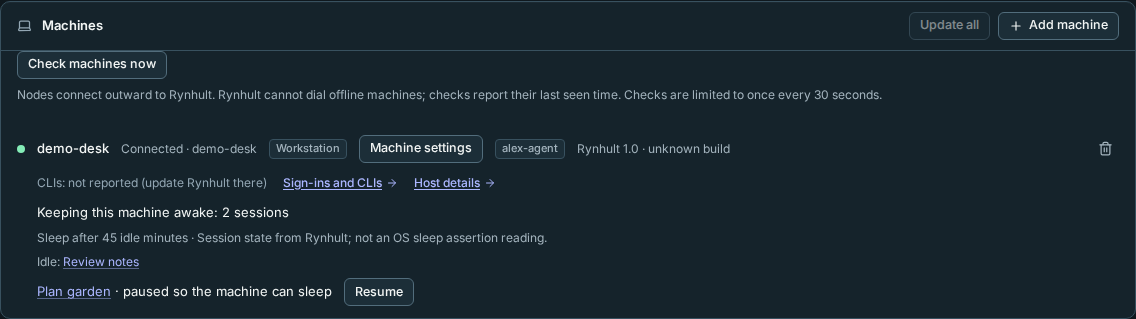
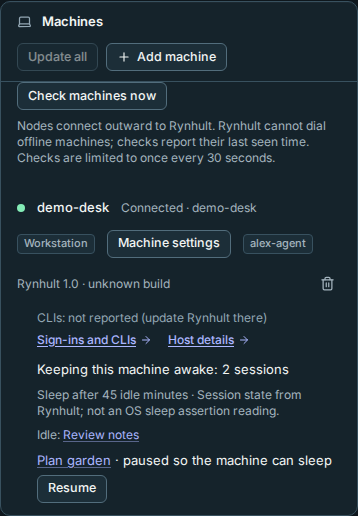
- Select Machine settings beside the workstation. Turn on Let this machine sleep when its sessions have been idle for N minutes. Session idle time (minutes) starts at 30; choose 1–10080 minutes, then select Save.
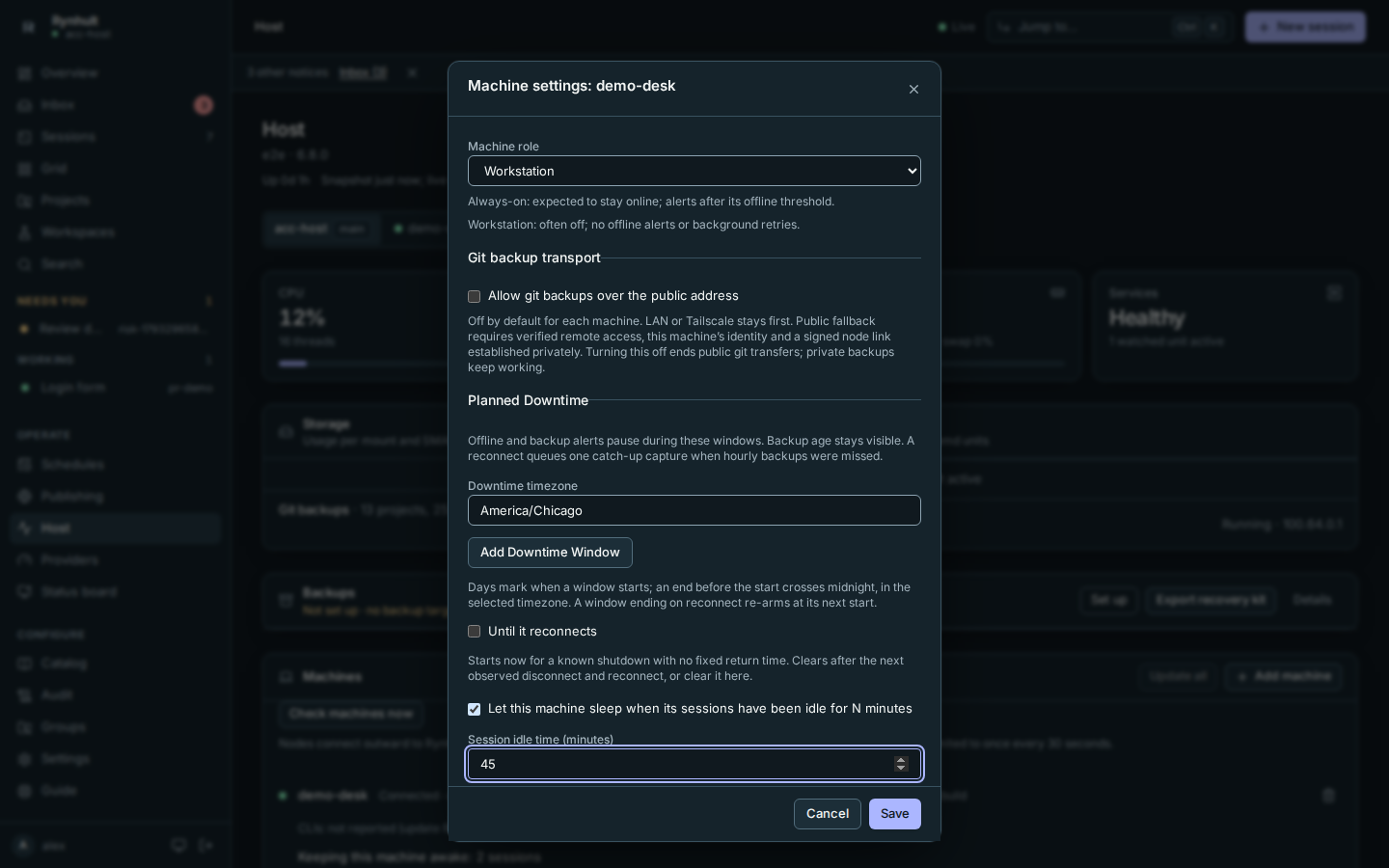
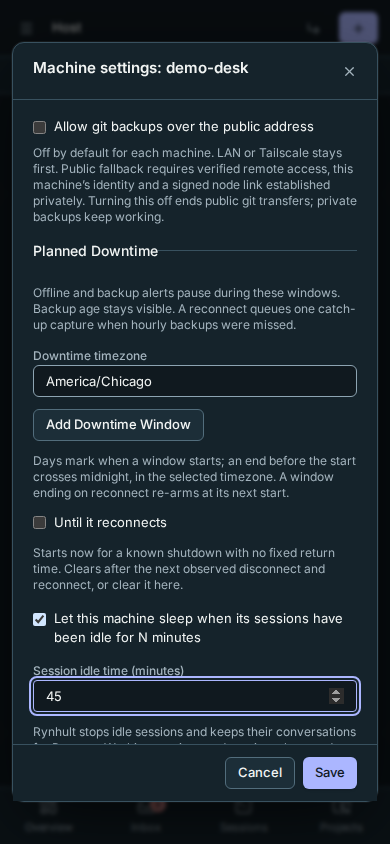
Rynhult pauses each eligible session after its own idle threshold, using the ordinary stop operation, not archiving or deleting the conversation. Recent terminal output or activity delays the pause. Rynhult checks fresh hooks and the screen before stopping: working sessions and sessions waiting for your answer are left alone. Observe-only sessions and conversations without a resumable native ID are also left alone. Existing idle sessions without a recorded idle time start a fresh observation window.
- A stopped conversation reads paused so the machine can sleep on Host and Paused for sleep in session lists. Select Resume once to return to the same conversation. Wake and reconnect the workstation first if it is offline. Each pause is recorded in Audit, with the machine and idle threshold.
This only removes the agent sessions' possible sleep blocker. Rynhult does not force sleep or change power settings; another app may still keep the machine awake. Turning the option off does not resume already-paused sessions. Changing the role to Always-on suspends the option.
If the stop is not confirmed, Host says Pause requested; stop not confirmed. Rynhult will retry. It still counts that session as possibly running and disables Resume until the stop is confirmed. If current screen or hook readings fail, Rynhult leaves the session running rather than guessing it is safe to pause.
Windows Setup creates your own Linux account before the session agent account and makes it the WSL default. New accounts stay password-locked: there is no empty-password first login for someone else to claim. After setup, open a trusted PowerShell terminal and set the owner's Linux password through WSL's root account. For example, for the owner alex:
wsl -d Ubuntu-24.04 -u root -- passwd alex
Use your chosen distro and owner names. Enter the password only at the interactive Linux prompt, not in the command or a Rynhult form. Your owner account can then use password-authenticated sudo; sessions use a separate agent account that must not have sudo authorization. Existing owner passwords are preserved, but an existing empty password is locked. Setup refuses to promote an existing session-agent identity to owner; an owner's services-only broker is still allowed.
Update an older machine
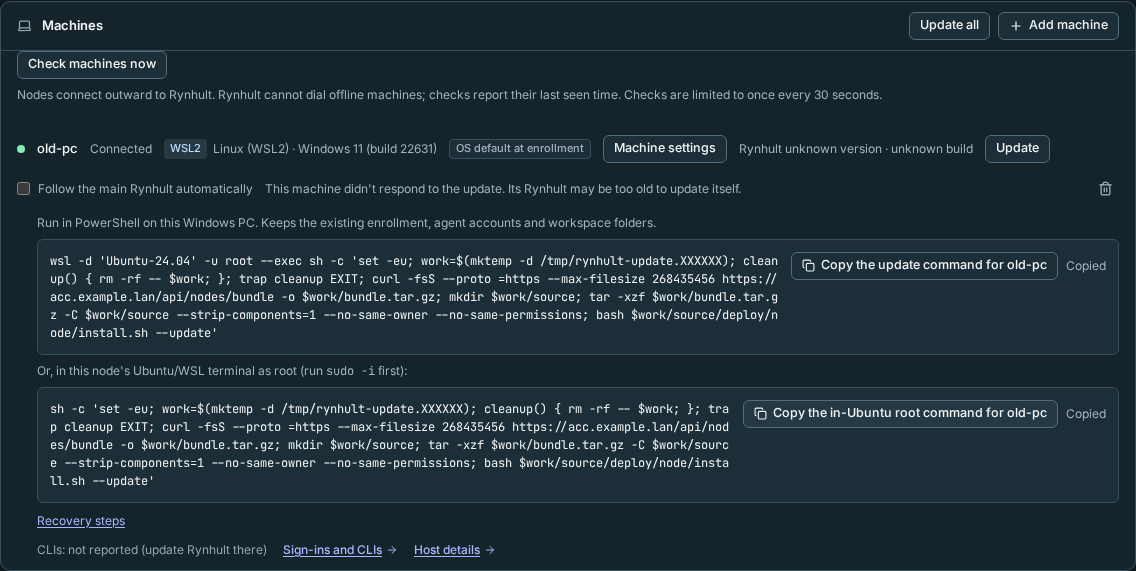
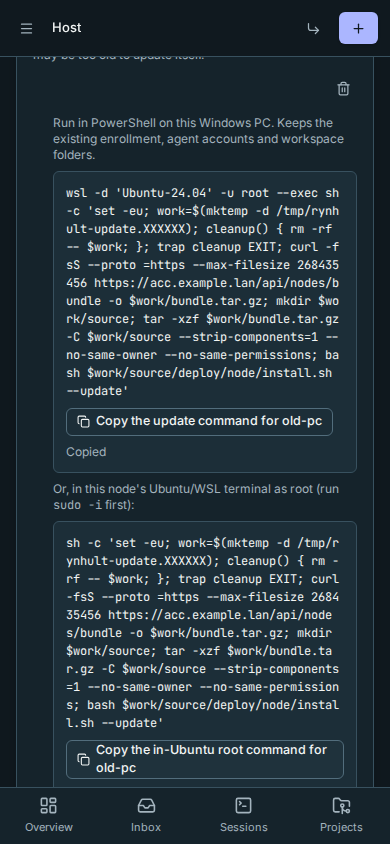
If Host says a machine did not respond to an update, its Rynhult may predate updates. Rynhult waits up to two minutes for a result; known older software is flagged immediately.
Backup receiver exception: do not run main-supplied root recovery commands on an append-only backup target. Its administrator must update from independently trusted, reviewed source while preserving the receiver's root-helper restrictions. Follow the backup-target setup boundary.
- Find that machine's row in Host → Machines. Do not add the machine again: no new enrollment code is needed.
- Linux: select Copy the update command for your machine and run it in a terminal on that machine. It uses
sudoto run as root. - Windows (WSL): copy the PowerShell command and run it on that Windows PC. It has the form
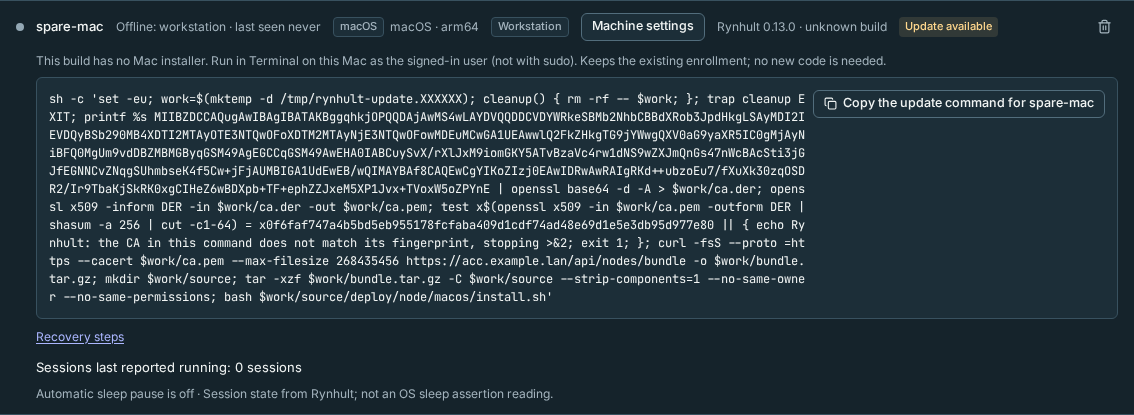
wsl -d '<distro>' -u root --exec sh -c '…'. When the node reported its distribution, Host fills in that name. Otherwise replace<distro>with the existing distribution running the node;wsl --list --quietlists the names. Do not install a new distribution. Alternatively open that Ubuntu/WSL terminal, runsudo -i, then use Copy the in-Ubuntu root command for your machine. - Mac: use the Mac installer link in its row if this build has one. Otherwise (before v1.0) the row says This build has no Mac installer and shows a command: select Copy the update command for your Mac and run it in Terminal on that Mac as the signed-in user, without
sudo. It downloads this main's source bundle over HTTPS (with a private CA, it first checks the root certificate written into the command against its fingerprint, and stops before downloading anything if they differ), runsdeploy/node/macos/install.shagain and removes its temporary folder. It keeps the Mac's enrollment and needs no new code.
- Return to Host and check its build and connection. Linux/WSL machines can then use Update for later stable builds; release candidates still use this manual path.
If an older Linux/WSL helper reports node bundle version or build mismatch even
though the main serves a consistent build, reinstall once from the updated main's
source bundle using the manual steps above. Older helpers may recalculate a new
bundle using obsolete publication rules, so retrying Update alone cannot fix
them. Run the updated bundle's deploy/node/install.sh --update, not the copy in
the old installed source. Existing enrollment and agent accounts are kept.
An updated helper checks the primary-authenticated archive checksum, the source version and the build stamp shipped in that archive. After installation and a successful reconnect health check, it keeps the two latest previous installations and removes older helper-created source copies. Failed updates keep recovery sources. Manually named backups and links are left alone. Host → Machines shows the helper's failure reason; if old-install cleanup fails, it reports that warning without undoing the healthy update.
The Linux/WSL commands download this main's source bundle from /api/nodes/bundle over verified HTTPS and run bash deploy/node/install.sh --update as root. They keep the existing enrollment, agent accounts and workspace folders; they contain no enrollment code, password or private key. They use a private temporary directory and remove it afterwards. The machine needs curl, tar and its existing installation prerequisites. If your main uses a private CA, the command carries it and checks its fingerprint before downloading; it never trusts the copy saved on the machine, which the node's own account could replace. Never disable certificate verification. A failed download stops the command before installation.
The PowerShell form deliberately has no inner double quotes inside its single-quoted sh -c script: Windows PowerShell can strip those when passing arguments to wsl.exe, leaving errors such as tar: option requires an argument -- C. The generated temporary paths have no spaces. Use the in-Ubuntu root form if you prefer to avoid PowerShell argument passing.
If an older Linux node did not report whether it runs in WSL, Host cannot choose a distribution safely. It shows a Linux-terminal command and tells Windows users to run it inside the existing WSL distribution, not in PowerShell. Updated nodes report the distribution when available.
Windows installer releases and offline setup
Windows Setup downloads the current Rynhult source from your main Rynhult after you paste the enrollment command. It checks HTTPS (or the private CA fingerprint) and archive paths before installing. If the main Rynhult cannot be reached, setup stops without installing a bundled copy: a network failure cannot silently select an older release.
Only if you deliberately accept an older, potentially vulnerable offline copy, rerun the Setup executable with /ALLOWBUNDLEDNODESOURCE=1. For the PowerShell installer, use -Role Node -AllowBundledSource. This permission is retained in protected restart state. Setup still tries your main Rynhult first; an unreachable main then permits fallback, with a warning showing the bundled version and build when available. Certificate mismatches, download-limit failures, and invalid archives still stop setup, even with permission. Without an enrollment command, the standalone checkout installer intentionally uses its local source; it does not select that source in response to a network failure.
Reconnecting after manual failover
With High availability, nodes reconnect through the stable
verified HTTPS front door. Owners can instead pre-provision
ACC_NODE_ALTERNATE_PRIMARIES with approved HTTPS main URLs using the same CA trust.
The node cycles through them on disconnect; a standby refuses the connection.
Hostname and certificate checks stay enabled. Enrollment does not discover or
trust an alternate automatically, and download/git/update endpoints still require
the stable front door. Existing remote processes continue while the control socket
reconnects; terminal connections must attach again.
Plan machine downtime
Use planned downtime when a machine has a known shutdown, including an Always-on server whose power schedule you cannot change. It changes Rynhult's expectations; it does not switch the machine off or start it again. No downtime windows or Until it reconnects choice are active by default.
-
Open Host → Machines → Machine settings beside the machine.
-
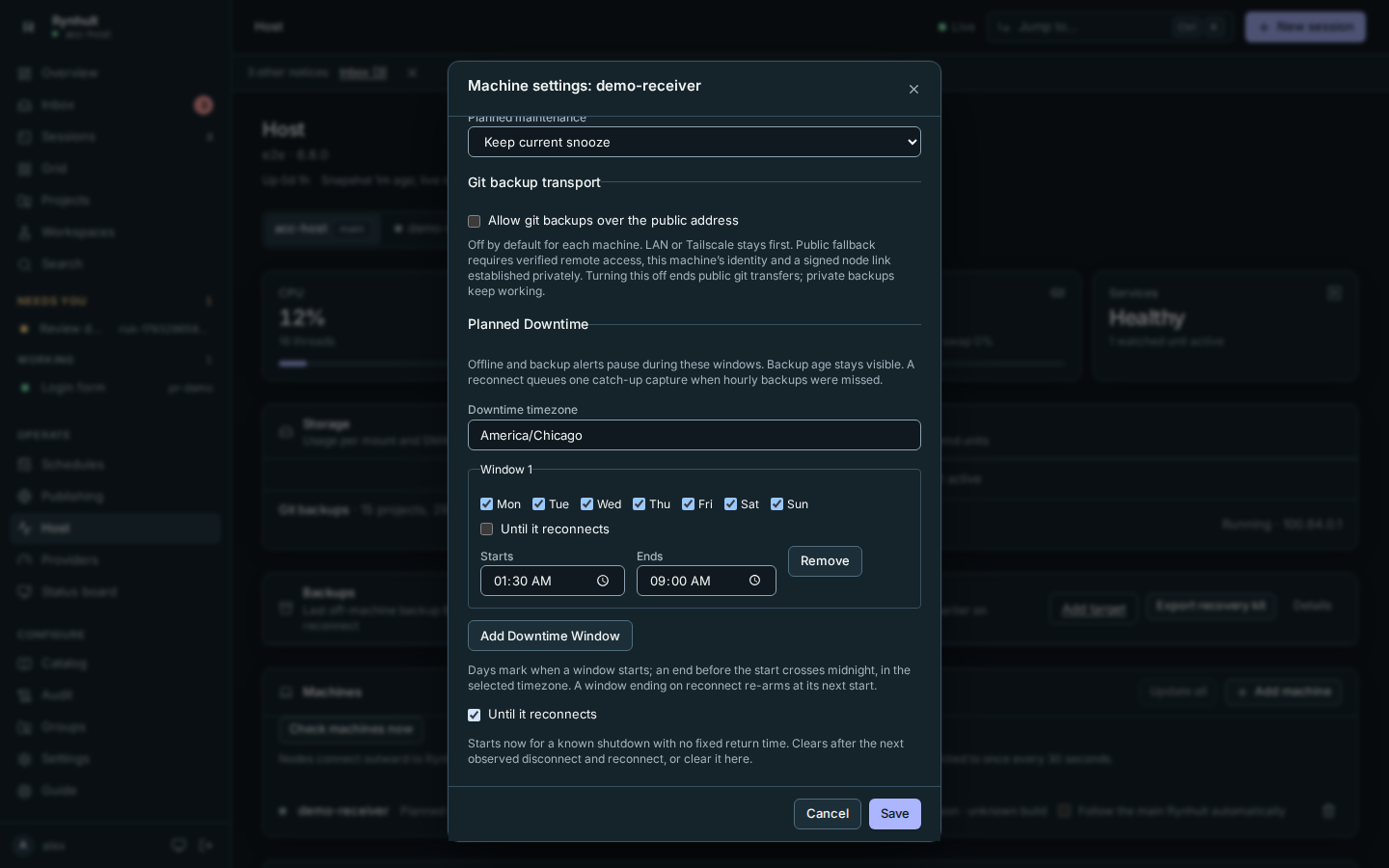
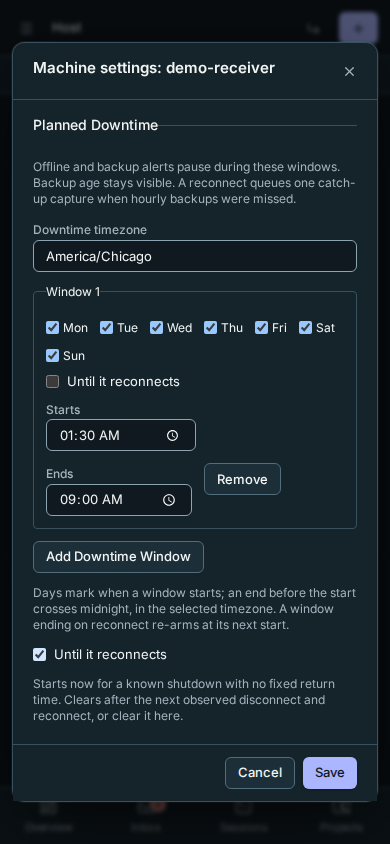
Under Planned Downtime, enter an IANA Downtime timezone, for example
America/Chicago. Select Add Downtime Window, choose the start weekdays and set Starts. Choose one end for each window:- For a fixed return time, set Ends, for example
01:30–09:00. - If someone must power the machine on by hand, select Until it reconnects
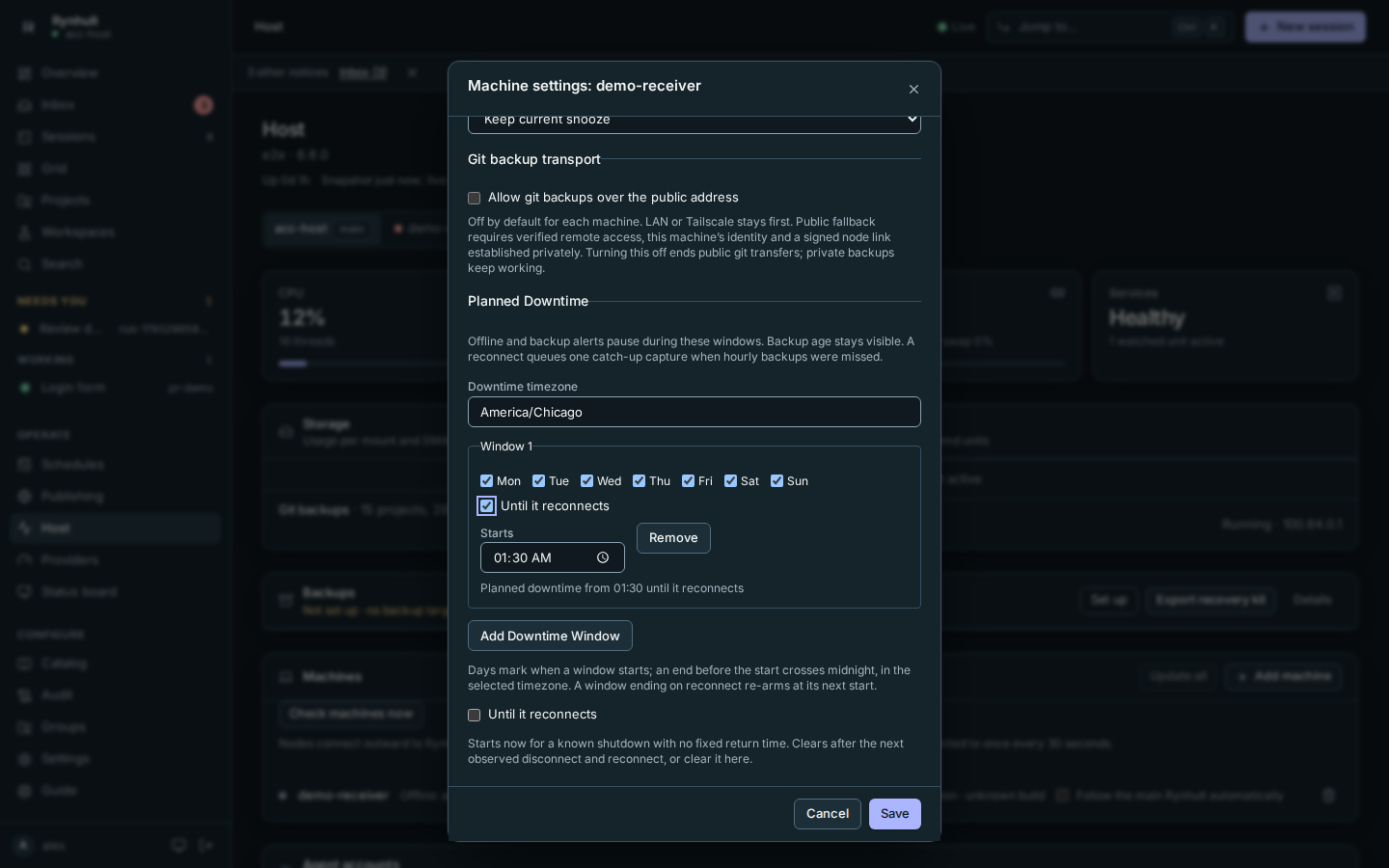
inside that window. For example, select all seven days, Starts
01:30, and Until it reconnects. There is no Ends time, so it stays planned downtime after 09:00 if the machine has not returned.
Add more windows for different weekday schedules; Remove deletes a window when you save.
- For a fixed return time, set Ends, for example
- For an immediate known shutdown, the separate Until it reconnects checkbox below the windows takes effect immediately and ends at the next observed offline-to-connected transition. Setting it while the machine is connected leaves it armed for its next shutdown. Clear it here to cancel it manually.
- Select Save. Changes appear in Audit. Only owners can change this policy.
If another tab saves the policy, or a reconnect clears the separate immediate Until it reconnects option while you are editing, the older save is refused. Select Cancel, reopen Machine settings, and review the current values before saving again. A routine last-seen refresh alone does not invalidate your edit.
If Rynhult goes offline while the dialog is open, Save is disabled until the connection recovers. Your unfinished policy stays in the dialog.
A scheduled reconnect window reads Planned downtime from 01:30 until it reconnects. It starts at the most recent selected weekday's start, and remains active across days until the machine returns. A reconnect at or after that start ends that occurrence. Routine heartbeats do not end it when a reconnect has been recorded; for a machine with no reconnect history, Rynhult uses its last-seen time. Later unexpected outages use the normal offline threshold until the next scheduled start. The recurring window stays saved; you do not need to re-enable it each night. The separate immediate checkbox keeps its existing one-shot behavior.
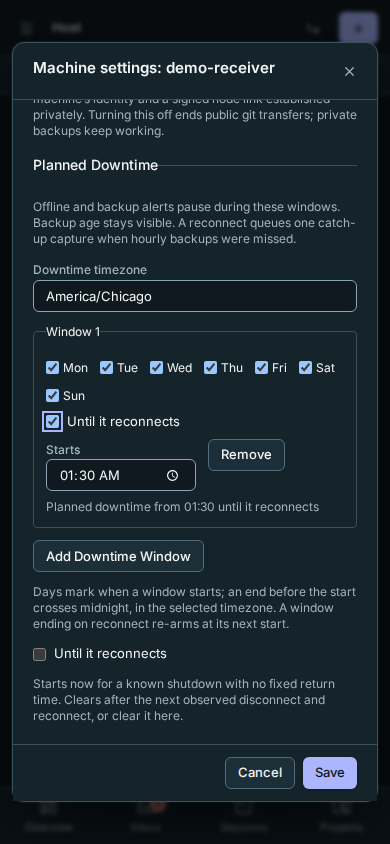
During a window, the machine reads Planned downtime and its offline alert and its backup target's failed/stale alerts are suppressed. Other machines and backup targets keep their alerts. Outside the window, Rynhult uses the usual offline threshold and backup age; downtime does not reset either clock. Existing alerts can reappear when the window ends if the machine is still unavailable.
Days identify when a window starts. An end earlier than its start crosses midnight into the next day; start and end must differ. A window uses either an end time or Until it reconnects, never both. Overlapping and adjacent fixed-time windows merge; a fixed-time window still applies even if an overlapping reconnect window has already ended. Times follow the selected timezone through daylight saving changes: repeated starts use the first occurrence, repeated ends the second, and nonexistent times move forward by the clock-change gap.
Scheduled captures for that machine's enrolled backup target pause during planned downtime; local and S3 targets are unaffected. The shorter Planned maintenance snooze above suppresses offline alerts only, not receiver captures or backup alerts. When an enabled backup target reconnects after missing scheduled captures, Rynhult queues one current capture, even if its recurring window has not ended. It does not replay every missed capture. The successful backup history says caught up after N missed. See backup age and planned downtime.
If an alert returns at the end of a planned window, start the machine and check its outbound Rynhult connection, or correct the window. If its return is unpredictable, use Until it reconnects instead of repeatedly extending the schedule.
An authenticated new machine connection ends an until reconnect occurrence even if Rynhult restarted before recording the disconnect. Routine heartbeat reports do not end a scheduled occurrence. If the outage start was not observed, the audit records the reconnect without inventing an outage duration.
This page is generated from docs/wiki/User-Guide/Nodes.md; the same page is under Guide inside Rynhult.