Keyboard shortcuts
| Keys | Action |
|---|---|
| ⌘K / Ctrl K | Open Jump to… for pages, projects, sessions and commands |
| C | New session (outside fields, terminals and menu typeahead) |
| ↑ ↓ Enter | Move through and choose in Jump to… |
| Esc | Close the top dialog, palette or menu and return to its opener |
| ↑ / ↓ | Open an action menu at its last/first action; move through its actions |
| Home / End, letters | Move to the first/last menu action, or find an action by its starting letters |
| ← → Home End | Move between tabs (a session's Terminal, Changes, Files…; Catalog; a project). A tab row is one stop for Tab |
| ← → ↑ ↓ Home End | Select a choice in segmented filters (Show, Order, Where it runs). Each group is one Tab stop; arrows wrap |
| Space / Enter | Toggle a focused catalog chip; Tab moves between independent chips |
| F6 / Shift F6 | Leave a session's terminal forwards to its output controls, or backwards to Skip terminal. Use Fn if your keyboard assigns media keys. Inside the terminal, Tab and Shift+Tab go to the agent |
| ↑ ↓ Enter | In Changes, with a file's diff focused: pick a line, then comment on it |
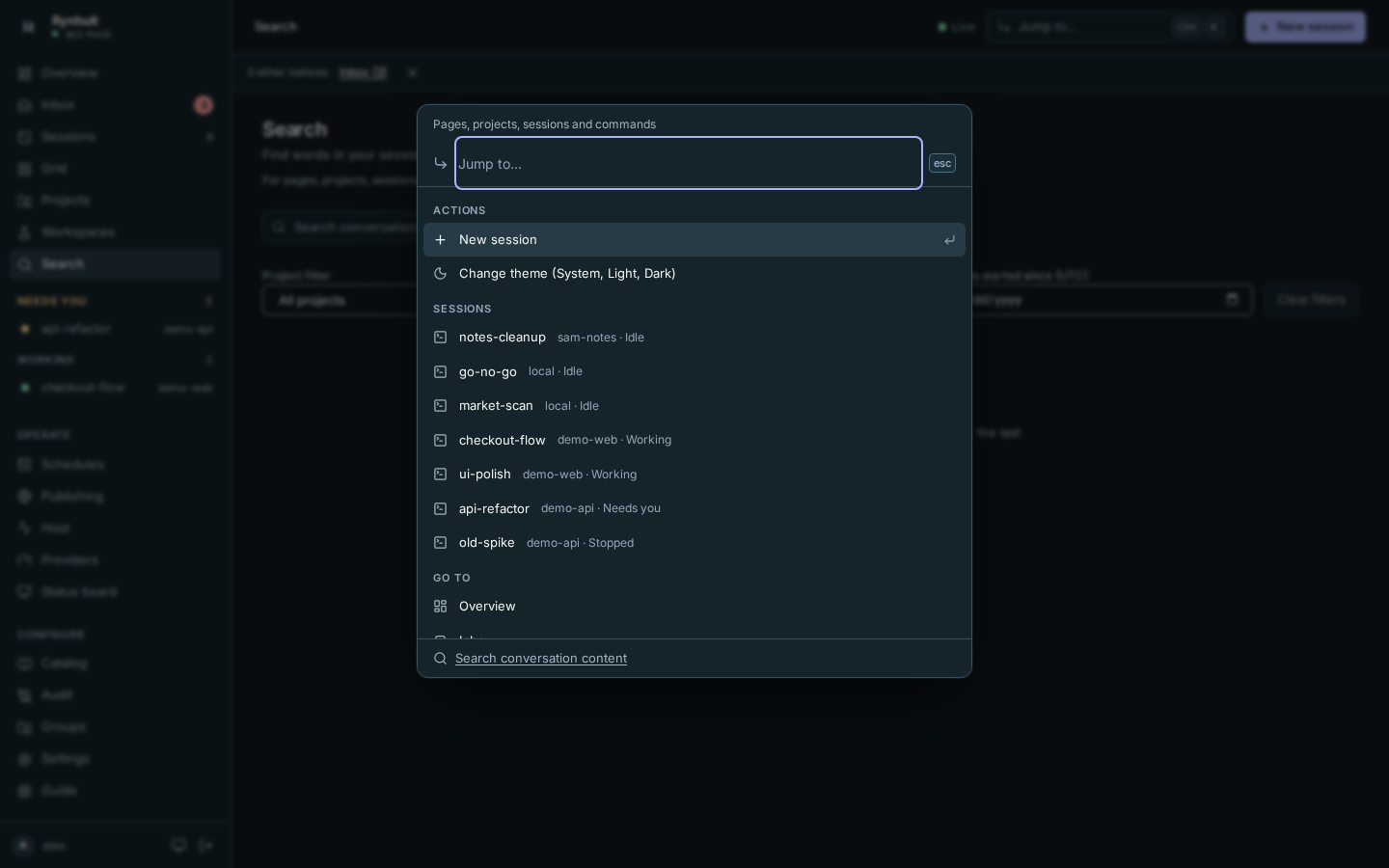
Jump to… navigates; it does not show full-text results. To find words in transcripts, choose Search conversation content, or type words and choose Search conversations for “…”. Both open Search. The Jump to… button remains in the top bar on Search. Shortcuts are unchanged. Inside it, Tab and Shift Tab stay between the search field and Search conversation content. Home and End still move the text cursor. Reopening starts a fresh query; choosing New session moves focus to its form.
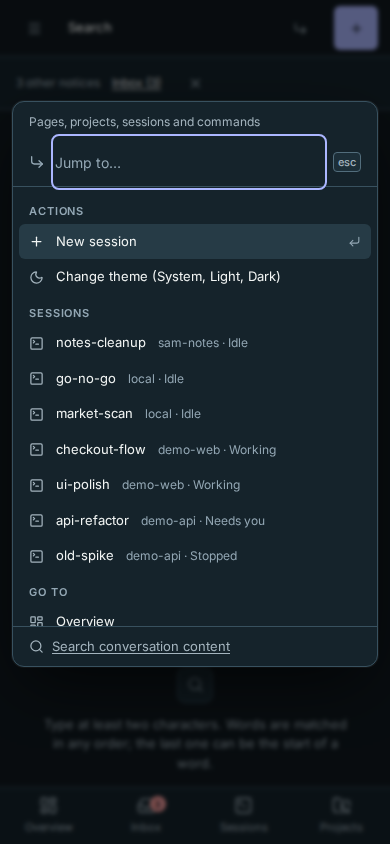
On a phone, the navigation-arrow button opens the same Jump to…:
On a phone, Menu opens the full navigation as a panel: focus moves into it and stays there until you choose a page or press Esc, then returns to Menu.
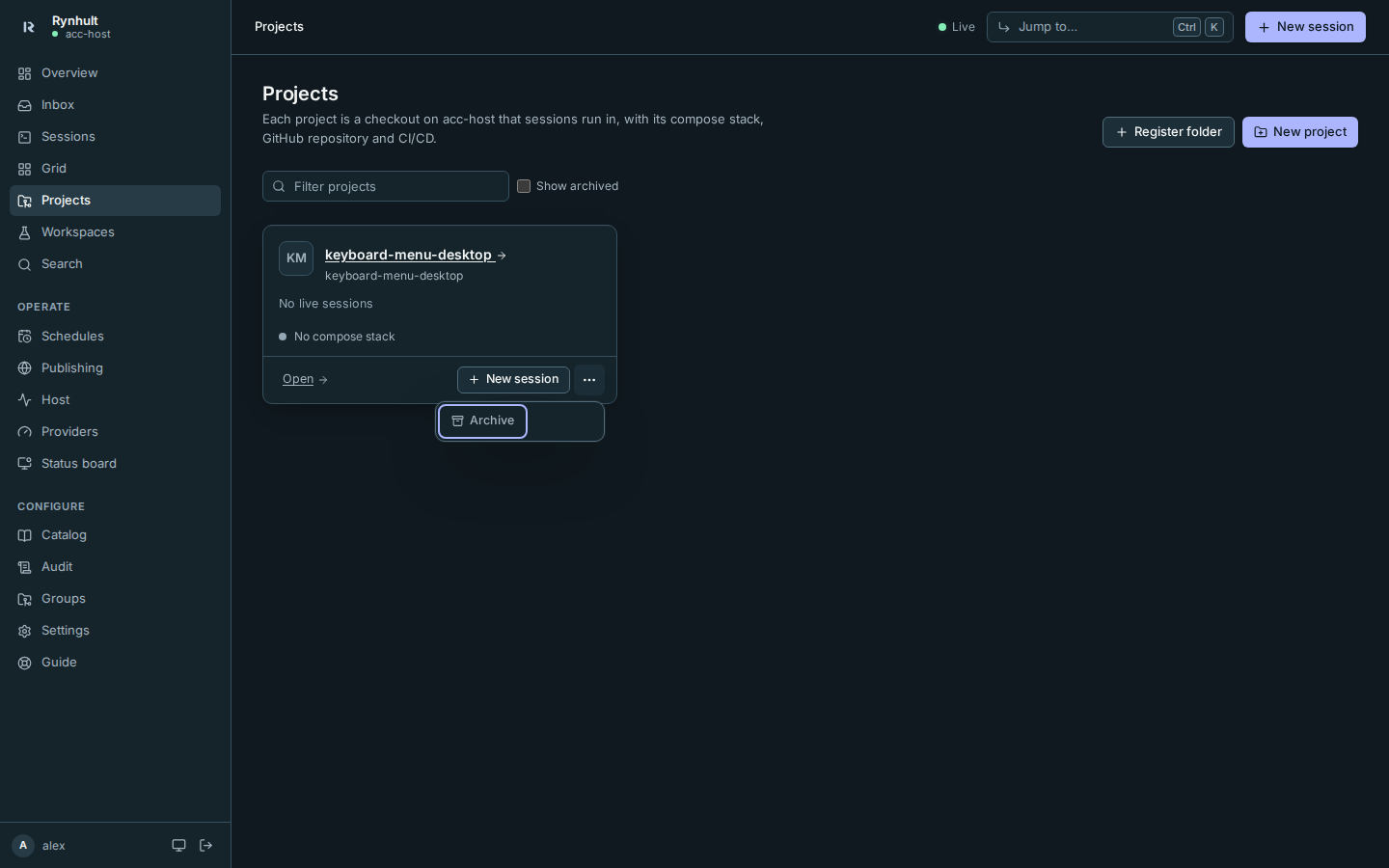
Action menus include a project's or workspace's Actions, a session's phone actions and the session tab row's More. Enter or Space opens a menu; arrows, Home/End and starting letters move between available actions without running them. Enter or Space chooses the focused action. Tab leaves and closes the menu; Escape closes it and returns to its button. A Details panel can contain ordinary text and links, so Tab moves through those normally.
On a phone, the terminal adds a key bar: ⏎ (Enter), Esc, ^C, ↑, ↓ and Tab first, then More keys for Ctrl, ← →, Page Up/Down and Paste (see The terminal). Its keys never open the on-screen keyboard; Ctrl does, for the key you type next.
Confirmation dialogs stay open when you click outside them. Choose their action, Cancel, or press Escape to close them. A double-click on an action such as Squash and merge therefore leaves its confirmation visible. The remaining clicks of a double-click cannot activate a control underneath a closing dialog; a new click or keyboard action works normally. Clicking a dialog's backdrop keeps keyboard focus inside while it remains open, including while a provider login is starting.
Segmented radio choices use one Tab stop. Arrow keys select the adjacent choice; Home and End select the first and last. Focusable code and table regions can scroll with the keyboard. Diff regions retain Up/Down line selection and Enter to comment; tapping the full line opens the same editor. Before the terminal grid, Skip terminal appears on keyboard focus and bypasses it for Screen reader output, Open as text and Copy recent output. See Reading recent output as text.
Accessibility
Rynhult aims for WCAG 2.2 AA. Automated axe checks cover every page and session tab in dark and light themes, on a desktop and a phone. They also cover each page while it is still loading, with its requests failing, with every disclosure and Details section open, and with the add and new dialogs open. These checks find structural and contrast problems. They can't tell whether the app is pleasant to use with a screen reader, so these manual checks are still open:
- NVDA with Firefox and Chrome on Windows: sign in, start a session from New session, answer an Inbox prompt, and read the session's recent output as text.
- VoiceOver with Safari on a Mac: the same tasks, plus moving between session tabs with the arrow keys.
- VoiceOver on an iPhone and TalkBack on Android: open the menu, read the Inbox, approve a prompt and use the terminal key bar.
- Zoom to 200% and 400% in each browser, with no lost content or sideways scrolling outside code and tables.
- Windows high-contrast mode and the system's Reduce motion setting.
- Keyboard only: sign in with a passkey, create a project and change a setting without a mouse.
If something is hard to use with assistive technology, report it as described in Usage and bug reports.
This page is generated from docs/wiki/User-Guide/Keyboard-Shortcuts.md; the same page is under Guide inside Rynhult.