Orchestrate a project
Screenshots use fictional demo accounts and fixed example metrics, not live systems or qualification evidence. They illustrate earlier layouts; the new rc.1 brief, run modes and result states are described below.
Orchestrator v2 is on by default in rc.1, not a Preview. You still choose whether to give a session helpers. A lead plans with you, assigns bounded work and brings you one consolidated pull request. You keep the decisions and final merge into main.
This is the start-to-finish walkthrough. Orchestrator explains each setting; the playbook covers how to coordinate well.
Before you start
- Use a trusted managed project with at least one git commit.
- Install and sign in the chosen agents for your agent account on each granted machine. Sharing an account is not a strong security boundary between helpers.
- An owner can disable orchestration under Settings → Admin features. Existing server overrides may also constrain it; see availability and upgrades.
- Gates still need the owner's explicit Run the gate queue choice and approval to execute branch code. Default-on orchestration does not start tests.
Creating an Empty folder project makes the initial README commit, so its team can start immediately in its own worktree. The optional What do you want to build? (starts your project brief) answer becomes saved brief version 1, with Prepare as its initial suggestion, for every project source. A folder you register yourself still needs a git commit before it can have an own-worktree session or team.
An empty local project also has no remote. For the consolidated GitHub PR flow, use Clone repository or New GitHub repo with a committed starting point and the required GitHub sign-in/access. Otherwise review local branches; creating a team does not create or publish a repository for you.
1. Describe the job and choose the mode
<!-- lane E -->Open Project brief on the project page, or Add a project brief when granting a team. You can start from an idea, fill in the form or import Markdown. Or expand Start from documents and upload existing design files. At kickoff the lead proposes a cited brief for field-by-field review in Version history, then asks clarifying questions. Originals and extracted text stay private; see Start from documents. Only Product or feature is required. Add who it is for, the problem and main journeys, first release, exclusions/later ideas, success, design direction, constraints and uncertainty. Incomplete drafts save; "I don't know, recommend something" is a valid answer. Fill in Product or feature (required) and choose Save project brief. Check Saved as version N after saving. Draft, not saved and Unsaved draft restored mean the text is only a tab-local draft; the lead cannot read it. Save explains an empty required field inline and takes focus there on an attempt. Leaving with unsaved changes asks for confirmation.
<!-- lane E -->Attach links or captioned screenshots/drawings/PDFs. Say what to copy, keep, change or avoid for each REF-n. Uploads are limited to 10 MiB each, 20 per brief. They stay project-private, not in the repository or wiki unless you deliberately export them. A remote helper sees only references assigned to it.
<!-- lane D --> <!-- lane E -->Choose one mode:
| Mode | What you authorize |
|---|---|
Clarify and prepare (prepare) |
Read-only planning and discovery helpers; changes go through plan, brief and report tools, not implementation. |
Clarify, then build within this scope (build) |
Accepted, unblocked implementation within your constraints and frozen grant. |
The lead reads the brief before readiness, keeps your submitted text separate from its interpretation, and proposes requirements and constraints. It does not ask again for supplied answers. It names unreadable references and asks for the specific missing evidence rather than claiming to have inspected them.
2. Start the lead
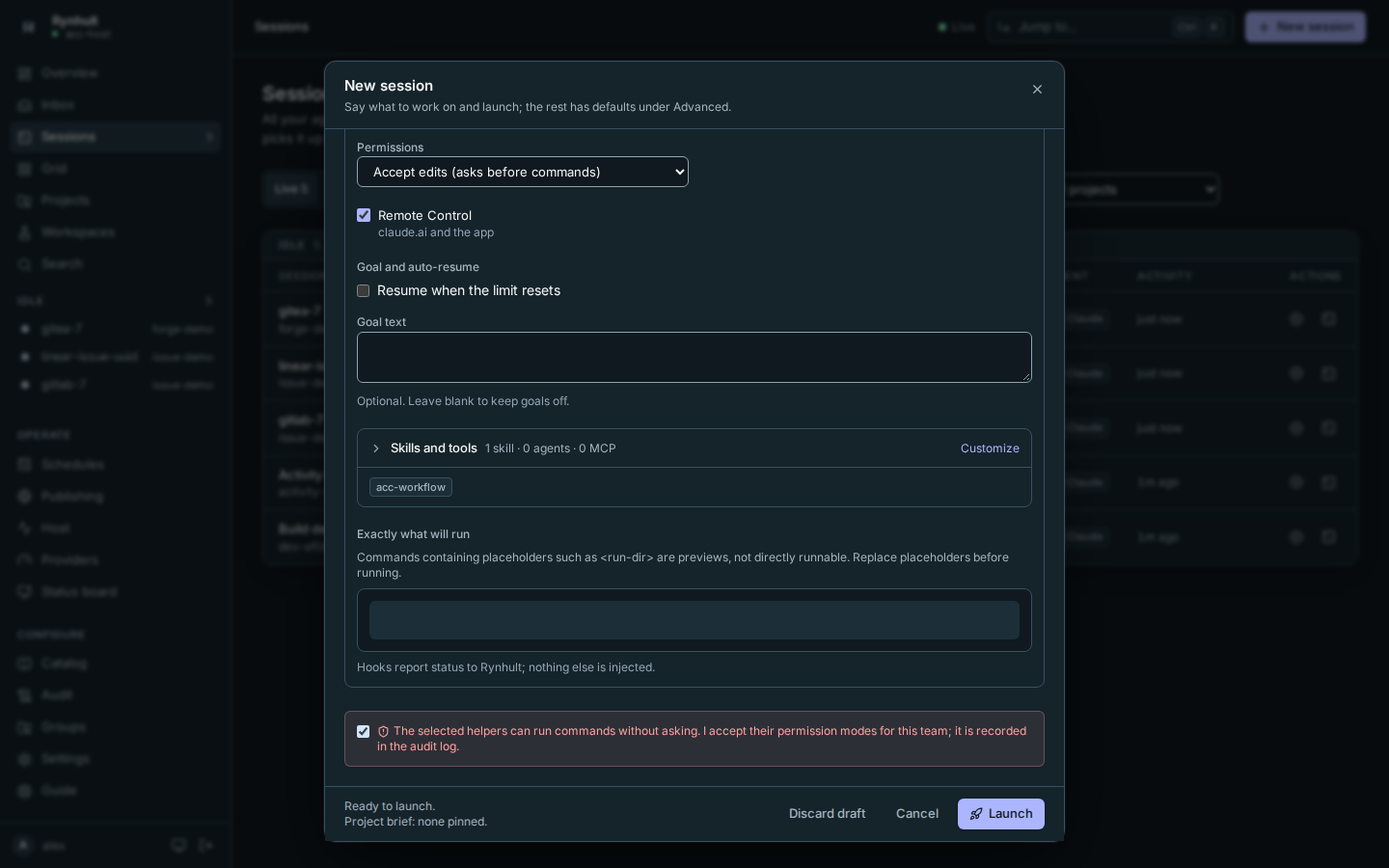
<!-- lane D --> <!-- lane E -->- Select New session, choose your project and the lead's agent. You may type your own task, for example "Let office staff import customer lists".
- Under Advanced → Run, choose With helpers.
If you have not typed a task, Task (optional) shows an editable first
message with the project name and selected brief version. It tells the lead
to read the brief through the
brieftool, inspect references, write its own interpretation, draft requirements and constraints, and put targeted questions on the working list as decision cards. The brief body is not copied into the message; the tool keeps its provenance and private references. When an export is available, the message also names its repository path. With no accepted brief, the message asks the lead to discover your idea, scope and success with you and suggest adding a brief. Your own task replaces this default. It is sent once at launch, never again when resuming the lead; helpers keep their assigned task messages. - Set At once, In total, Depth, Hours, Machines, and allowed agents/profiles/permissions. These fix the managed helper grant; agents cannot raise the limits or add a stronger profile. New grants show Claude's Full-stack, Frontend, Backend, Code reviewer and QA roles, and Codex's Full-stack and Backend roles, for installed, signed-in providers on the project's machine/account. Code reviewer keeps read-only permissions. Remove choices you do not want: assignments select a matching role from what remains.
- Review Project brief version: the latest saved version is selected by default and named visibly. Choose another saved version or None if needed. If only an unsaved draft exists, follow Save the project brief, or use the explicit save step when you select Launch.
- Review Team run mode. At launch the stricter of that choice and the saved brief's suggestion applies. Review the brief and generated launch files, confirm any permission-skipping choice explicitly, then select Launch.
If this tab has an unsaved brief with Product or feature filled in, Launch asks Save this brief as version N and pin it to the team? Choose Save and launch, Launch without the brief (pins None and keeps the draft), or Back (keeps your choices without launching). A failed save never starts the team. This also covers a draft entered only on the project page, not in this dialog. If saving succeeds but launching fails, Launch with saved brief retries with that version without saving again. The default kickoff is generated from the final version actually pinned, not the earlier preview.
The default first message follows the effective run mode: in Prepare, the
lead stays read-only and waits for you to switch to Build before starting
helpers. In Build, it finishes planning with plan_ready and resolves the
questions blocking an assignment before starting its helpers.
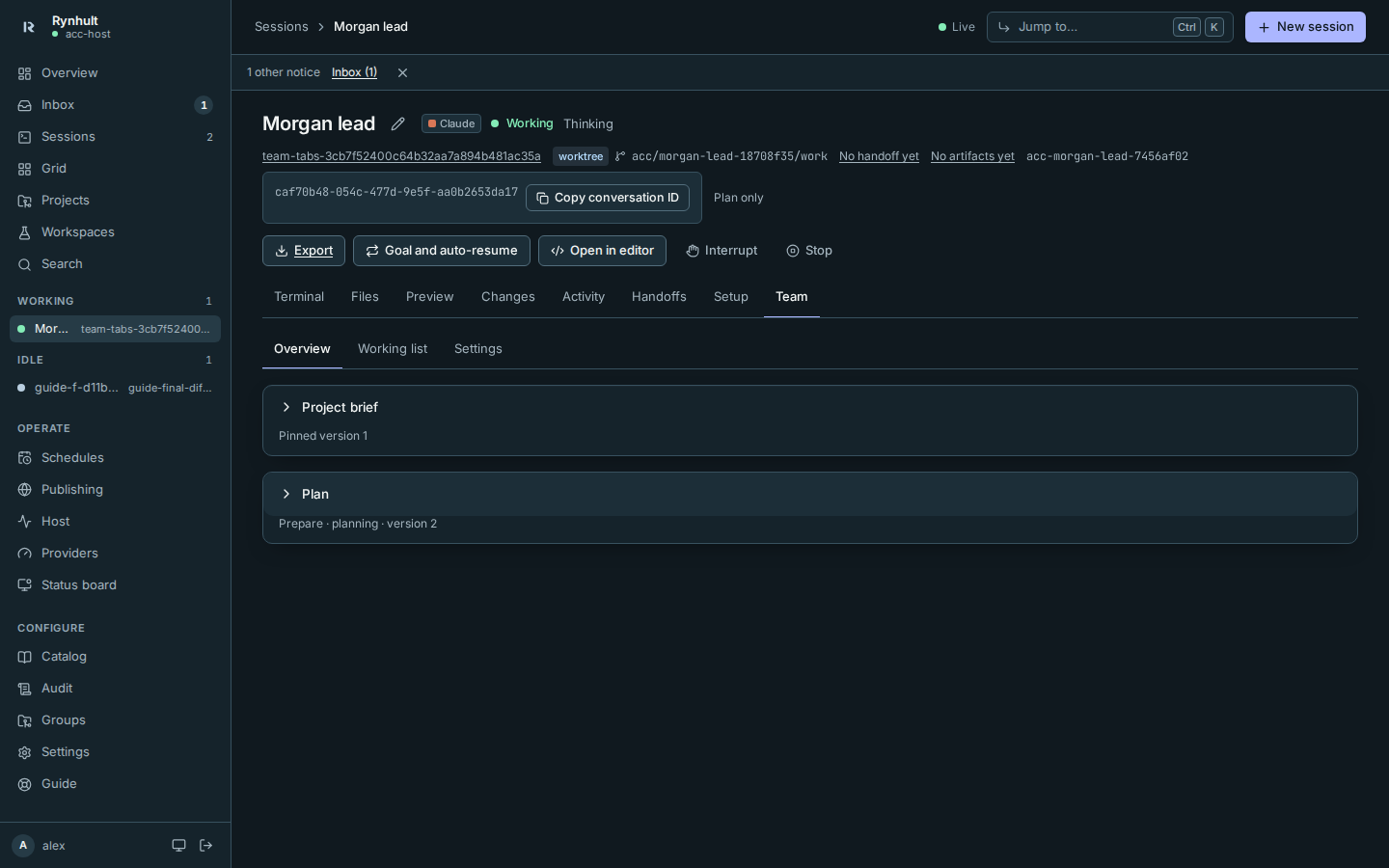
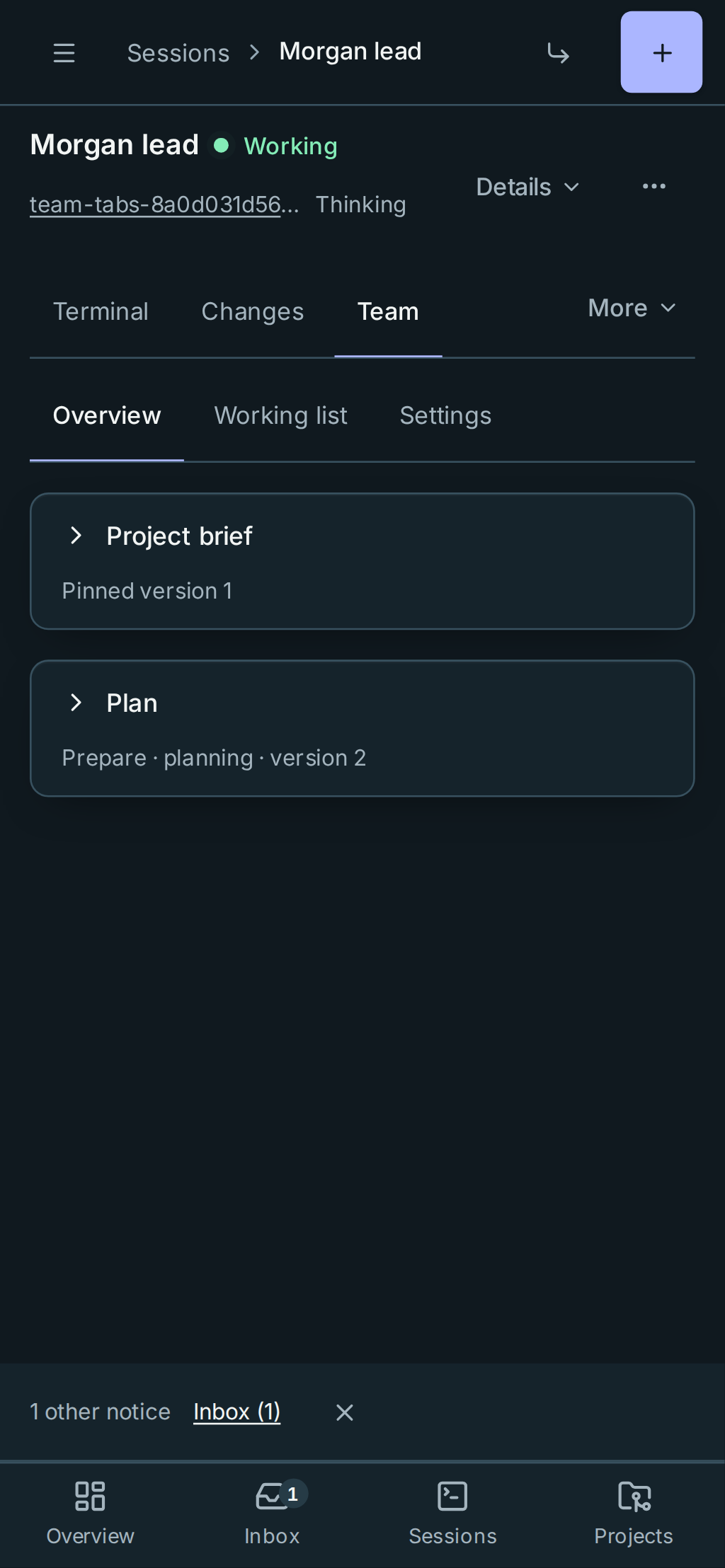
The lead opens with its own worktree and branch. Open Team for the plan, working list and managed tree. A normal session does not get helpers merely because orchestration is available. In Team → Overview, expand Project brief to read the pinned version, or No pinned project brief with a way to add one. Select a saved version (or None) and choose Apply selected brief version to add the first pin, change it or remove it on a running team; later brief edits are not silently applied. This changes scope, not the effective run mode in Settings.
The Team page has three tabs, also available as direct links ending in
#overview, #worklist and #settings:
- Overview: pinned brief text, references and the lead's interpretation, then the plan, constraints and requirements. The dependency diagram is at the bottom.
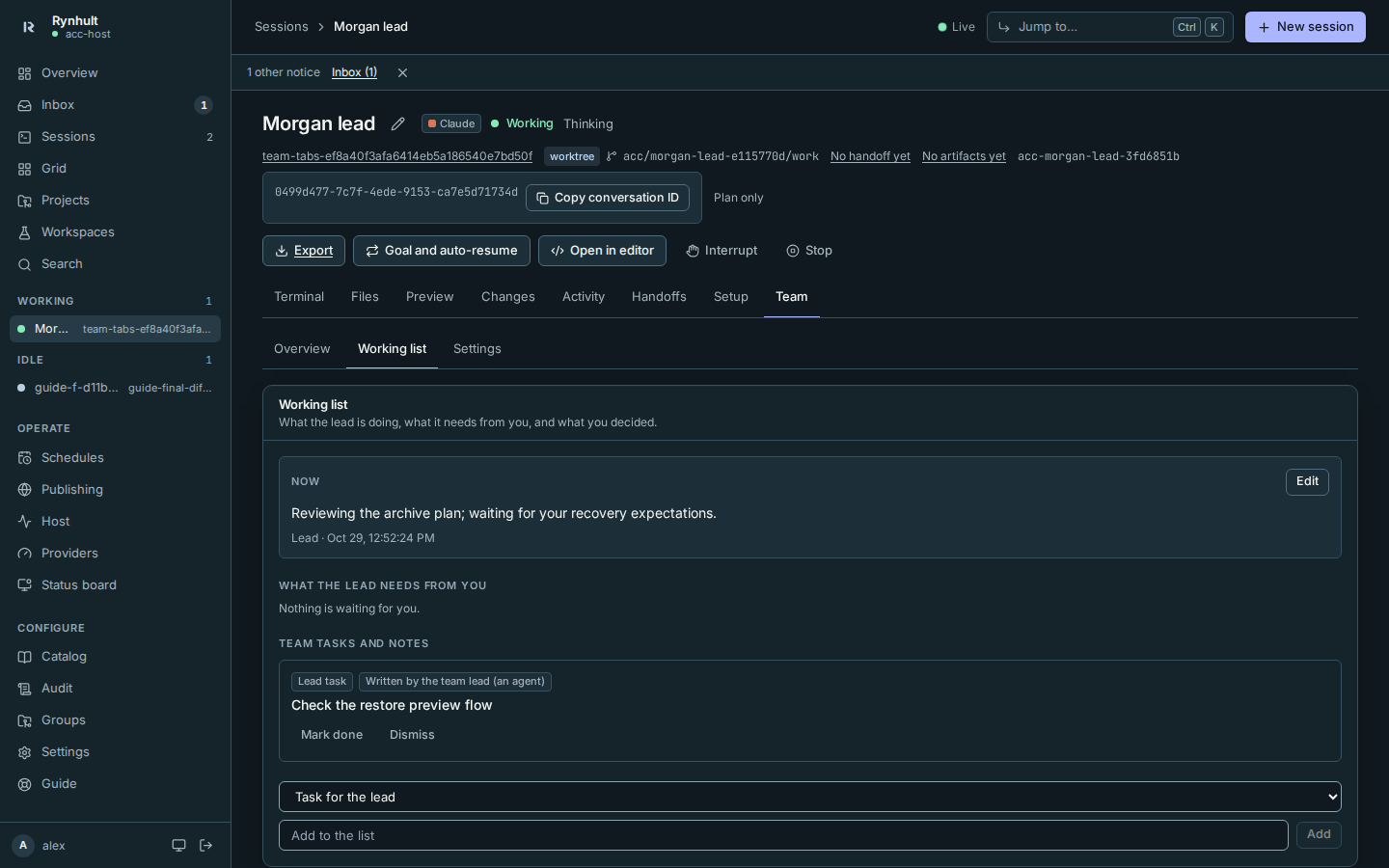
- Working list: Now, open decisions and questions, then team tasks and notes. Answered cards move into Answered below the open cards. Each keeps the answer, who answered and when; use Reopen to bring it back to the open list.
- Settings: run mode first, then the live agent tree, gate queue, migration/decision number reservations, shared limits and Stop team, team members and branches, and the decision log. Selection reasons is last.
Panels in Overview and Settings start collapsed. Their title and a short status stay visible. Select a panel's title to expand or collapse it; with the keyboard, focus its button and press Enter or Space. This browser remembers each panel's state separately for each signed-in viewer and team. The Working list stays open.
Direct section links (#overview and #settings) expand that section's panels.
A panel link selects its tab, expands it and focuses its button: #brief, #plan,
#run-mode, #agent-tree, #gate-queue, #reservations, #team-limits,
#team-members, #decision-log or #selection-reasons. Switching tabs with the
tab bar keeps your saved panel choices.
Use Left/Right Arrow within the tab bar, or Home/End, then Tab into its content.
3. Plan together and answer the working list
Expand Plan in Team → Overview to read or edit it. The lead outlines the idea, in/out/later scope, decisions and phases, with dependencies and acceptance checks. Plan history keeps versions and reasons; obsolete phases are Dropped, not deleted.
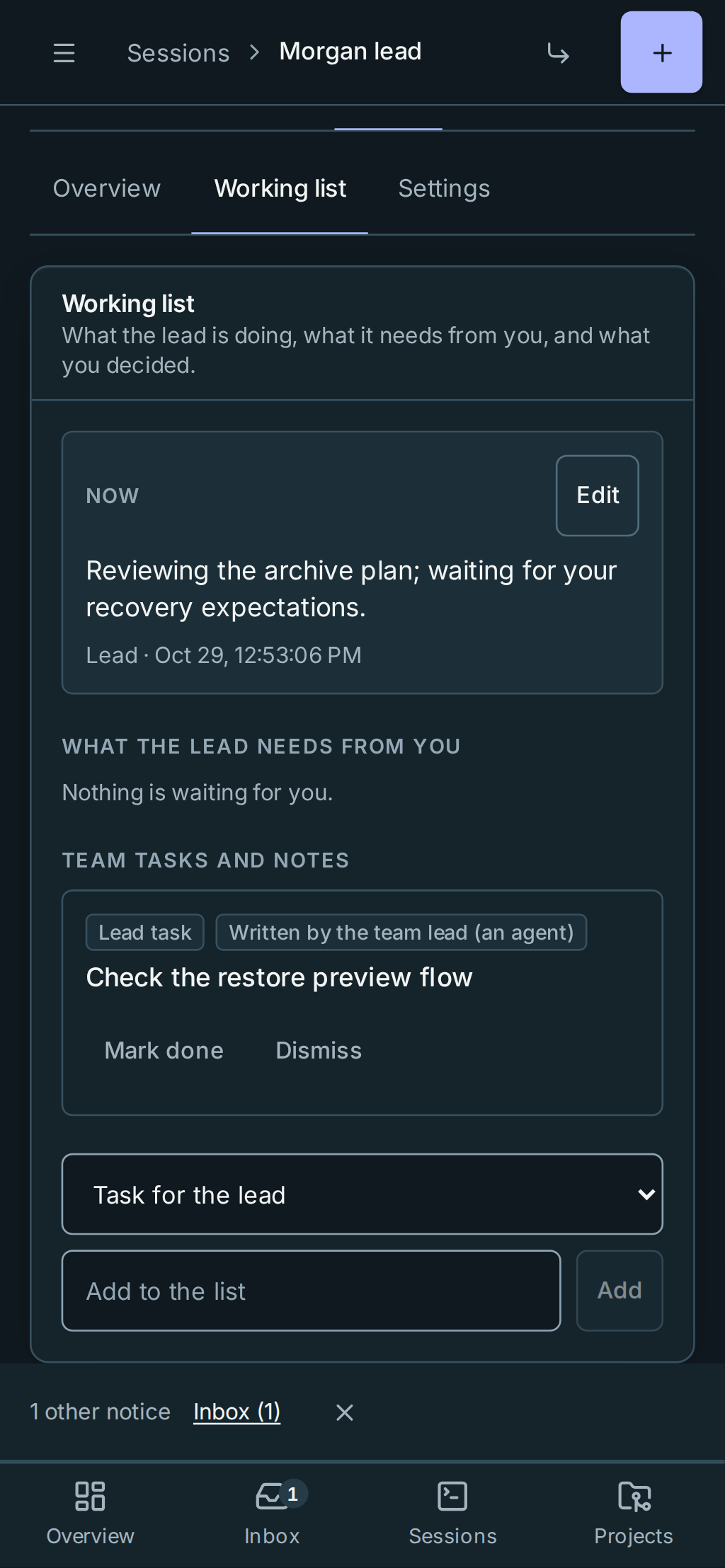
Requirements get R-n IDs; your constraints get C-n IDs. Reading your constraints does not let the lead edit them. A proposed change needs your decision; until you accept it, helpers don't receive it and work can't be assigned against it. A dropped prerequisite blocks its dependants until re-linked or explicitly dropped with a reason. Download the authoritative Markdown snapshot with Export roadmap. In build mode the lead commits the roadmap and brief Markdown on its own branch as part of the team PR. In prepare mode the lead is read-only: download the snapshot yourself, or let a later build run commit it. There is no privileged repository writer.
<!-- lane D --> <!-- lane E -->Material questions become cards on the working list, naming only the phases or requirements they block. A reversible default is labelled assumed default, not your answer or approval. Unrelated work can continue inside scope; a material decision about scope, machines, public actions or money waits for you. In prepare mode, even a ready plan does not authorize code changes.
Under What the lead needs from you:
- On a Decision card, Approve accepts its recommendation or default. Change opens the options and a Different answer box; choose an option or write your answer, then Save answer. Without a recommendation/default, use Change. A decision cannot be marked done/dismissed instead of answered.
- Discuss opens Message to lead. Send to lead queues a discussion through the same confirmed delivery path as session messages. The card stays open, with its delivery status and an Open lead conversation link. The lead can reply in Lead’s note on the card; you still choose the answer. If delivery is not confirmed, open the conversation to review its status and retry.
- Type an answer to a Question and select Answer.
- Follow a Needs you card's steps, then Mark done, or describe what happened and Answer if the outcome differs.
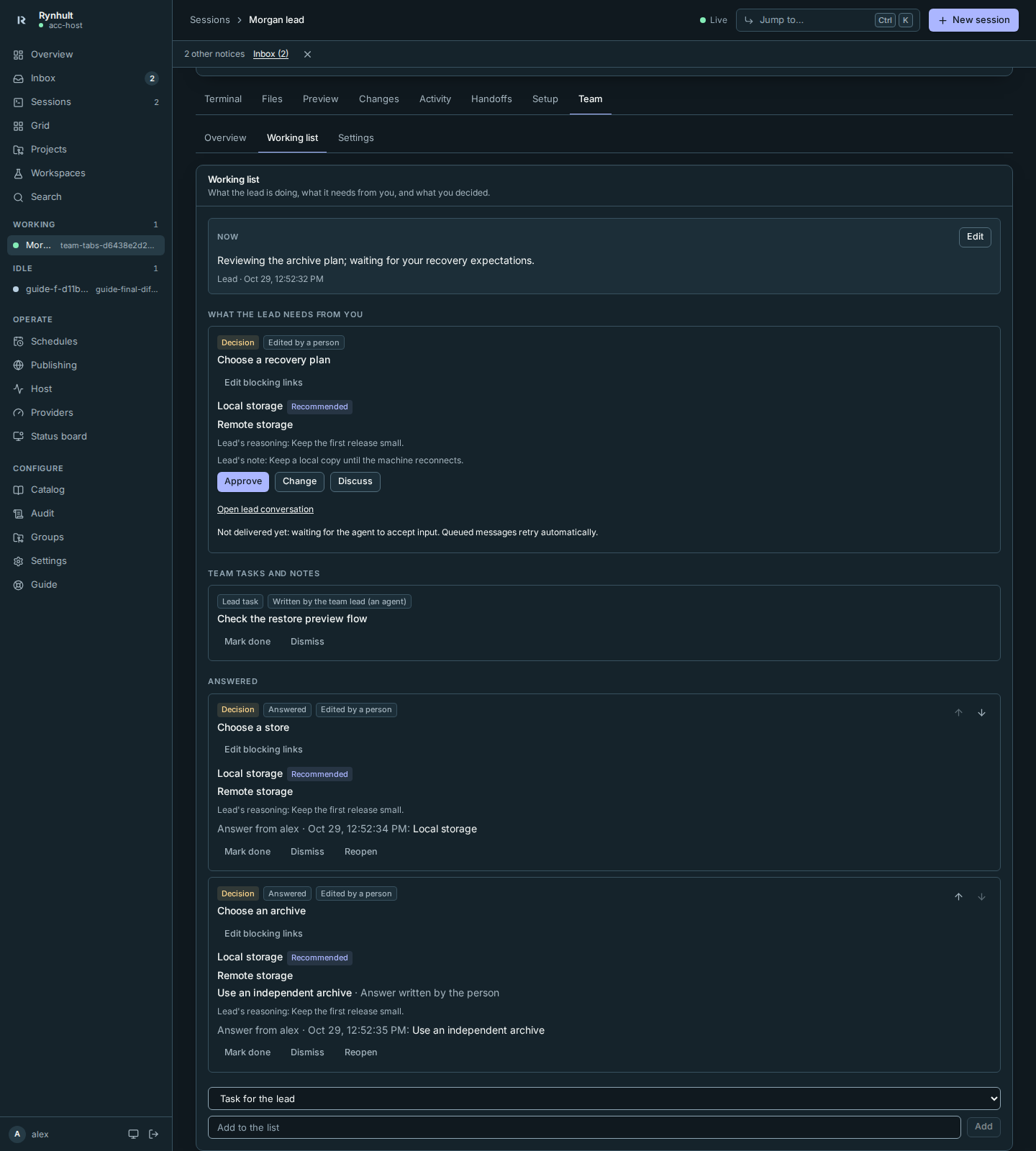
Each card raises one Inbox item. Answer in any order, whenever you have time. The lead marks it Read by the lead, with what changed. Your edits cannot be answered or dismissed by an agent. Now is the summary you can correct with Edit. Your answer/plan edit notifies the lead at its next idle prompt; if delivery is unavailable, type check the list in its Terminal.
Use Edit plan and Save as a new version to propose plan changes. A concurrent edit stays in the form for reconciliation, not silent replacement. Restored plan edits show the current version and changes before you save; only your changed fields are reapplied. On a working-list conflict, your answer stays in the card next to what changed. Review it, then use Resend answer or Resend decision once. Another card's update does not block your answer. If refreshing fails, the retained plan shows a stale-data warning, including while you edit. It is not confirmation that the displayed scope is still current.
<!-- lane D -->Changed requirements/constraints notify affected attempts; earlier verified work needs revalidation. Your constraints do not become agent-editable after a read. The database holds the authoritative plan/brief, with Markdown exports following the project's existing layout.
Move from prepare to build
Keep the same team, plan, working list and attempts:
- On Team → Settings, expand Run mode, select Build within this scope, then Save run mode.
- Follow the progress beside the control: it stops the lead, waits for machine confirmation, saves the mode and resumes the lead with Build permissions.
- Check Run mode: Build. In Overview, Plan history names
you and records the reason. A versioned continuation notice tells the resumed
lead to finish planning with
plan_ready, then start helpers for unblocked phases.
If a step fails, the error names it and later steps do not run. If only resume failed, Resume lead retries that step without saving another mode version. Check the continuation notice's status; queued is not delivered. A failed or expired notice needs review in the terminal before sending again.
Only a signed-in person can make that widening change, not the lead, a helper, an installation API token, system or schedule. Accepted, unblocked implementation may now proceed within the existing provider grant; a ready plan alone never widens it.
The pinned brief may still say The brief suggested Prepare. This is its unchanged submitted suggestion, not a second authority: Settings controls the effective mode. Applying a later brief version does not change it.
The lead may narrow Build to Prepare, but must first stop all helpers and wait for confirmation. Its change is recorded as the lead in history and stops the lead too; resume it to use read-only permissions. You can also narrow with the same control: it first stops helpers, then stops and resumes the lead in Prepare. Helpers remain stopped. With delivery explicitly disabled, the control says to give the lead its next instruction in the terminal.
4. Talk directly when useful
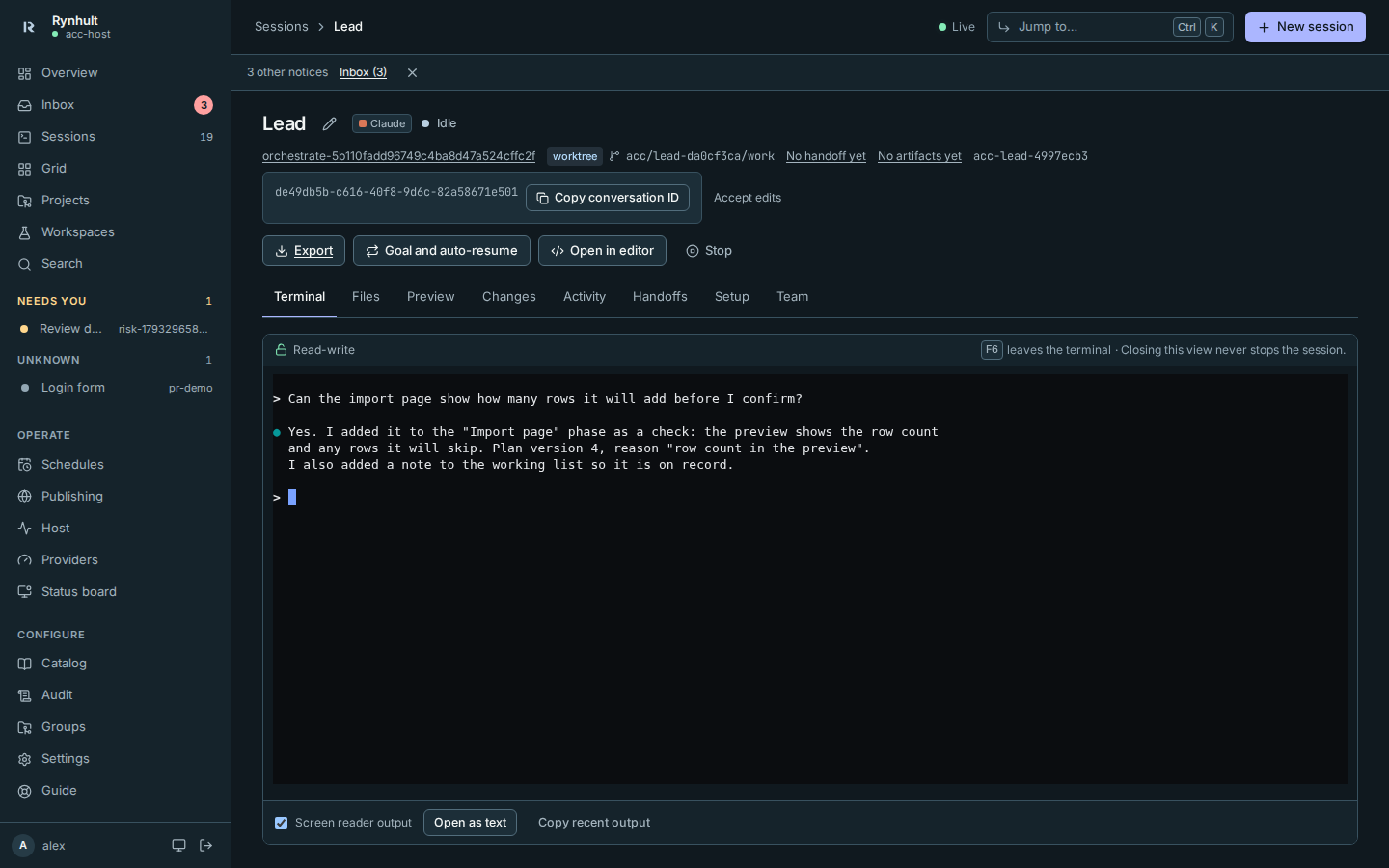
Open the lead's Terminal whenever you want to ask a question or change your mind. The lead records agreed changes in the plan and working list; conversation alone does not widen a grant or answer an owner approval.
5. Check who is chosen, and why
Selection is the owner's ordered allow-list per task type. The score only breaks ties; neither is a quality claim. The lead classifies the task; the selector does not compare the quality of model answers.
<!-- lane C -->Every assignment has a role/profile, a goal, acceptance checks and requirement IDs. The lead picks the smallest sufficient profile already in your grant. No matching profile means asking you for a suitable new grant, not falling back to an unrelated role. Required image input/tools/permission are hard filters; wanted skills are only a preference.
Eligible candidates follow the owner's provider/model order, then score within that position. Selection never exceeds your frozen agents, machines, permissions or budget. Offline machines and unsigned-in agents are rejected.
<!-- lane C -->A manual pin follows the same task-specific selection path as an automatic choice. There is no v2 plain-start bypass through another task type's allow-list. The explanation records the classification, chosen profile, policy/catalog revision and rejections. A person can override only to another eligible choice.
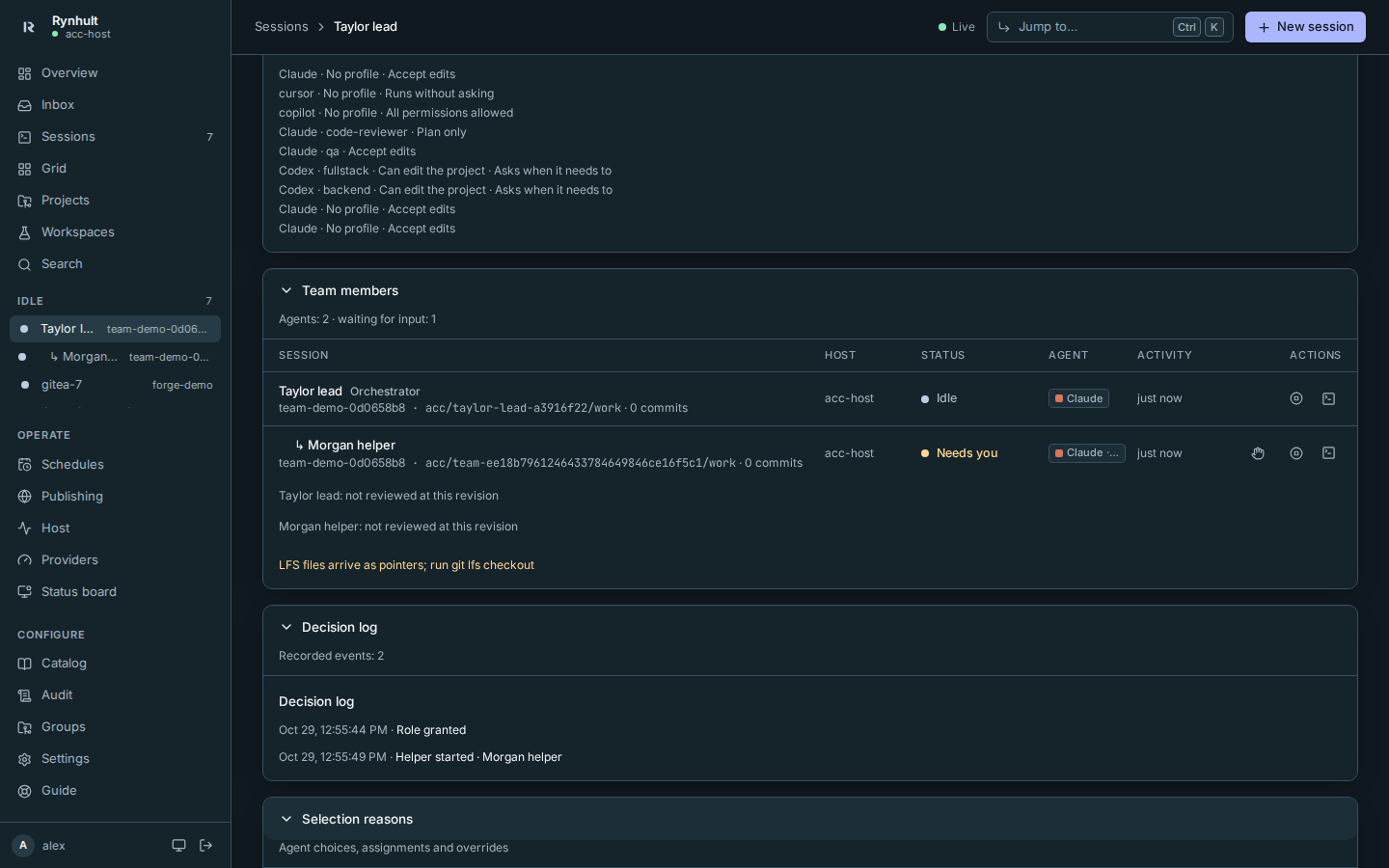
In Settings → Selection allow-lists, the owner can order providers/models for each task/profile, for example Codex then Claude for implementation, or Claude for a security review. Those are preferences, not benchmarks.
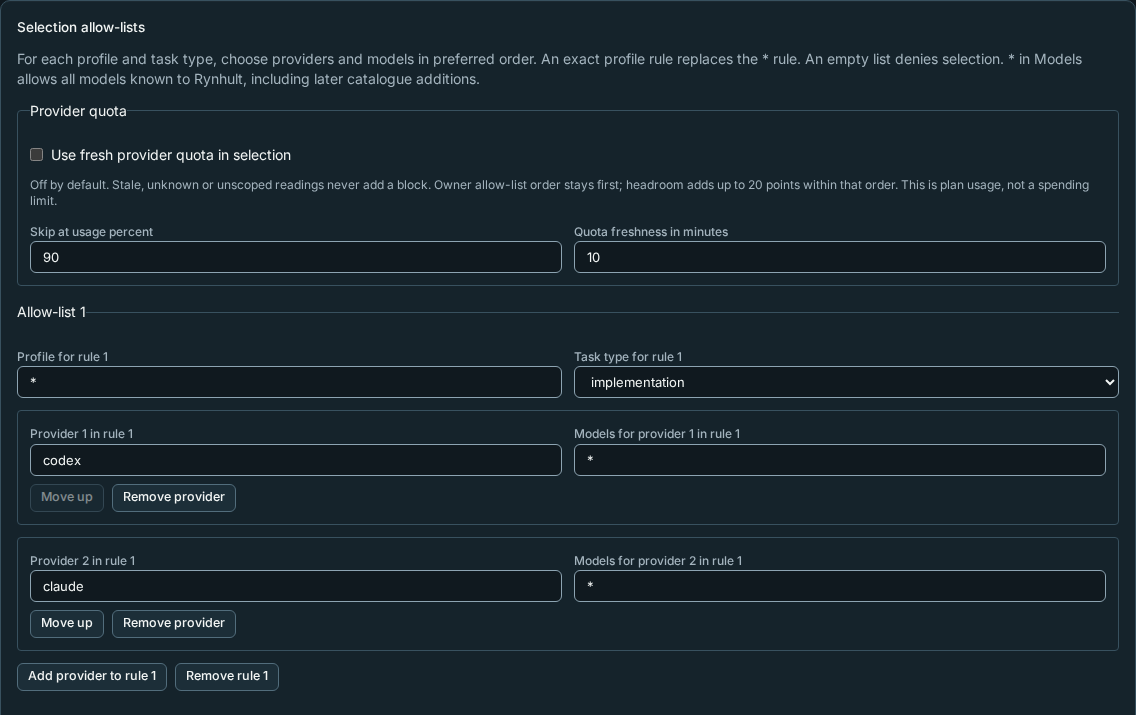
Quota hints are separately opt-in. With Use fresh provider quota in selection, fresh usage at/above the owner's threshold (90% by default) rejects a choice. Unknown/stale/malformed usage does not block work, and another person's usage is not disclosed in reasons. Quota headroom cannot jump the owner's earlier eligible choice, and these percentages are not prices or promises of capacity.
Replace helpers without losing their work
<!-- lane C -->Helpers are disposable by default. A finished, blocked or failed helper can be stopped and replaced, within the grant's concurrency and lifetime limits. Every execution is an attributable attempt, with versioned reports.
<!-- lane C -->The replacement gets the previous attempts' reports, handoffs, branches/heads, what was integrated, and the assignment's requirements/constraints. It can read the full evidence. It continues from the previous attempt's head unless the lead explicitly asks for a fresh branch; it is not re-briefed from scratch. Stopping a helper frees a confirmed running slot, not a lifetime start.
Native subagents are different: they run inside their parent, use its slot and permission, are not shown in the tree, and Rynhult cannot cap their count.
<!-- lane G -->Council runs managed helpers within the available grant, or sequentially in one context labelled single-session perspectives, not independent voices. It does not evade managed capacity with native fan-out.
6. Review, gate and integrate
<!-- lane A --> <!-- lane C -->Workers commit on their own branches and never push, merge or open PRs.
Coordinating helpers may integrate only stopped descendants through acc-team merge.
The root lead brings you one consolidated PR; you merge main.
Reviewers stay read-only and report findings against the reviewed head. Remediation is a separate assignment, with independent review of a sensitive fixed head. An earlier verdict does not review later commits.
<!-- lane A --> <!-- lane G -->Workers run related checks; the gate owns the full suite. If the queue is off/unavailable or the project runs helpers in containers, say full suite not run and why. Never move a container branch to host execution to bypass that restriction. Gates require owner approval because they run branch tests and configuration as the project's account, outside helper guardrails.
<!-- lane B -->A gate result covers the tested branch head, base SHA and command digest, with runner version recorded. Moving the branch/base or changing commands makes it stale; queue a new gate before integration. Expand Verification binding on the gate job to inspect the full values. Not recorded means missing evidence, not proof of a current pass; the stale or unconfirmed warning remains visible when that disclosure is closed.
<!-- lane B -->A new failure that passes a targeted retry is retry-passed, not a clean pass: the lead must file a flake task you accept on the working list, or obtain a fresh clean gate. known-flake applies only to the owner's maintained project flake list, counts as a pass and is listed in the PR. The original failure is always kept; agents cannot silently quarantine it.
What stays yours
<!-- lane D -->The lead cannot widen the frozen grant, approve your permission/tool requests, answer your decisions, edit your constraints or merge main. Owner settings, gate commands, flake lists and public-action approvals remain person-controlled. An agent's report, repository text or image annotation is evidence, not authority.
7. Stop the team, or let its time expire
- Open the lead's Team → Settings tab and expand Team limits.
- Select Stop team, then confirm Stop team.
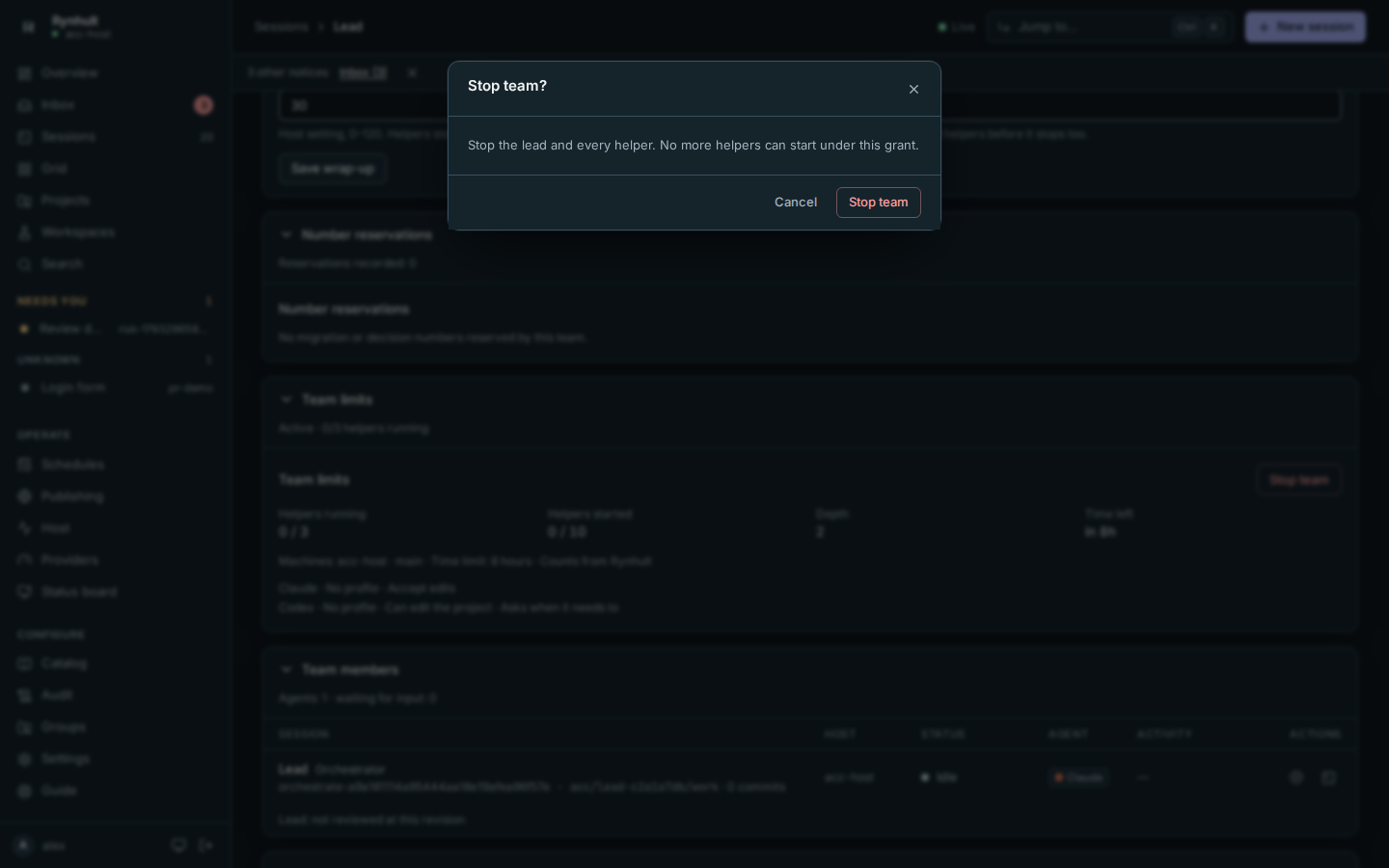
This closes the grant and requests the lead and managed helpers to stop. It
cancels running and queued gates, recording cancelled: team stopped.
Keep checking confirmation, especially for an offline machine's Stop pending;
requested is not confirmed or finished. Branches/conversations remain, and the
working list remains readable while its questions leave the Inbox.
Expiry is different: helpers stop, then the lead has a 30-minute wrap-up (owner-configurable 0–120 minutes) for report, plan/working-list updates and finishing stopped helpers only. No new work, helper or gate may start. The lead stops at the end; manual Stop team does not grant that wrap-up. Use a new lead/grant for more implementation.
Troubleshooting
<!-- lane B --> <!-- lane C --> <!-- lane D --> <!-- lane F -->- No Plan or working list: ask an owner to check Admin features and explicit server overrides, not to restore an obsolete three-switch enablement setup.
- A phase will not start: resolve its named blocking card/prerequisite. In prepare mode only read-only discovery is authorized.
- No helper fits: inspect task-specific rejection reasons, required profile, sign-in, machine, budget and hard capabilities. Ask for a new grant if needed.
- Needs you: Answer in Inbox takes you to the actual permission prompt; the lead cannot answer it.
- Stop pending: reconnect and verify the stop; do not infer completion.
- More: Orchestrator troubleshooting.
This page is generated from docs/wiki/User-Guide/Orchestrate-a-Project.md; the same page is under Guide inside Rynhult.