Getting started
Screenshots use fictional demo accounts and fixed example metrics, not live systems or qualification evidence.
Before you start
- Rynhult is installed on your machine (see Install) and you can open it in a browser, for example at
https://rynhult.example.com. - At least one agent CLI (Claude Code, Codex or another) is installed for your agent account; the installer sets up the ones you pick. You sign it in from the browser, on Providers (see Host and providers).
- Each device you use can find Rynhult's name (see No DNS server?).
After the first sign-in, the Get started list walks you through your first project and session from the dashboard. Machine installation, recovery and owner-run qualification can still require a trusted terminal. Native desktop apps are post-v1 experimental work; the installed web app uses a reachable Linux main and is part of v1, including on phones. Existing Linux/macOS/Windows-WSL nodes remain supported; see platform scope.
First sign-in
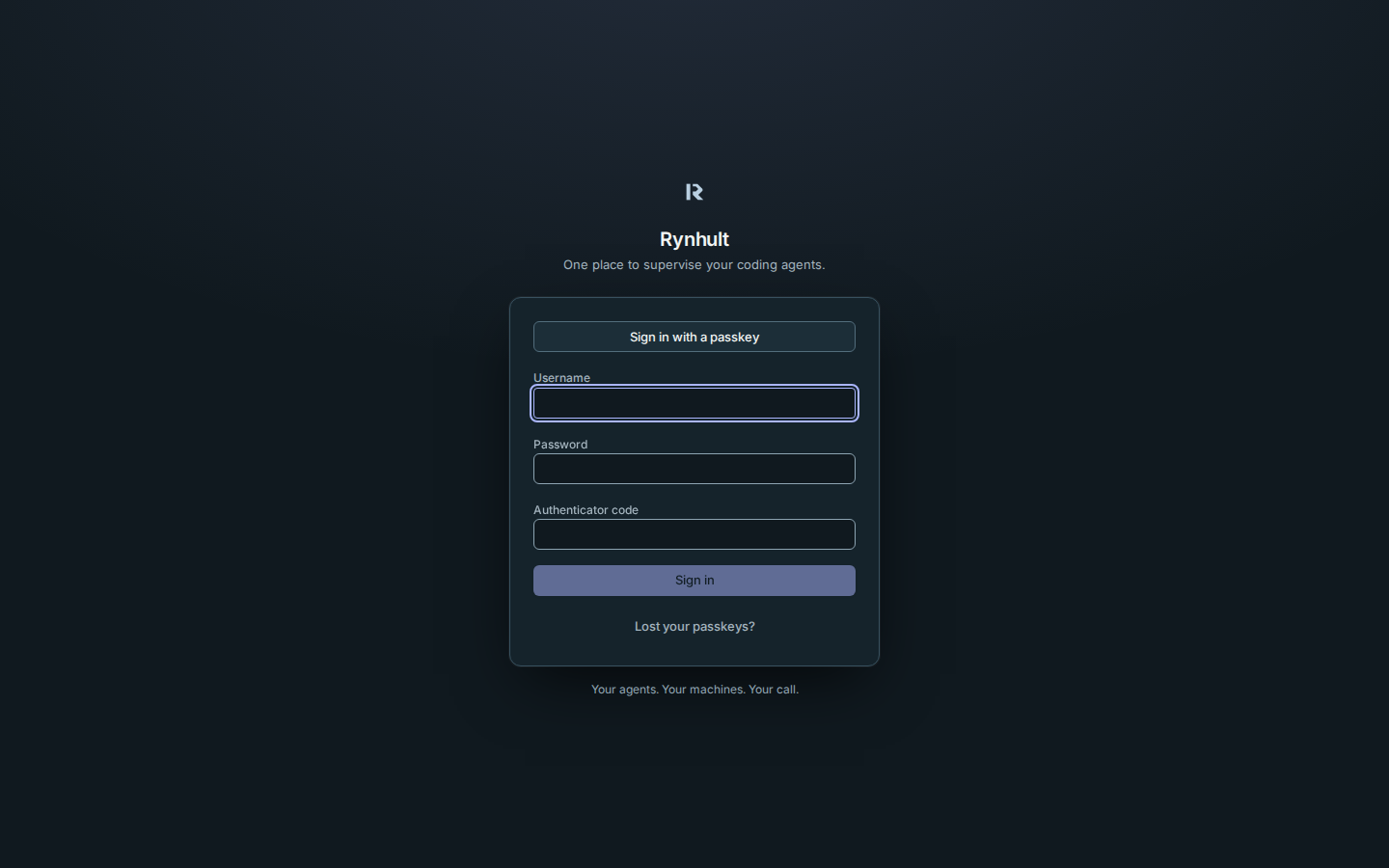
The sign-in screen says “One place to supervise your coding agents.” Sign-in and setup share the line “Your agents. Your machines. Your call.”
The first time Rynhult starts it has no users. It writes a one-time setup token to a file only an administrator can read.
- Open Rynhult. It shows Set up Rynhult.
- On the server, read the token with the command below, then paste the token into Rynhult:
sudo cat /srv/acc/data/secrets/setup_token - Scan the QR code with an authenticator app (any TOTP app works).
- Choose a Username and a password (12 characters or more), enter the 6-digit code from the app, and select Finish setup.
You are signed in. Later sign-ins use your username, password and a fresh code, or a passkey enrolled in Settings. An owner can require passkeys per role. Sessions last 14 days.
The layout
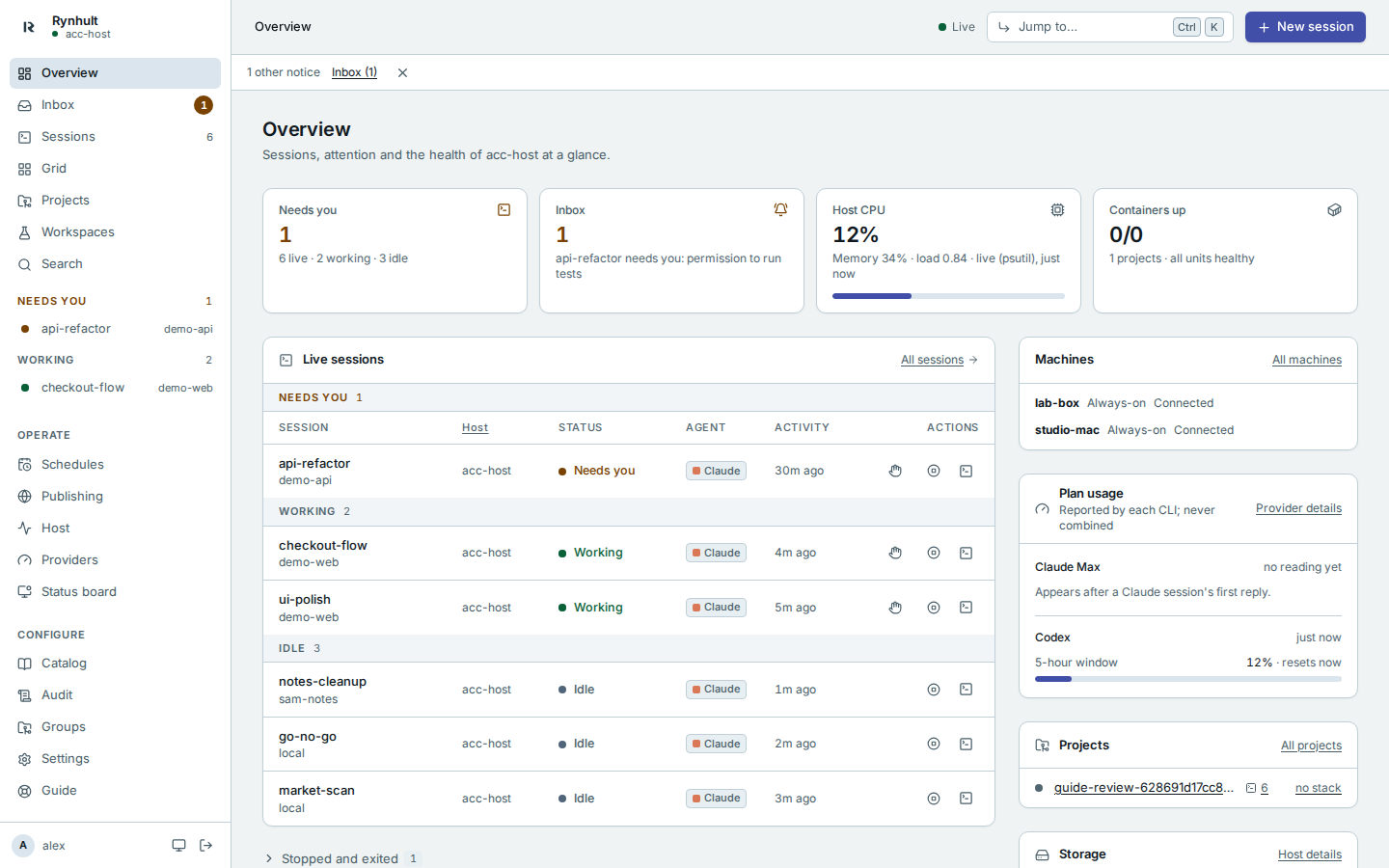
The angular R mark identifies Rynhult on the sign-in screen, in the sidebar and in your installed app icon. Its ink follows the light or dark surface. The dark theme uses charcoal and slate surfaces with frost and periwinkle accents; the light theme uses snow and blue-grey surfaces with a deeper periwinkle accent. Amber still means attention, red means failure, and green means healthy.
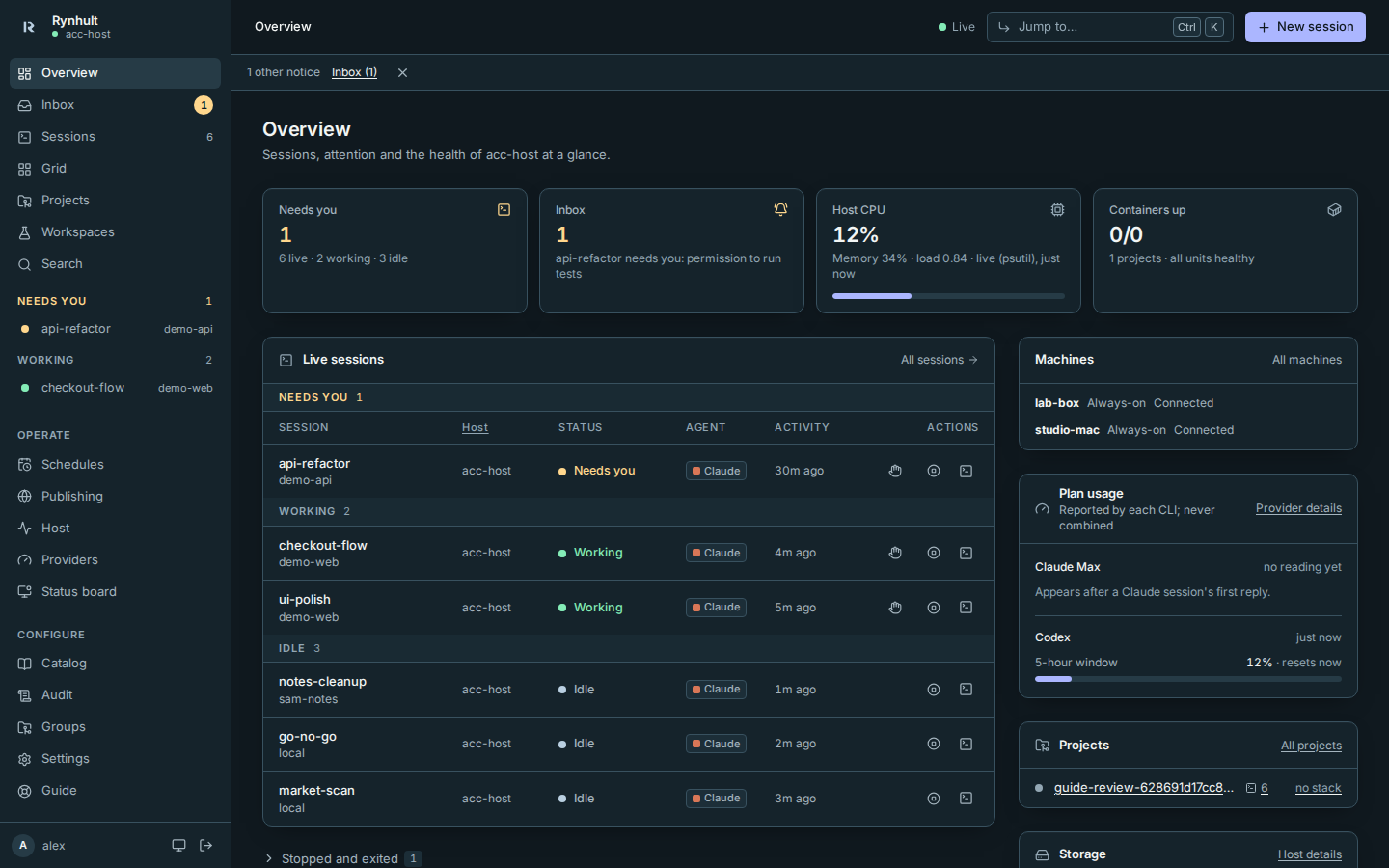
- Sidebar. The main pages, then every running session, one click away, grouped into Needs you, Working, Unknown and Idle (five each, then +N more). Unknown means working-hook evidence is too old. The dot beside the host name turns red if Rynhult cannot reach its broker (sessions can't be started or attached then).
- Top bar. Where you are (breadcrumbs), a Live indicator that turns red when data stops updating, Jump to… (⌘K / Ctrl K) for pages, projects, sessions and commands, and New session. Search in the sidebar finds words in conversations; Jump to… also links to it.
- Guide. The last item in the sidebar opens this documentation inside Rynhult.
- Theme. Rynhult follows your device's light or dark setting (System). The button at the bottom of the sidebar cycles System, Light and Dark; Rynhult remembers a Light or Dark choice on that device, and System follows the device again, even when it changes while Rynhult is open.
The browser's theme colour follows the selected Rynhult surface too, including an explicit Light or Dark choice opposite to the device setting. The installed-app launch splash remains charcoal; OS/browser chrome support can vary.
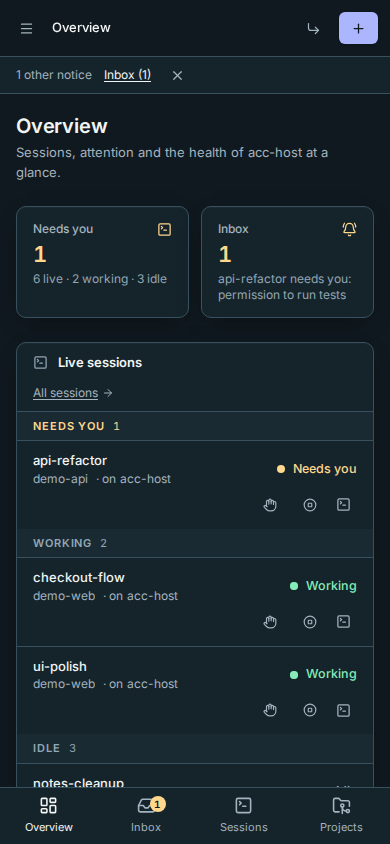
- Phone. A tab bar at the bottom (Overview, Inbox, Sessions, Projects) and the full menu behind the menu button. If Rynhult can't reach its broker or the network drops, a red banner shows under the top bar.
Get started
Until you've done them, the Overview starts with a Get started list. Each step ticks itself when it's done:
- Sign in an agent. Open Providers and sign Claude Code, Codex or another agent CLI in for your agent account.
- Add a project. New project makes an Empty folder, a Clone repository or, when GitHub is set up, a New GitHub repo (see Projects). Its optional What do you want to build? answer starts the project brief. A clone starts untrusted, because trust lets agents run with the repository's own config and hooks.
- Start your first session. Start a session opens New session with your project chosen.
Hide removes the list on this browser.
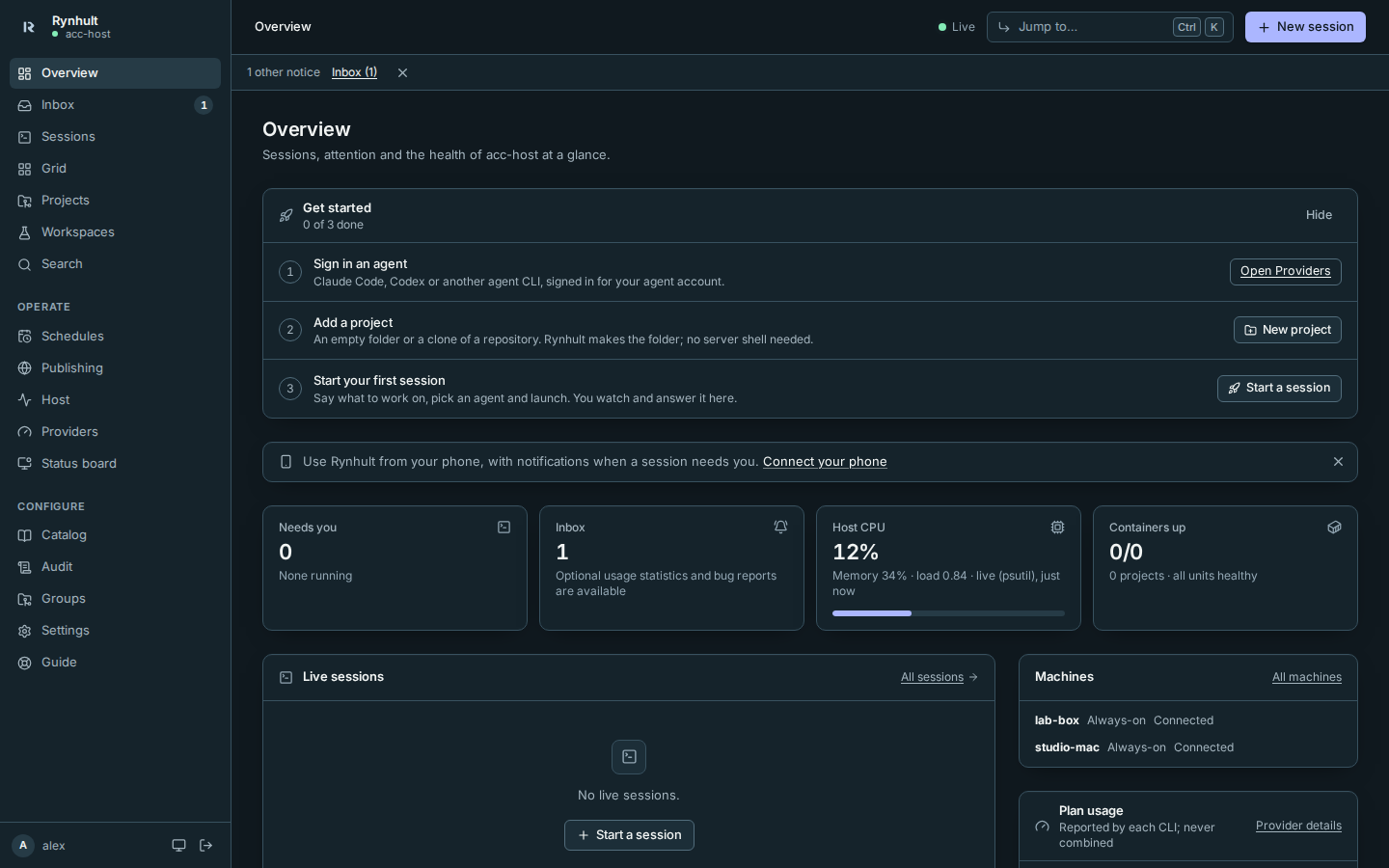
Under it, a one-line banner points to Connect your phone: use Rynhult from your phone, with notifications when a session needs you. Select × (Dismiss) when you're done with it, or if you don't want it. It stays dismissed for you on every browser, and it never shows inside the installed phone app (opened from the home screen).

Your first session
- Select New session. If you have no project yet, select New project inside it; what you entered stays.
- Say what to work on in Task, and select Launch (details in New session). On a project that isn't trusted yet the button reads Trust and launch: it asks once, then launches.
- Rynhult opens the session's page with its live terminal. Type into it as you would in a local terminal.
Closing the browser never stops a session. It keeps running in tmux on the server; come back to it from the sidebar.
Optional PostgreSQL for an owner-managed installation
SQLite remains the default and needs no setup changes. An owner can opt into PostgreSQL with ACC_DATABASE_URL after installing Rynhult's postgres Python extra. One main is the default. High availability requires explicit manual standby setup and fencing; Rynhult does not configure PostgreSQL replication.
Keep the connection URL and credentials in the root-only service configuration (/etc/default/accd, mode 0600), never in an agent-readable file. PostgreSQL defaults to verified TLS, including hostname verification; configure the database CA rather than disabling verification when a certificate is refused.
An existing installation requires an offline owner-run transfer from a trusted root shell with per-table row-count and checksum verification. The transfer CLI refuses member and agent accounts and never overwrites a populated target. Preserve the vault key and other files separately. Rynhult's current server-backup capture supports SQLite only; PostgreSQL needs independent database backups and restore drills. Ask the installation owner to follow the repository's docs/POSTGRESQL.md runbook before switching the setting. The dashboard and agent-session workflow stay the same.
This page is generated from docs/wiki/User-Guide/Getting-Started.md; the same page is under Guide inside Rynhult.