Keys
Screenshots use fictional demo accounts and fixed example metrics, not live systems or qualification evidence.
What it's for: keep API keys (OpenAI, Stripe, Sentry, …) in one place and give them to projects. Each session in a project gets the keys as environment variables, so an agent can call curl -H "Authorization: Bearer $OPENAI_API_KEY" … without the key ever being pasted into a prompt, a file or the chat.
A key has:
- a name, shown everywhere (for example OpenAI (team));
- a variable, the environment variable sessions see (for example
OPENAI_API_KEY): up to 64 capital letters, digits and_, not starting with a digit; - a value, which is write-only. Once you've added a key, nobody can read the value back, you included. You can only replace it.
- sharing: Private (only your launches use it, and nobody else sees it exists) or Shared (everyone who signs in sees its name and can give it to their own projects; only you can change it);
- other machines: off by default. When it's on, sessions on other machines get the key too;
- an optional note.
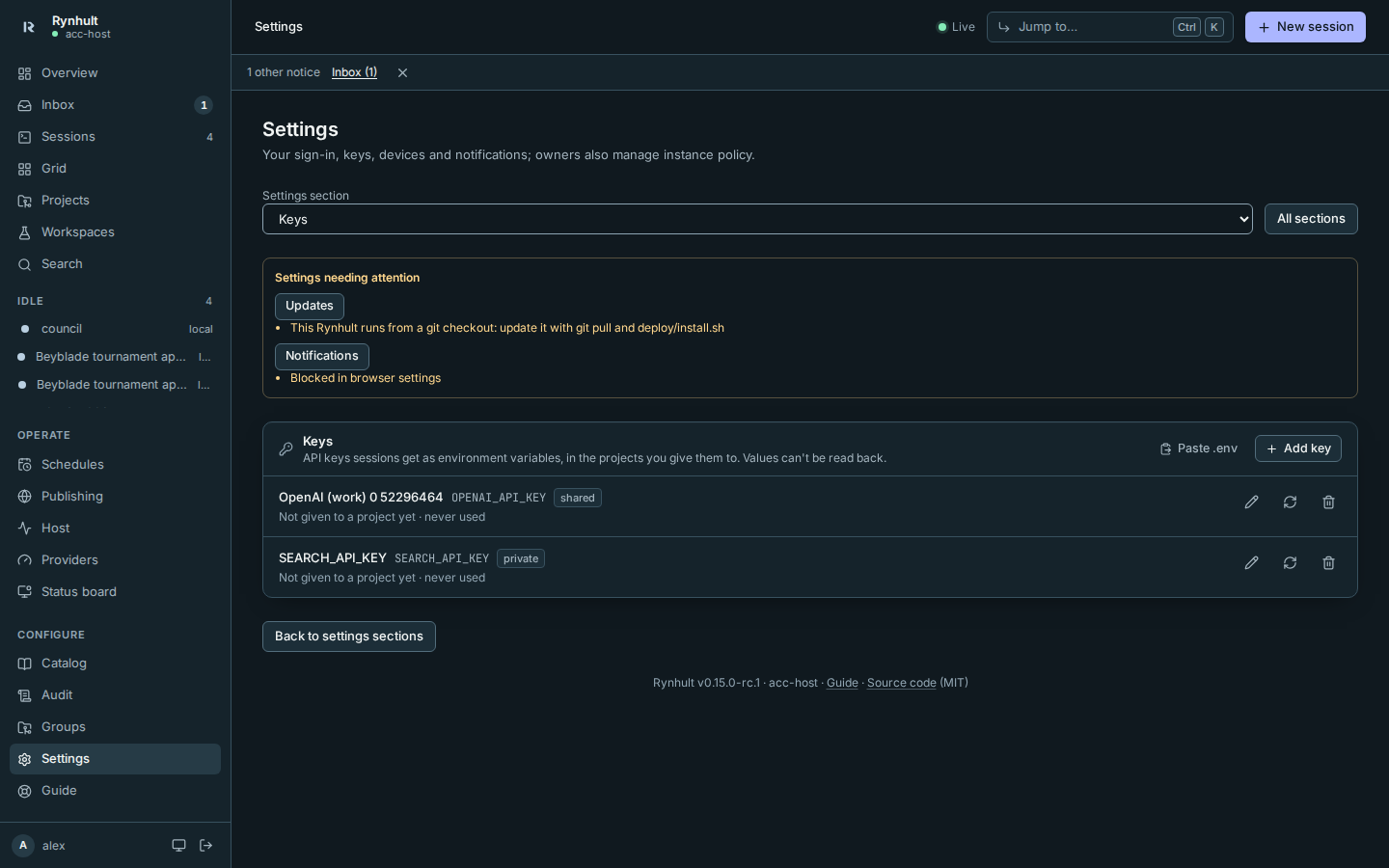
Add a key
- Open Settings and go to Keys.
- Select Add key.
- Fill in Name and choose Variable from the dropdown. Names are grouped by provider (AI, code hosting, cloud, packages and app services), with a short description of each. A variable already in your visible keys is marked you have one; you can still choose it.
- For a name not listed, select the final Custom option and fill in Custom variable. Lower-case letters become capitals and punctuation becomes
_. Use up to 64 characters, and do not start with a digit. - Fill in Value. Suggestions name the setting; they do not configure a tool for you. For example,
GOOGLE_APPLICATION_CREDENTIALSneeds the path of a credential file already on the session's machine, not JSON contents. - Choose Private or Shared, and tick Other machines if sessions on enrolled machines should get it.
- Select Add key.
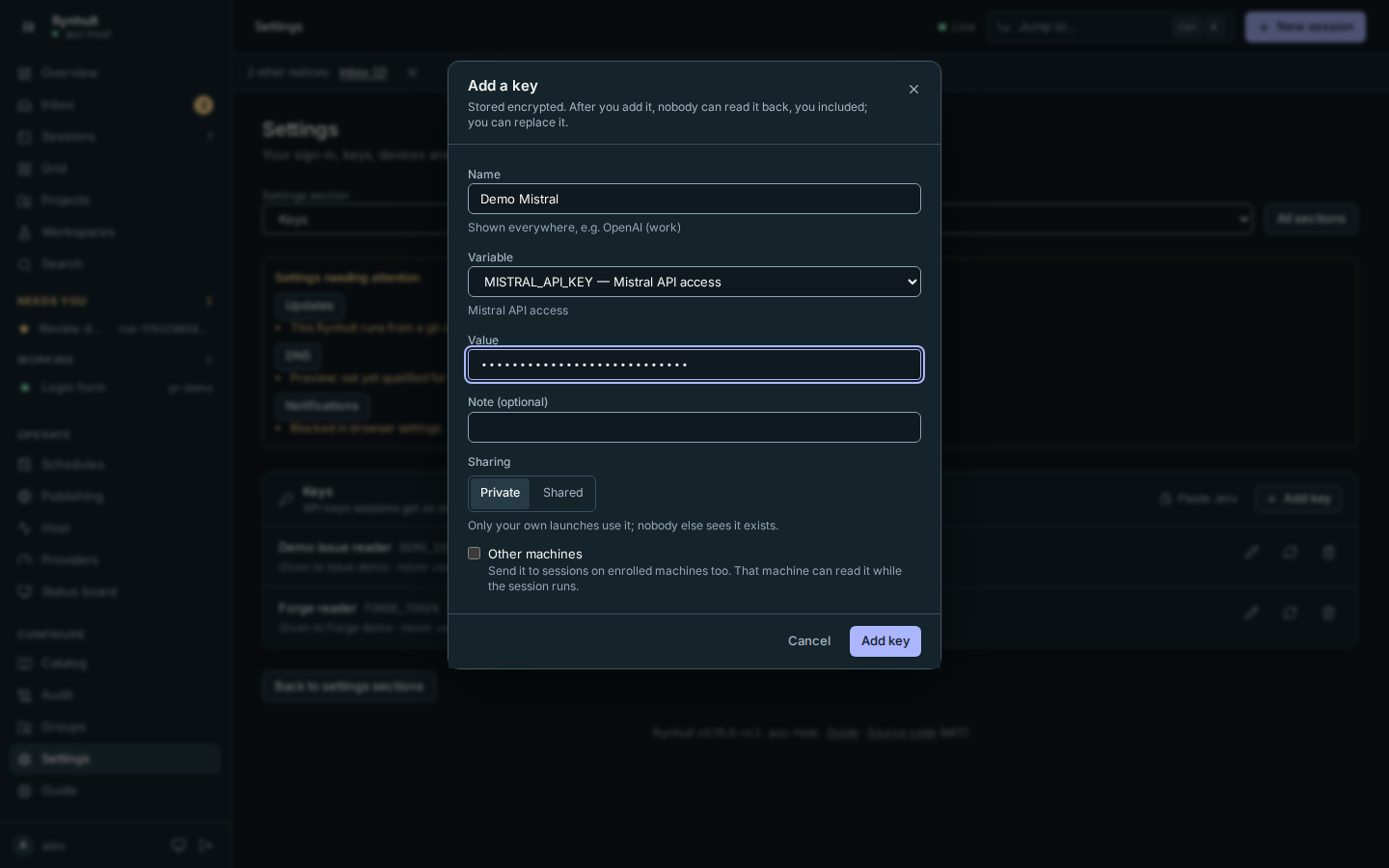
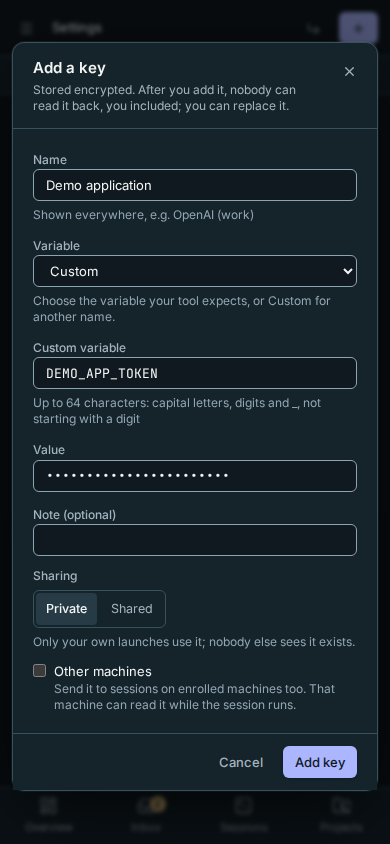
The key appears in the list with its variable, its sharing, the projects it's given to and when a session last used it.
Interpreter, loader and shell startup variables cannot be keys: any name starting with PYTHON, LD_ or DYLD_, and names such as NODE_PATH, NODE_OPTIONS, PERL5LIB, RUBYOPT, JAVA_TOOL_OPTIONS, BASH_ENV, ENV and ZDOTDIR. The same goes for variables that make git run a command or read other configuration: any name starting with GIT_CONFIG, GIT_SSH_COMMAND, GIT_ASKPASS, GIT_PAGER, GIT_EDITOR, EDITOR, PAGER and similar. Nor can a key move where an agent's coding tool reads its settings, which is where Rynhult's guardrails are: CODEX_HOME, CLAUDE_CONFIG_DIR, COPILOT_HOME, CURSOR_CONFIG_DIR, GNUPGHOME, and any name starting with XDG_, NPM_CONFIG_ or OPENCODE_. NODE_AUTH_TOKEN, NODE_ENV, GIT_AUTHOR_* and GIT_COMMITTER_* are fine. They can load code before the session starts. Choose the credential variable your service expects instead. If an older key uses a reserved name, remove it from the project and add a key with the credential's proper variable before the next launch; the broker refuses to launch with the reserved variable.
Using the same variable for separate keys is allowed, but do not give both to the same project: Rynhult refuses that project's launch rather than choosing a value.
Paste a .env
If your keys are already in a .env file:
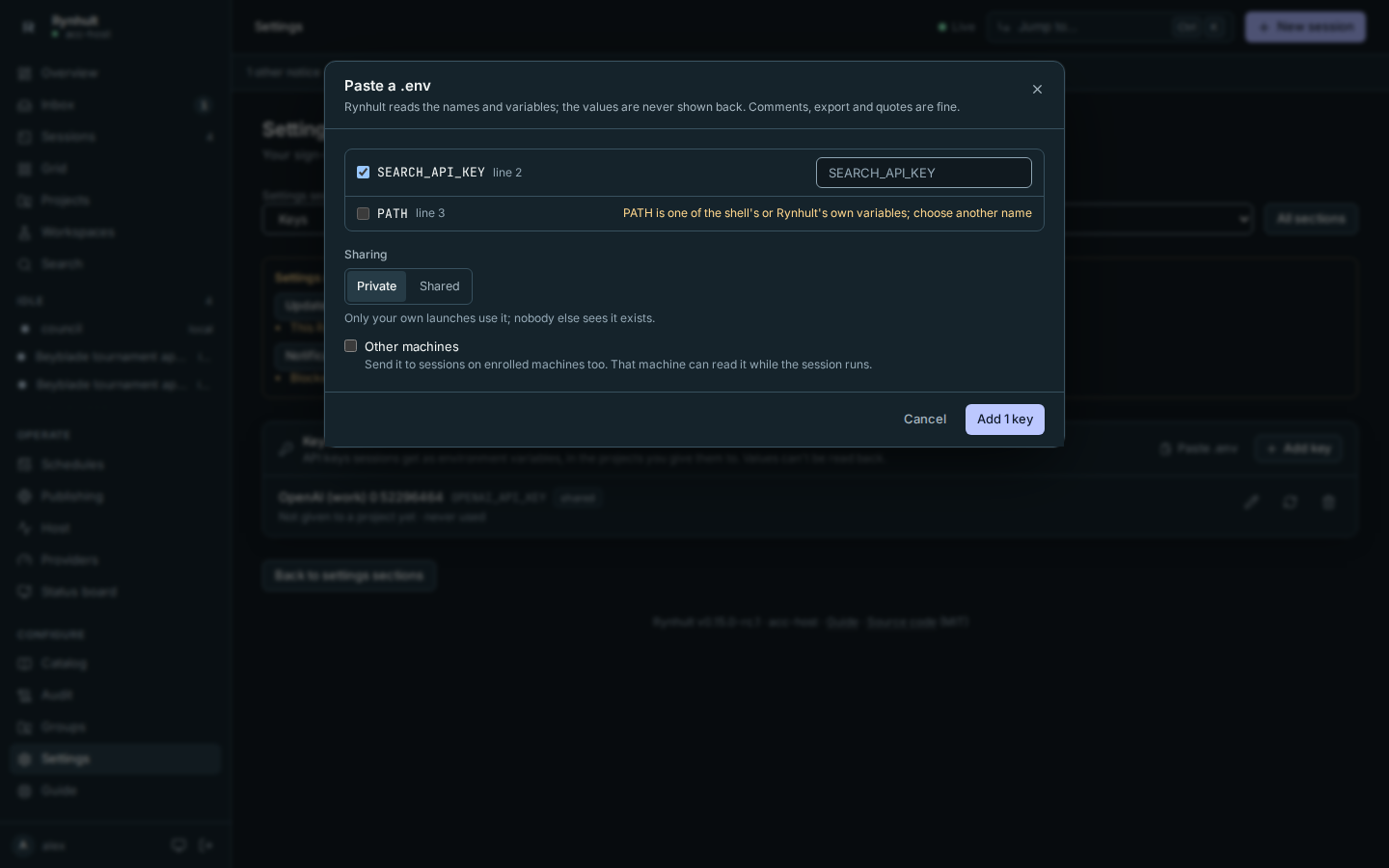
- In Settings → Keys, select Paste .env.
- Paste the file's contents and select Read it. Comments (
#),exportand single or double quotes are all understood. - Rynhult lists each variable it found, with the line it came from. The values are not shown. A line Rynhult can't use says why (for example
PATHis one of the shell's own variables, or a value is empty). A variable you already have a key for is marked you have one and starts unticked. - Tick the ones to add, give them names if you like (the variable is the default name), choose the sharing, then select Add N keys.
Give a key to a project
- Open the project (Projects, then the project's name).
- Open the project's Keys tab, choose a key in Choose a key… and select Give.
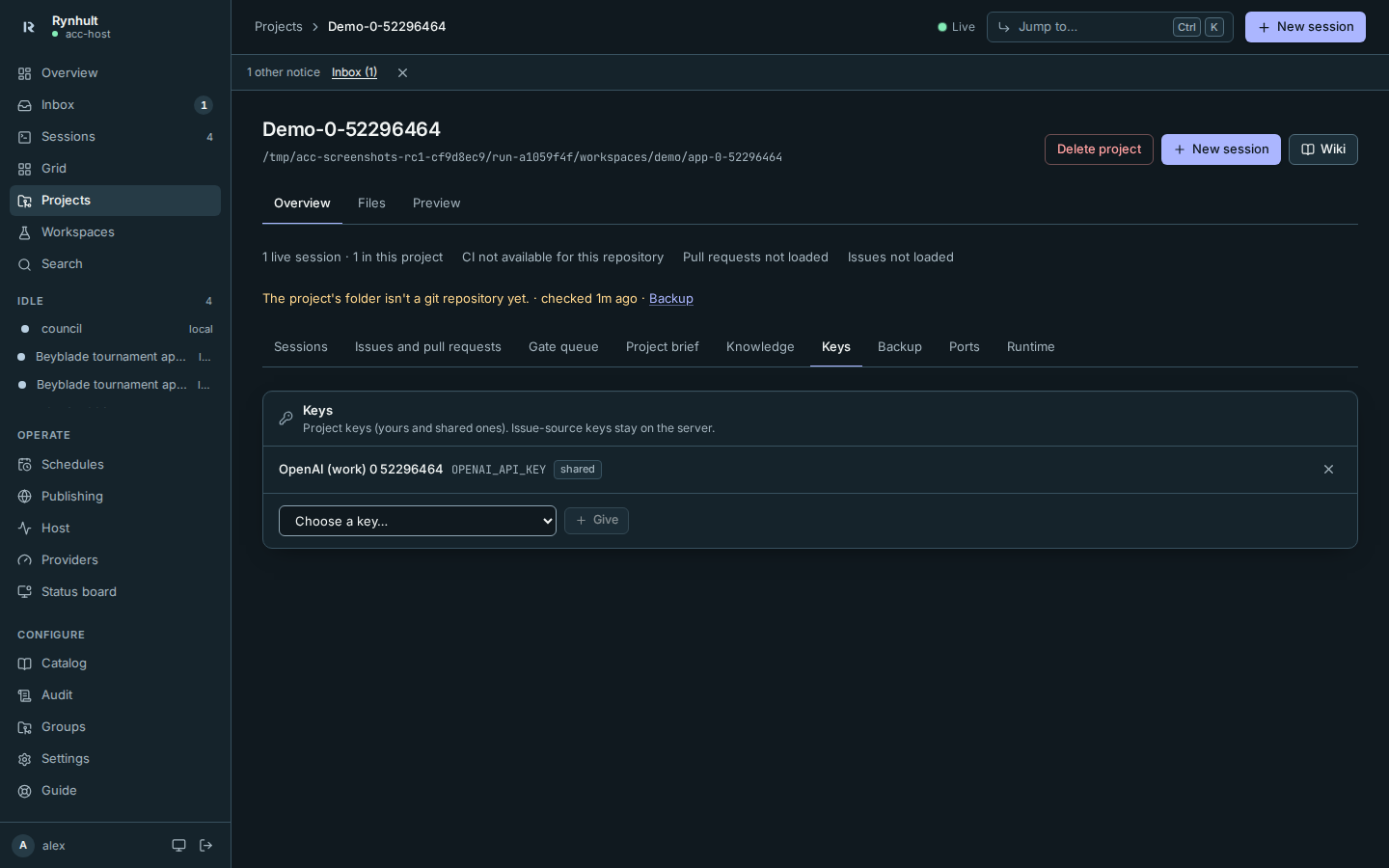
Its sessions get the key from their next launch or resume. To take it back, select the × beside it; sessions lose it at their next launch or resume. Archived projects have the same card, because their sessions can still be resumed.
You can give your own keys and shared keys to projects you can launch in (members: their own projects).
What a session gets
- Keys selected for a project's GitLab, Gitea / Forgejo or Linear connection are server only for that project: excluded from agent environments, key context and MCP delivery. This persists after disconnecting the source; explicitly remove and give the key again to repurpose it. Use dedicated source keys. Already-running sessions keep any key they received before its purpose changed until their next stop/resume. See Projects.
- At every launch and resume, a session gets the keys given to its project that the person who launched it may use: their own keys and shared ones. Someone else's private key never reaches your session.
- New session lists the variables under Keys this session gets, by name only, with descriptions for common variables.
- The session's instructions get a short paragraph naming the variables and keys it has (never the values), so the agent knows what it can use.
- OpenCode also uses a provider's key directly when the variable has that provider's usual name (
ANTHROPIC_API_KEY,OPENAI_API_KEY,OPENROUTER_API_KEY, …): that's how you give OpenCode sessions in a project their models. See Host and providers. - On another machine, only keys with Other machines on are sent; the others are listed as not sent to other machines. The key is written into that session's private environment file on the machine.
Change or delete a key
These are for the key's owner only:
- Edit (pencil): rename it, change its variable using the same dropdown or Custom, note, sharing or other machines. Existing custom names stay editable. Sessions see a changed variable from their next launch or resume.
- Replace (arrows): a new value. New launches and resumes get it; running sessions keep the old one until their next launch or resume. Rynhult keeps hiding the old value in what those sessions produce (search, exports, Activity), and also after you delete a key. Replacing a key here doesn't revoke it: if it leaked, revoke it with its provider too.
- Delete (bin): sessions lose the key at their next launch or resume. The value can't be recovered. A key that an MCP server in the Catalog uses can't be deleted until the server is removed.
Owners don't see members' private keys in Rynhult (not even their names, in the audit log), but owners are fully trusted: they can open a member's session terminal, where the session's keys could be printed. When someone leaves an owner can delete all their keys from Settings → People (see People and sign-in).
Keys stay out of view
- Rynhult never shows a value: not in the API, the Activity tab, history search, session exports, Changes, the audit log or a session's launch spec.
- If an agent prints a key's value anyway, Rynhult shows
«key: NAME»in its place in Activity, doing now, Changes, Search and Export. Values shorter than 8 characters are left as they are, since they would match too much text. - Guardrails stop an agent reading the session's own environment file (
session.env). Using a variable in a command is fine: that's what keys are for. - Keys are on disk only while a session runs: when it stops, ends or is archived, Rynhult removes its environment file (and any MCP settings with values in them), on this machine or the session's own. Resume writes them again with the keys the project has then. If that machine is offline at the time, Rynhult removes them as soon as it's back.
- All of your projects run as your one agent account, so a running session could read the files of your other running sessions. Giving a key to one project keeps it out of the others' environments, but it isn't a wall between your own agents.
- The live terminal shows what the agent's programs print, as it happens. If one prints a key, it's visible there.
- Every change is in the Audit log (
vault.add,vault.replace,vault.rename,vault.share,vault.remote,vault.delete,vault.give,vault.take), plusvault.usefor each launch and resume, listing the key names.
MCP server secrets
Secrets you give an MCP server in the Catalog are stored as keys too: shared keys named after the server and its setting (for example Search: SEARCH_TOKEN). Servers added before keys existed were moved into the vault once, owned by whoever added the server. A session with that server gets the secret only if the person launching it may use the key, and on another machine only when Other machines is on.
Troubleshooting
| Message | What it means | Fix |
|---|---|---|
| two keys given to this project use OPENAI_API_KEY: … | Two keys with the same variable are given to the project. Rynhult refuses the launch rather than choosing one. | Remove one from the project, or change one key's variable. |
| … is one of the shell's or Rynhult's own variables | Variables such as PATH, HOME, LD_…, ACC_… and RYNHULT_… can't be keys. |
Choose another variable. |
| MCP server … uses the key …, which its owner keeps private | The server's secret belongs to someone else and isn't shared. | Ask its owner to share it, or add the server again with your own key. |
| … which isn't allowed on other machines | The session runs on another machine and the key's Other machines is off. | Its owner turns on Other machines, or run the session on this machine. |
| the vault's key … is missing | The server lost vault.key, the file the values are encrypted with. |
An owner restores it from the backup (see the installation's operations notes). |
Infrastructure Keys (owners)
Use the Infrastructure Keys card in Settings → DNS for DNS credentials. Cloudflare is qualified; Azure DNS, Route 53, Google Cloud DNS, DigitalOcean and Hetzner DNS are offered in preview. Their choices and saved credentials show Preview: not yet qualified for this release, with a note that Cloudflare is the qualified provider; follow DNS providers for their exact setup. These entries have a separate encrypted namespace: members and agents cannot list, read, reference, share, export or receive them. They never appear in project key choices, MCP secrets or other-machine delivery. Root and the Rynhult server remain trusted.
- Open Settings, choose DNS in Settings section, and select Add infrastructure credential.
- Enter Credential name, choose Certificates or Publishing in Credential purpose, keep Cloudflare as Credential provider, and enter Cloudflare API token. Create separate zone-scoped tokens with Zone Read and DNS Edit. Cloudflare may still permit all record types in that zone; use a delegated validation zone when qualifying narrower certificate authority.
- Confirm Current password and select Save credential. The value cannot be revealed or copied back.
- Validate checks whether Cloudflare zones are readable; success is shown in Keys. It does not prove TXT writes, issuance or renewal. Select the credential in DNS and certificates.
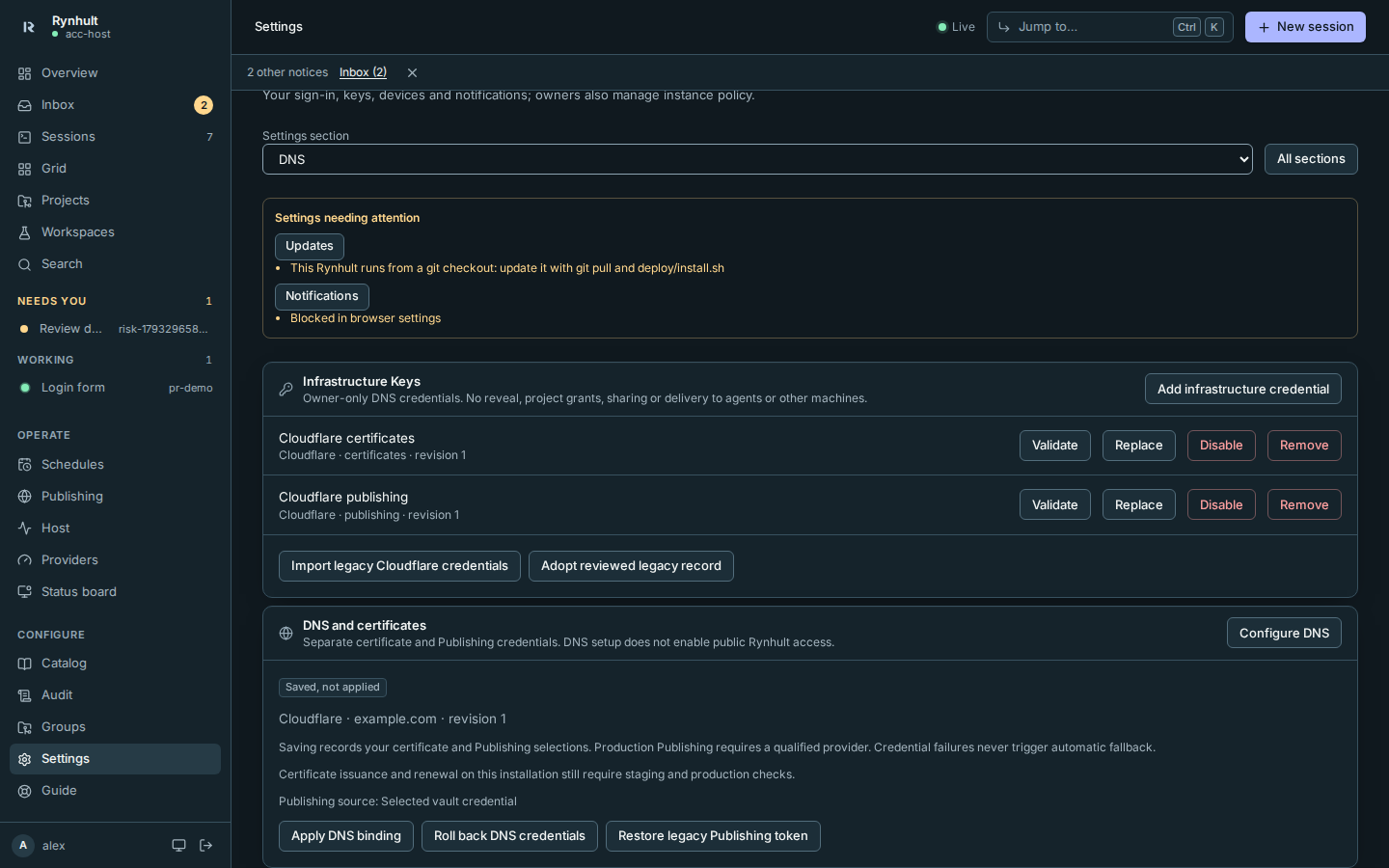
Replace stages a new encrypted revision. It does not revoke the old Cloudflare token or change a running Caddy process. Apply and verify staging issuance and production renewal before revoking the old token. Retained values remain encrypted for the 24-hour rollback period. Disable and Remove refuse bound credentials: select replacement credentials in DNS settings first. Disabling a certificate credential would prevent renewal.
Import legacy Cloudflare credentials reads the two fixed legacy files over the private helper channel, with ownership, mode and symlink checks. It never asks an agent to paste a token, overwrites an existing import or returns a value. Certificate and Publishing entries stay separate even when their values match. Import alone does not activate the binding or delete the legacy files. Existing files and backups still contain old secrets until the operator completes verified cutover and the rollback retention period. See Caddy hardening.
This page is generated from docs/wiki/User-Guide/Keys.md; the same page is under Guide inside Rynhult.