Schedules
Schedules start ordinary sessions at times you choose. Every schedule belongs to its creator and runs under that person's agent account. Only that person or a Rynhult owner can edit, pause or delete it.
Before you start, register and trust a managed project in your agent account. Each run uses its own worktree by default, so the project needs a git repository. Sign in to the chosen agent first.
- Open Schedules under Operate, then New schedule. (In New session, Advanced → Run → On a schedule does the same.)
- Choose the project and the Task, then the agent and profile, just as in New session. Under Advanced, leave Own worktree checked for an isolated branch per run.
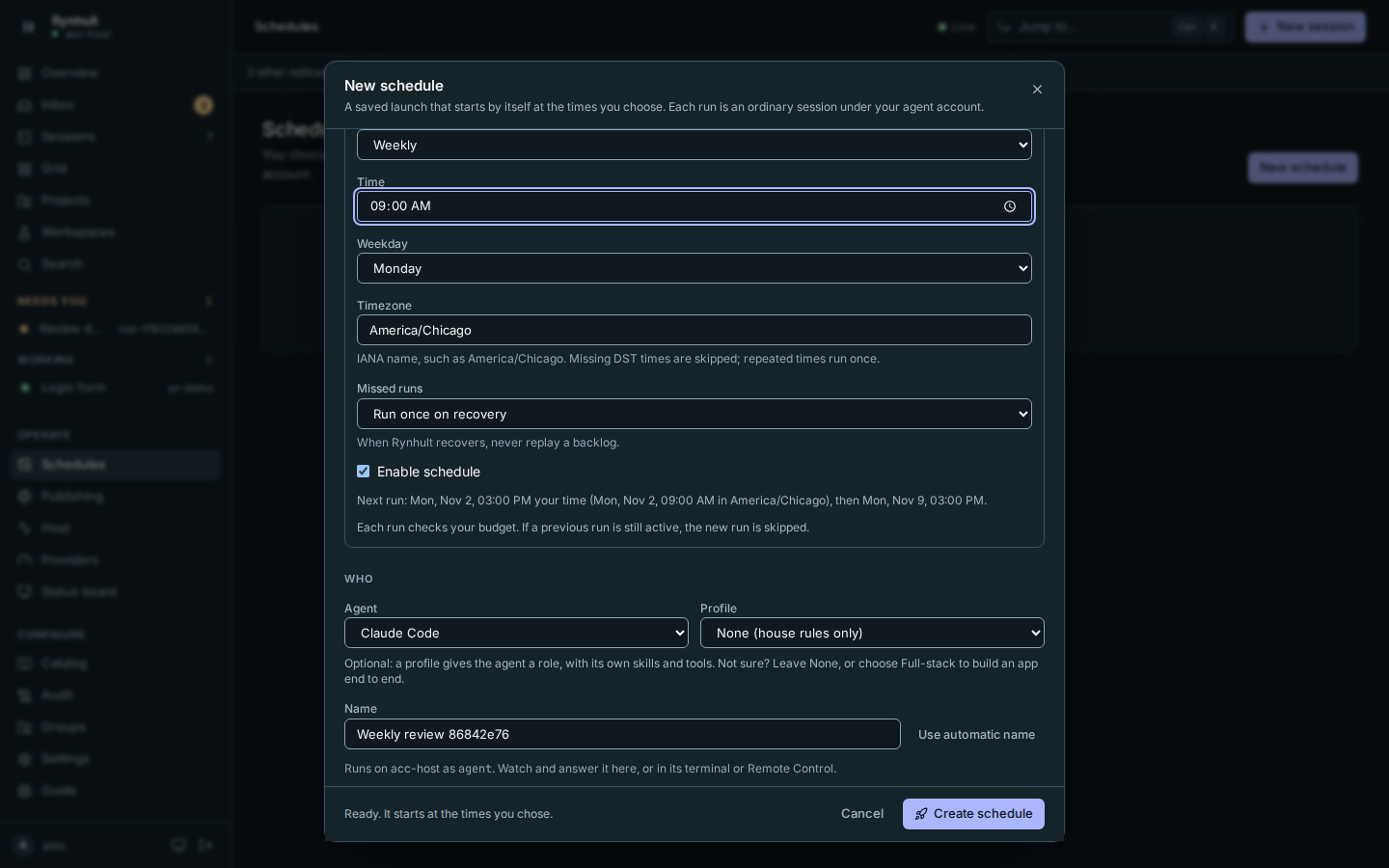
- Under the task, choose Timing: once, daily, weekly or a cron expression. Enter your Timezone as an IANA name, such as
America/Chicago. Cron has five numeric fields: minute, hour, day of month, month, weekday (Sunday is 0 or 7). Lists, ranges and steps are supported; for example,0 9 * * 1-5runs at 09:00 on weekdays. - Choose Missed runs. Run once on recovery coalesces missed occurrences into one run. Skip missed runs skips occurrences at least a minute late. Rynhult never replays a backlog. During daylight-saving transitions, missing local times are skipped and repeated local times run once, at the first occurrence.
- Under the timing, a line shows when it would run next, worked out as you type by the same rules the scheduler uses: Next run: Mon, Oct 26, 09:00 your time (09:00 in America/Chicago), then Mon, Nov 2. A paused schedule reads Paused. Once enabled, next run: …, and a timing that would never run says so (Won't run: a time already past, or the reason a cron expression isn't valid).
- New schedules start paused: the button reads Create paused schedule, and Run now or Enable on the Schedules page starts it later. Check Enable schedule to start it right away; the button then reads Create schedule. A mode that runs commands without asking needs explicit confirmation for the saved schedule. Editing requires that confirmation again. Repository files cannot create or enable schedules; repository schedule discovery is not supported.
The page shows the next occurrence, timezone and recent results. Timestamps for next runs and history display in your browser's timezone; the timing rule uses the schedule's saved timezone.
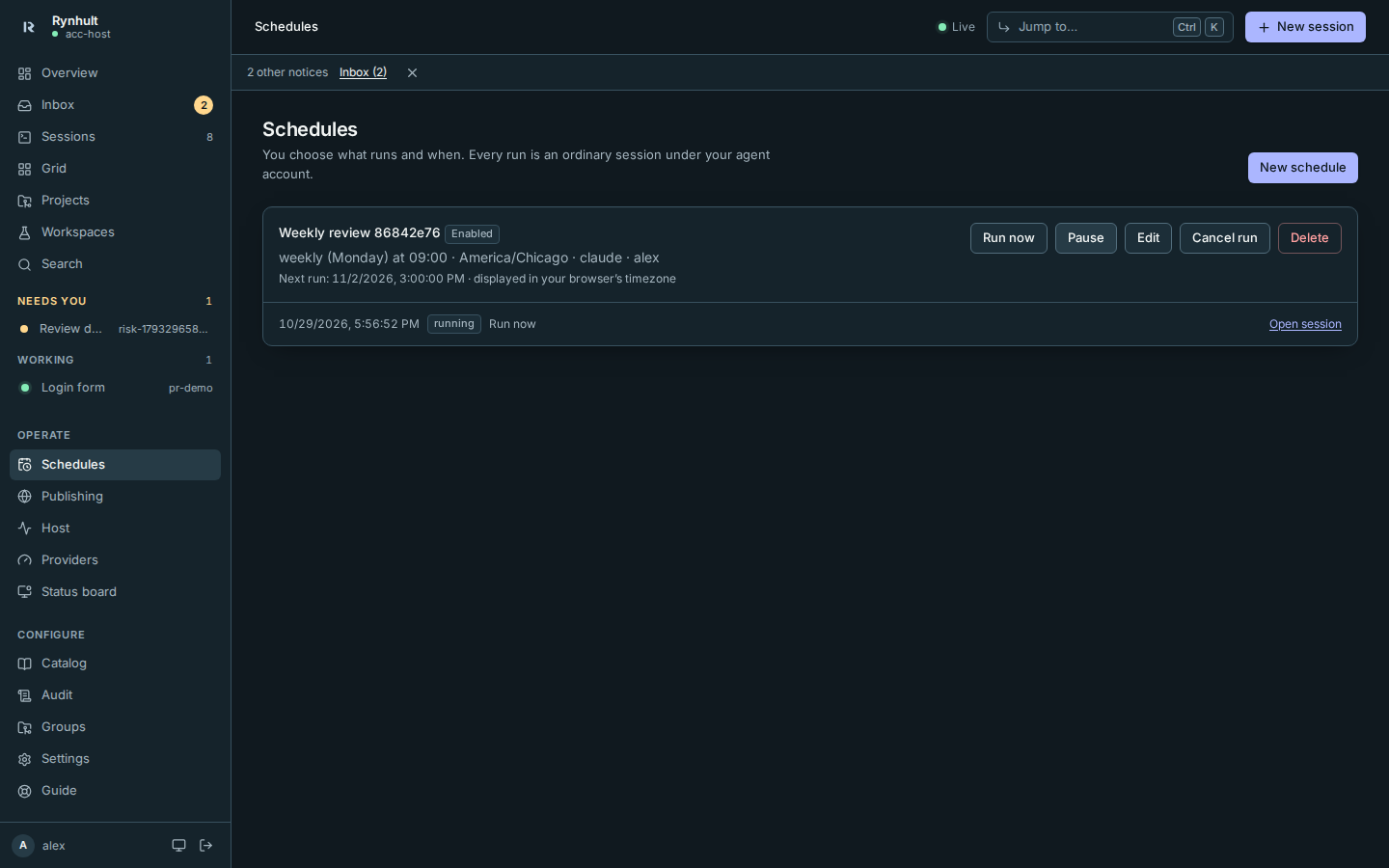
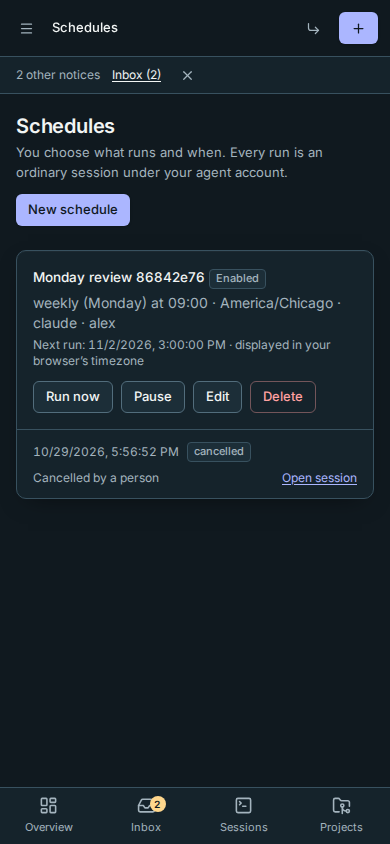
Use Run now to queue one run immediately, including while the timer is paused. Open session takes you to its ordinary session page. Cancel run (shown while a run is due or running) stops the active session and cancels queued runs; it leaves future timing unchanged. Pause stops future timer launches. Edit changes the saved launch and timing. Delete removes future timing and hides the schedule while retaining sessions and audit history; cancel the current run first if you want it stopped.
A session remains active while waiting for input or idle at its prompt. Stop it when finished to allow the next scheduled run. Rynhult skips a new run while a previous run is active, and records the reason. A paused budget also skips a run; schedules never override your budget.
Failures appear in your Inbox and use your existing push notification preferences. If Rynhult restarted during dispatch, it reports an uncertain launch rather than retrying it. Inspect the project and any worktree before using Run now. If project access or your agent account changed, restore access or create a new schedule for the correct account.
Saved launches retain issue-source selections and Orchestrator settings. Explicit confirmation of helper permission modes applies to each run of the saved schedule.
Occurrences whose target machine is offline are skipped with a Machine offline note. They do not create a failed session or a failure alert. The next scheduled occurrence uses the normal schedule. See machine roles and offline state.
This page is generated from docs/wiki/User-Guide/Schedules.md; the same page is under Guide inside Rynhult.