Settings
Screenshots use fictional demo accounts and fixed example metrics, not live systems or qualification evidence.
Settings holds your sign-in, keys, notifications and device preferences. Owners also manage people, guardrails, container limits, certificates, remote-access preparation and Rynhult updates.
Choose Settings section to show one section. With a keyboard, arrow keys change the choice without moving focus away from the chooser; Tab continues to the page controls. Section links and browser Back still open and focus their destination. All sections shows the full page without losing drafts. Section navigation uses button-styled links that preserve bookmarks and keyboard access. The Remote access button opens its dedicated page.
Settings needing attention links to warnings or errors that need action. Admin feature badges such as Needs verification and Needs qualification stay on the Admin features panel; an unqualified Preview alone is not an action. Actual cleanup failures and failed changes still need attention. Updates stays in its own section (or All sections), even if an update check fails; its attention link opens the error there.
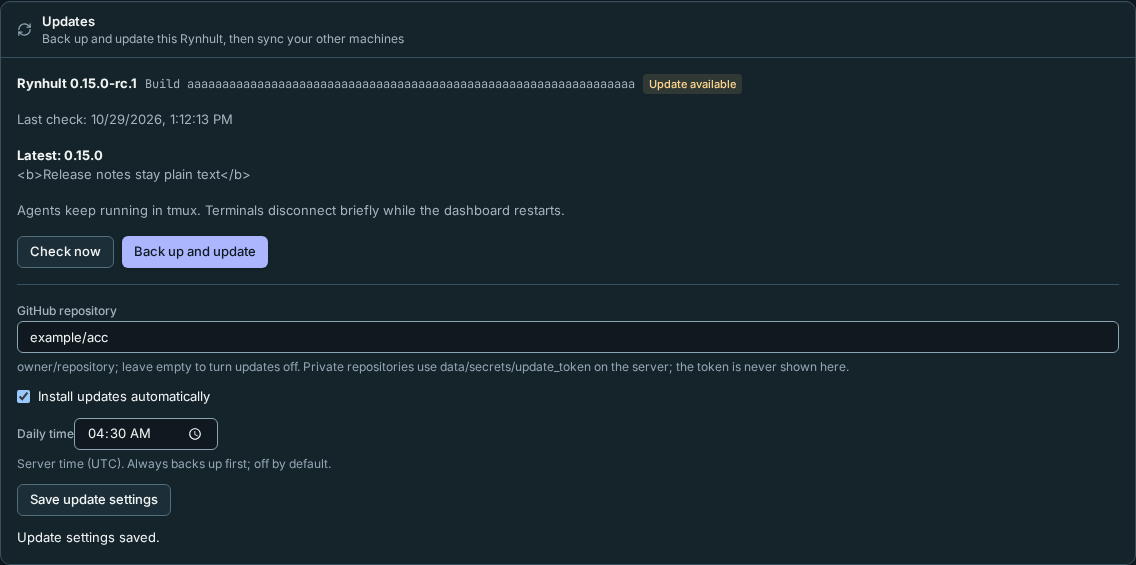
Open Settings in the sidebar and choose Updates in Settings section. It shows the running version and build, release notes, check status, backup and update controls, and the optional daily installation schedule. Members do not see this section.
See Updating Rynhult for update steps and recovery, Keys for API keys, People and sign-in for accounts, and Notifications and app for devices.
Remote access and your devices
Remote access is owner-only. Public access defaults Off; saving pairing settings never applies Caddy configuration. Owners choose a separate public hostname and private recovery address, review the exact configuration, and use Apply reviewed configuration or Turn off public access. The public status panel shows the last verified hostname, revision, allowed-device count and reload result. The separately installed and qualified signer and apply helper are required; this feature installs neither.
Everyone has an Access devices list: the browser identities that control access to Rynhult. Pairing uses a five-minute one-use QR/link, recent sign-in verification and a six-digit matching code that the owner reads on the new device and types before confirmation. Encrypted PKCS#12 or Apple identity-profile imports download once, with a separate password on the trusted device. Renewal is manual on LAN. Revocation ends all of that person's sign-ins and push subscriptions and closes registered terminals; the enabled Caddy policy is re-applied automatically. A failed apply stays visible as pending/unknown and attempts to remove public routing. Remove also deletes the registry record after the same cleanup.
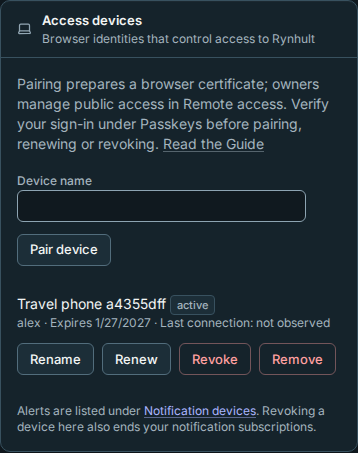
See Remote access for the complete steps and limits. Existing Certificate downloads still install server trust only. Phone OS import and PWA compatibility, public enable/off and outside-network verification remain qualification gates. Keep private recovery and do not forward a public router port for this preparation feature.
Company sign-in (pilot)
Company sign-in is off by default. Only owners see this section, and only
when the server operator enables organizations mode with
RYNHULT_ORGANIZATIONS=1 (or legacy ACC_ORGANIZATIONS=1). The owner must then
configure the provider and separately turn on Allow company sign-in.
This OIDC member sign-in slice is tested with a local identity provider, not a real Entra tenant. Owners keep local passkey/password sign-in. SCIM, automatic directory-group admission, SAML, LDAP and organization roles/teams are parked until after v1 (owner decision Oct 25), built on request or from contributions. They are not shipped on main. See Company sign-in with Microsoft Entra ID for pilot setup, member links and how to stop access.
Container limits
What it's for: how much each agent account's container sessions may use. Owners only; members don't see this card. Containers are a Preview, and the card is marked so.
- Open Settings and choose Container limits in Settings section. There is one row per agent account, with the people who use it.
- Each row has CPUs, Memory (GiB), Processes and Disk (GiB) for each session, and Sessions at once for that account's launcher-managed container sessions. An empty field means no limit.
- Change the numbers and select Save. Undo changes puts back what is saved; Member defaults fills in the defaults on a member's account.
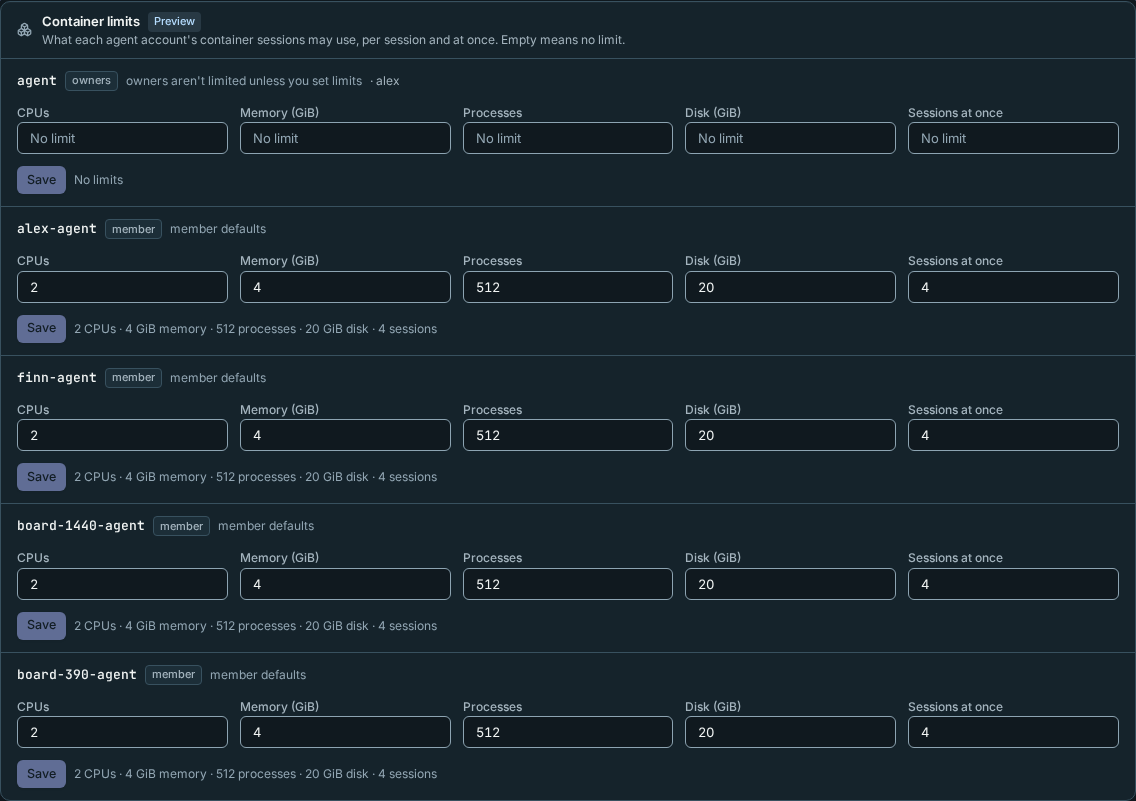
What you should see: the row's summary shows the saved limits (for example 2 CPUs · 4 GiB memory · 512 processes · 20 GiB disk · 4 sessions), and the change is in Audit. New sessions use it; running ones keep the limits they started with. Disk usage is checked every minute against that session's limit.
Defaults: a member's account starts at 2 CPUs, 4 GiB memory, 512 processes and 20 GiB disk per session, and 4 sessions at once. Accounts used only by owners have no default limits unless an owner sets some. A shared account with a member uses member defaults when no limits have been saved. When Rynhult creates an account for an invite, it gets its role's defaults.
Troubleshooting: the card says the limits aren't used yet while containers are off for this Rynhult. A number outside the allowed range (memory at least 0.25 GiB, processes at least 64) can't be saved. A session that goes over Disk is stopped (its work stays in its checkout); one that goes over Memory is stopped by the system.
Owner qualification: a separate command-line harness reports each mandatory check as pass, fail or skip. Every mandatory item must pass for GO; a skip keeps NO-GO. Normal projects and the container feature flag are unchanged while the owner qualifies a reviewed local image.
Inside a container launched by Rynhult, the container is the sandbox: Codex runs without its inner sandbox
and Chrome uses --no-sandbox. An immutable launcher contract selects this policy; environment variables
and repository files cannot select it, and it applies only when the container has no network beyond loopback.
The audit log's container.launch entry shows sandbox: container. Native sessions retain their existing sandboxes. In this container mode, Codex's read-only/workspace-write
choices do not add an inner boundary: the session mounts determine where tools can write. Proc masks,
seccomp, dropped capabilities, network isolation and immutable guard/hook policy remain in place.
Qualification verifies actual hooks/trust, Chrome, refused writes outside the session mounts, limits and
stop/recreation. It labels bubblewrap not applicable (container is the sandbox). Local prototype
execution cannot establish trusted-launcher authority; owner commands run through the registered broker.
For a fresh Linux qualification window, the source checkout's
scripts/containers-qualification/README.md provides the owner's preflight,
reviewed setup, JSON collection and guarded uninstall. It prints review hashes,
refuses existing state and leaves containers off. The original
scripts/container_qualification/README.md remains the qualification reference. No Settings
action builds or qualifies an image. Security review precedes merge; a scoped GO would not qualify live
credentials, Internet-enabled networking or production rollout.
Usage and bug reports
Owners can independently opt in to usage statistics and reviewed bug reports. Both are off by default. Preview the exact JSON locally, read every report before approving it, inspect the 90-day local send log, and request deletion. The default owner-hosted collector is a pre-release staging service; failures stay quiet and local. See Usage and bug reports for steps, retention and privacy limits.
Advisory risk labels
Show advisory risk labels is on by default. Untick it to hide the Routine, Review and Risky badges and reasons in Inbox and the session's Needs you banner. The choice saves immediately for your sign-in across devices; other people's choices are separate. A save failure appears below the checkbox. Turning labels off never answers a prompt or weakens guardrails.

See Inbox for the rules and limitations.
Self-hosted git servers
An owner can let projects read issues from a private GitLab, Gitea or Forgejo server. Members select an allowed server when connecting their project; they cannot add servers or approve private URLs. Public HTTPS servers need no allowlist entry.
- In Settings → Issue sources, select Add git server. Enter Server HTTPS base URL, such as
https://git.example.lan, including its port or installation path if needed. - If the server uses a private certificate authority, upload Custom CA certificate (PEM, optional). This trusts the CA only for this server; it does not change device or machine trust.
- Select Resolve addresses. Check that every displayed address belongs to that git server, then select I confirm these addresses belong to this git server and Allow server.
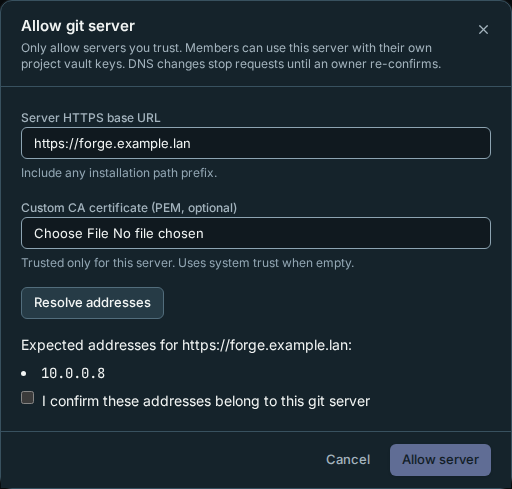
The server appears in the list and becomes available in the project's GitLab server or Gitea / Forgejo server picker.

Rynhult checks DNS again before every outbound request and connects to a checked address. If DNS changes, reads and session launches stop. Select Re-confirm addresses, resolve again, inspect the new addresses and confirm. Upload the CA again to retain custom trust; leaving it empty switches to system trust. To change the base URL, add a new entry and reconnect projects. Remove asks for confirmation and disables connections using that entry. Additions, reconfirmations and removals appear in Audit.
Troubleshooting: allow only the intended git server. Loopback, metadata/link-local and other special addresses remain refused, even for owners. Use HTTPS with a certificate matching the server hostname. Redirects are refused; enter the final server base URL. A DNS-change error needs owner reconfirmation, never a token pasted into the project.
Publishing addresses (owners)
Publishing lists public and internal DNS targets separately. Add labeled IP addresses or CIDR blocks, choose a default, review detection suggestions and remove unused entries here. See Publishing for steps and a screenshot.
DNS and certificates
Owners can save the DNS provider, zone, Certificate credential and Publishing credential in Settings. Cloudflare is qualified and remains the default. Azure DNS, Route 53, Google Cloud DNS, DigitalOcean and Hetzner DNS remain offered in preview. Each preview picker entry and saved binding shows Preview: not yet qualified for this release, with the note Cloudflare is the qualified provider. Existing bindings and credential replacement remain intact; release labels come from the server. Production consumer/binary qualification is still required.
- Add dedicated credentials under Infrastructure Keys.
- In the DNS section (card DNS and certificates), select Configure DNS. A recognized Cloudflare key name can suggest the provider. Rynhult never converts an ordinary project key or silently reuses its value.
- Choose DNS provider, enter Zone name (for example
example.com), and select separate purpose-bound credentials. Check Confirm provider and zone, confirm Current password, then Save DNS binding.
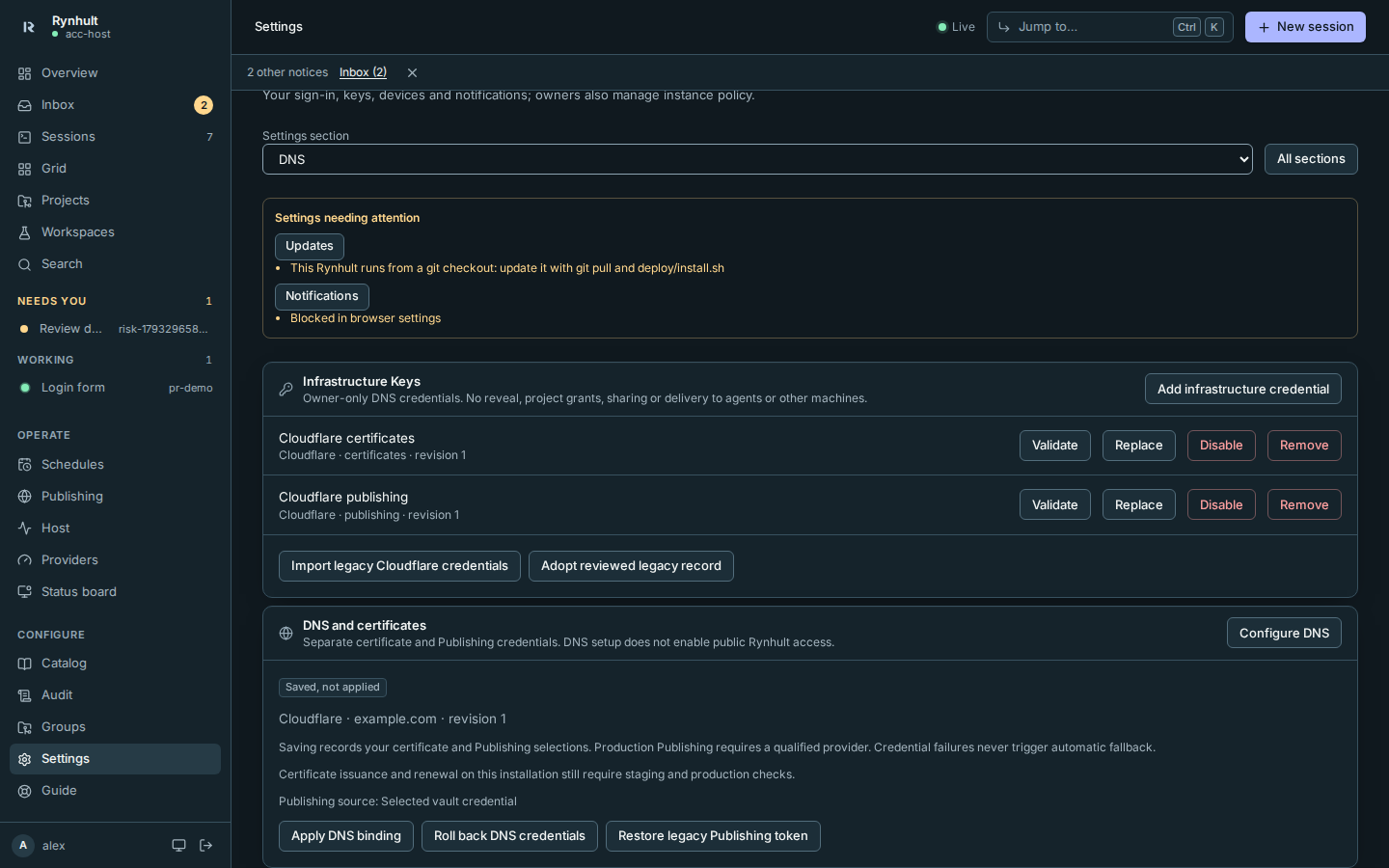
- Saved, not applied means Caddy has not changed. Apply DNS binding requires the installed root helper, a locally approved zone policy and an independently qualified binary release. Confirm your password for apply. A rejected or unavailable helper leaves saved settings unapplied. Wrong passwords and refused or unavailable helper attempts are recorded in the audit log. Caddy reload is not proof of certificate issuance or renewal; complete operator staging and production checks.
- Roll back DNS credentials restores the previous helper generation within 24 hours. Confirm the old token has not been revoked. Rollback is one step: a second rollback is refused until the next apply. If you save a change while an apply is still running, the binding stays Saved, not applied; apply again to use it. Root policy changes and initial helper deployment require a local operator.
Fresh installations continue with Internal certificates and tls internal. Trust the internal root on each
client before entering credentials. DNS settings never open ports, change the private source filter or authorize
public dashboard access. Brief stream interruption is possible if a credential rotation requires a controlled restart.
The checked-in release manifest is deliberately pending until release CI supplies independently reviewed artifact hashes and qualification evidence. An unqualified release cannot be installed or applied. Phase 2 supplies live issuance/renewal qualification and the portable Publishing adapter/ownership ledger. Existing Publishing continues using its legacy credential until that consumer cutover is qualified.
Passkey sign-in
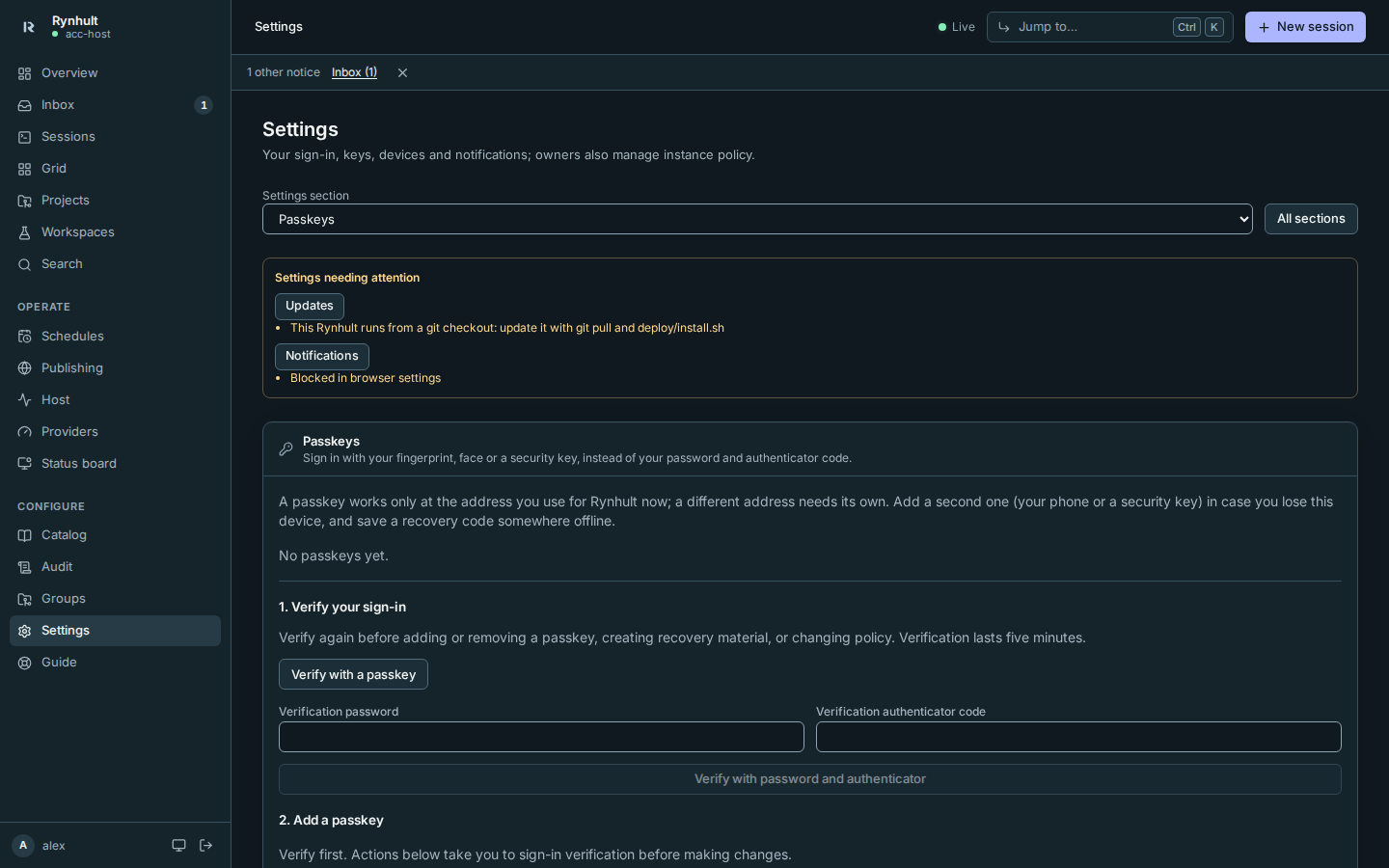
The Passkeys card lets each person add, name, list and remove passkeys after recent verification. Owners also set Allow or Require per role. Save an offline recovery code and enroll spare authenticators before requiring passkeys. See People and sign-in for setup, hostname rules and lost-passkey recovery.
Passkey changes are disabled while Rynhult is offline. The controls work again after the connection returns.
Find a section
Settings opens at Passkeys. Use the labelled Settings section chooser to focus one section: Personal holds your own access devices, passkeys, password, sign-ins, notifications and notification devices, keys, risk labels and guardrails (and Certificate when it applies to you); owners also see Instance administration. All sections shows the full page and its grouped links for scanning. Back to settings sections returns to the chooser. Section links stay in the URL, so bookmarks, reload and the browser’s Back button work.
Switching sections keeps unsaved drafts while you remain on Settings. Warnings and errors from other sections remain in Settings needing attention, with links to their controls. A section with an error also opens so its error and controls remain available. Choosing a section does not save its form. Leaving Settings or reloading can discard unsaved drafts.
DNS credentials and certificates
Save DNS binding records your choices. Apply DNS binding asks the root helper to load certificate configuration into Caddy. Neither a readable credential nor an applied binding proves successful issuance or renewal.
For Linux private-CA trust, download rynhult-root.crt, open a terminal in its directory and use Copy Linux trust command. Firefox has separate certificate import settings. Fingerprint copies use the same honest success/fallback feedback.
See DNS providers for Azure service-principal setup, Route 53 policies, legacy Publishing rollback and reviewed record adoption.
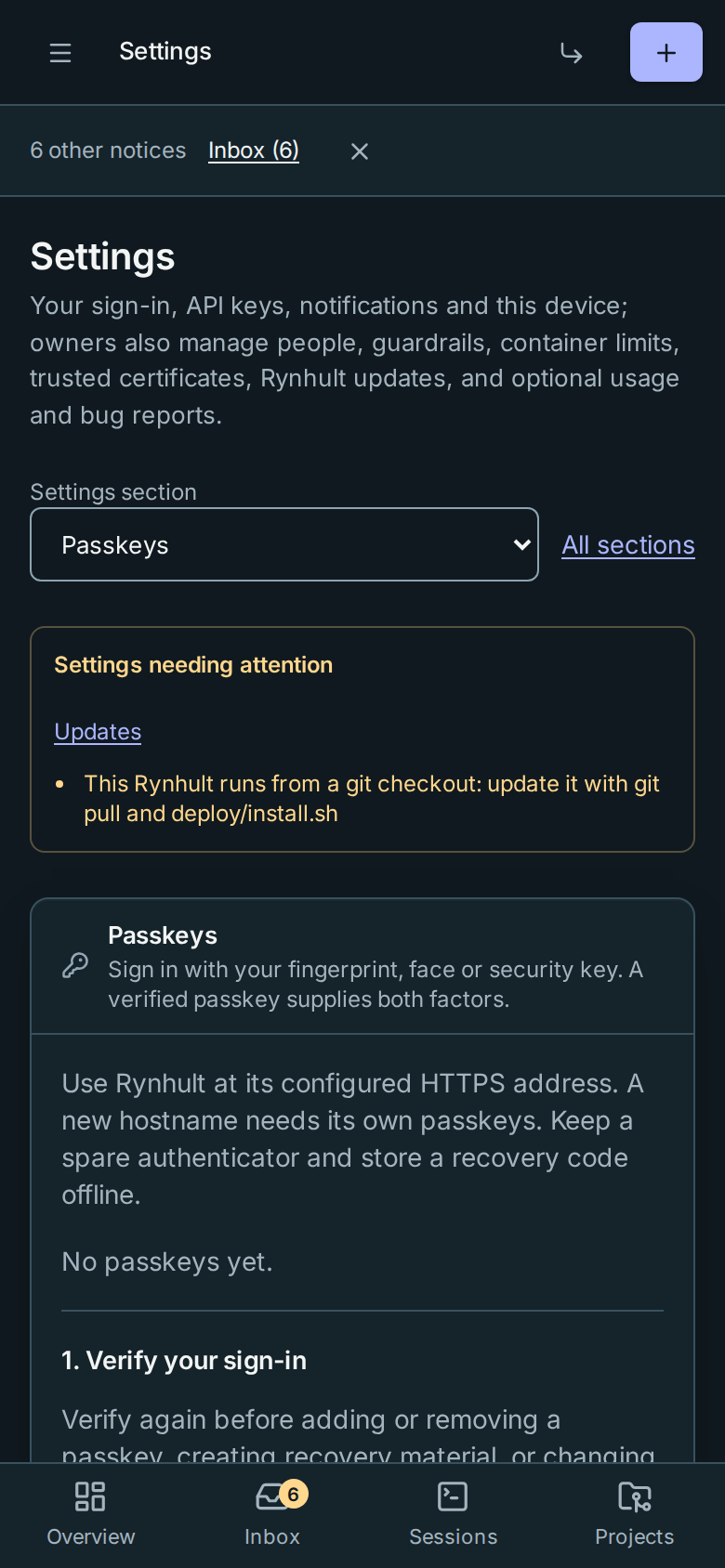
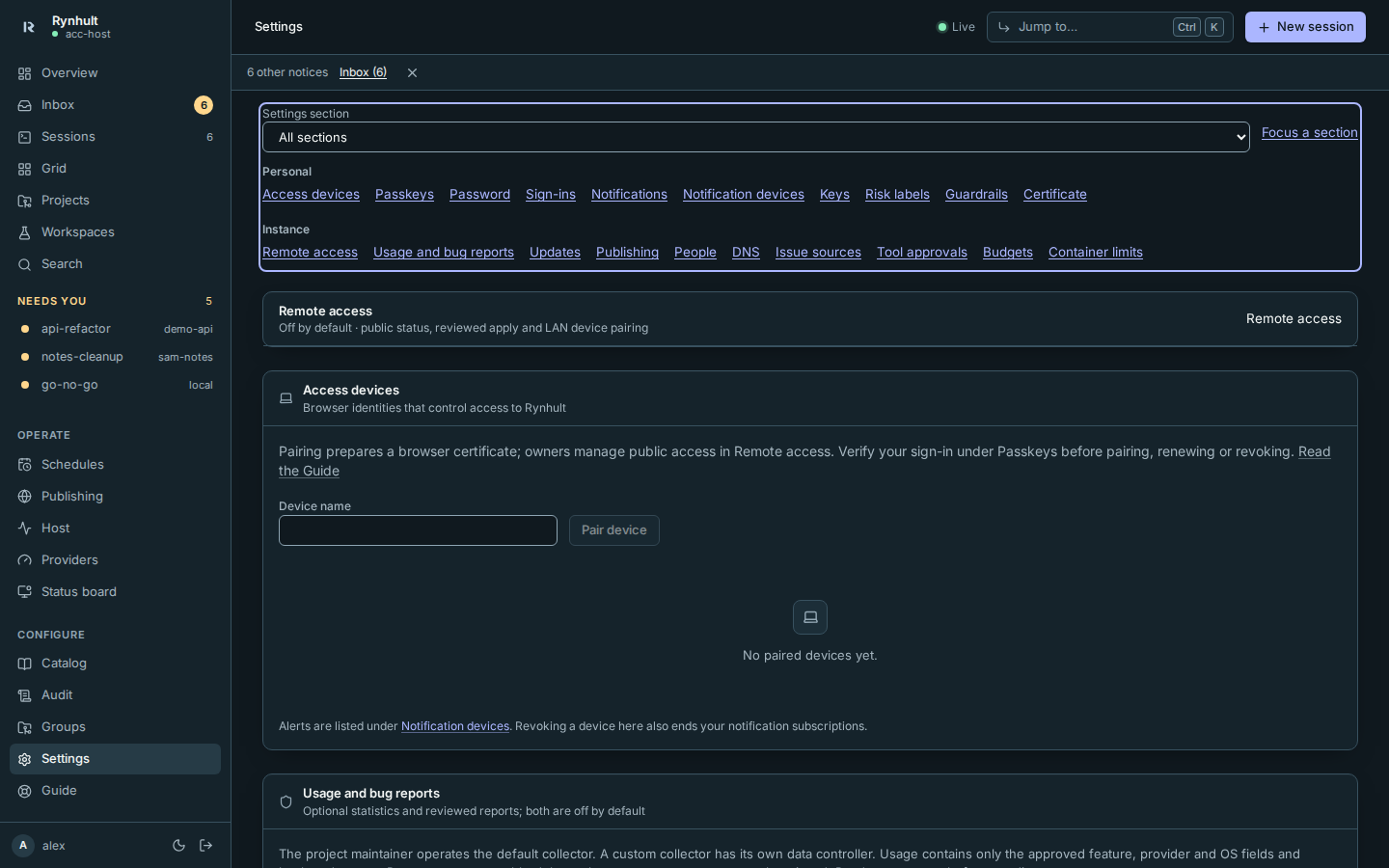
Access devices lists your paired browser identities; Notification devices lists the devices that
receive alerts. Removing a notification device does not revoke access; revoking an access device also ends that
person's notification subscriptions. Each card links to the other. Older links to #your-devices and
#devices still open these sections. Owners can use the Remote access section link to prepare LAN
pairing and review public status. Saving settings does not enable public access. See Remote access.
Admin features
Owners can show or hide optional features in Settings → Admin features. Server configuration locks take precedence, and Preview qualification still applies. See Admin features for verification, saved data and pause/stop behavior.
Image access
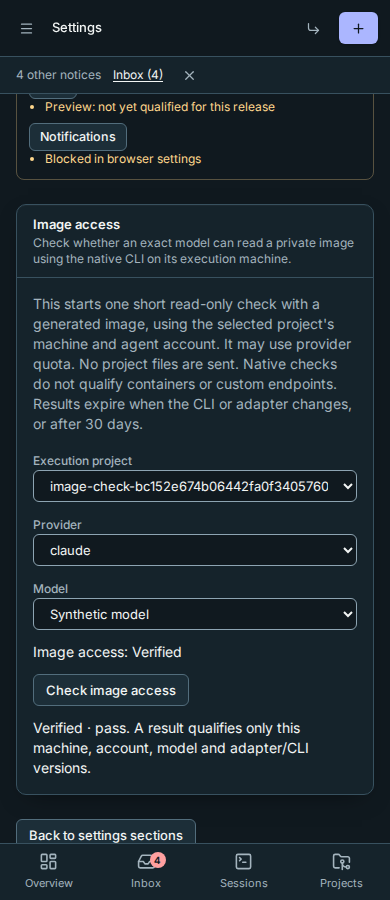
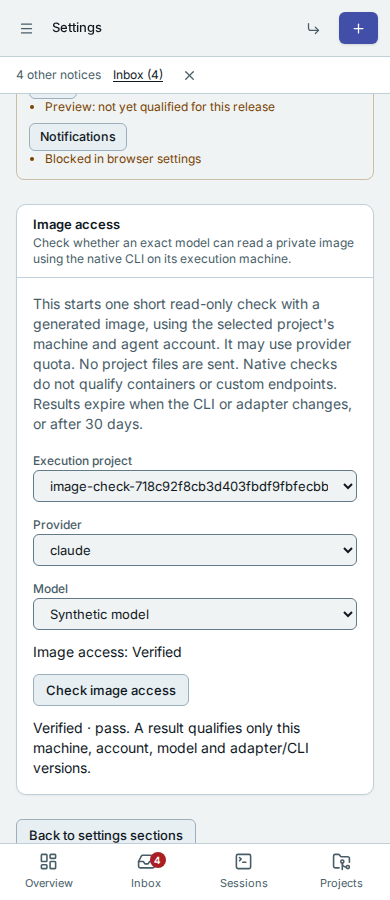
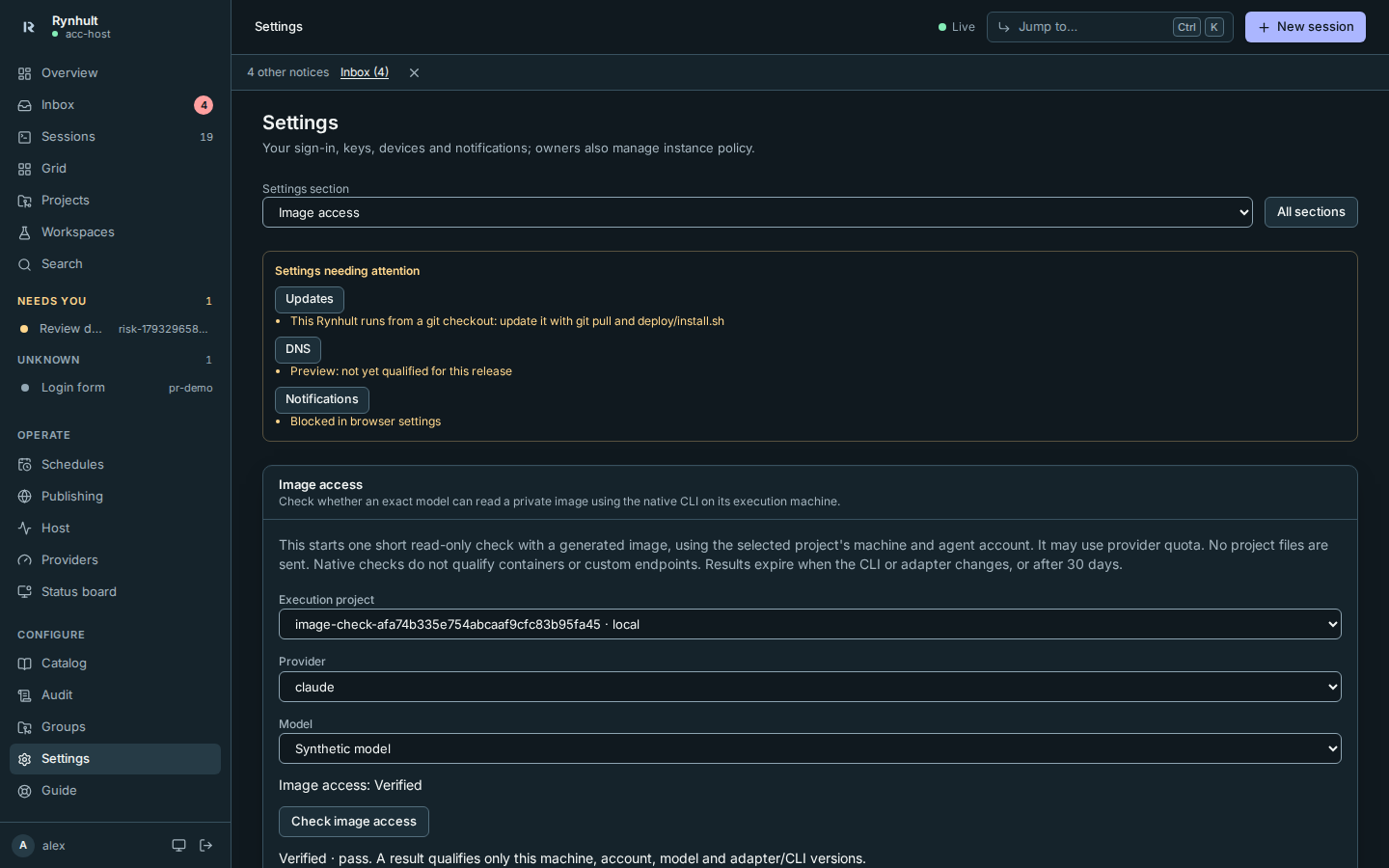
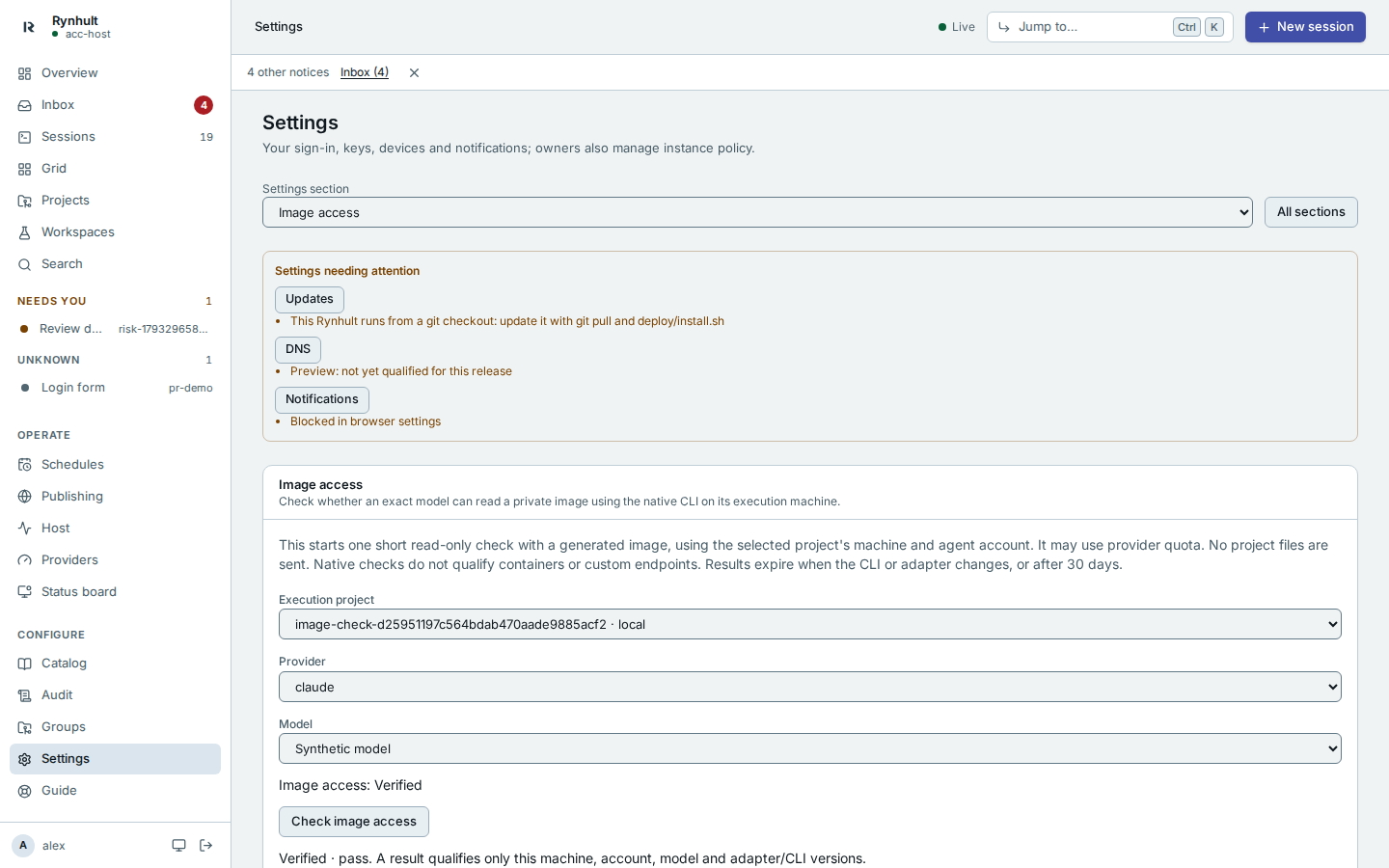
Owners can open Settings → Image access, choose a trusted execution project, provider and model, then select Check image access. The project chooses the machine and agent account; the check uses its own empty, private Git working tree, not your project's files. It may consume provider quota and takes up to about a minute. A paused provider budget must be adjusted first. Wait a minute between checks for the same machine/provider.
Rynhult generates a PNG with three coloured shapes and a four-character code. A
short restricted read-only CLI turn reads it. All three coloured shapes must match
exactly, in order, and the four-character code may have at most one substitution.
An exact answer is Verified with outcome pass; one code character wrong is
Verified with outcome pass, 1 character misread. Two or more wrong code
characters, a missing code character, or any wrong shape is Unavailable.
An execution/protocol/sign-in error is Unknown. Expected and observed answers
are retained in the evidence, including tolerated misreads.
Unknown is also the starting state. Neither Unknown nor Unavailable can satisfy an
orchestrator assignment's image_input requirement. Fix sign-in or update the CLI,
then run the check again; a model's name never establishes image support.
Qualification is for the exact model ID, machine, agent account and CLI/adapter versions and broker installation identity. A replacement installation must qualify again even when it keeps the machine name. Aliases are not expanded to other model families. Results expire after 30 days or when a CLI/adapter version changes. Selection and start check fresh execution metadata; an older model-list snapshot is not a launch grant. A passing check establishes this generated-image path, not perfect reading of every screenshot or PDF. The audit keeps the date, outcome, generated test answers and image/response digests, not raw CLI output, sign-in credentials or your private images.
Claude uses its workspace image read tool; Codex uses its image input flag; Copilot uses a local image attachment. Each must actually pass: none is pre-qualified. Custom model endpoints and per-session containers stay Unknown; native checks cannot qualify a different endpoint or container runtime. Choose a native execution project for this check. Other providers stay Unknown until a restricted adapter is implemented and checked.
This page is generated from docs/wiki/User-Guide/Settings.md; the same page is under Guide inside Rynhult.