Files
Browse and edit a project's folder, a workspace, or a session's own worktree from Rynhult. Owners can open every project; members can open only their own, with the same access as sessions.
Open and edit
- Open a project and select Files. For a workspace, open its card's three-dot actions menu and select Files. A session's Files tab opens that session's worktree rather than the main project checkout.
- Expand folders as needed and select a file. Rynhult loads one directory at a time. M means modified, N means new and I means ignored by git. File sizes appear beside the names.
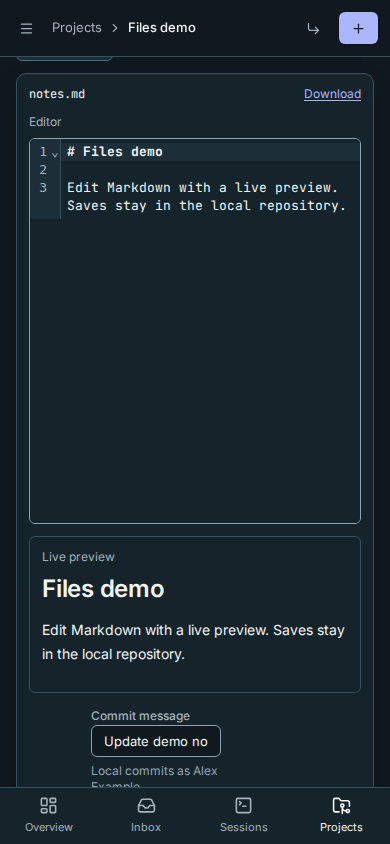
- Edit text in the editor. Markdown has a Live preview beside it on a wide screen and below it on a phone. Code has syntax highlighting. Preview images in Markdown are represented by their alt text; the preview does not fetch external images.
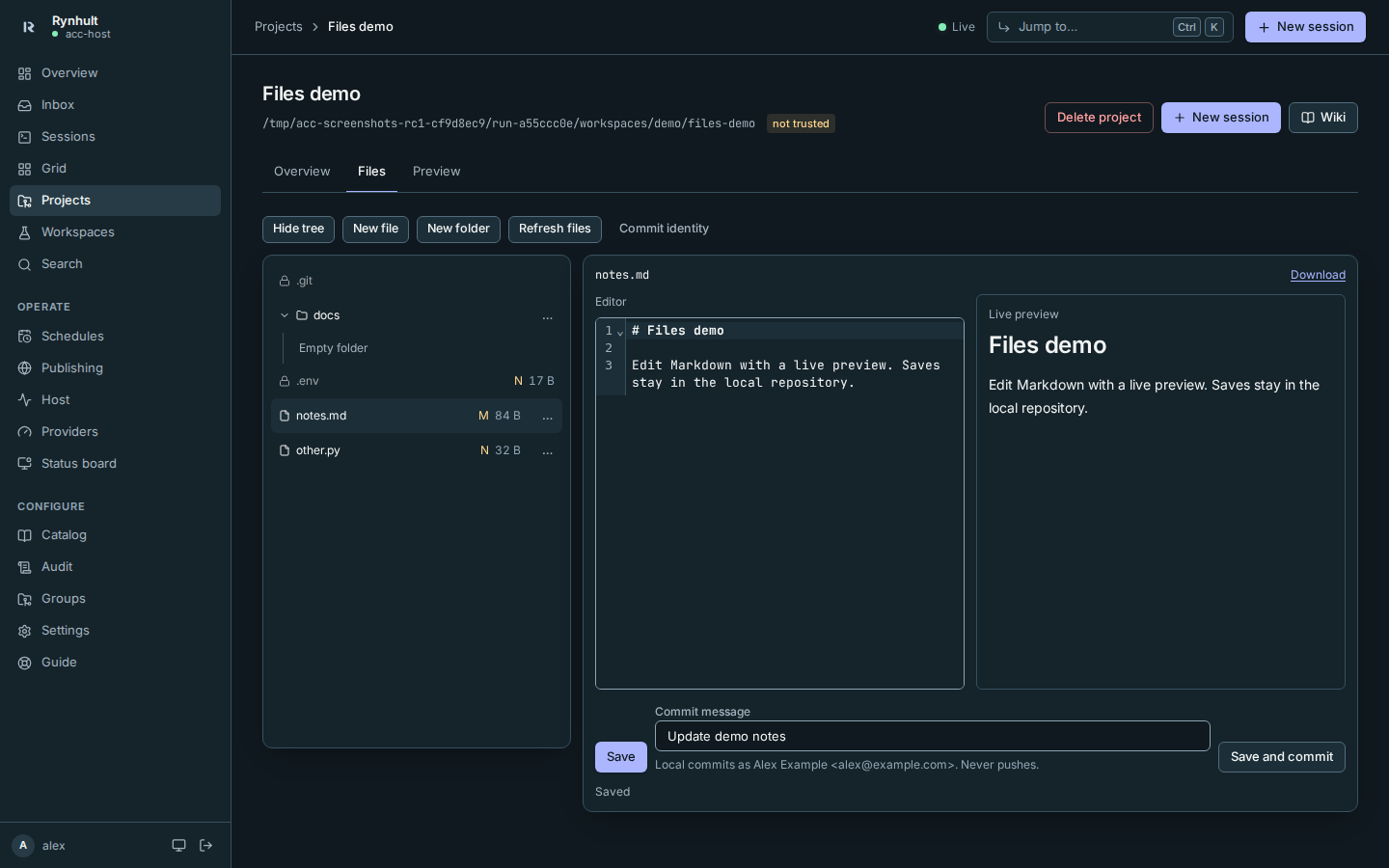
- Select Save to write the file. Refresh files reloads the tree and, when there are no unsaved edits, the open file. Switching files asks before discarding a draft.
- On phones, choosing a file collapses the tree and focuses the loaded file. Show tree brings it back; Hide tree closes it manually. Cancelling a draft warning keeps the draft, selected file and open tree unchanged. The tree stays open on desktop.
Commit locally
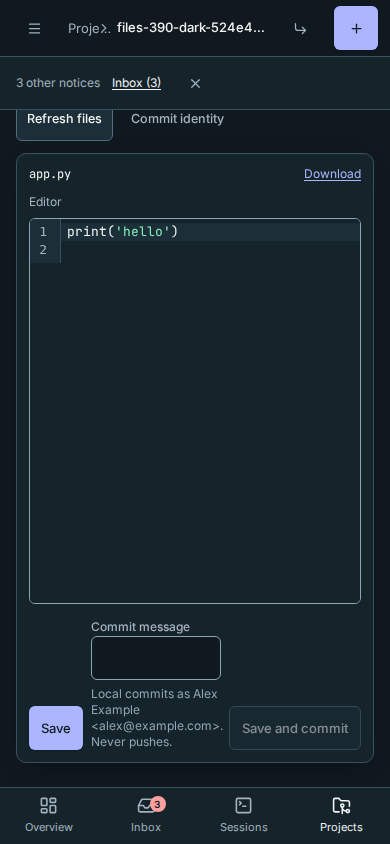
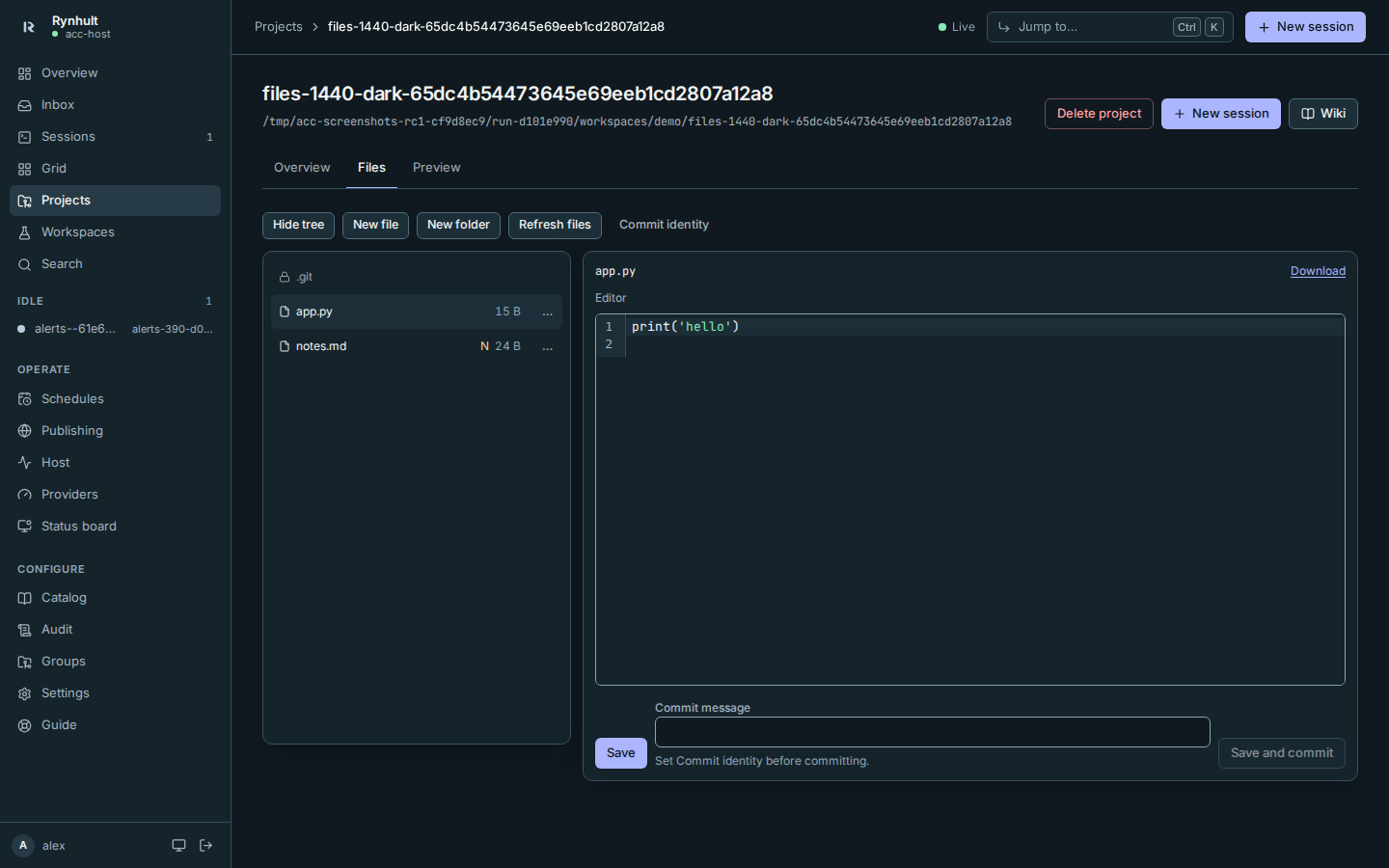
- Select Commit identity, enter your Commit name and Commit email, then Save identity. This is your account's identity on every machine, including when an owner edits another person's project.
- Enter a Commit message and select Save and commit.
Rynhult saves and commits this file's editor contents on the current branch. Other staged work stays staged; repository hooks, signing and clean filters do not run. There is no push. A detached checkout cannot be committed: choose a branch through your agent first. If committing fails, the file stays saved and Rynhult says so; correct the repository problem and retry Save and commit.
Files and folders
- New file and New folder take a path relative to the open folder's root. Parent folders must already exist. Select a new file from the tree to edit it.
- The … button beside an entry opens its rename and delete actions. Confirm the action before anything changes. Existing destinations are never overwritten.
- Renaming a folder preserves ordinary contents, but refuses protected files, links, special files and trees over 2,000 entries. Delete folders only when empty. Deleting uncommitted work cannot be undone through Rynhult.
Concurrent edits
A session is working in this folder warns that an agent may also be editing. You can continue. If the file changes after you open it, Save refuses to overwrite it and shows File changed on disk: the editor retains your draft and a separate panel shows the current disk version.
Compare them, then choose Keep draft and use current revision to merge any needed changes into your draft and save again. Use disk version asks before discarding your draft. Further changes on disk cause another conflict. The final filesystem replacement is atomic; an external program that writes during the tiny interval after the last comparison cannot participate in Rynhult's editor lock.
Protected files and limits
Secret files remain listed with a lock: .env (except templates such as .env.example), private keys, credential stores, session.env, Rynhult's run folder and git internals. They cannot be opened, downloaded or changed. Symlinks and special files are unavailable, including links that point inside the folder. The registered folder and every parent leading to it must also be real directories, without symlinks. Folders inside .git or a protected credential folder cannot be used as a Files root; choose the ordinary project folder instead.
Text is limited to 1 MiB. Larger files show Too large. PNG, JPEG, GIF and WebP files within that limit have a preview. Recognized MP3, WAV, Ogg audio, M4A, MP4 and WebM files have audio or video controls; playback depends on your browser’s codec support. Playback does not start automatically. HTML and SVG are never rendered inline; other binaries are download-only. Download keeps the original file name and extension. Downloads are limited to 4 MiB. Directories over 2,000 entries are refused rather than silently truncated.
On Linux, parents leading to a registered folder need only traversal permission. They do not need directory-listing permission; the folder being browsed still does.
Known vault values, including retained previous values, are redacted from everything Files displays. Redacted text is read-only to prevent overwriting the original with placeholders; ask your agent to edit it instead. Text downloads are redacted too. A binary containing a known vault value is refused.
If a file cannot be opened, check its size, path and type. Broker unavailable means its machine or agent broker is disconnected; reconnect it and refresh. Old machines need a broker update before they can serve Files. Files and commits remain on the machine where the project lives.
Unsaved edits also prompt before Back/Forward, changing tabs or following another Rynhult link. Choose Cancel to keep editing, or Discard draft to leave. Reloading or closing the page uses your browser's unsaved-changes warning.
Starting a save clears the previous save message. If the connection fails, your draft stays in the editor and the error is shown; retry Save after reconnecting.
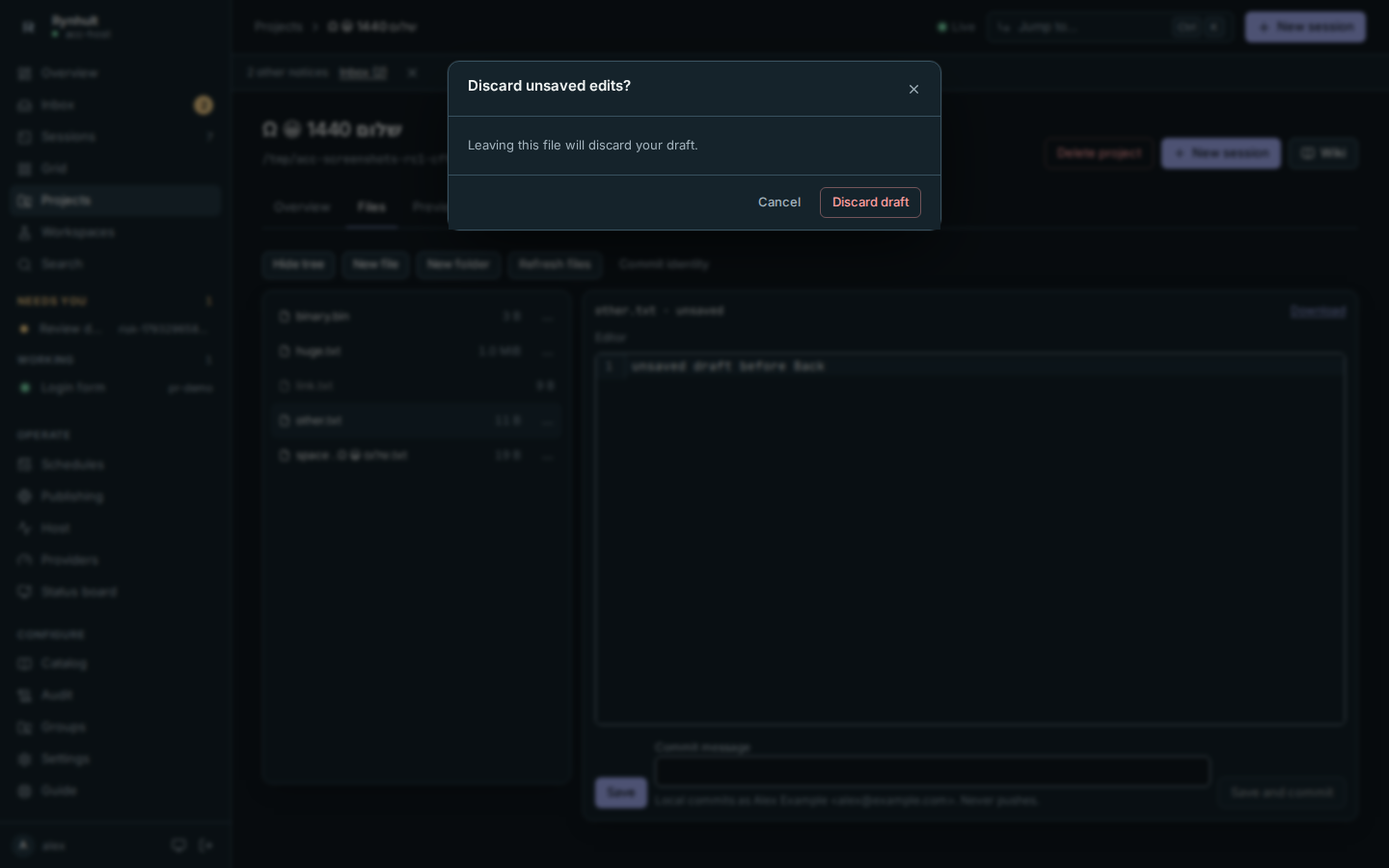 Cancelling a navigation warning also keeps an in-progress save's status intact.
This page is generated from docs/wiki/User-Guide/Files.md; the same page is under Guide inside Rynhult.